
Speed up roster creation by adding a grade or roster filter
Filter the student list by a grade or a roster, then add everyone in it in one click instead of one by one.
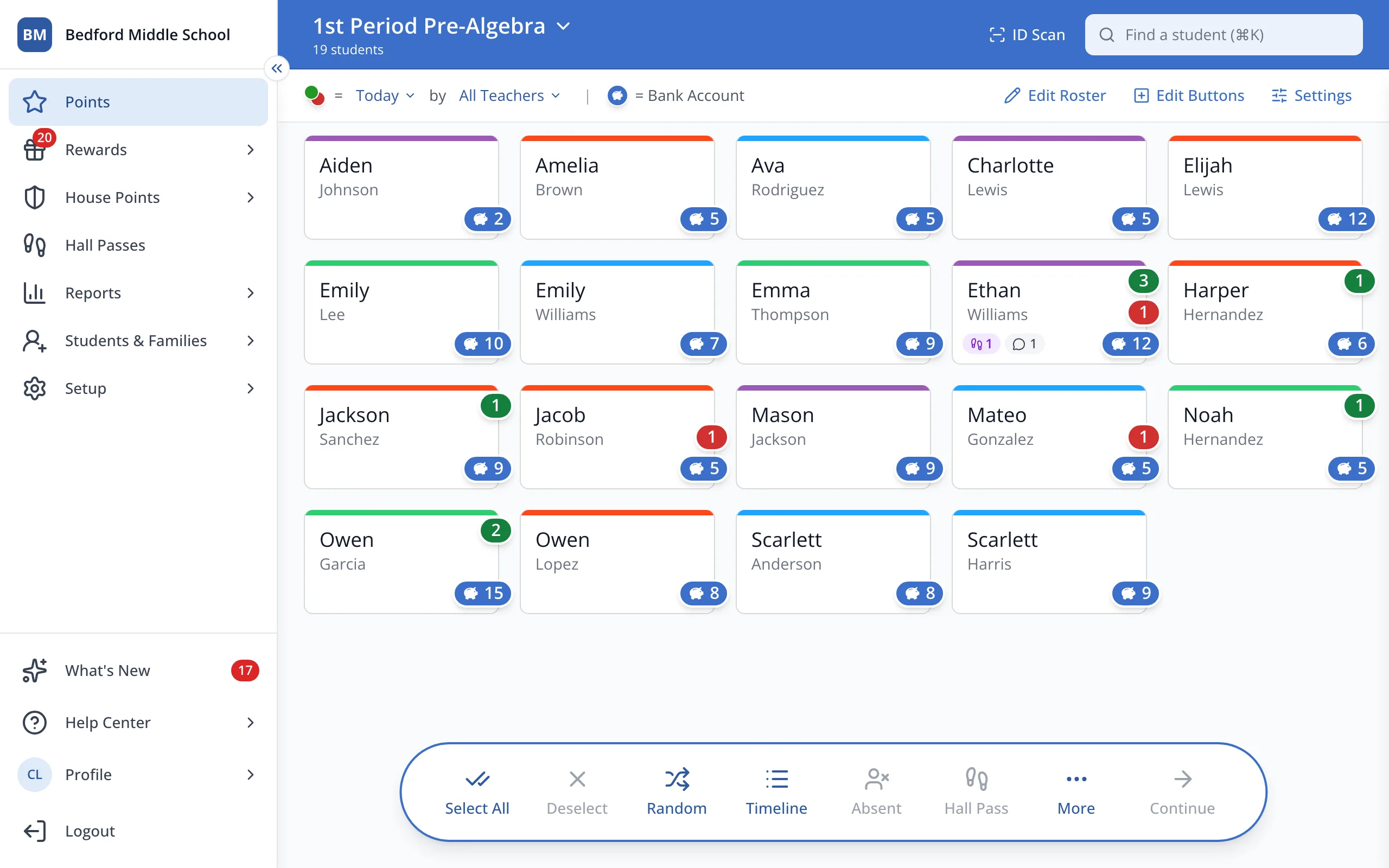
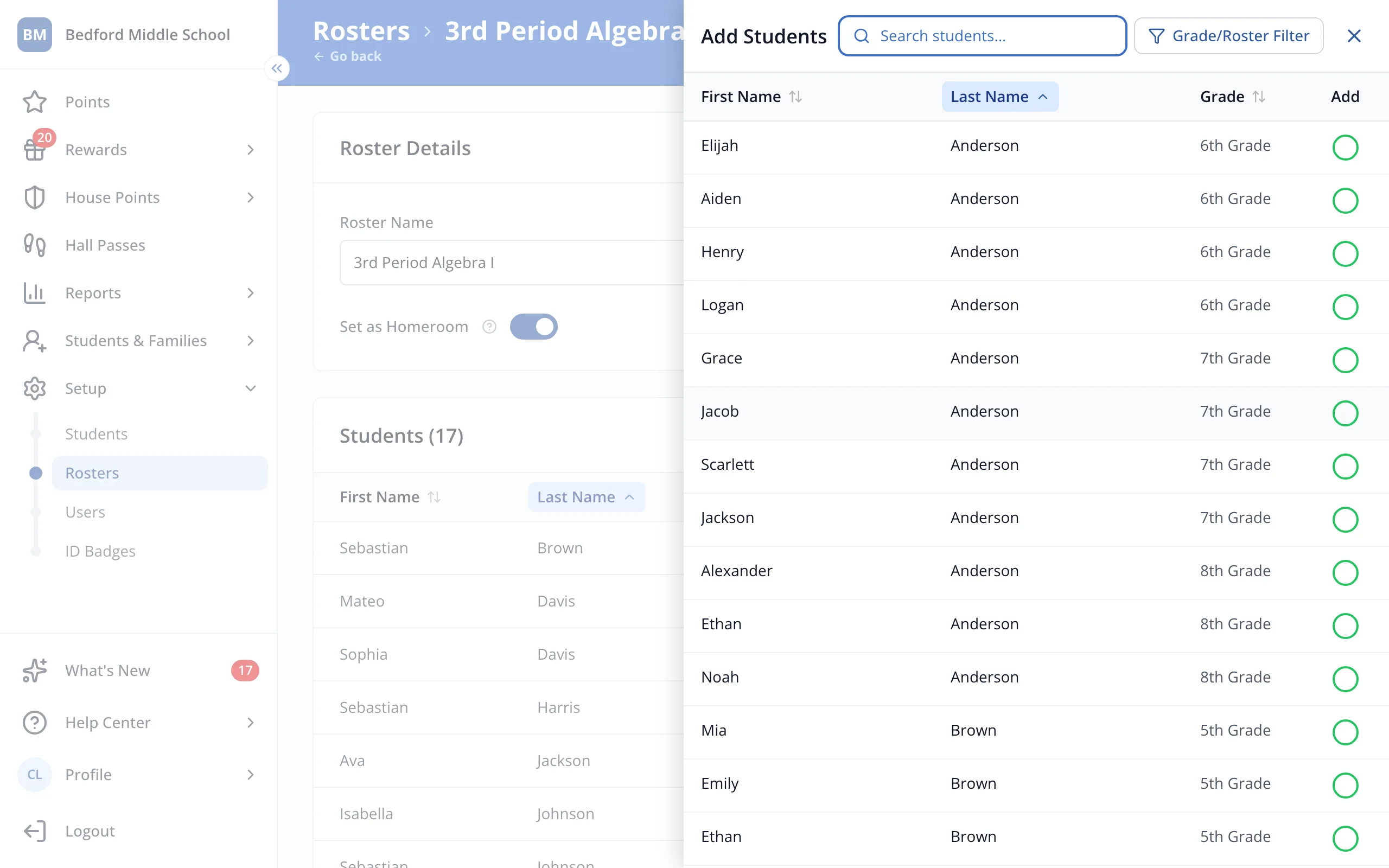
1 / 9In the sidebar, click Setup.
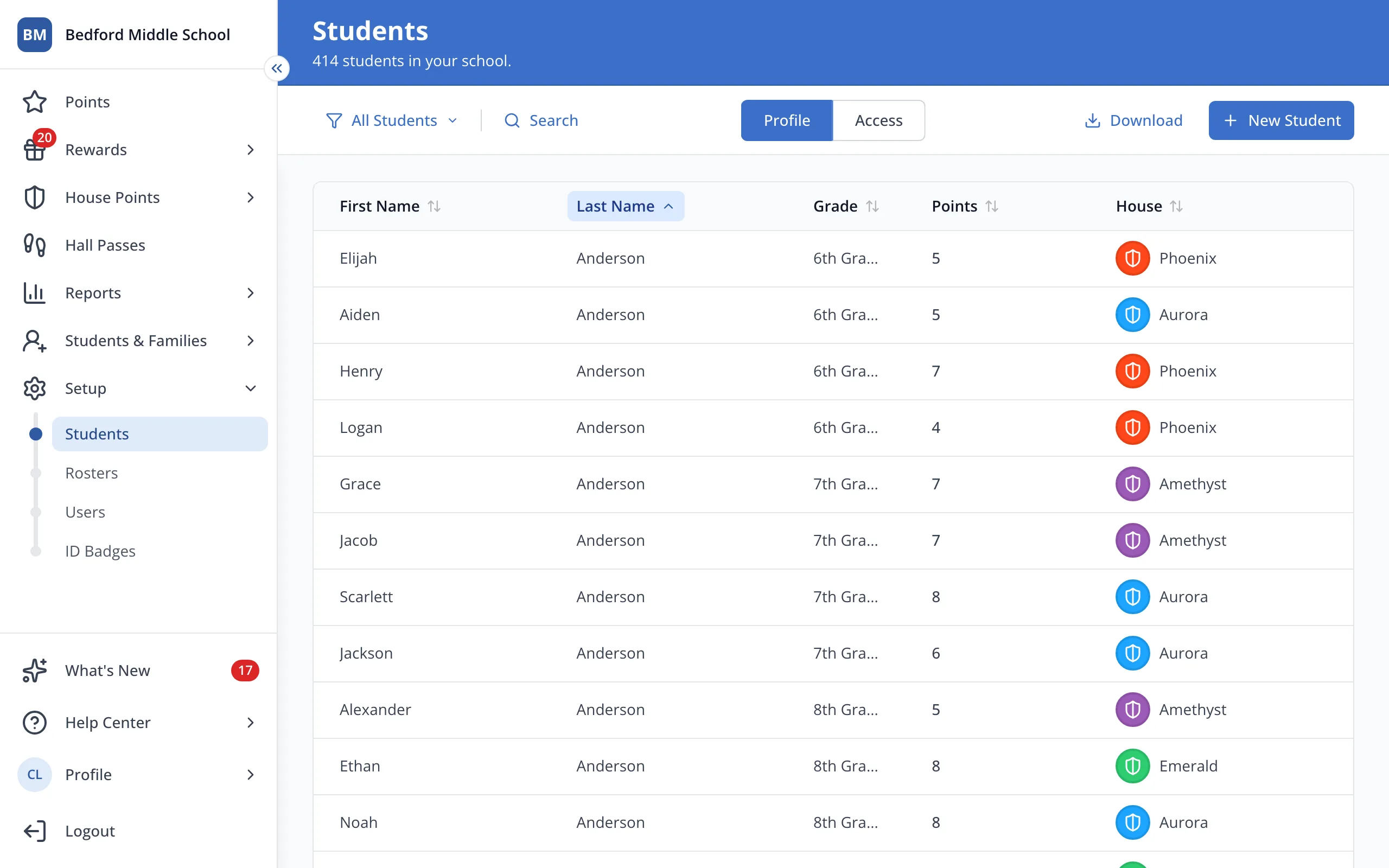
1.In the sidebar, click Setup.
2.Click Rosters.
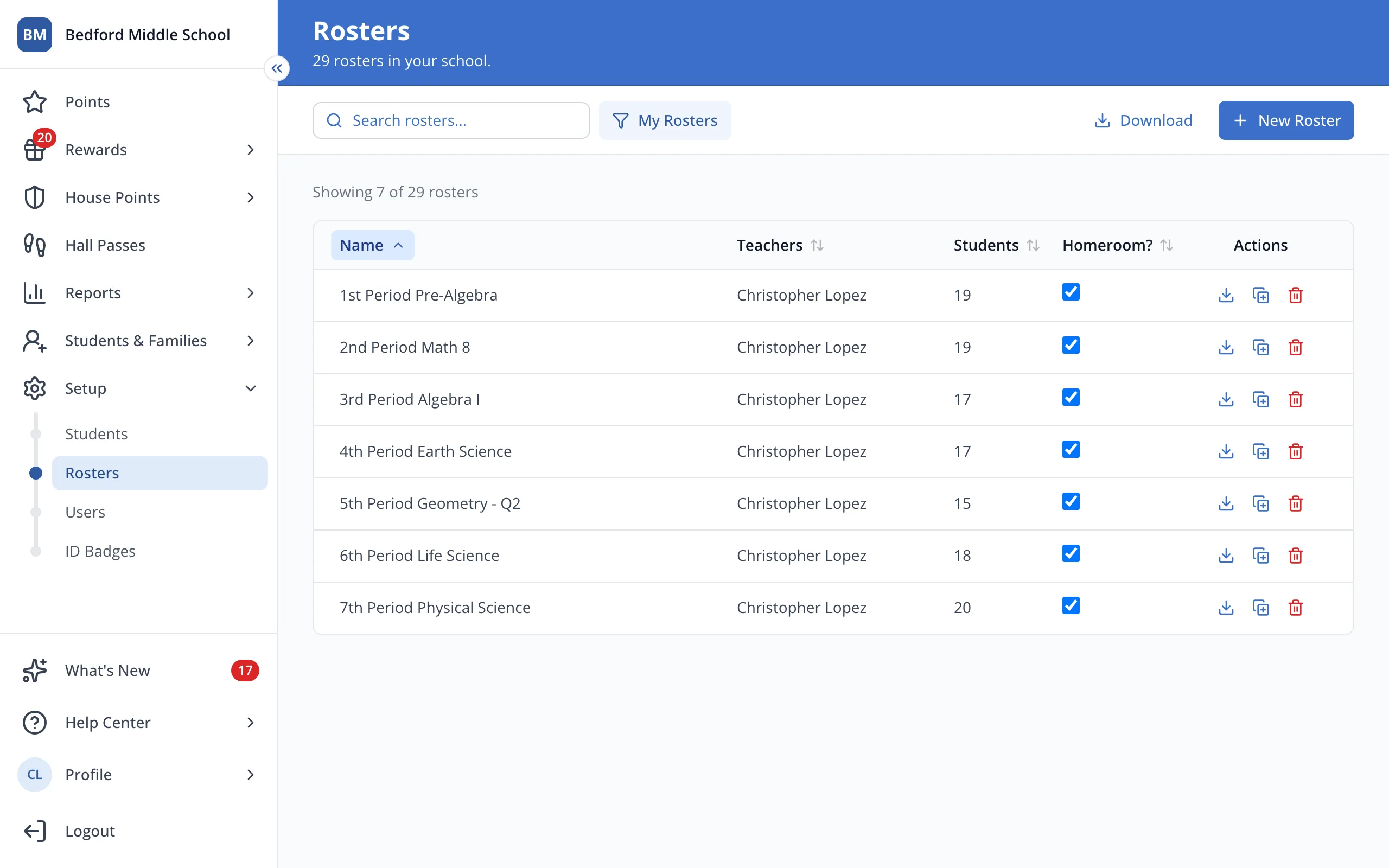
3.Click the roster's name.
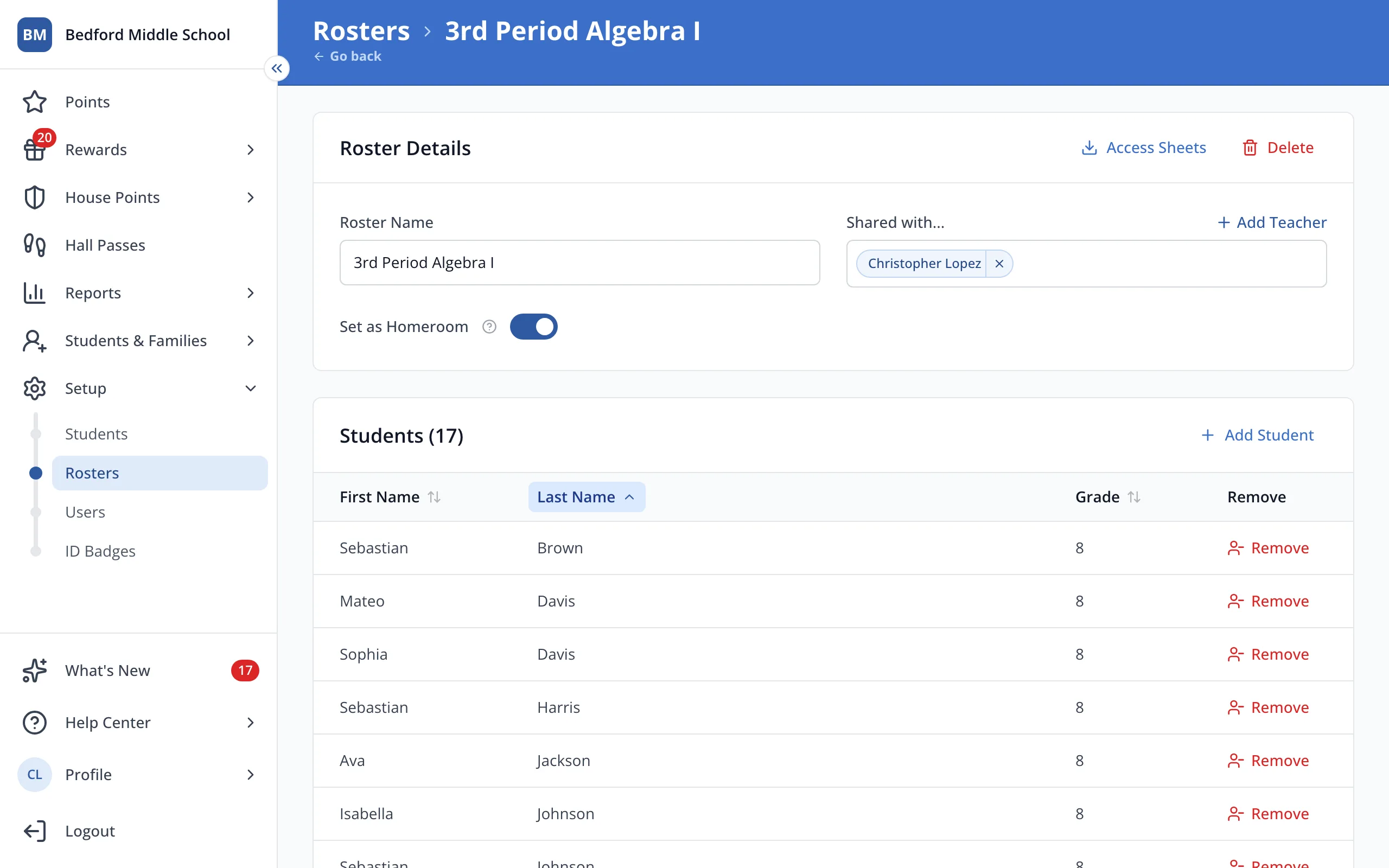
4.Click Add Student.
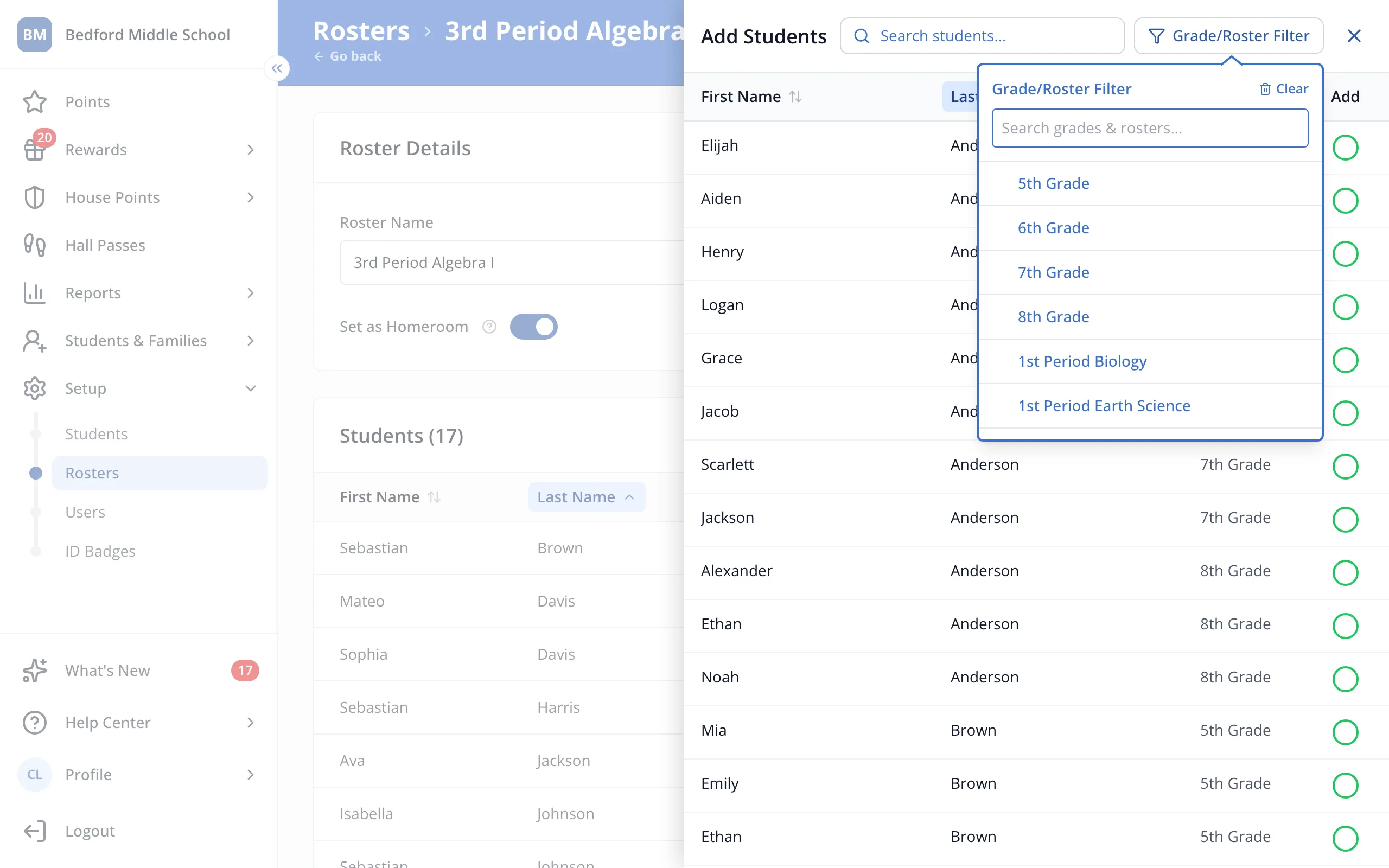
5.At the top of the panel, click Grade/Roster Filter.
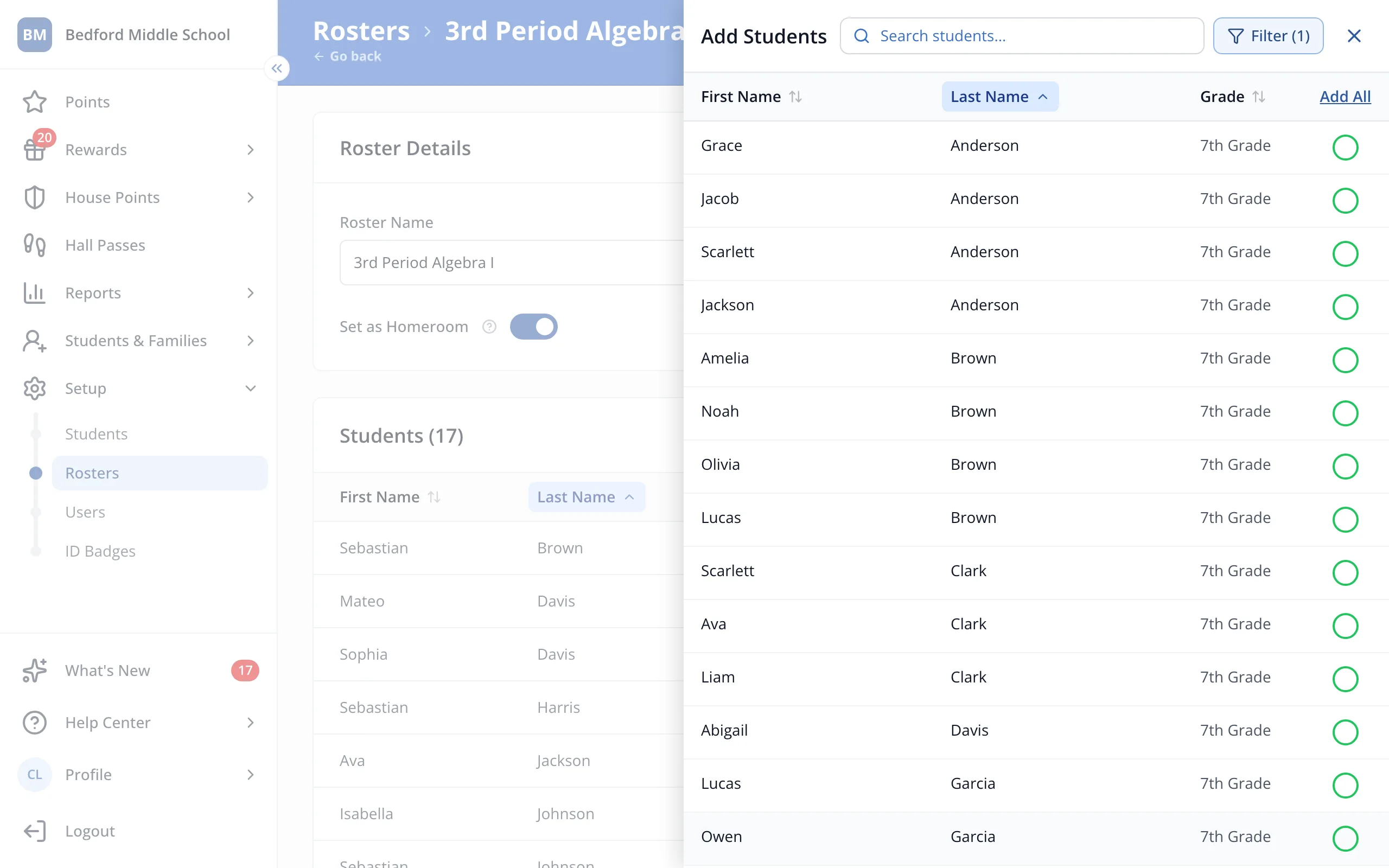
6.Click the grade or roster whose students you'd like to add.
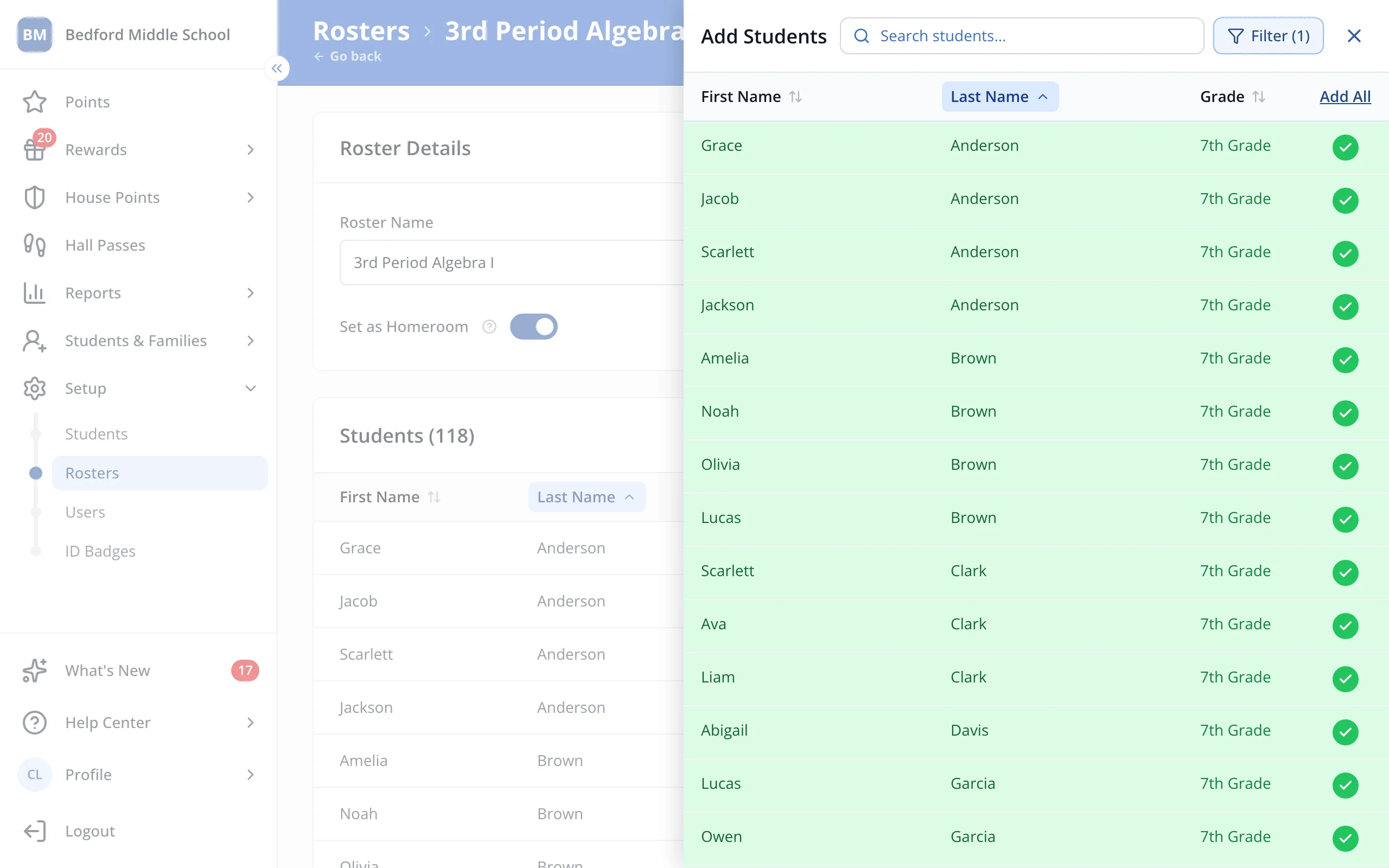
7.Click Add All.
8.You'll see a green check next to each student. Click the X at the top of the panel.
Was this helpful?