
Assign rosters to a teacher
Give a teacher several rosters from one place. Each roster you add shows up in their My Rosters.
AdminSite Leader
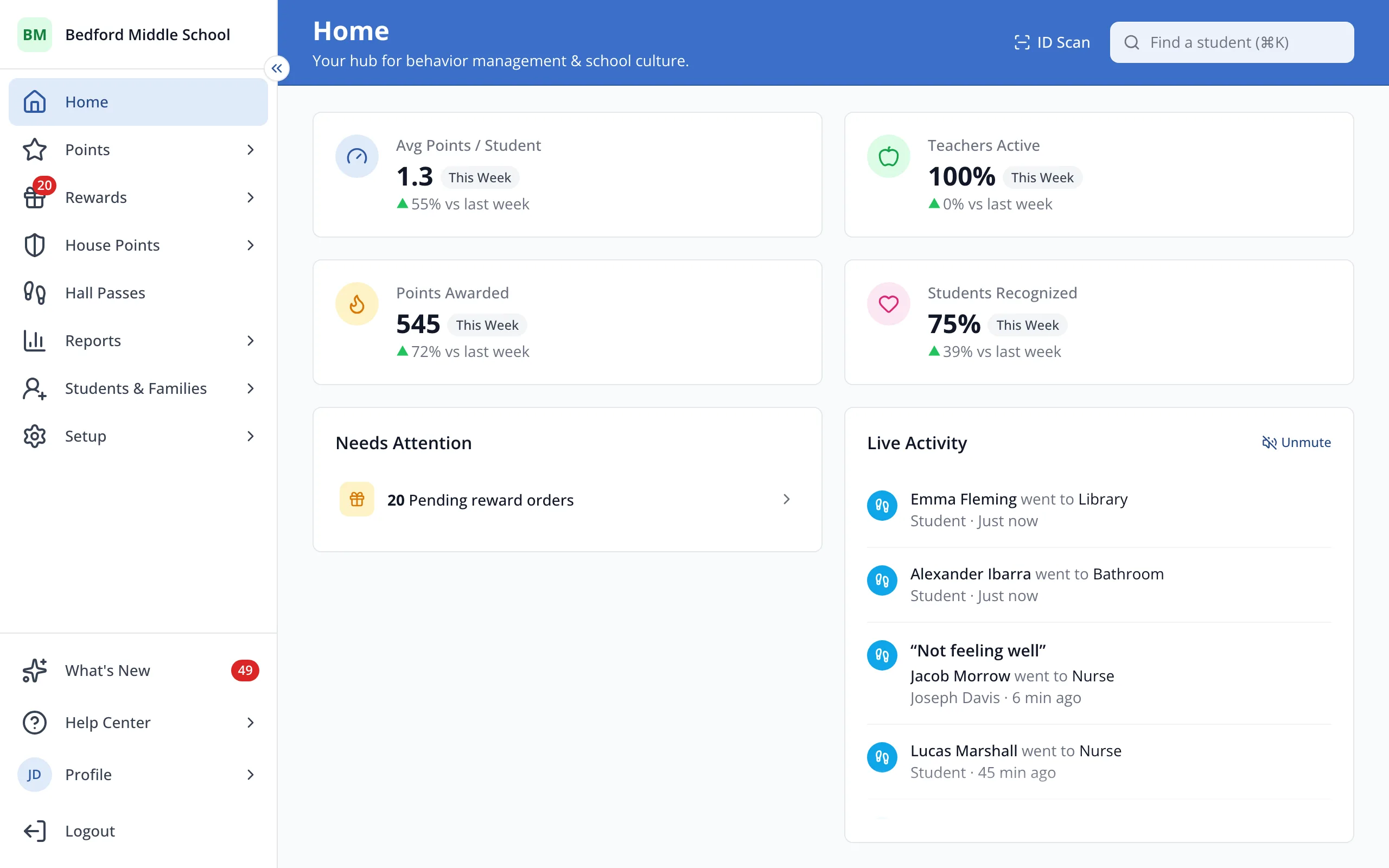
1 / 7In the sidebar, click Setup.
1.In the sidebar, click Setup.
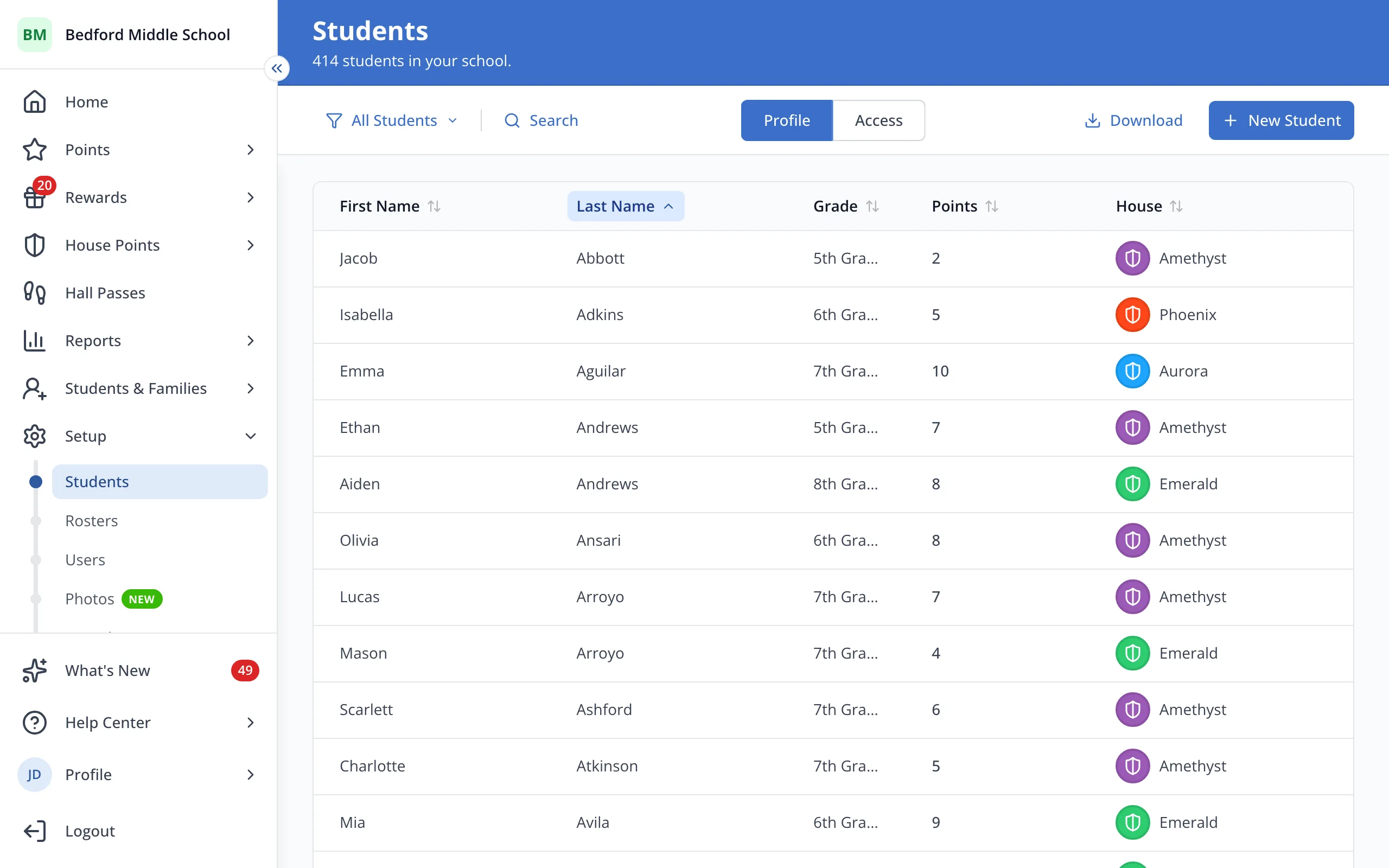
2.Click Users.
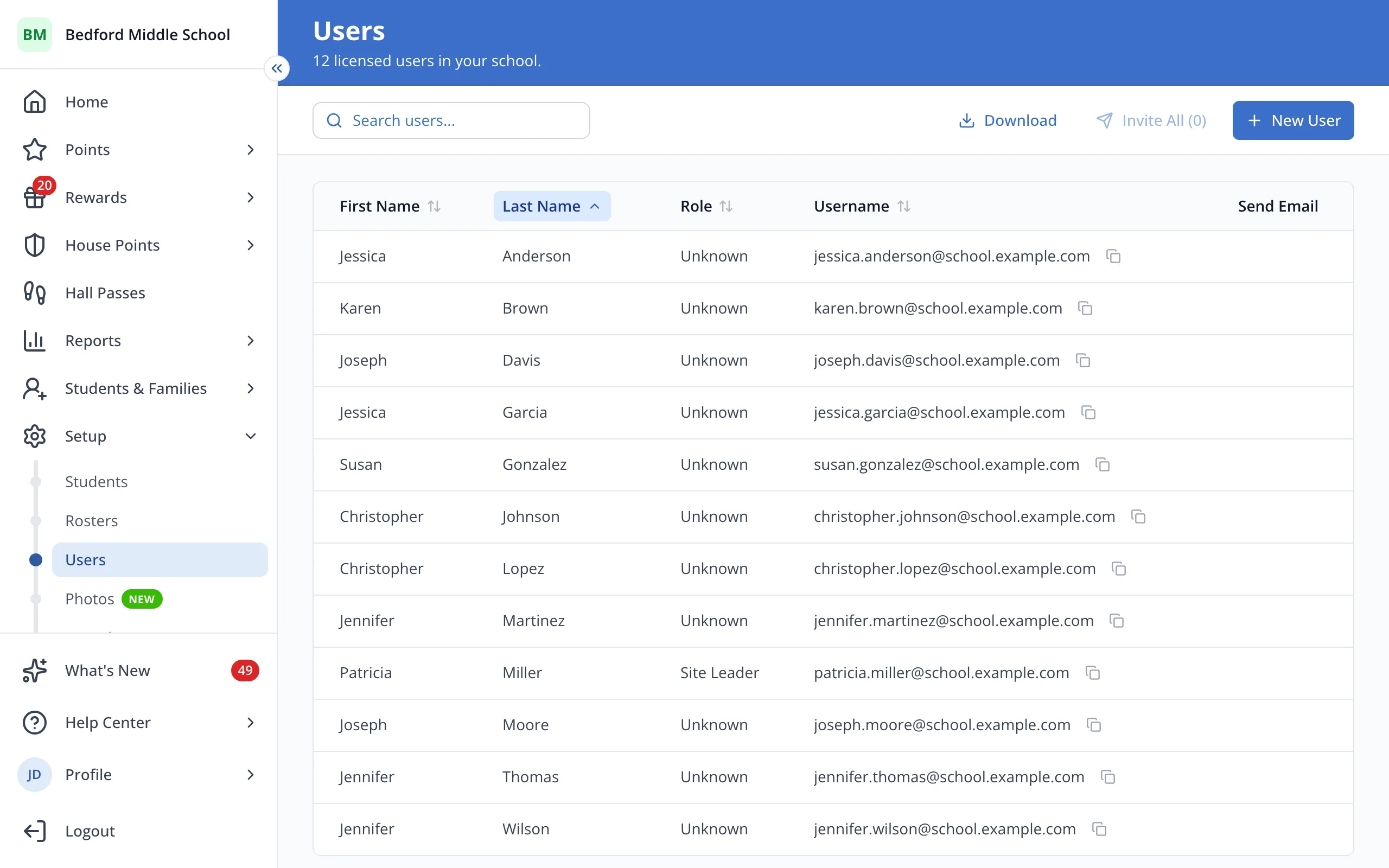
3.Click the teacher's name.
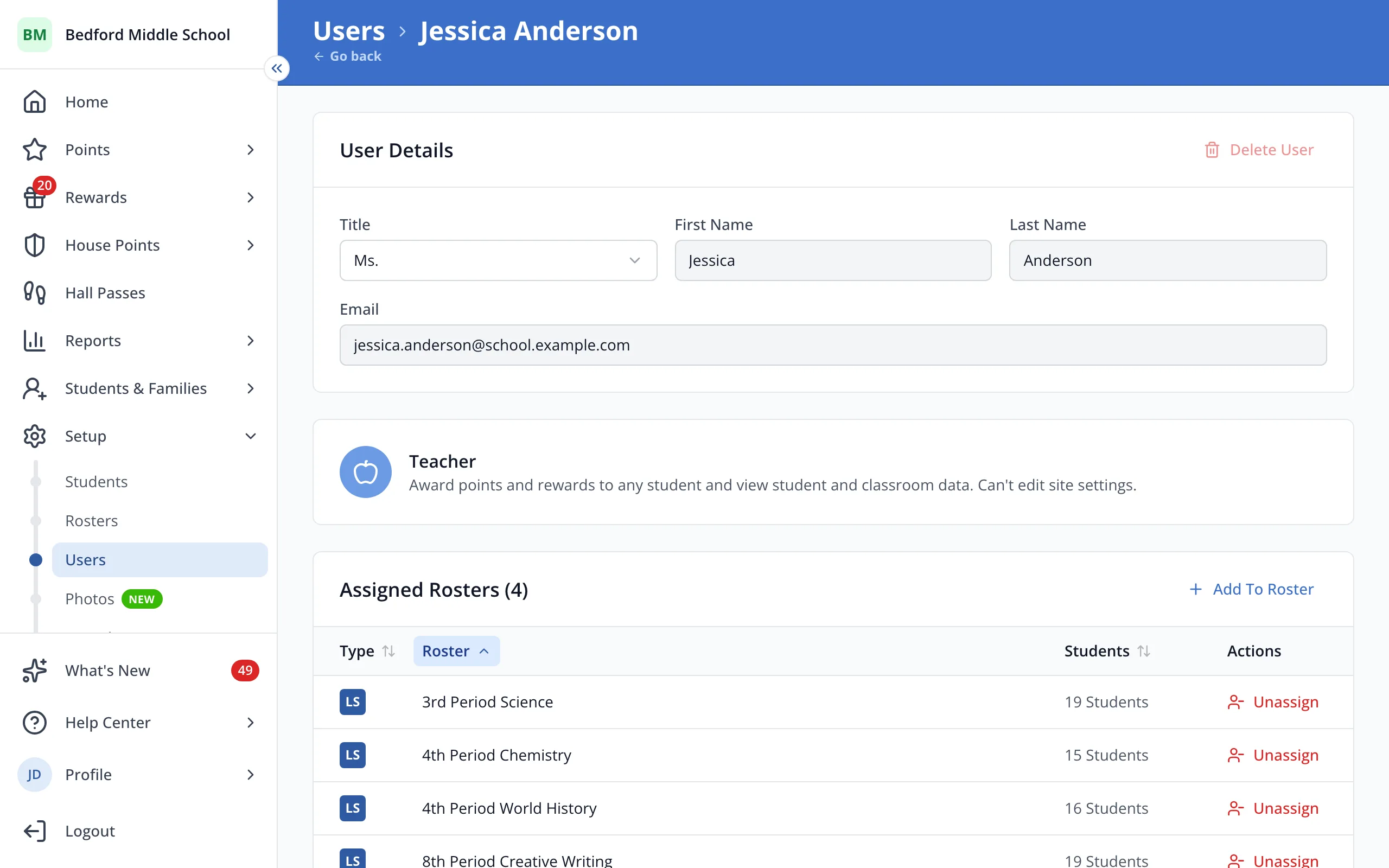
4.Next to Assigned Rosters, click Add To Roster.
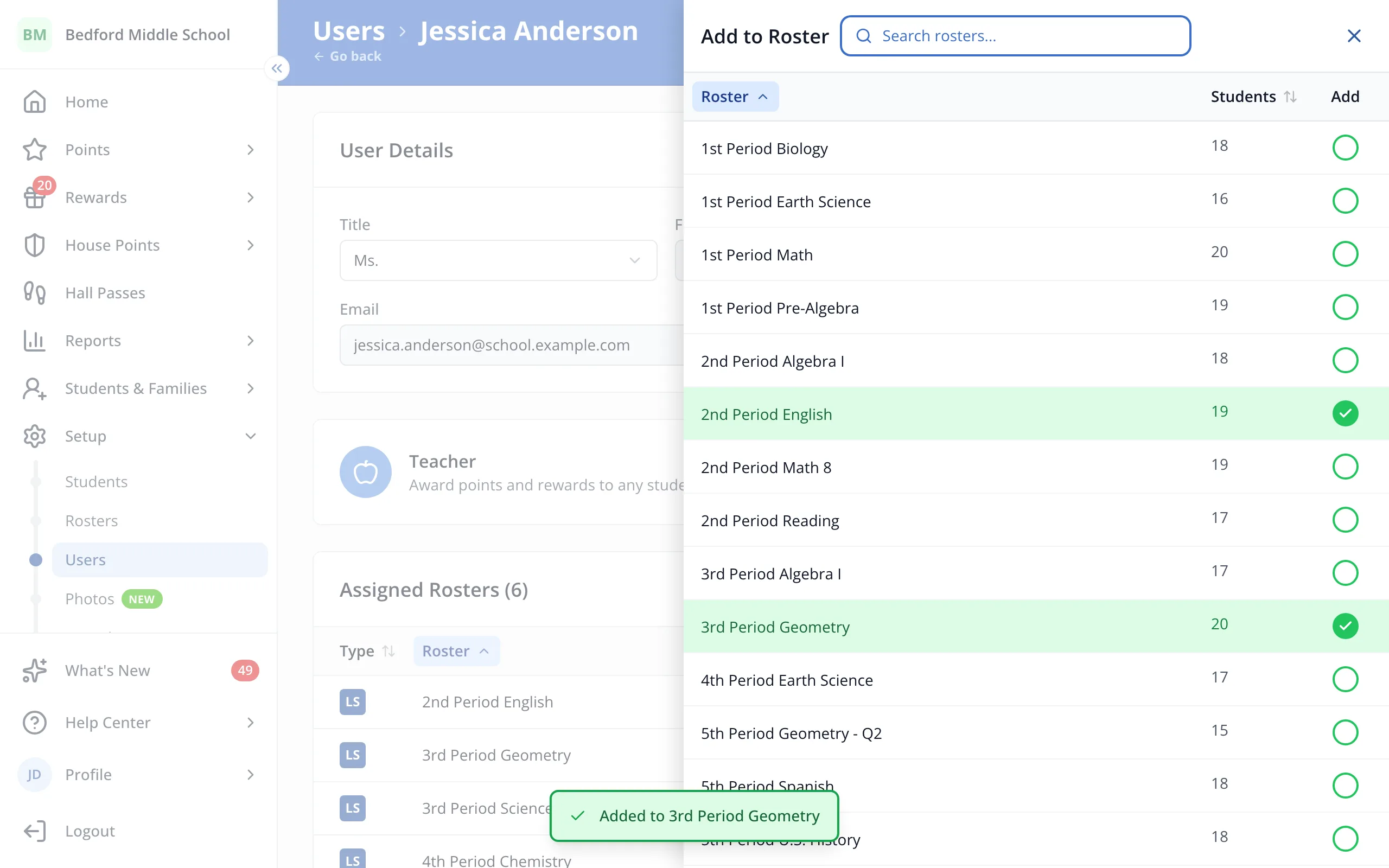
5.Click each roster you'd like to give the teacher.
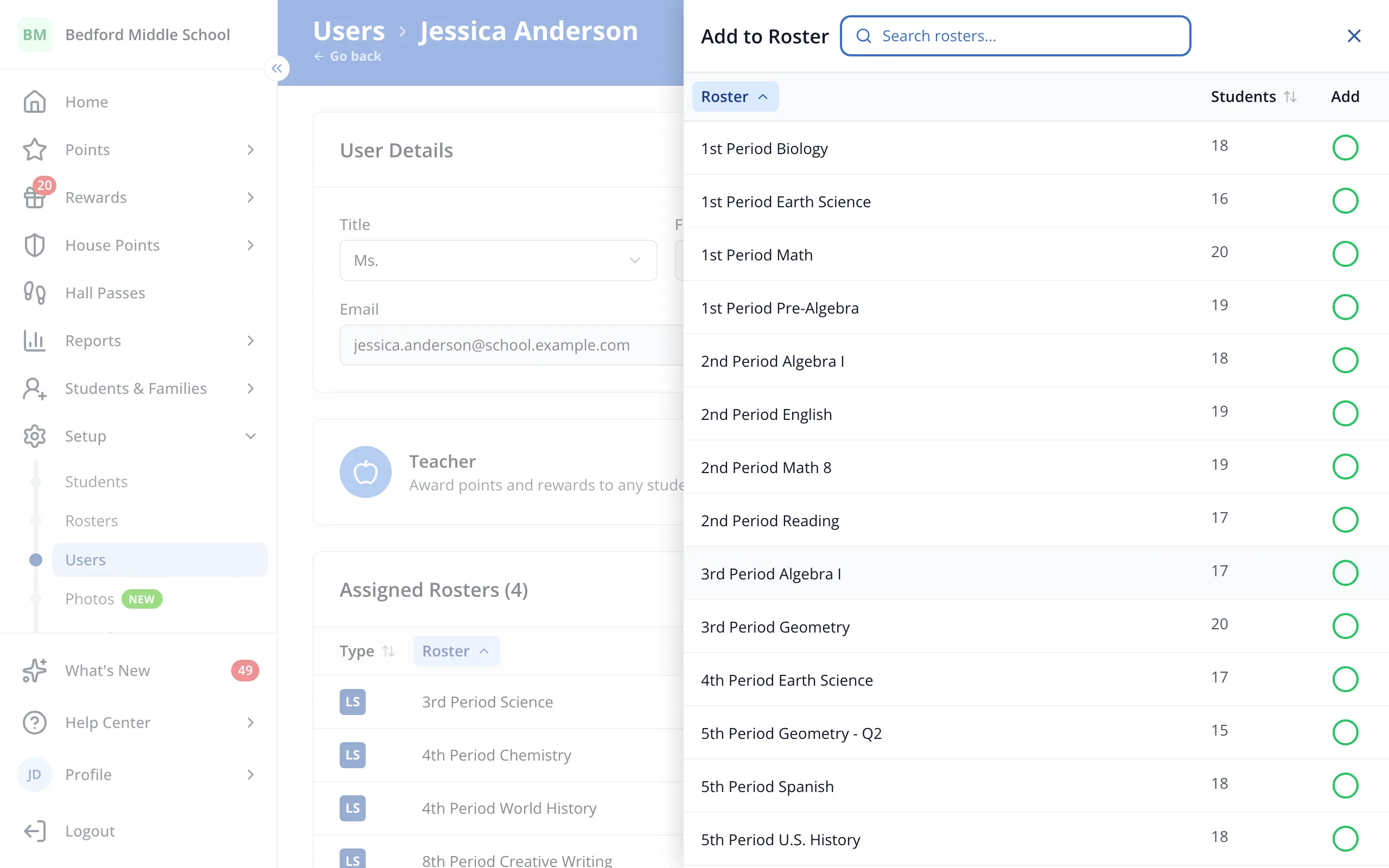
6.When you've picked them all, click the X at the top of the panel.
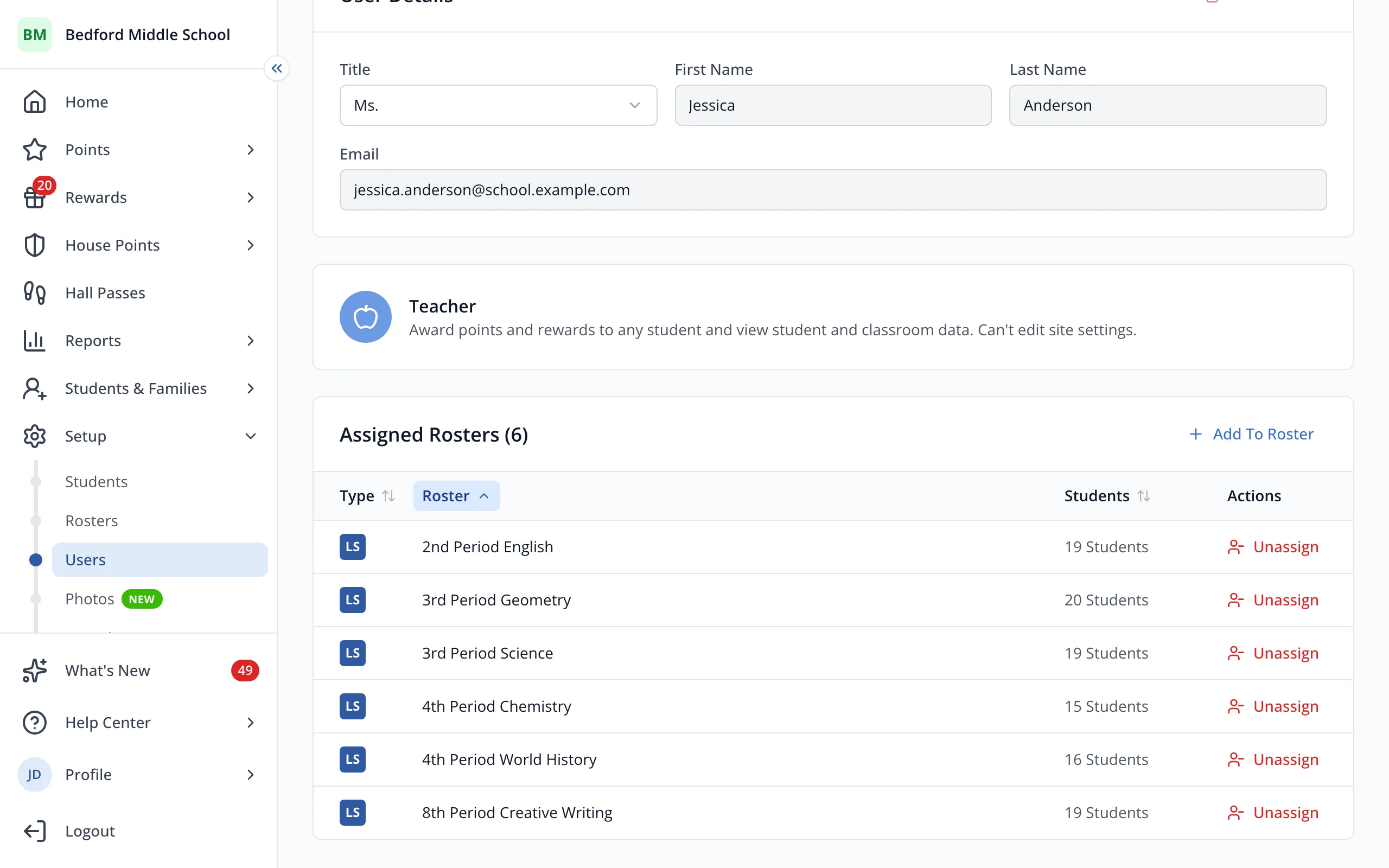
7.Click Unassign next to a roster to take the teacher off it.
Was this helpful?