
Combine two non-syncing rosters into one
Add students from multiple rosters to one roster for quicker access.
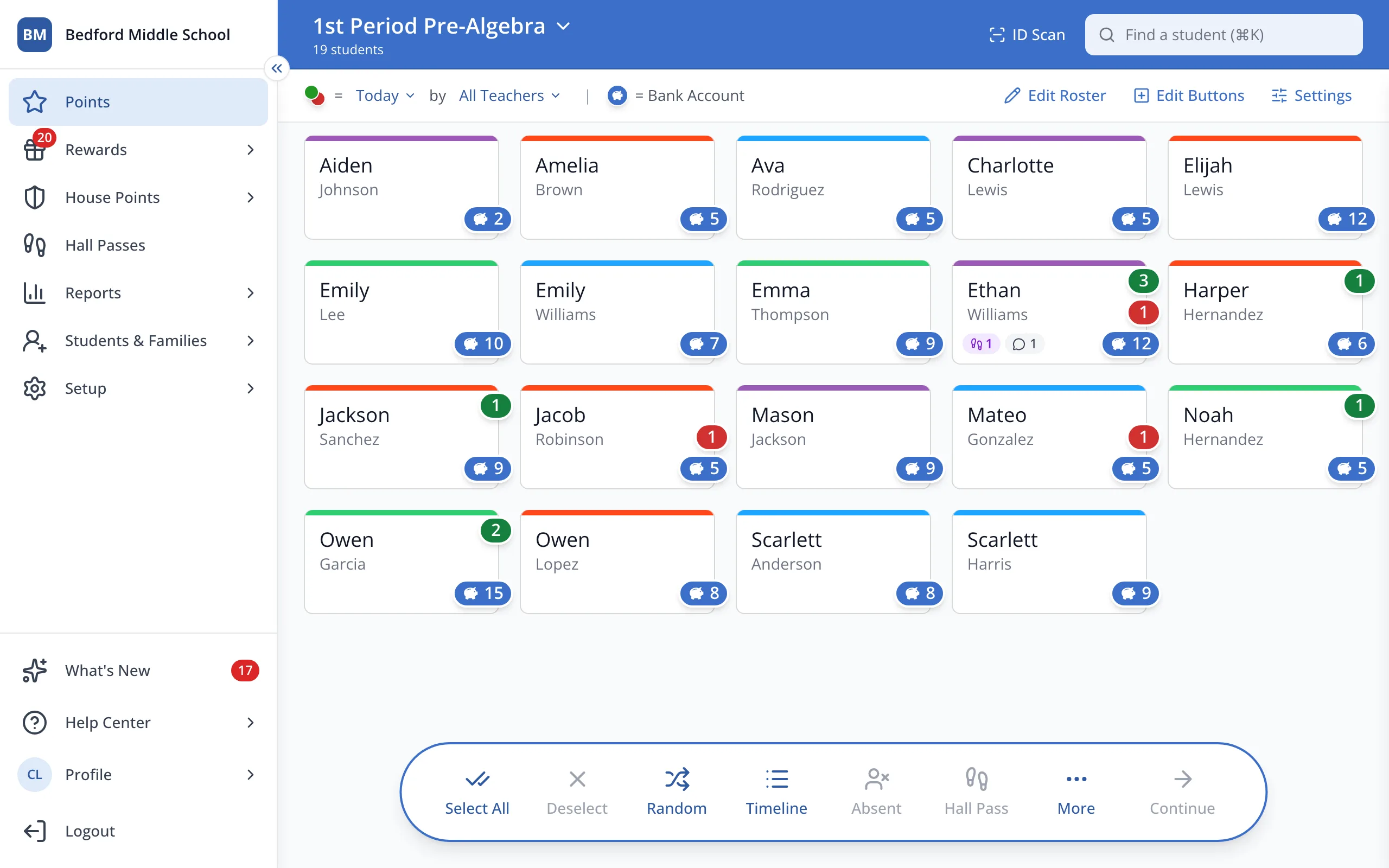
1 / 12In the sidebar, click Setup.
1.In the sidebar, click Setup.
2.Click Rosters.
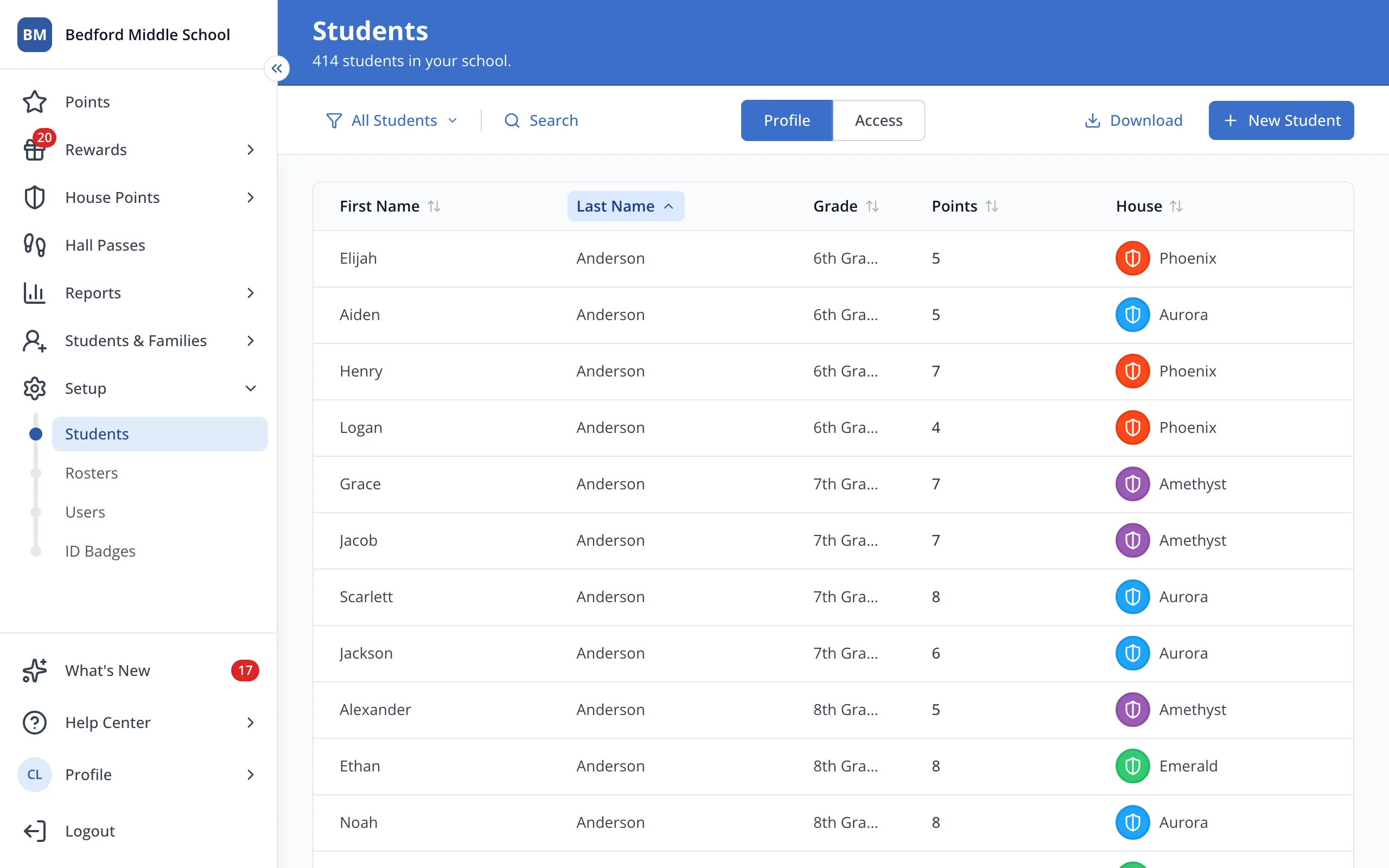
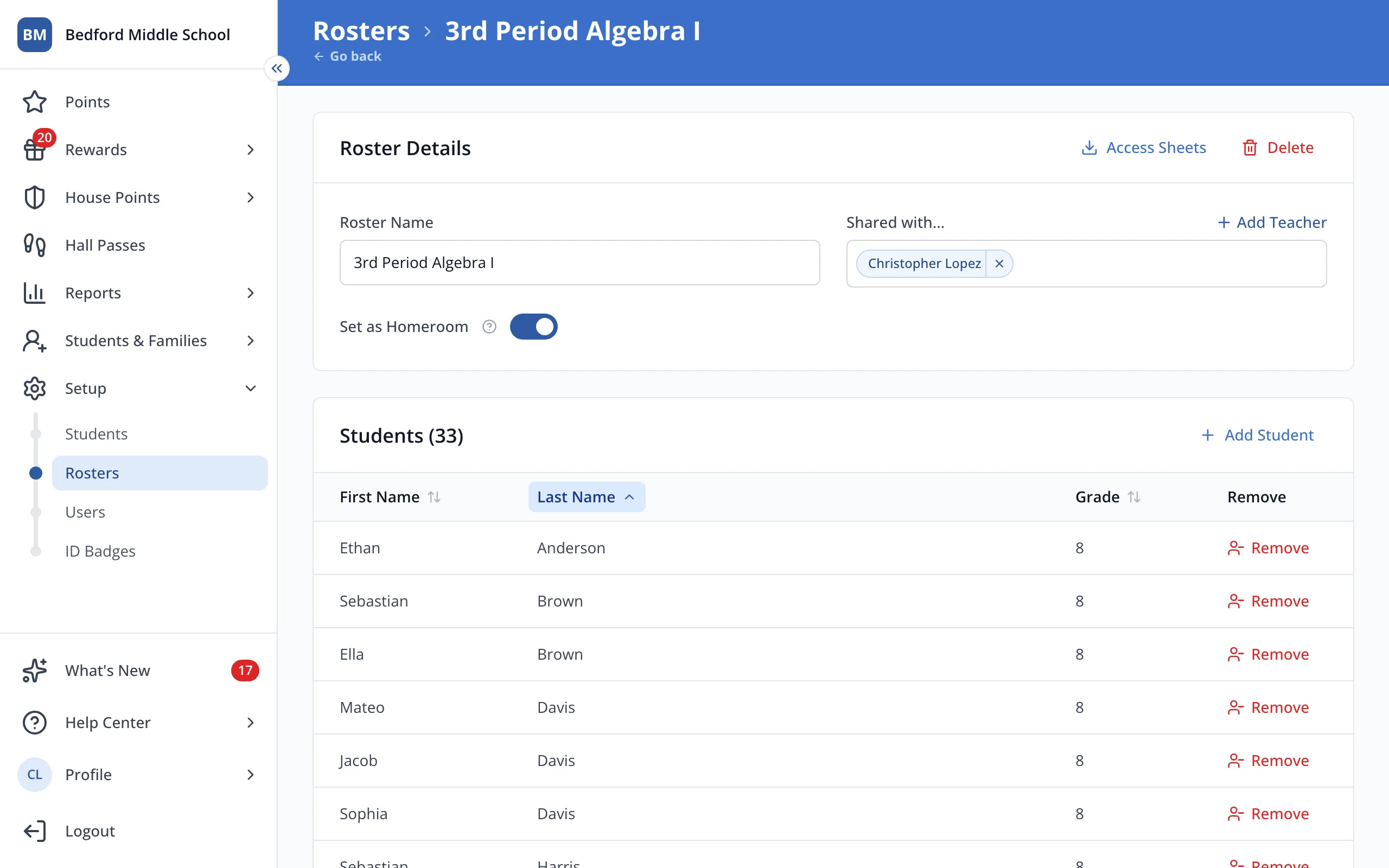
3.Click the roster you'd like to keep.
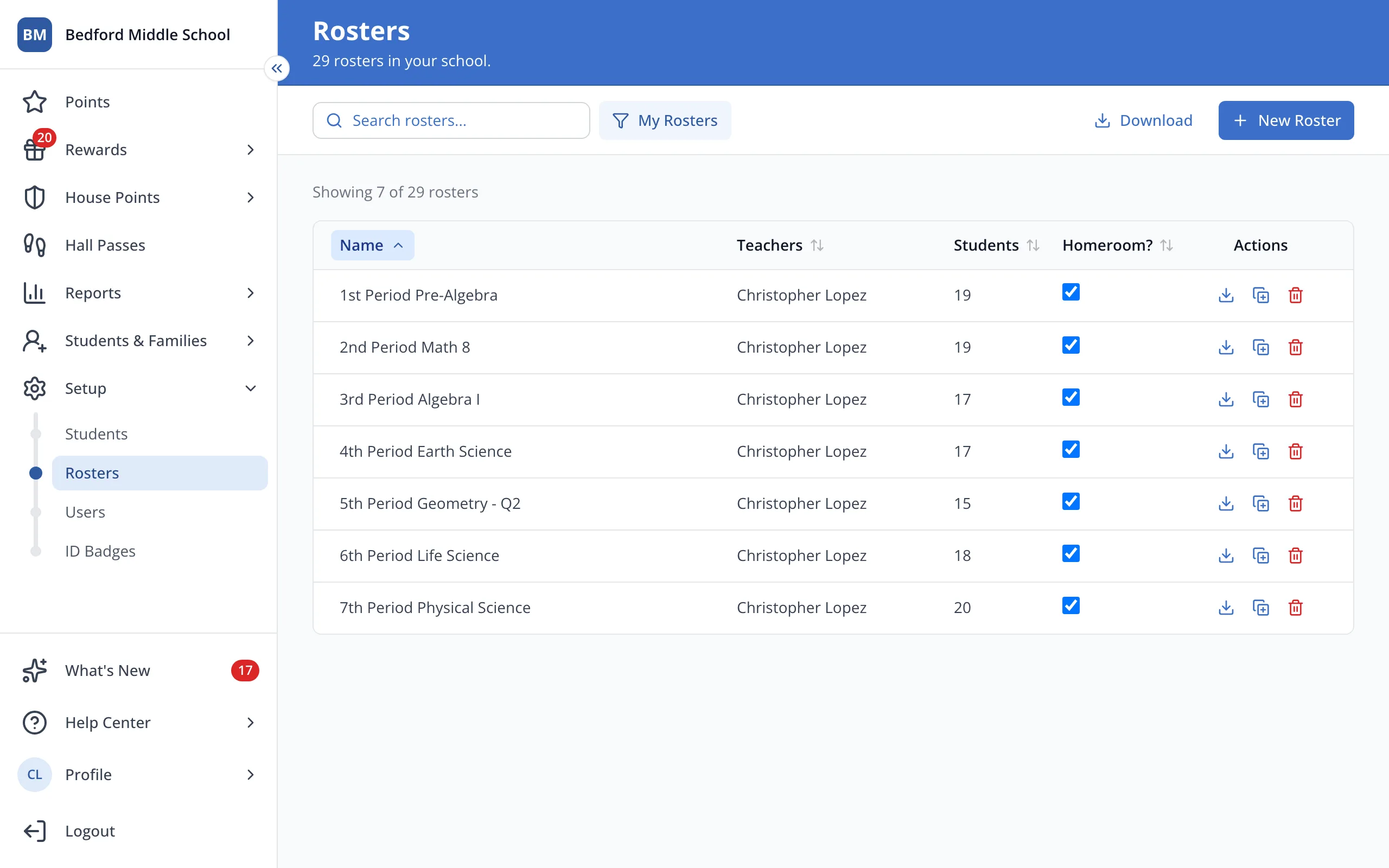
Tip: If you still want both Rosters available individually, first make a copy of the original Roster before adding the additional students.
4.Click Add Student.
5.At the top of the panel, click Grade/Roster Filter.
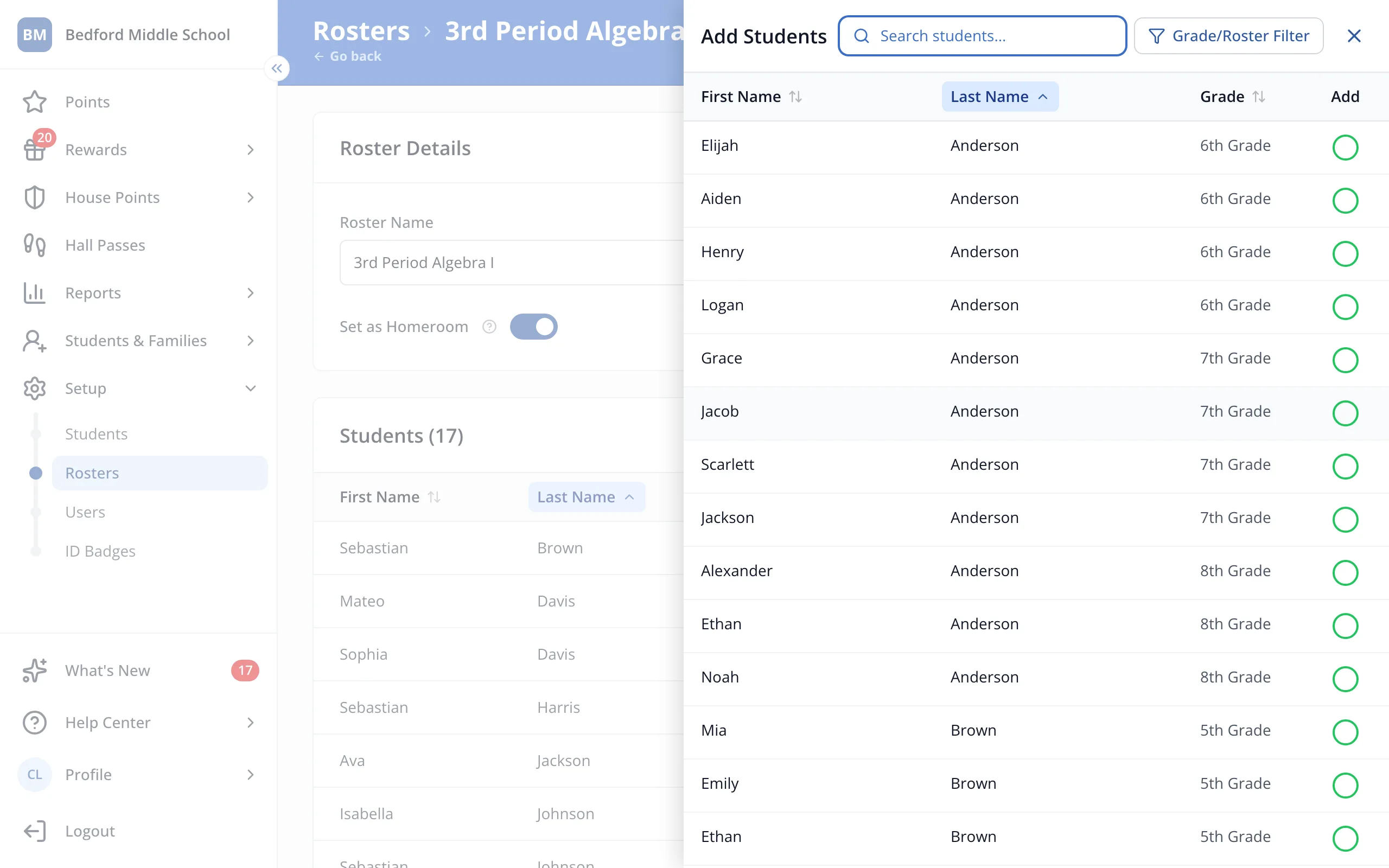
6.Click the other roster.
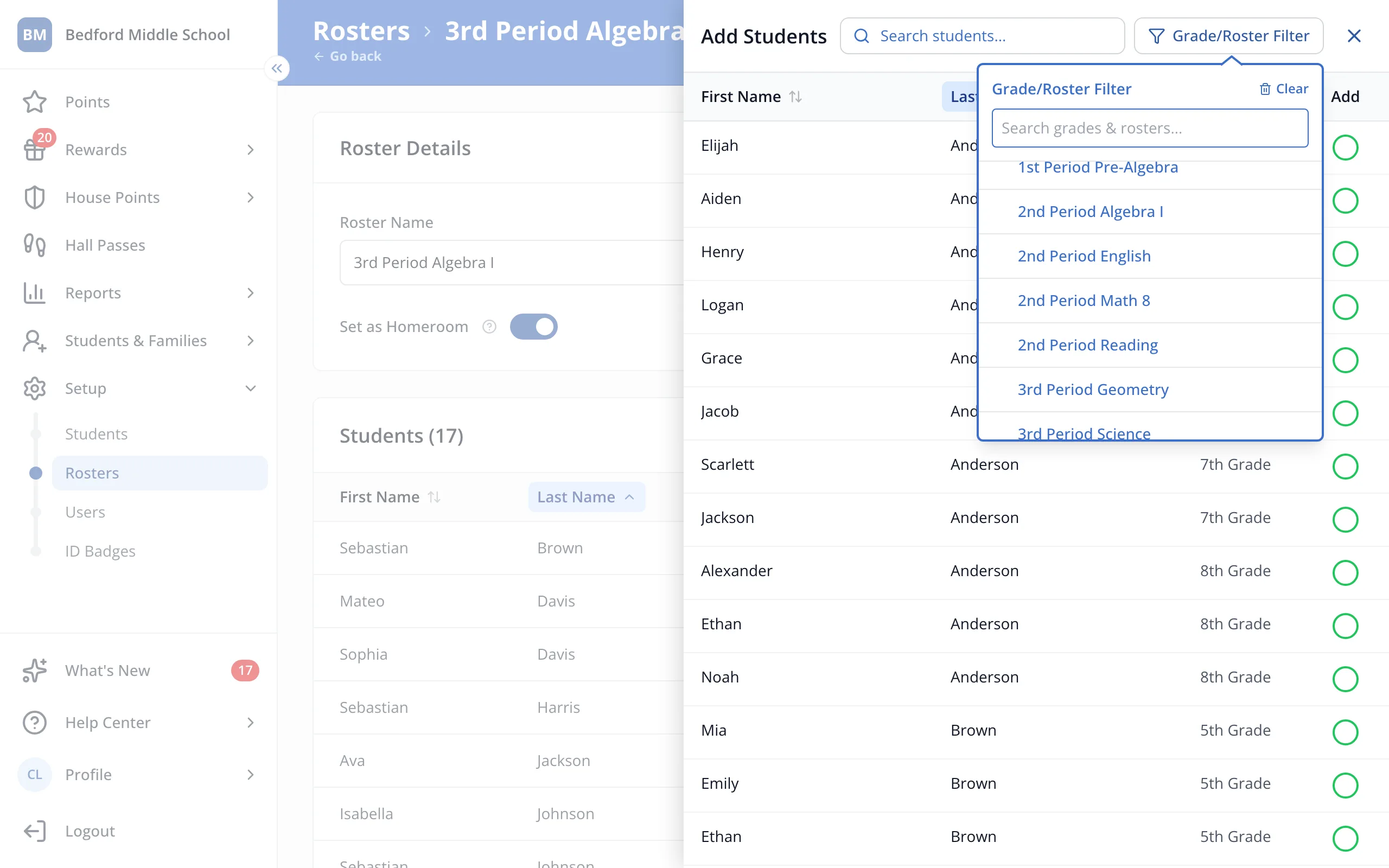
7.Click Add All.
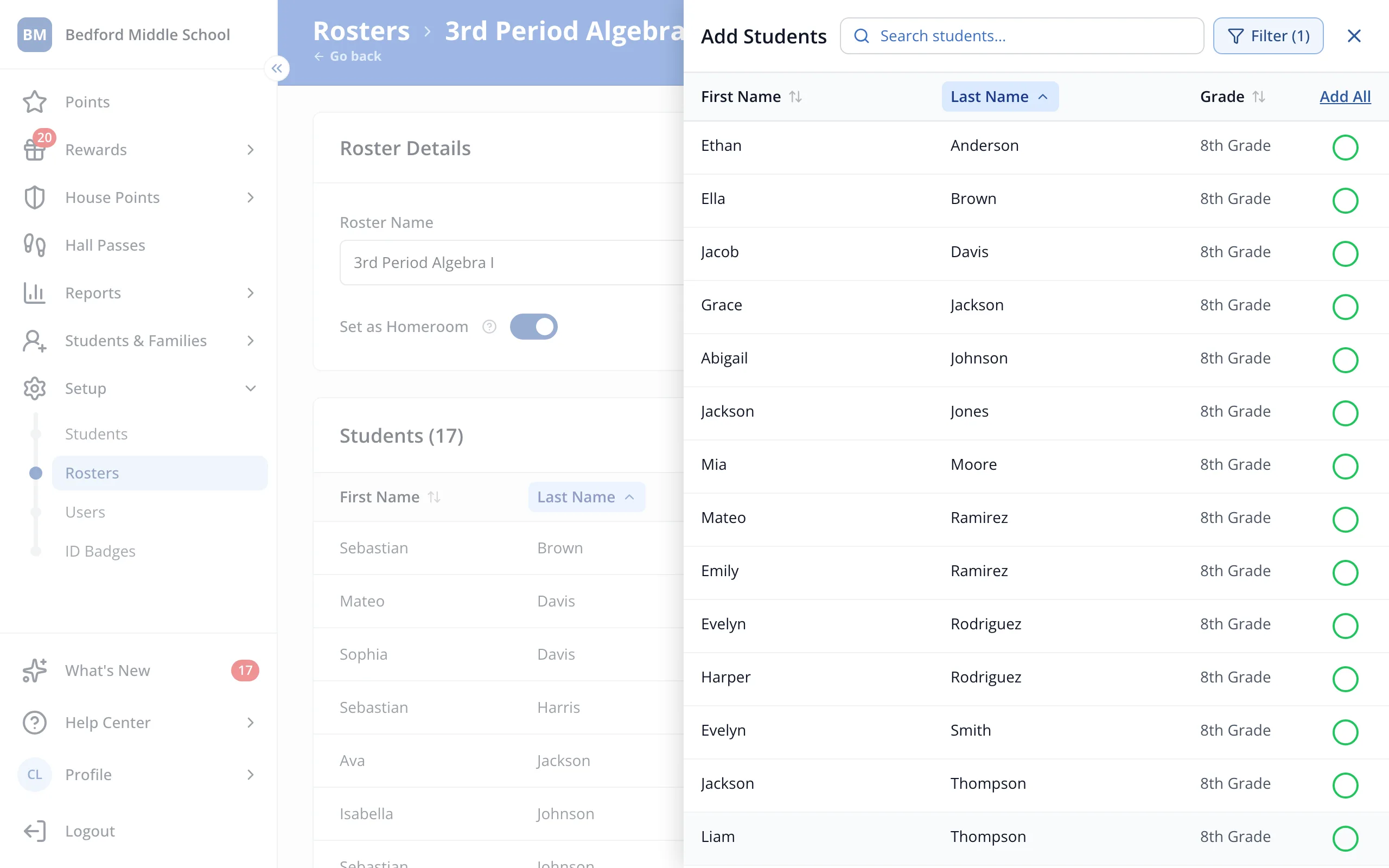
8.You'll see a green check next to each student. Click the X at the top of the panel.
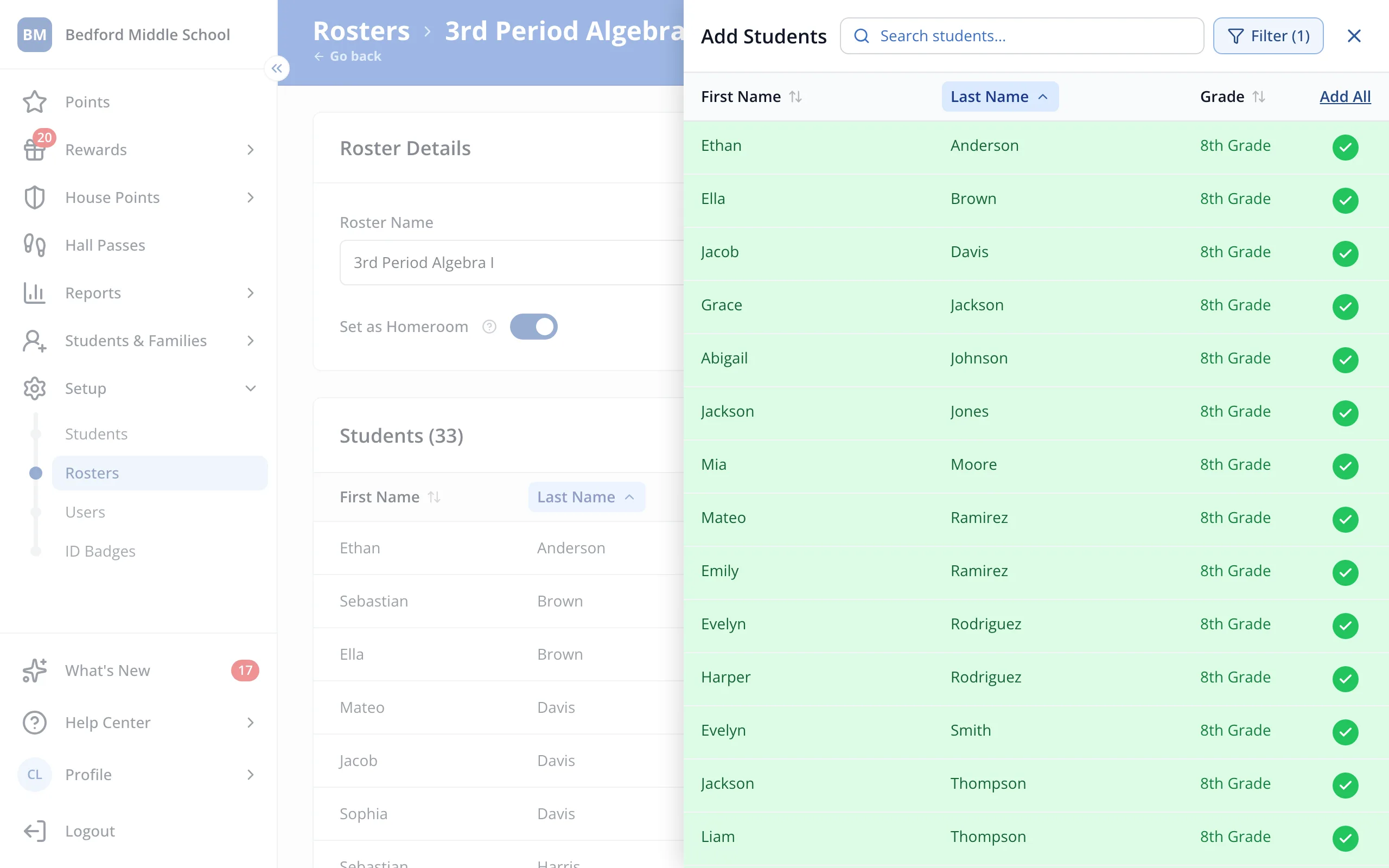
9.At the top of the page, click Rosters to go back to your list.
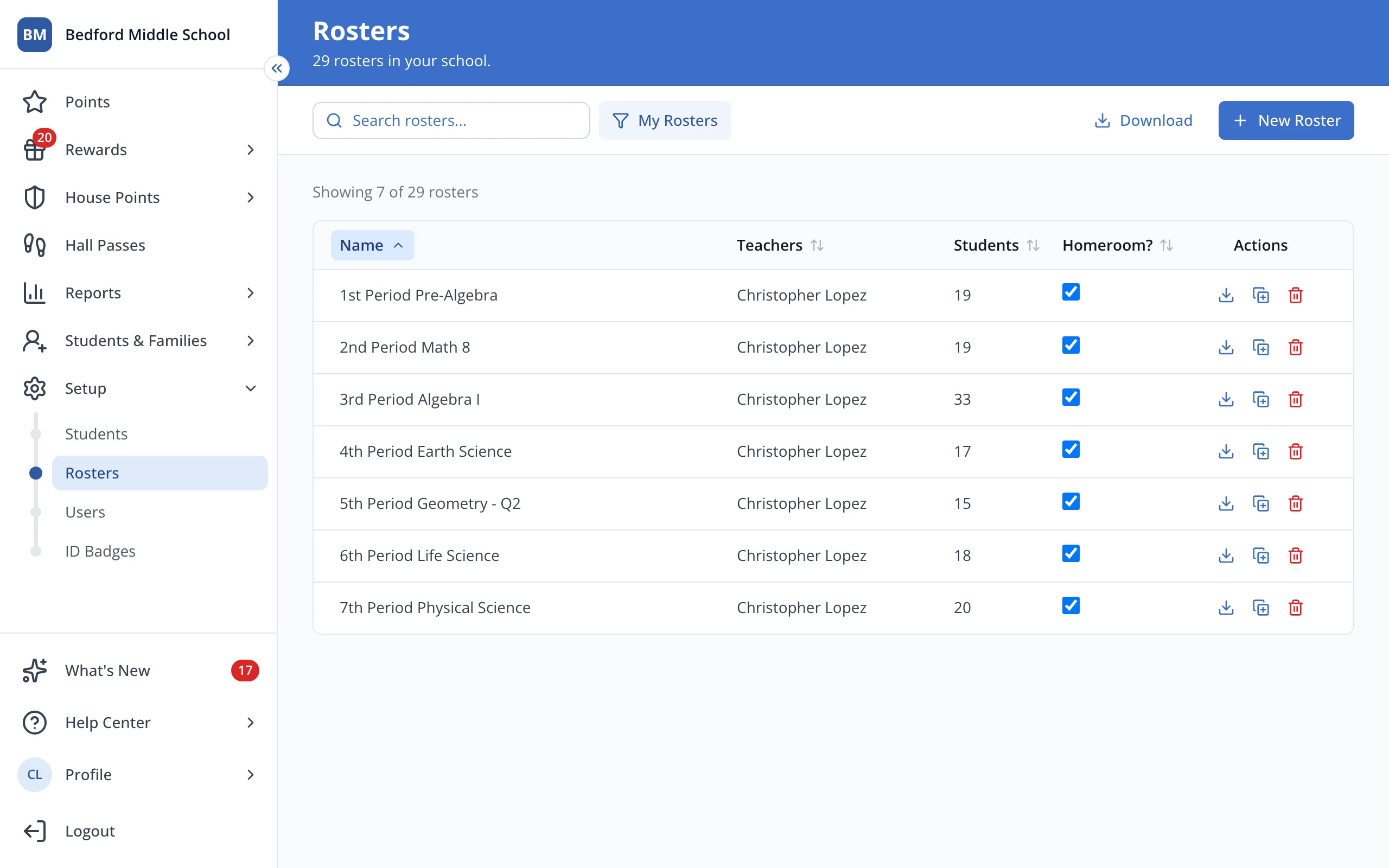
10.Next to the roster you no longer need, click the trash can.
11.Click Delete.
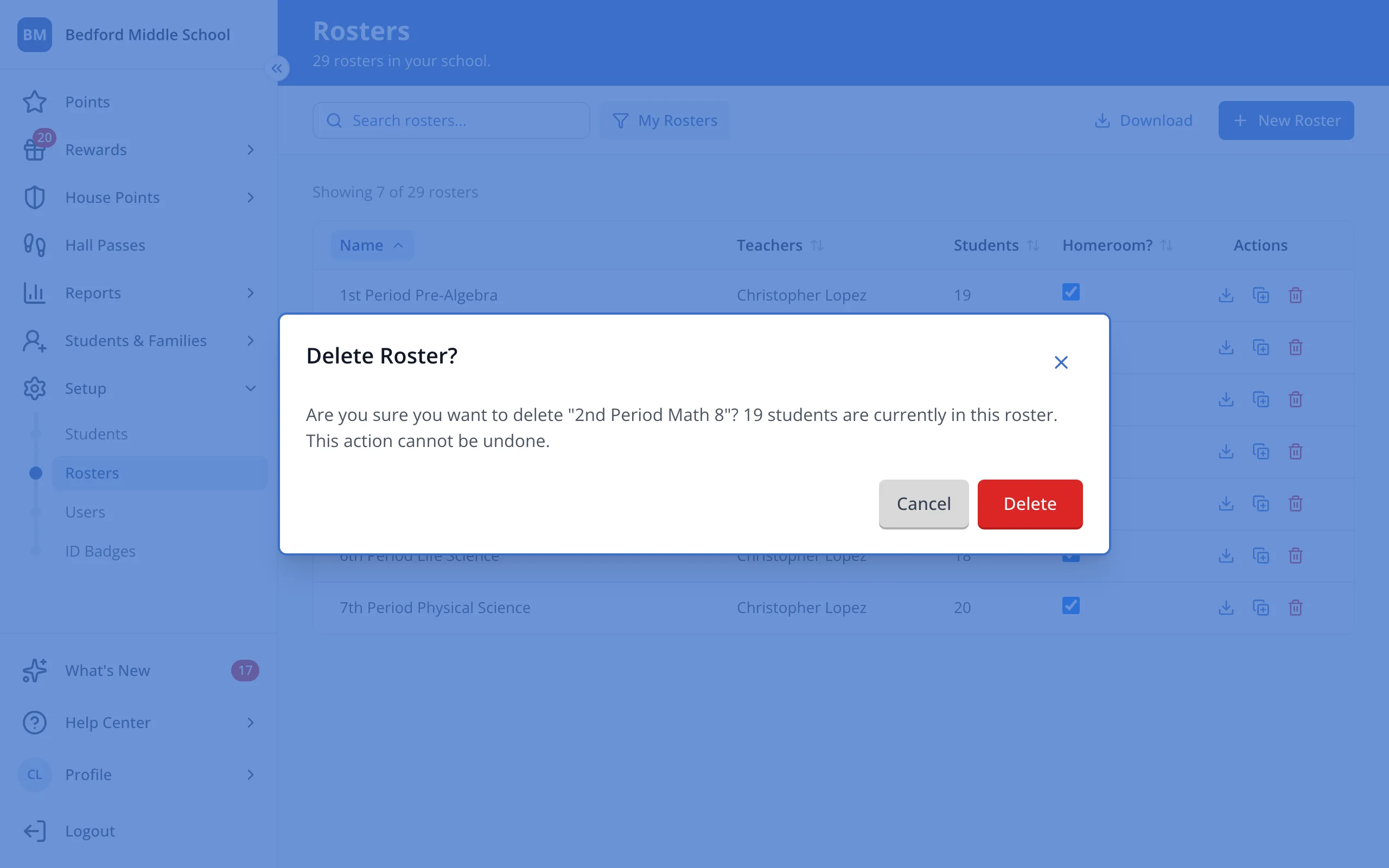
Tip: Deleting a roster can't be undone. Its students stay in your school.
Was this helpful?