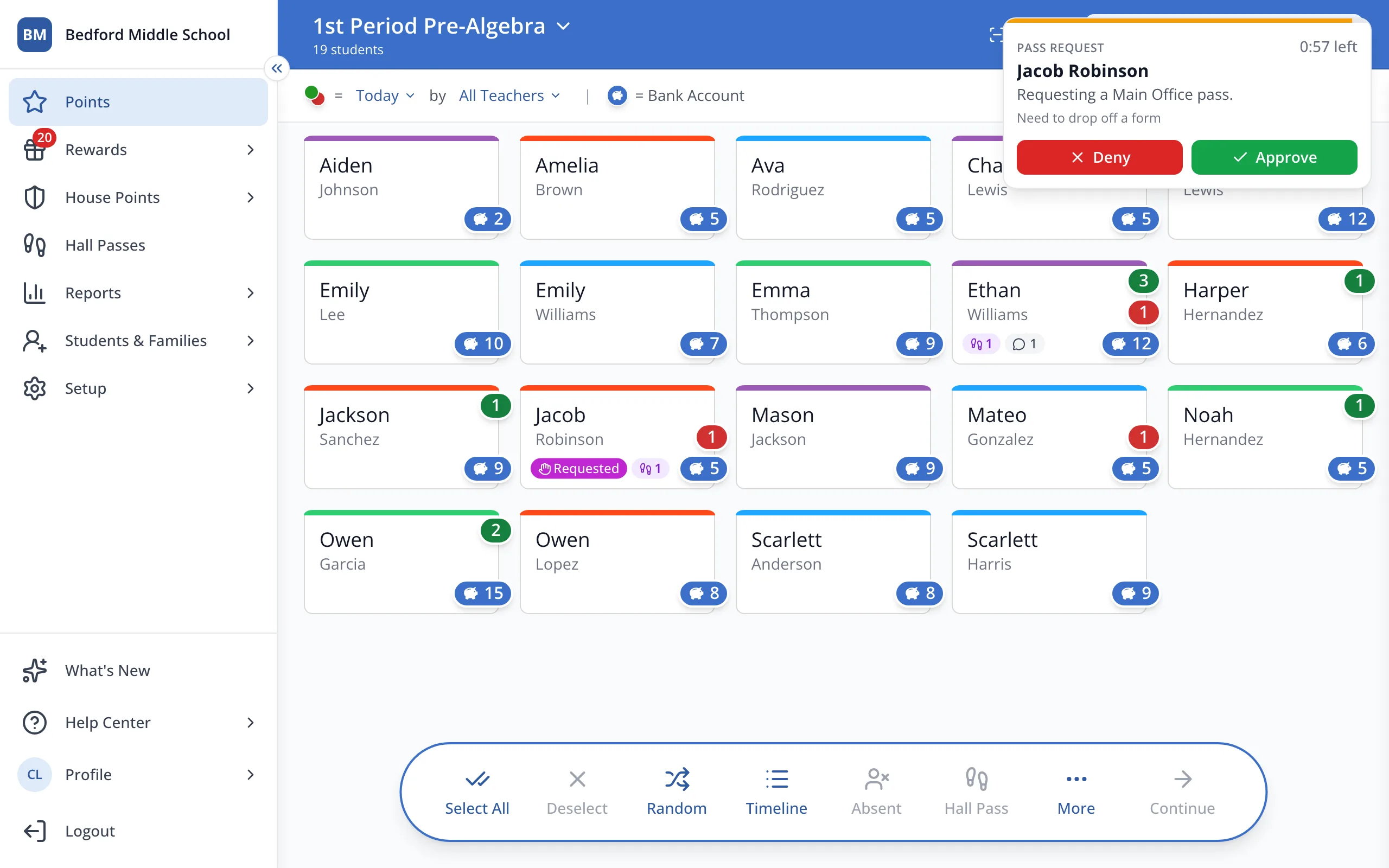
Make a copy of a roster
A copy starts with the same students and teachers, and it's yours to change, even when the original syncs from Clever or ClassLink.
Open in LiveSchool
Already signed in? Open this guide inside LiveSchool.
Use the Left and Right arrow keys to move between steps, and Space to play or pause.
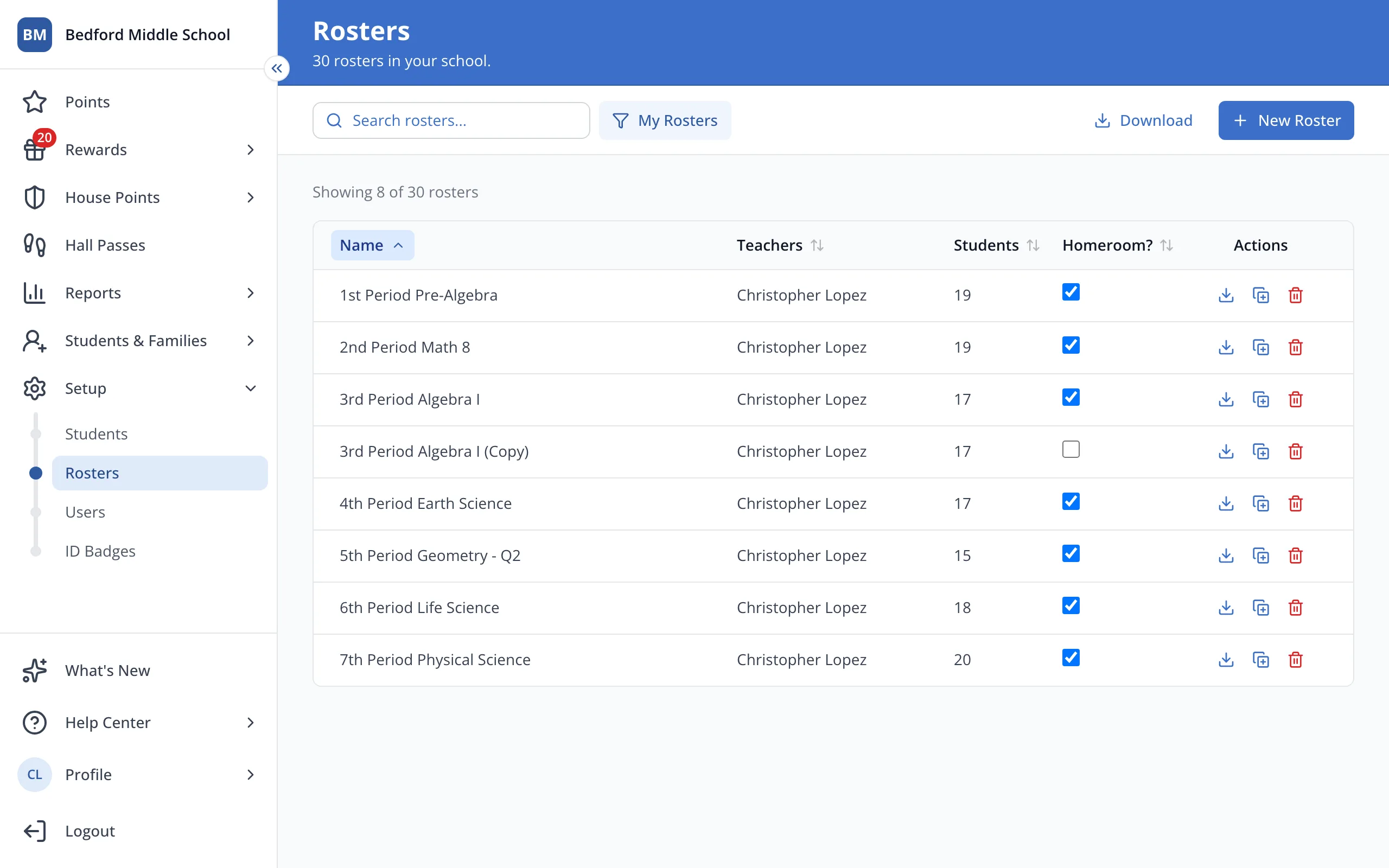
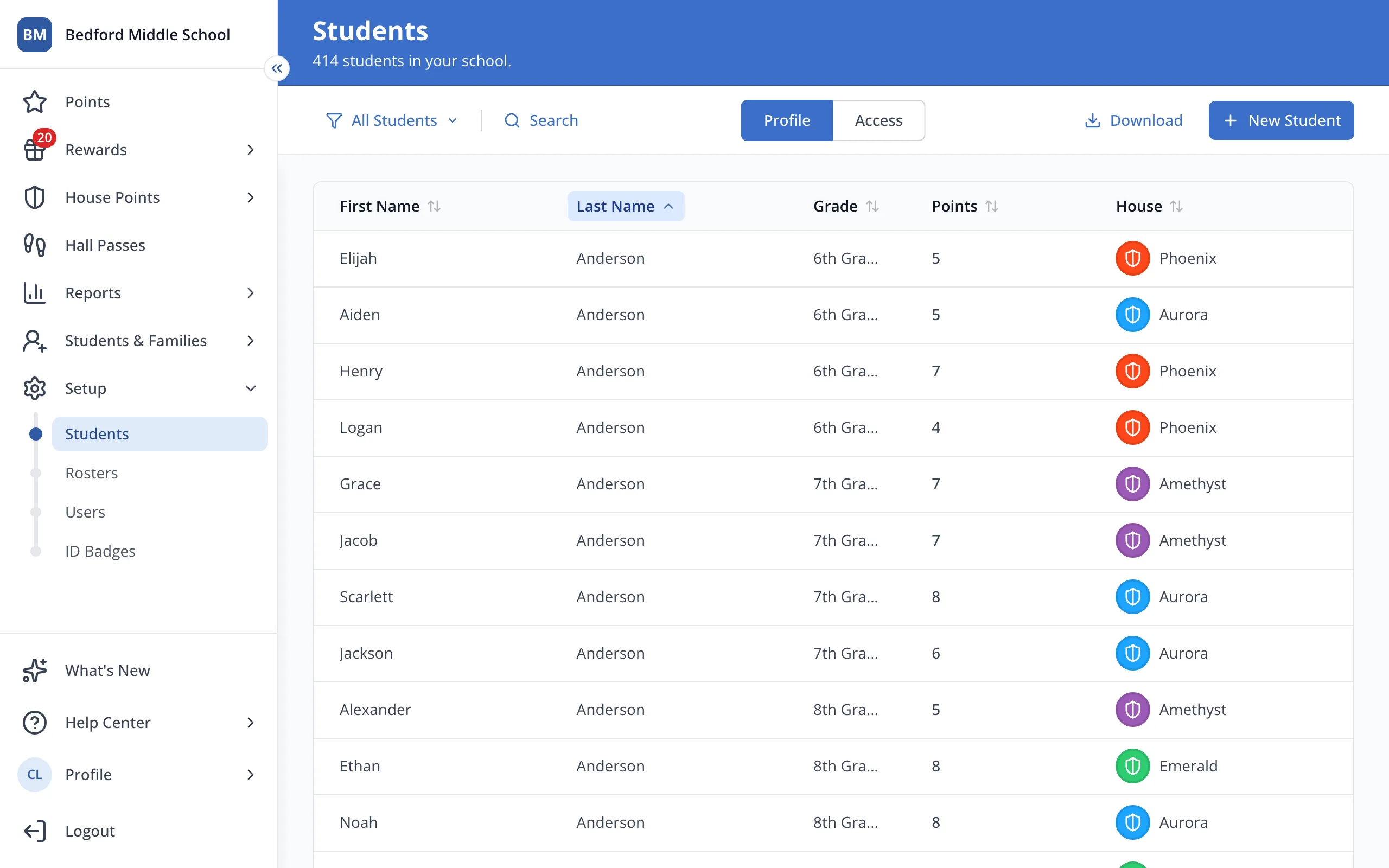
1.In the sidebar, click Setup.
2.Click Rosters.
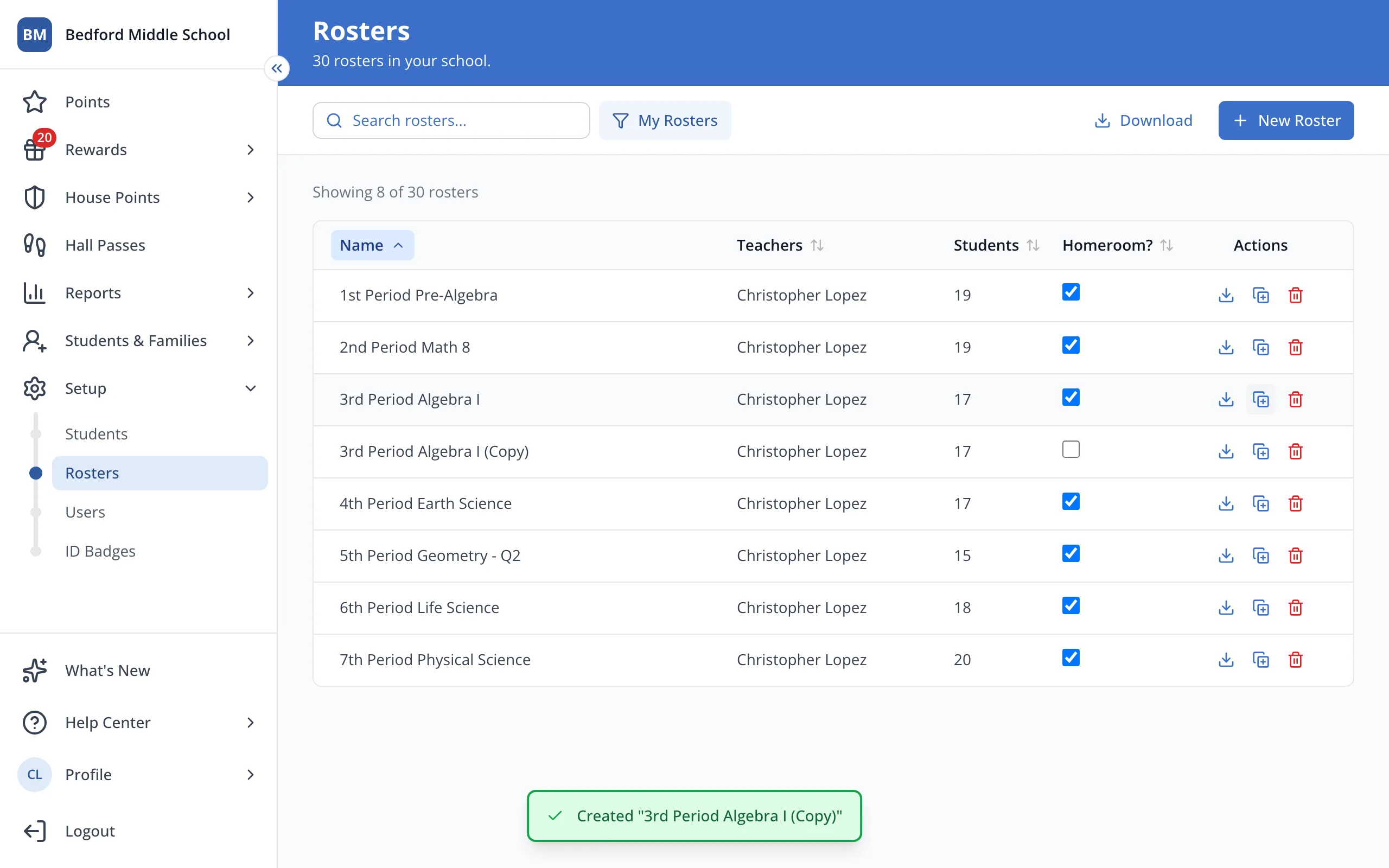
3.Next to the roster you'd like to copy, click Make a copy.
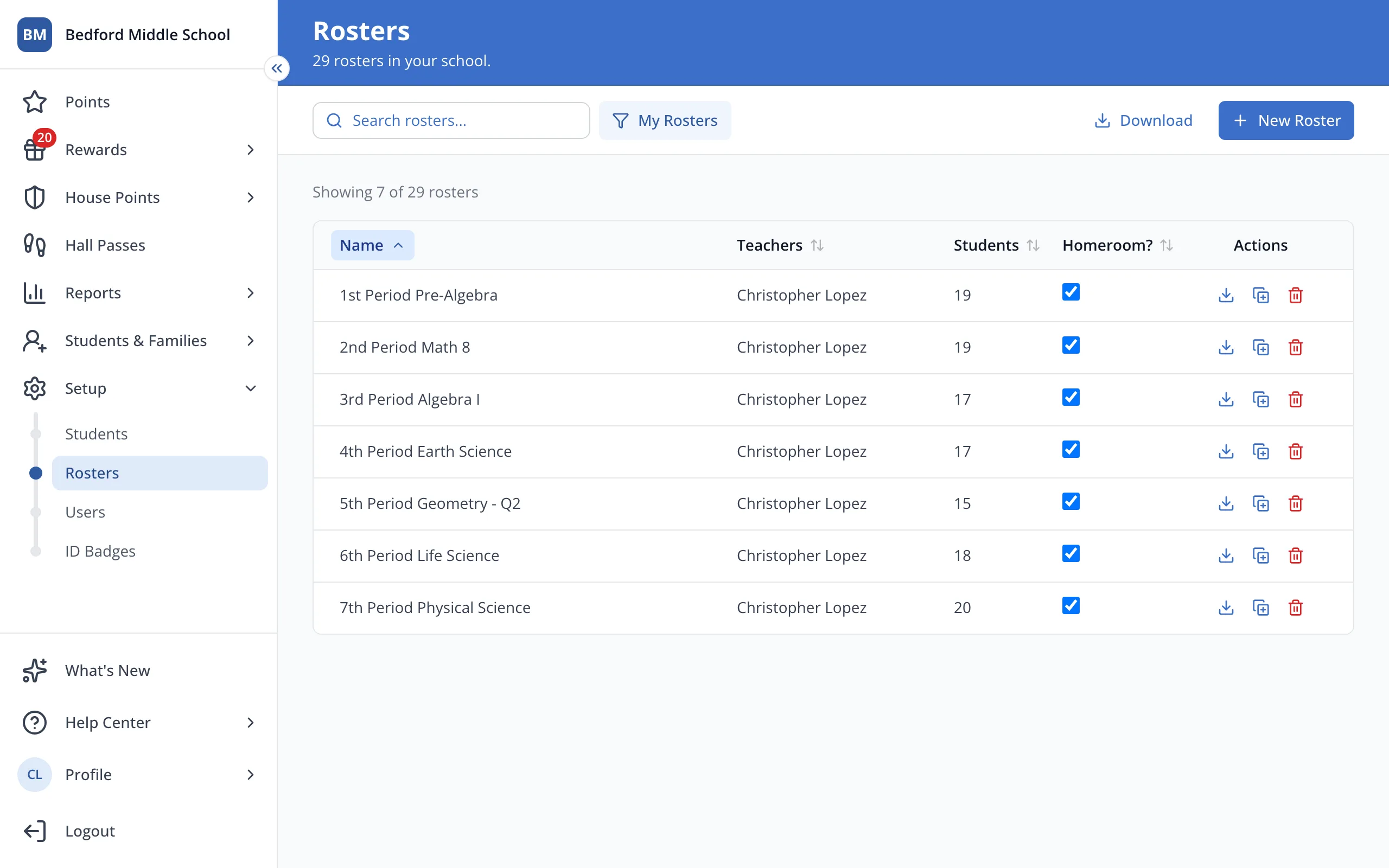
4.The copy has the same students and teachers. Click its name to rename it or change who's on it.