
Create a roster
Make your own roster for a class, club or group, even if your school syncs with Clever or ClassLink.
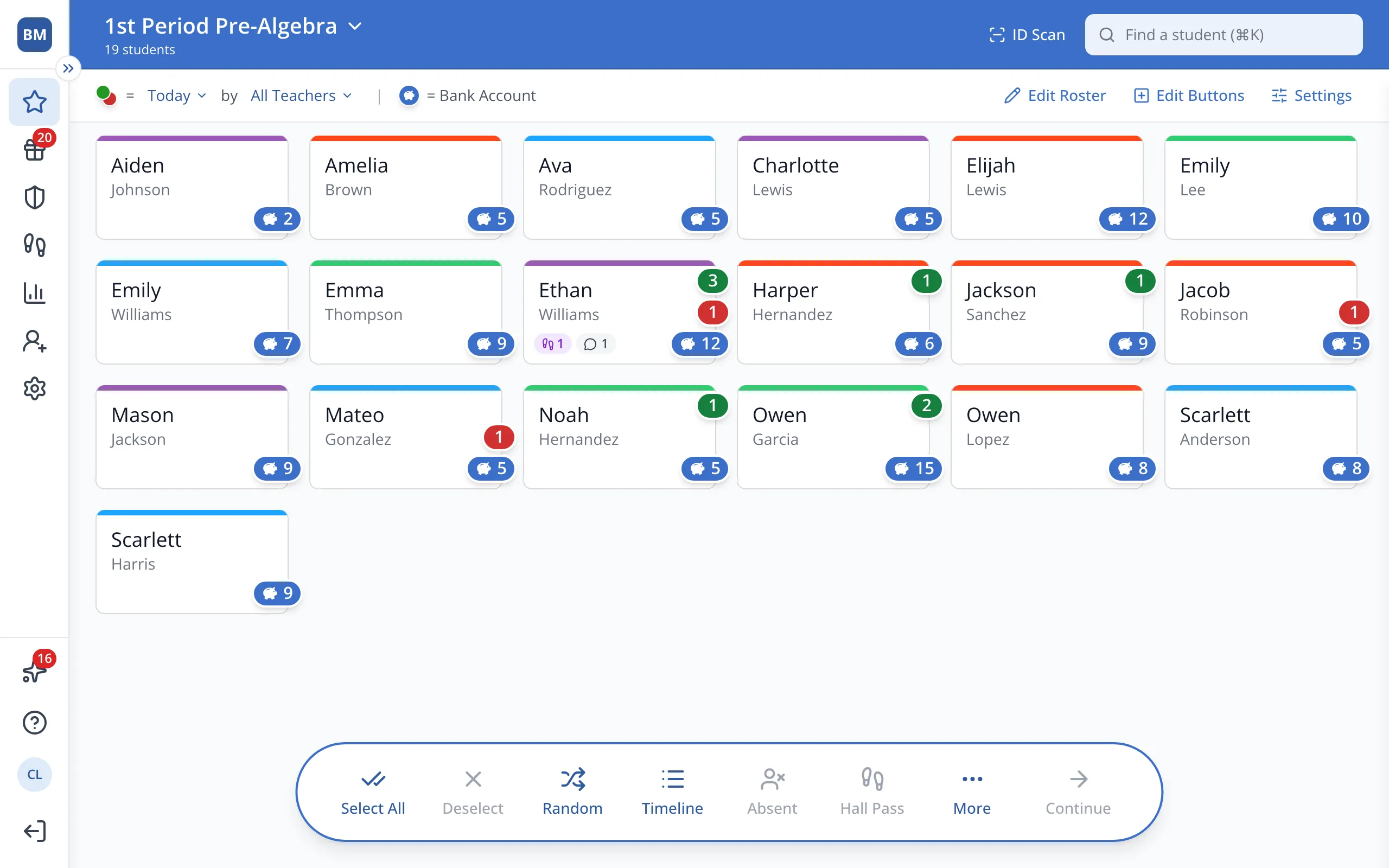
1 / 9At the top of the Points page, click your roster's name.
1.At the top of the Points page, click your roster's name.
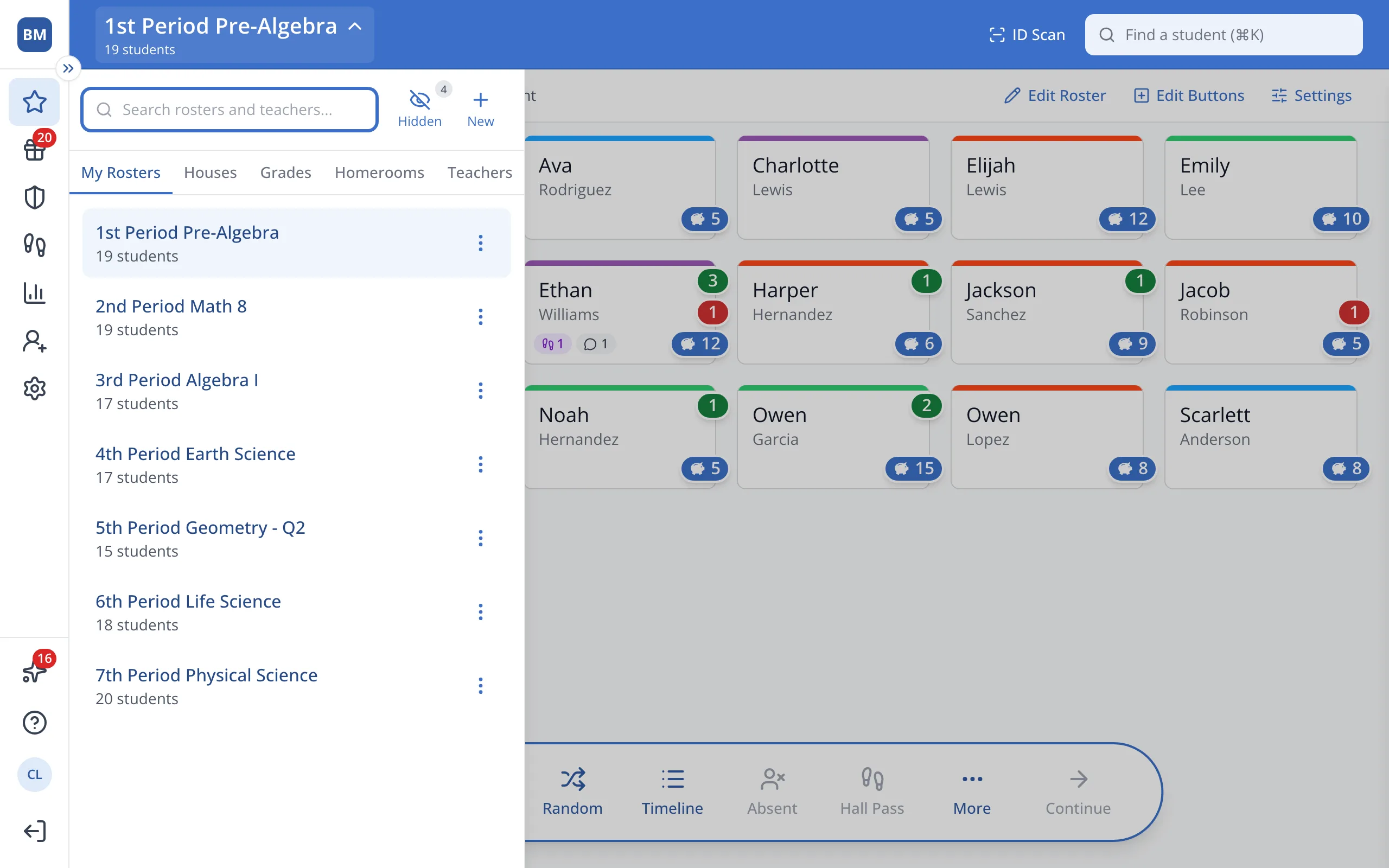
2.Click New, next to the search box.
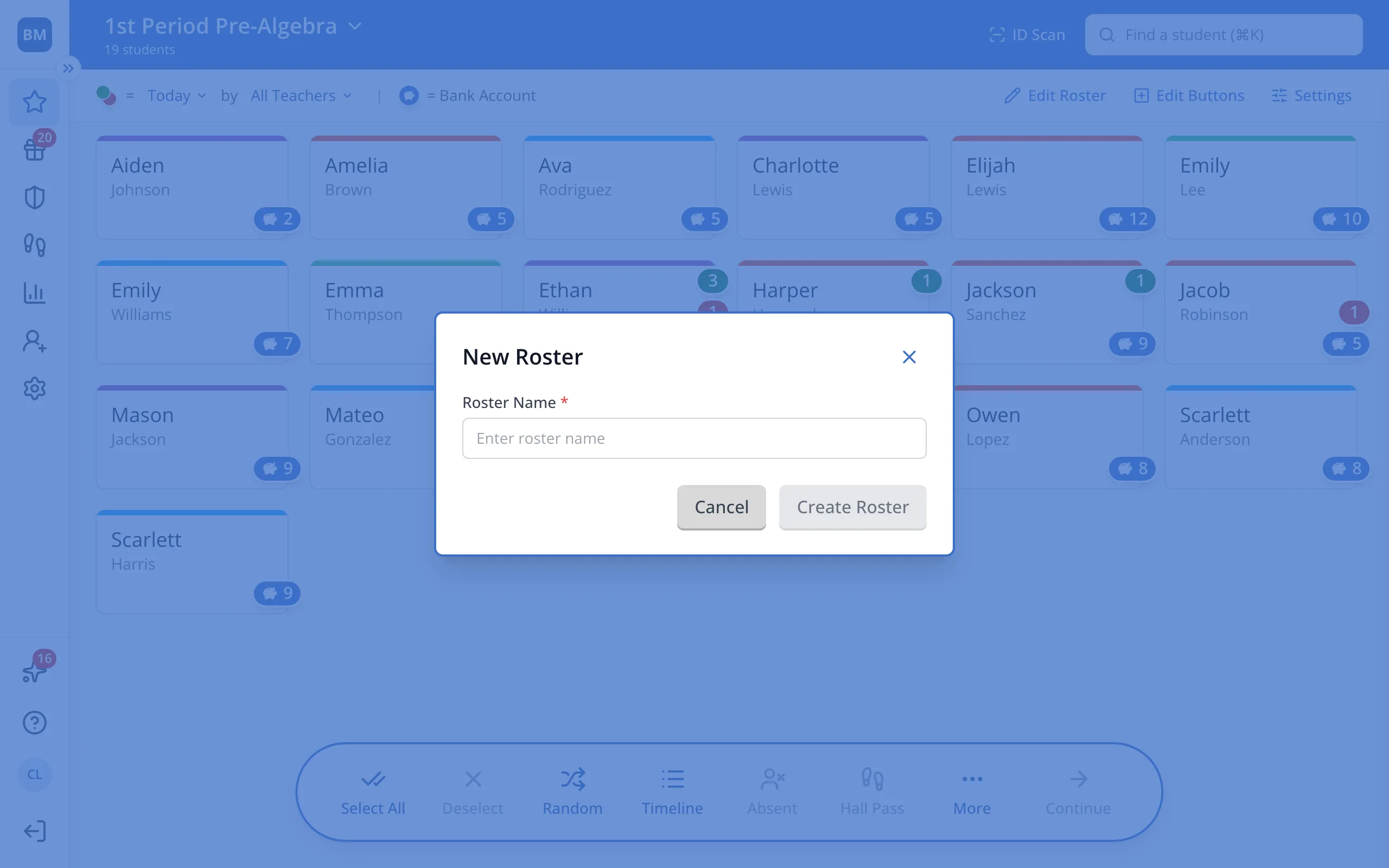
3.Type a name for your roster.
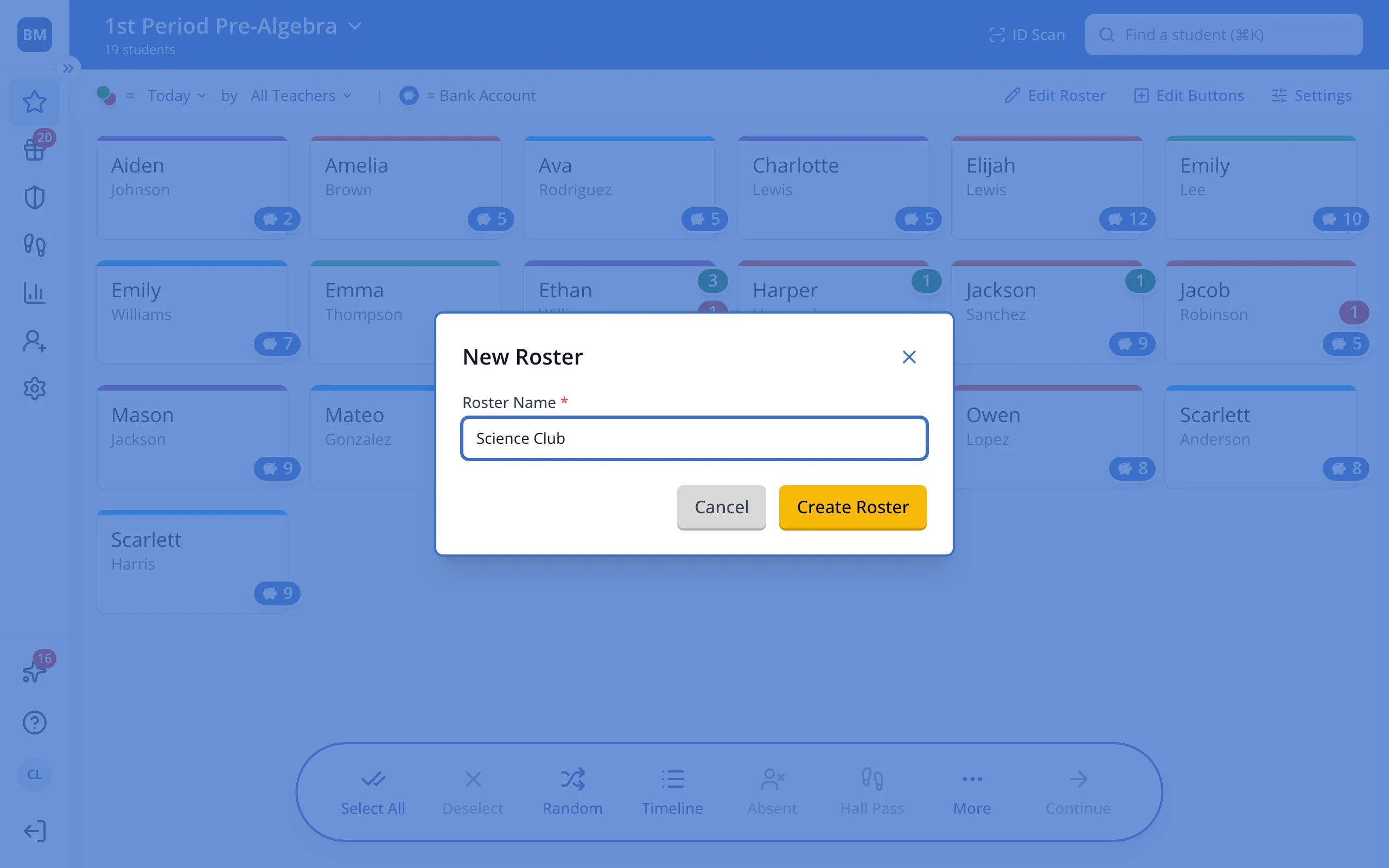
4.Click Create Roster.
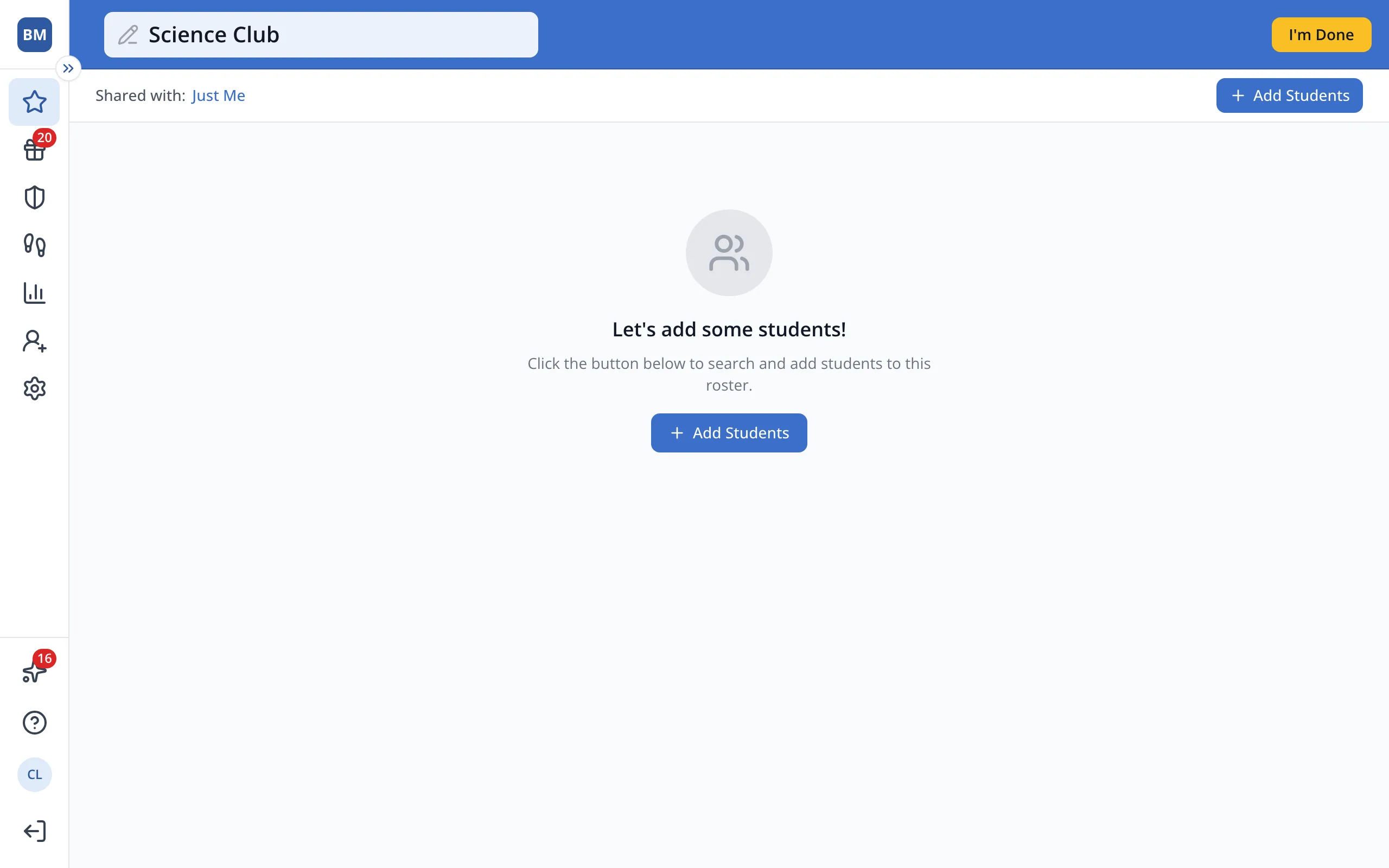
5.Click Add Students.
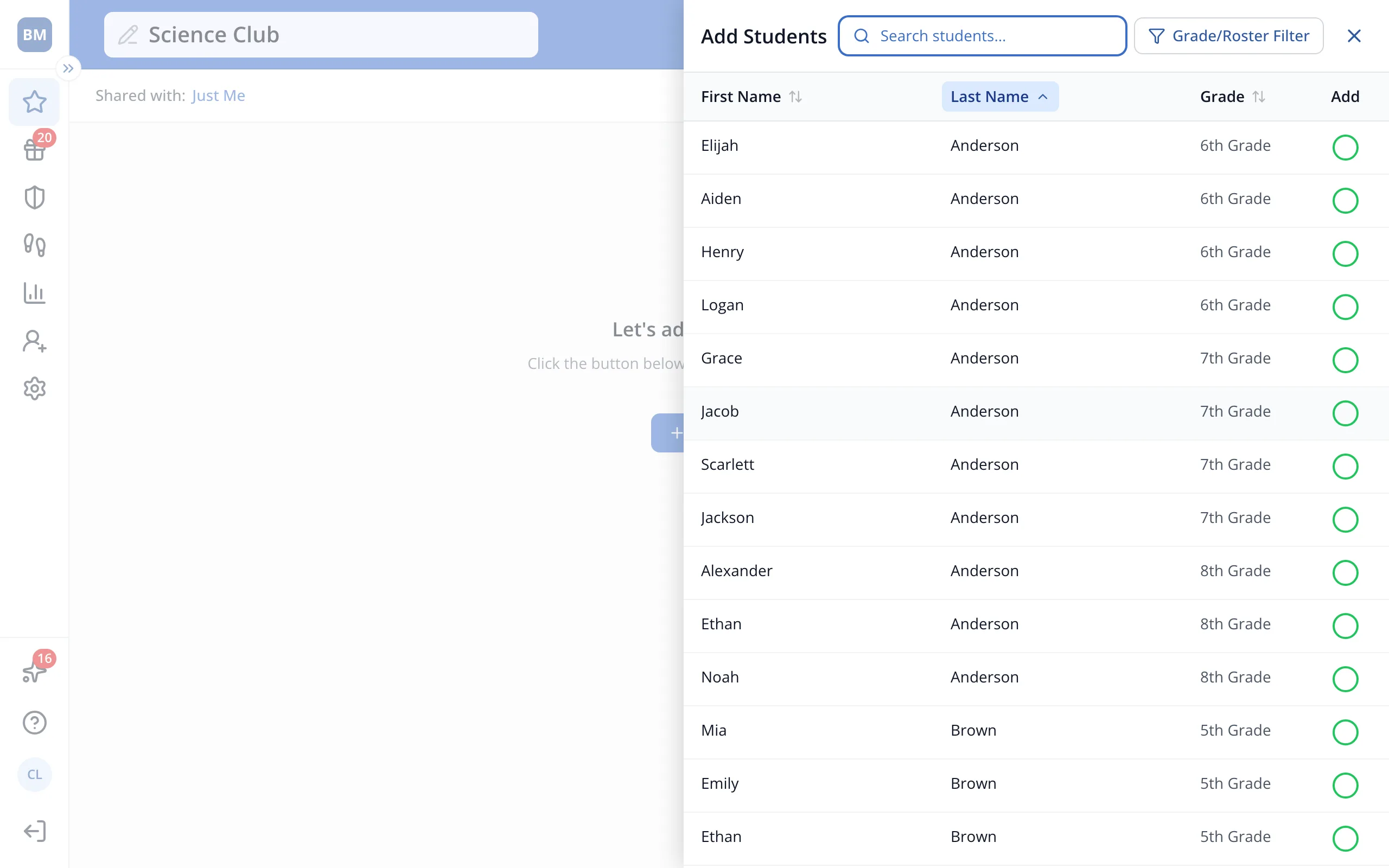
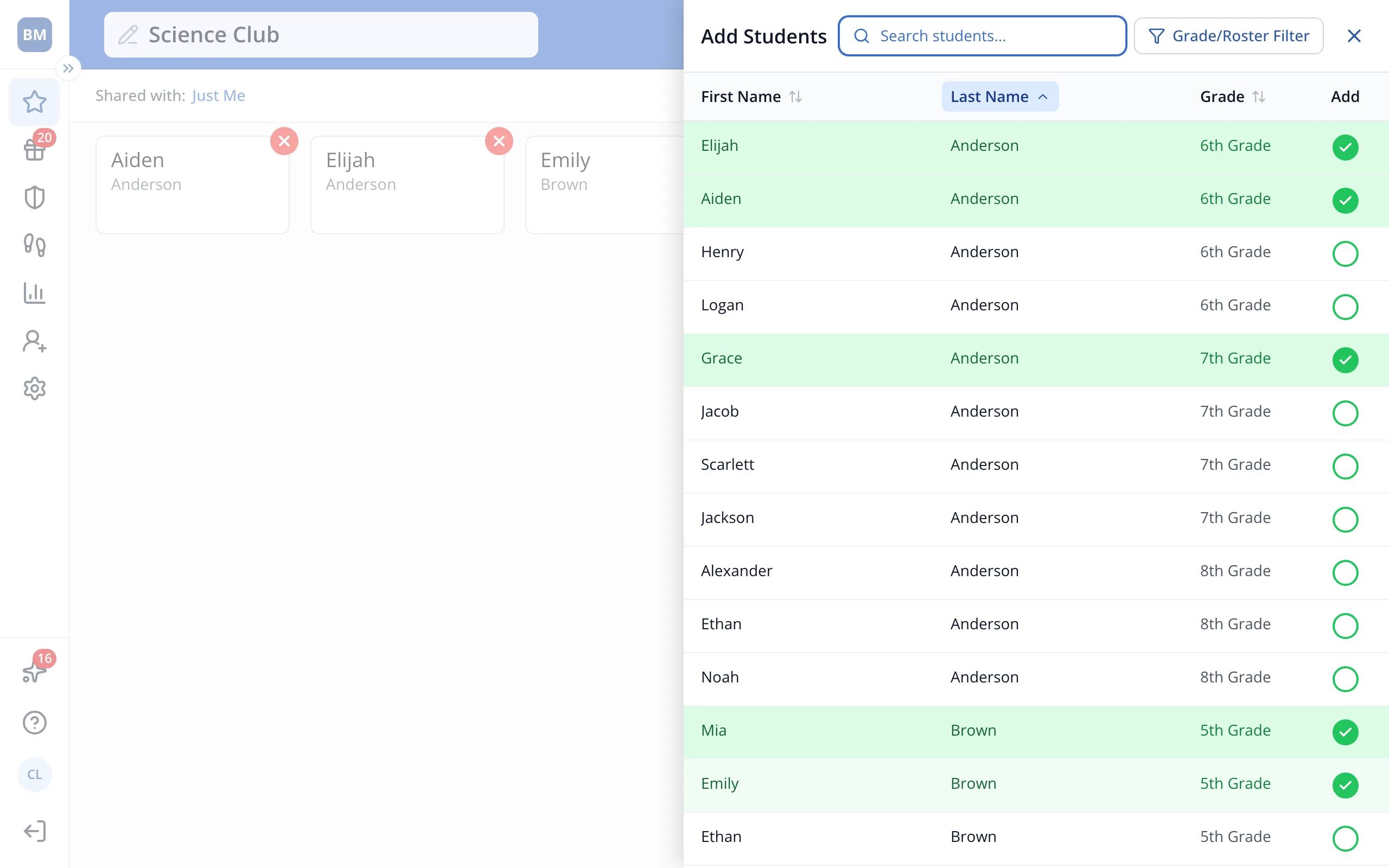
6.Click each student you'd like to add. You'll see a green check next to each one.
7.When you've added everyone, click the X at the top of the panel.
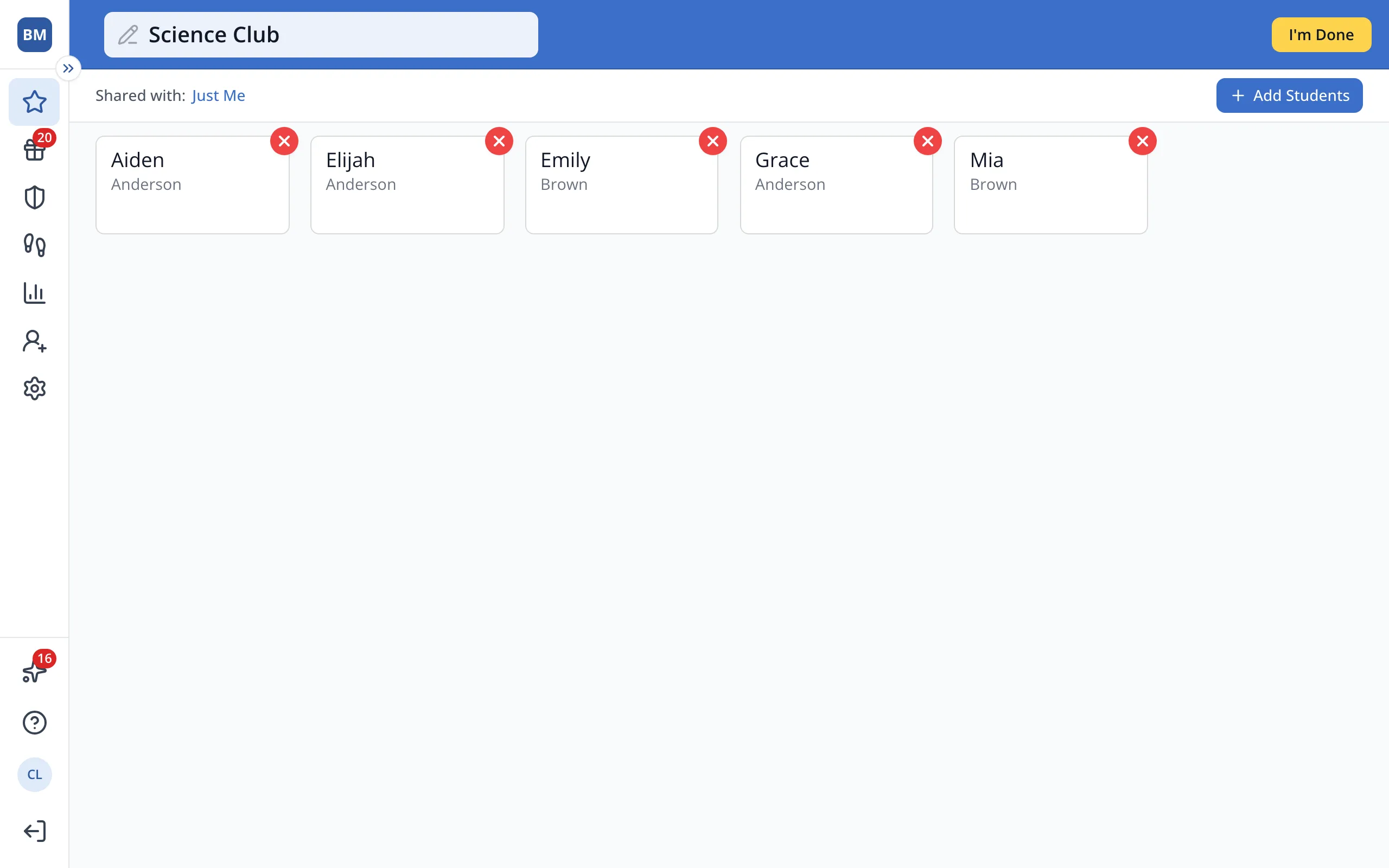
8.Click I'm Done to save your roster.
Was this helpful?