
Move a student to a different non-syncing roster
Take a student off of an old roster and add them to a new one.
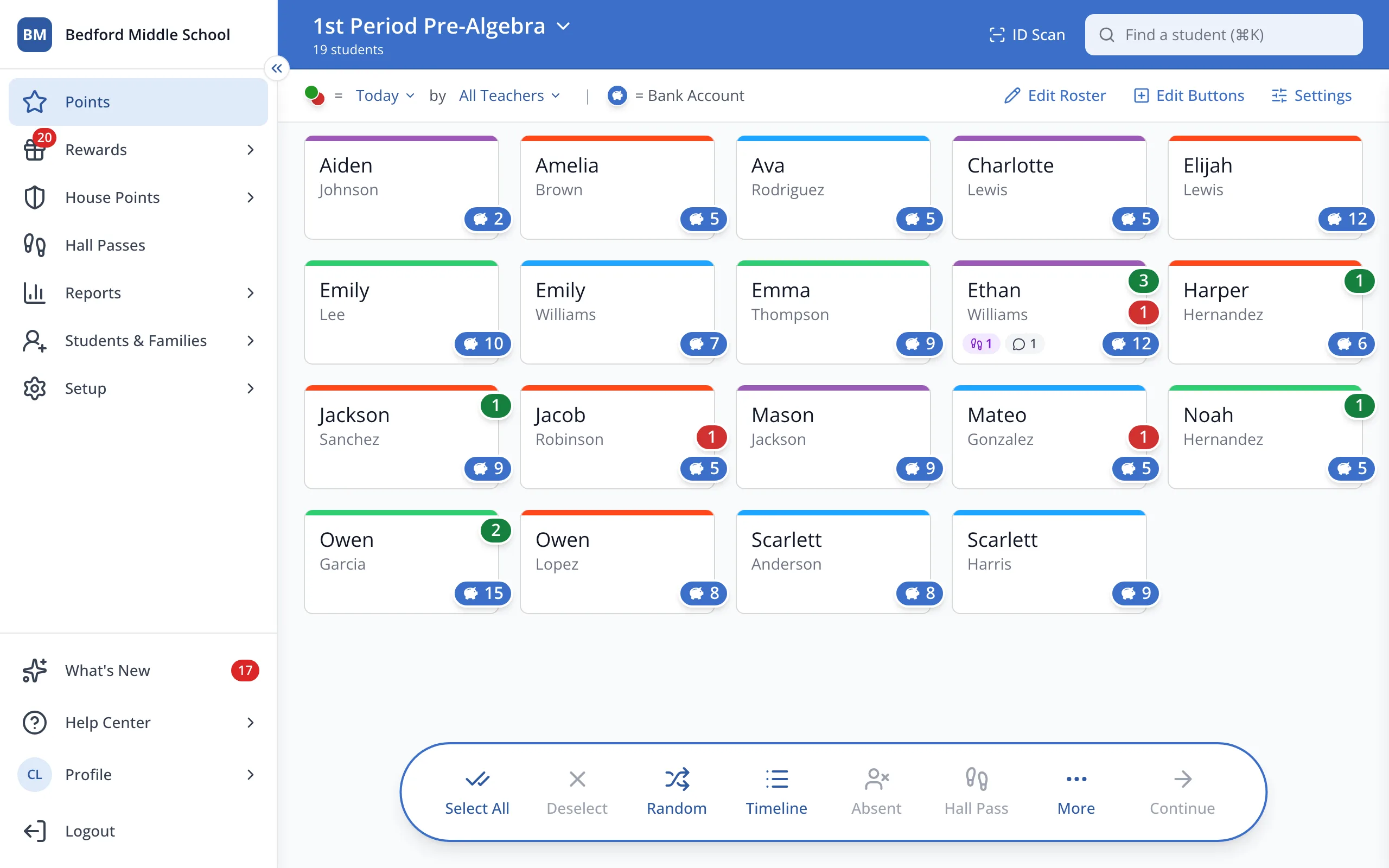
1 / 11In the sidebar, click Setup.
1.In the sidebar, click Setup.
2.Click Rosters.
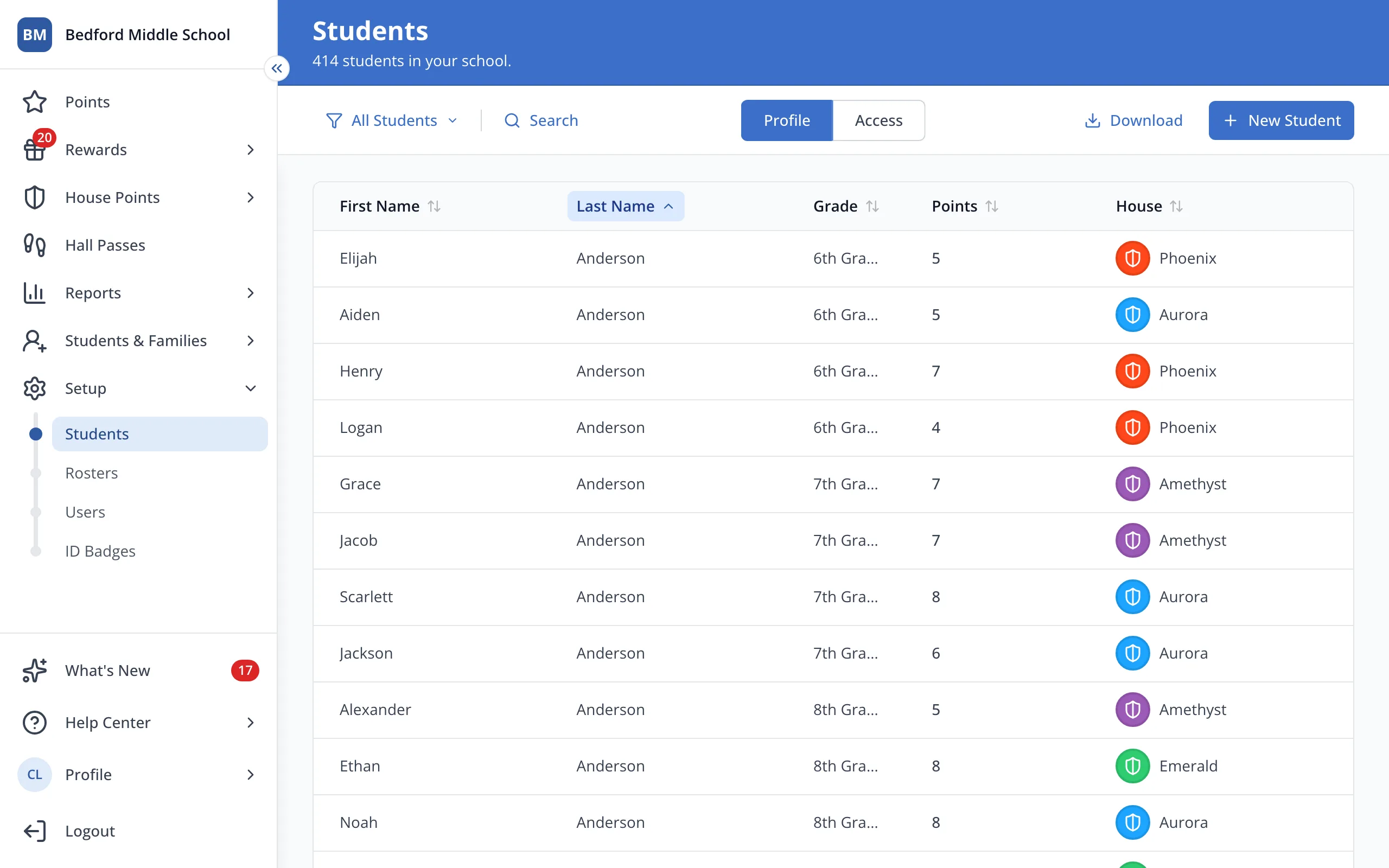
3.Click the student's old roster.
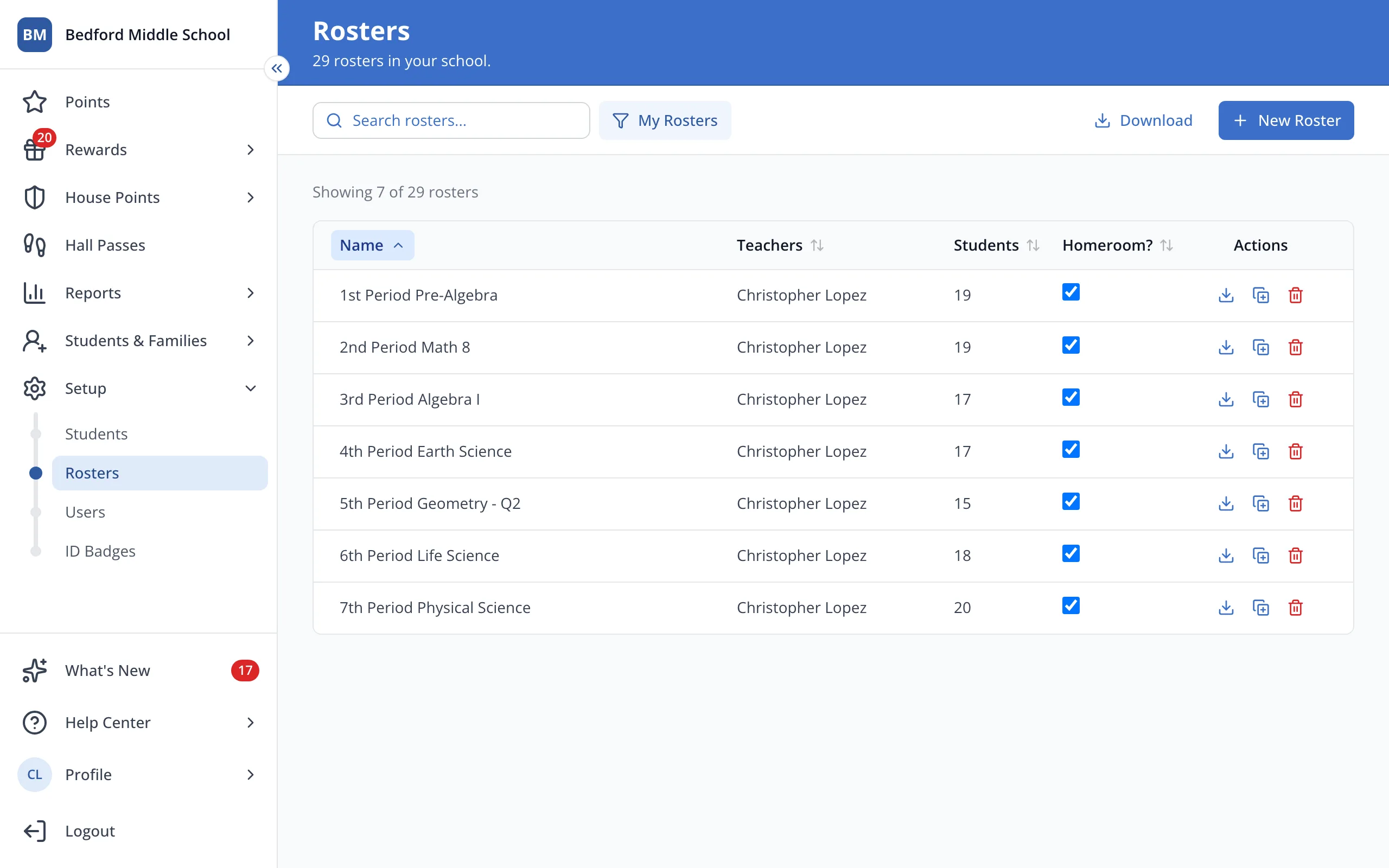
4.Next to the student, click Remove.
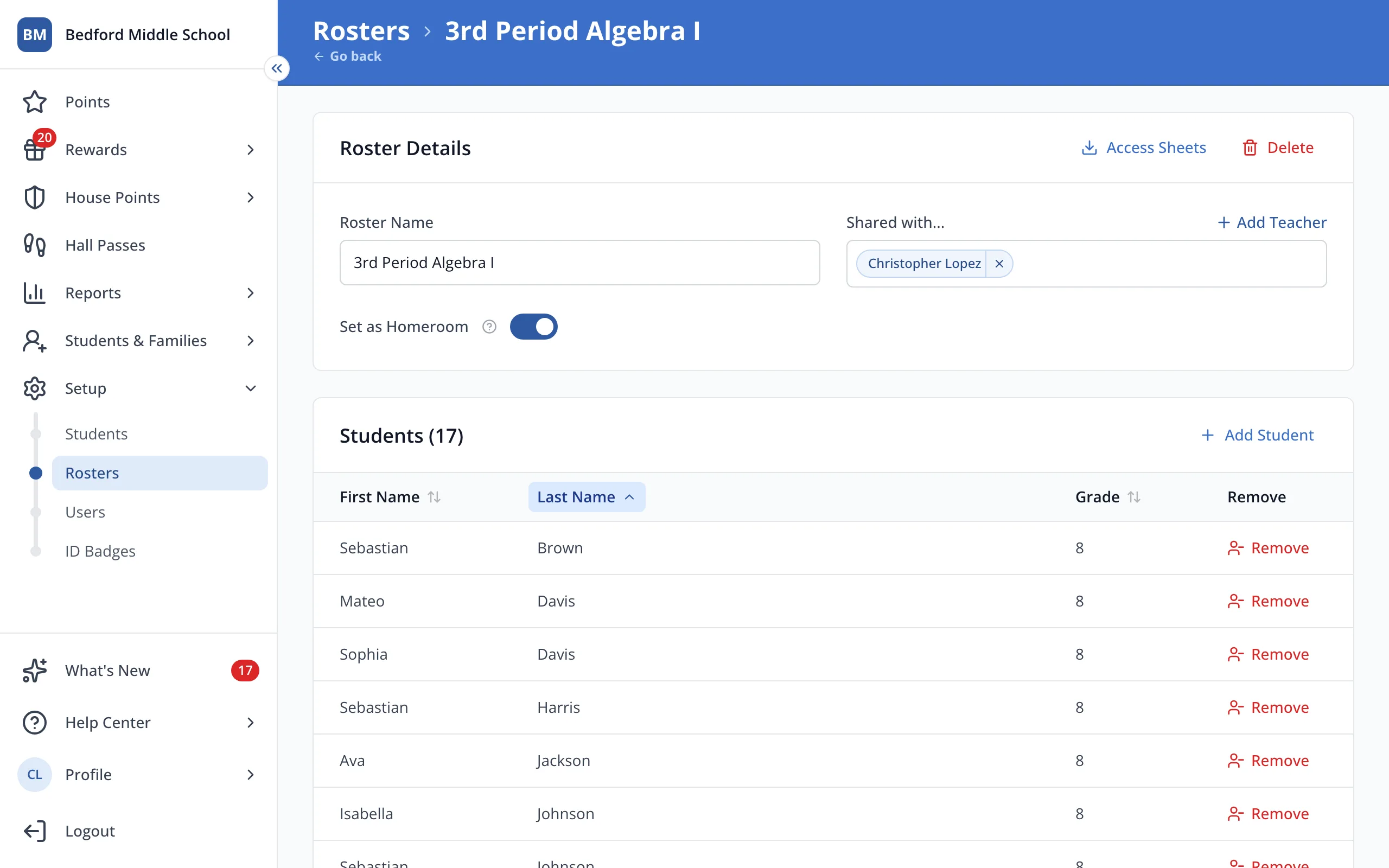
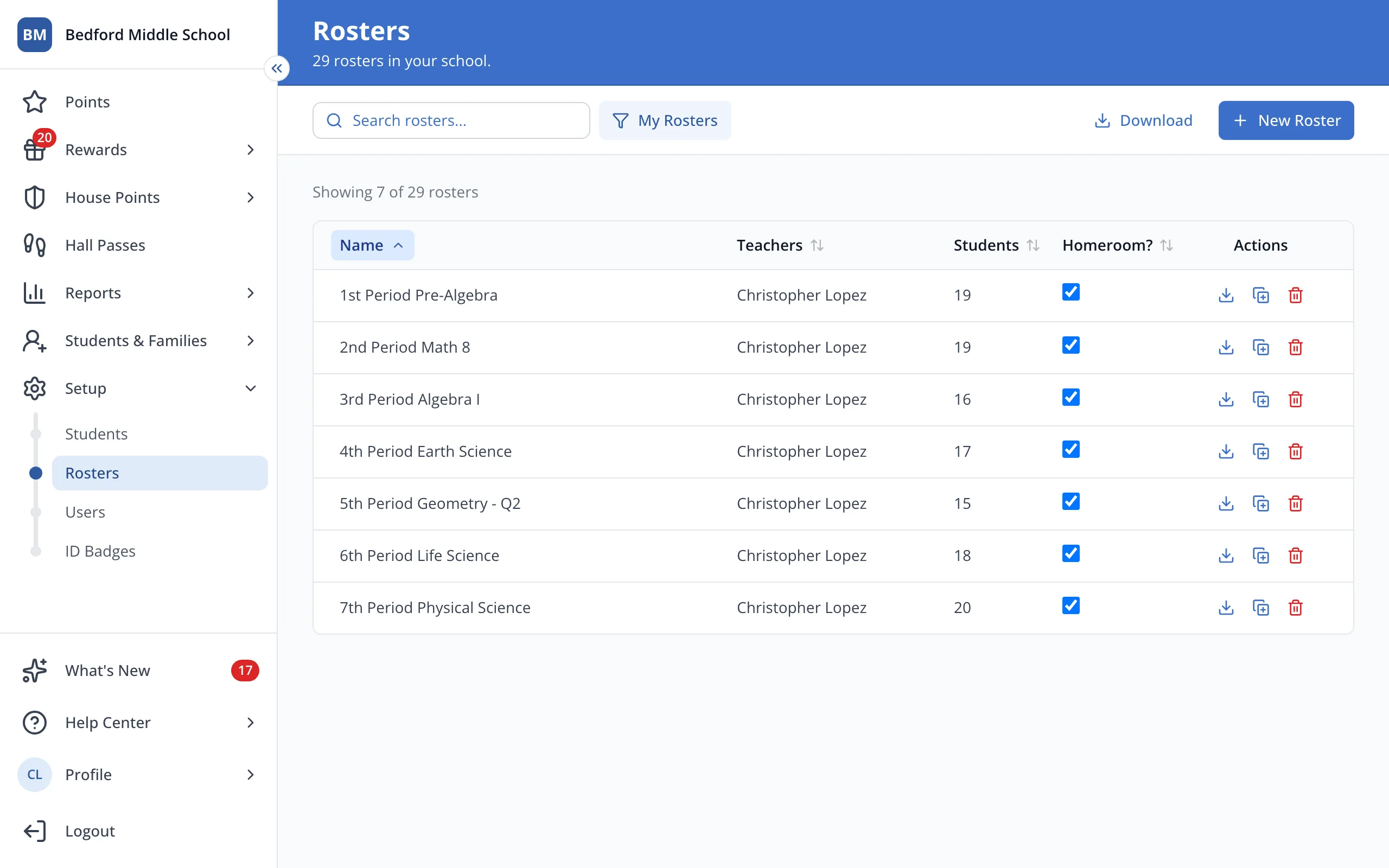
5.At the top of the page, click Rosters to go back to your list.
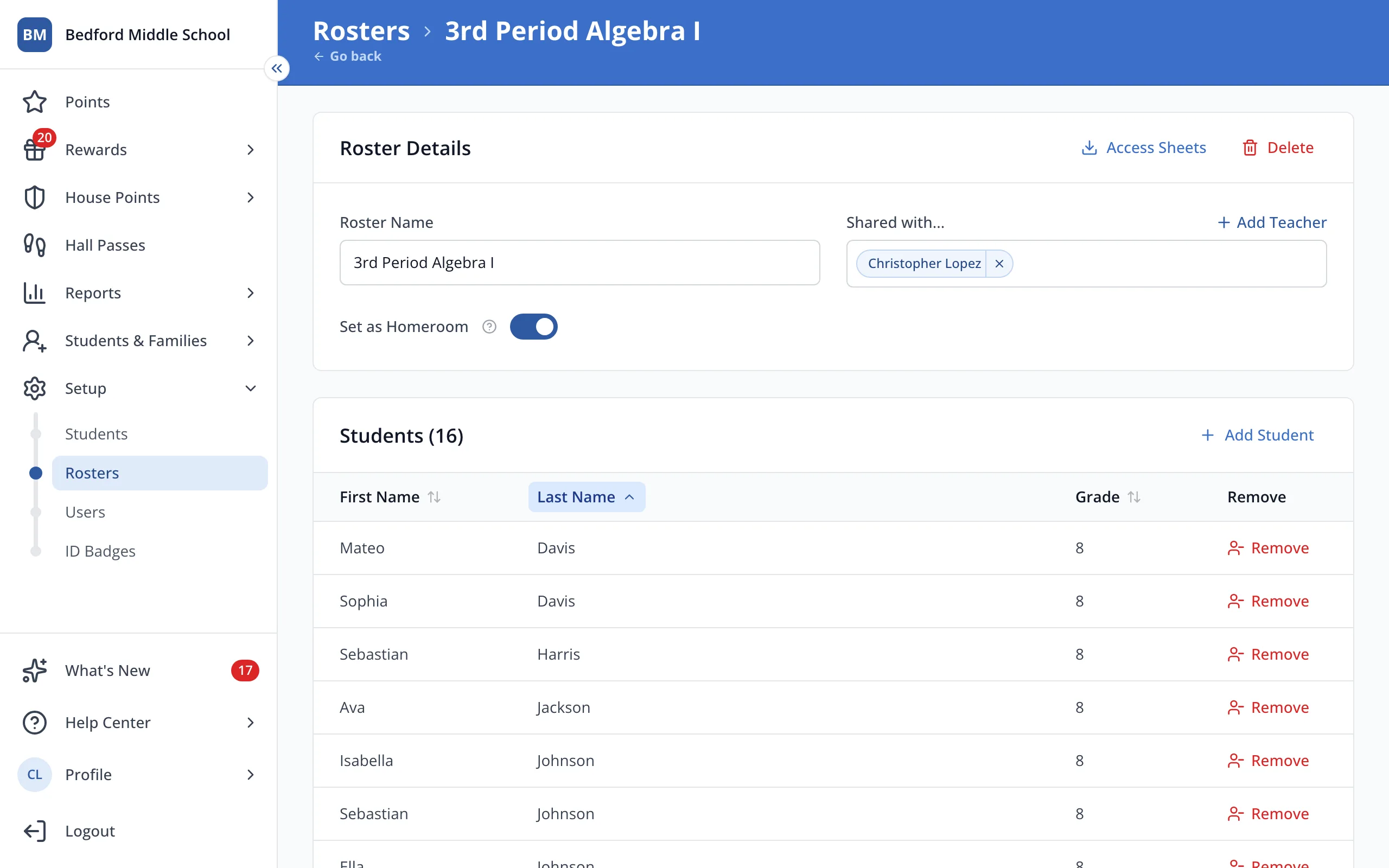
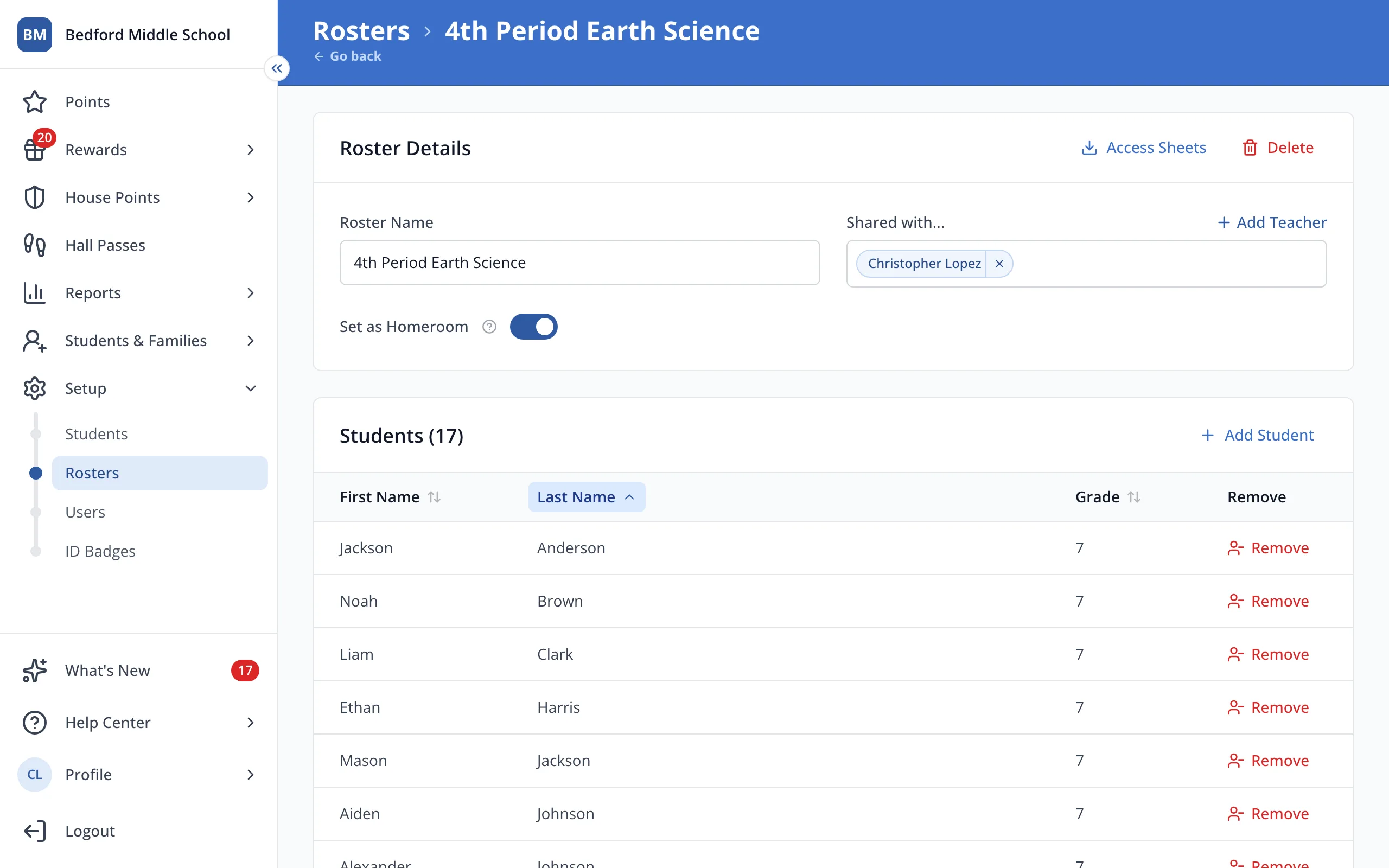
6.Click the student's new roster.
7.Click Add Student.
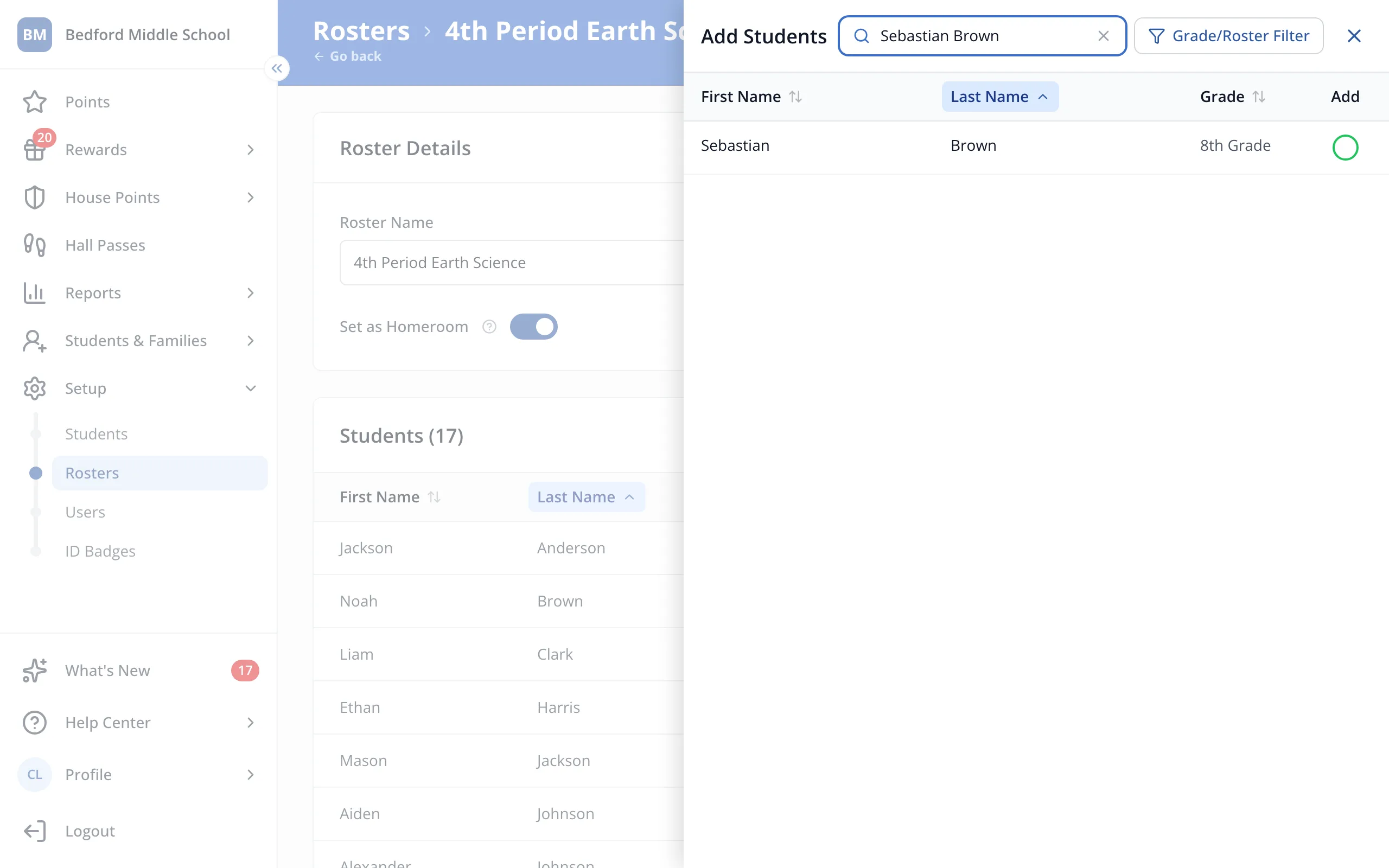
8.Type the student's name in the search box.
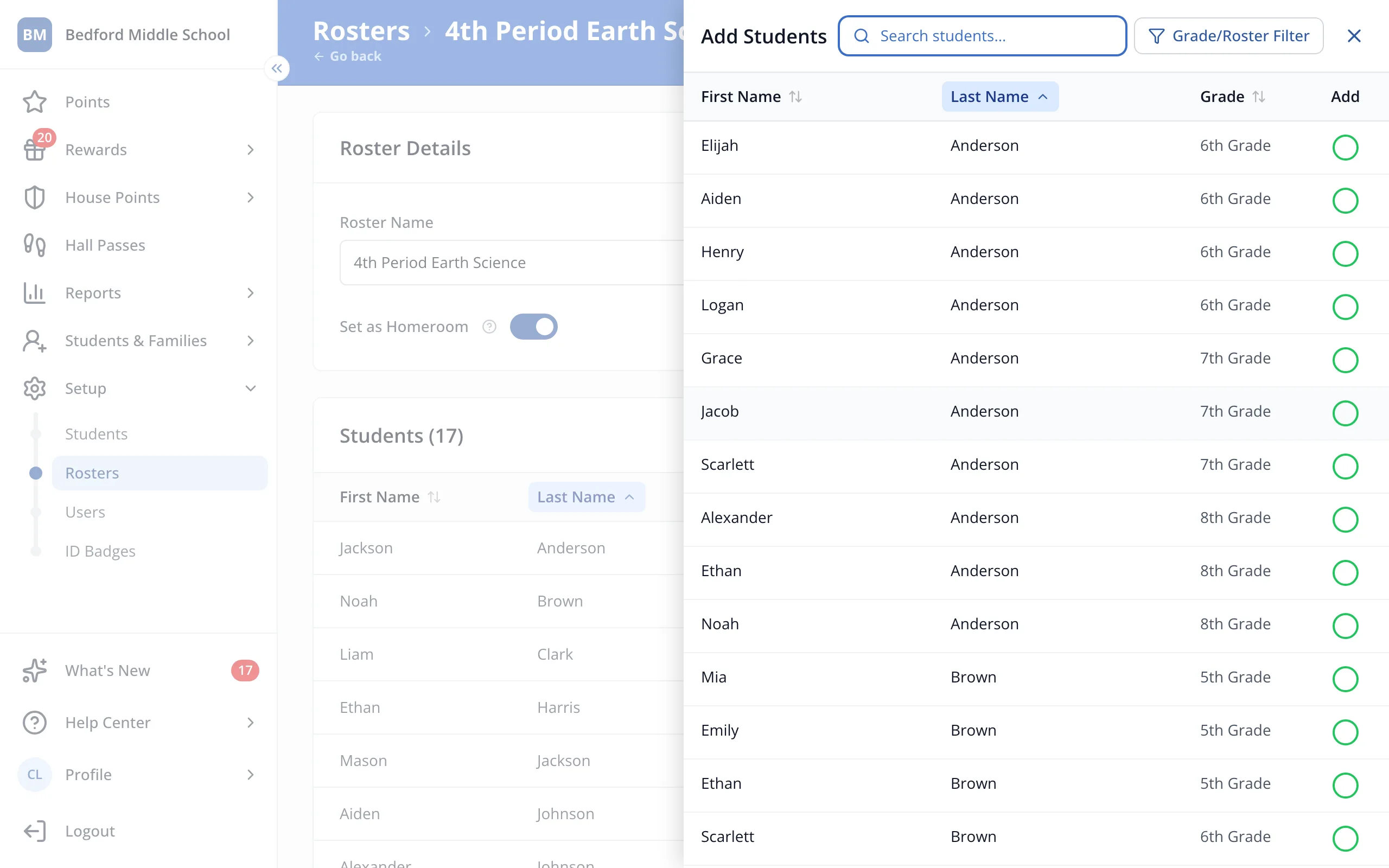
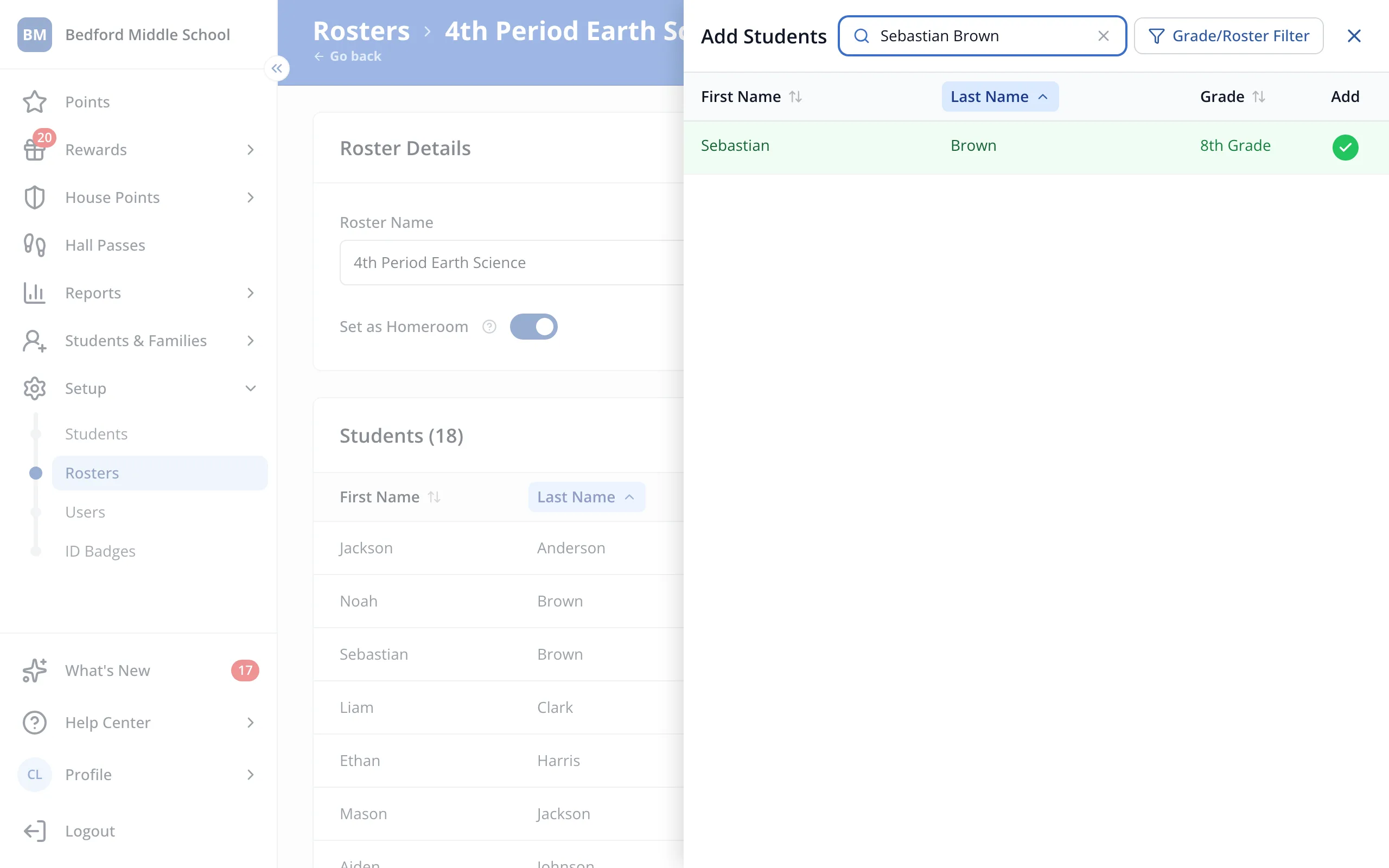
9.Click the student. You'll see a green check next to their name.
10.Click the X at the top of the panel.
Was this helpful?