
Take a teacher off a roster
The teacher stops seeing the roster in My Rosters. The roster and its students don't change.
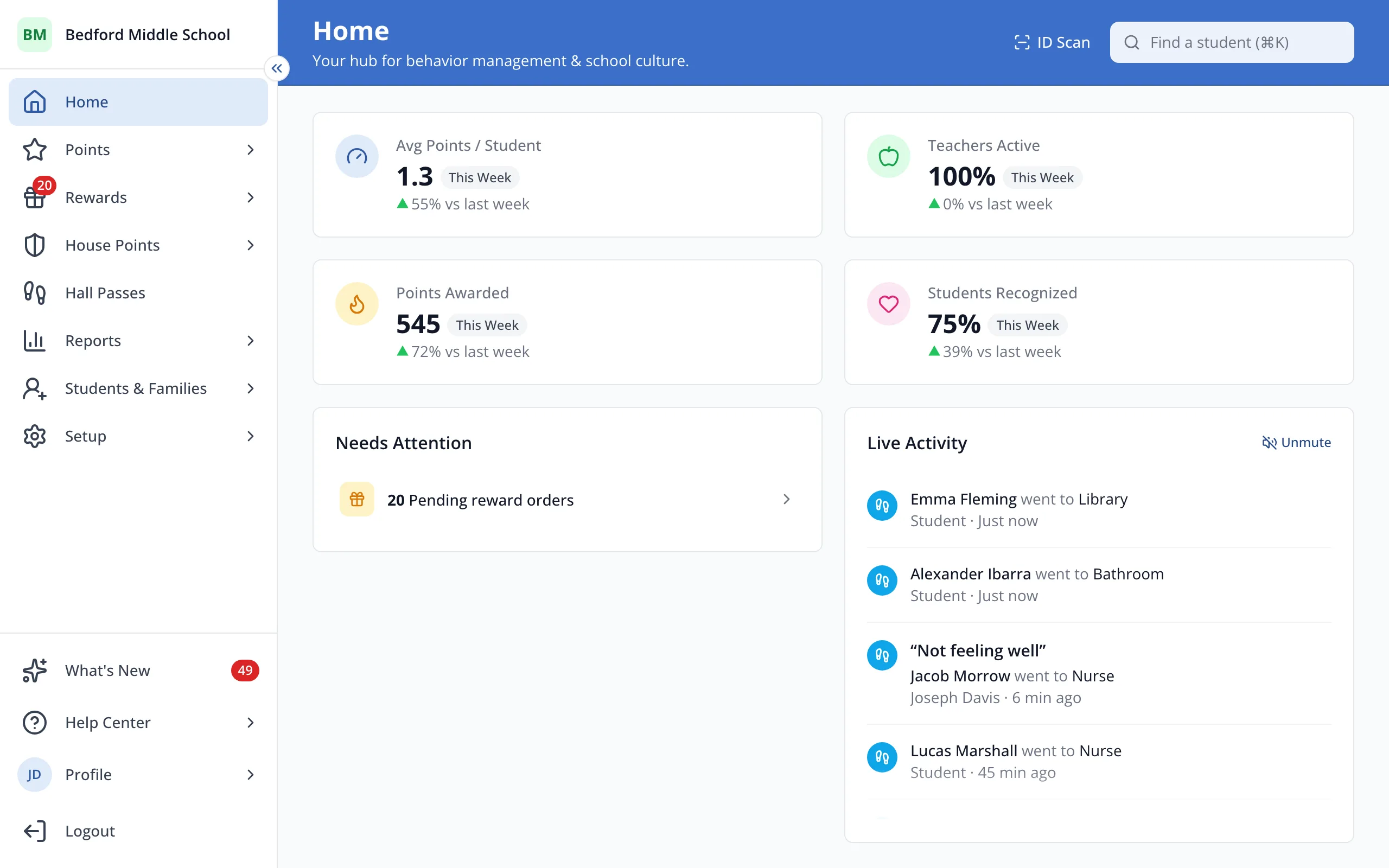
1 / 5In the sidebar, click Setup.
1.In the sidebar, click Setup.
2.Click Rosters.
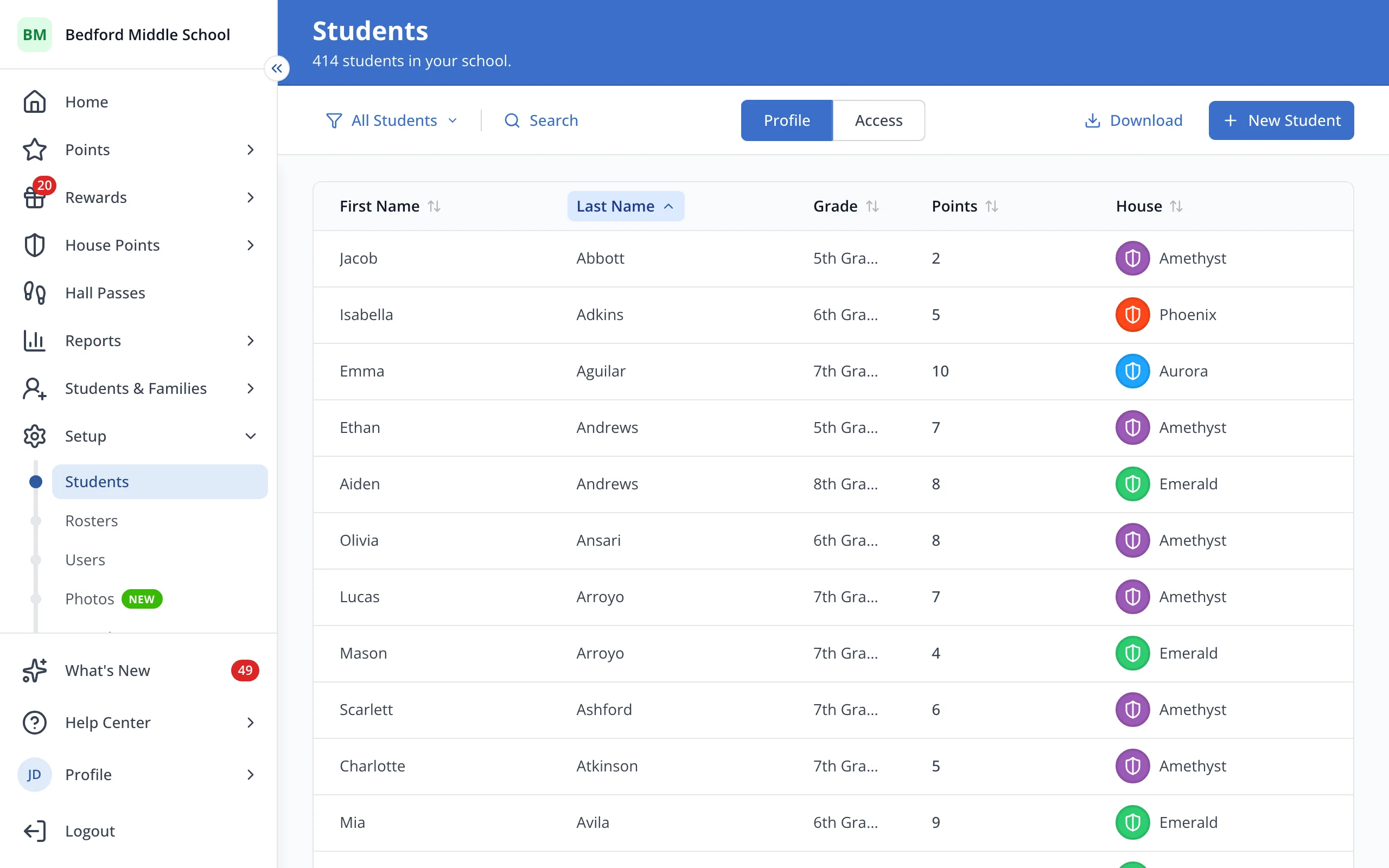
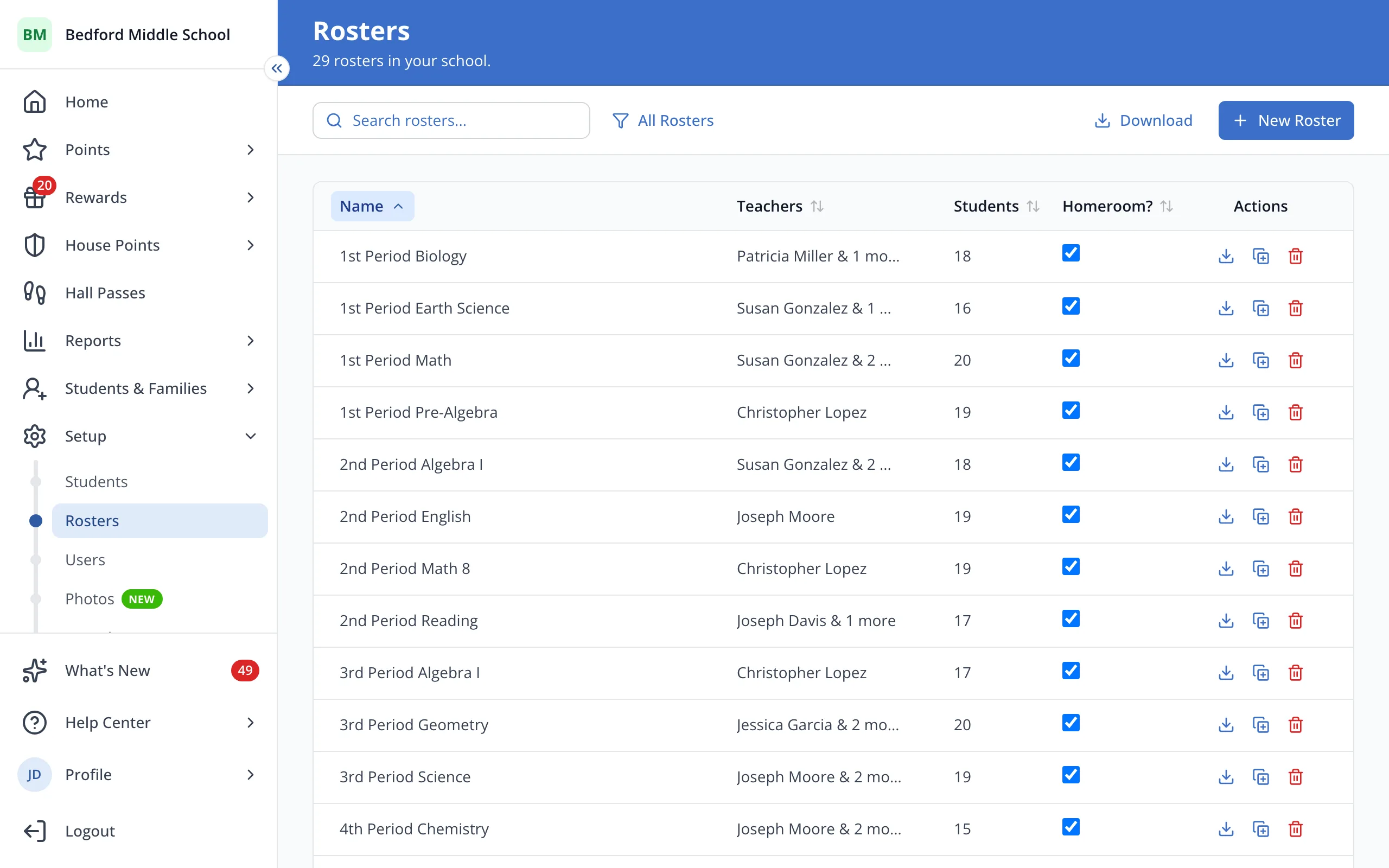
3.Click the roster's name.
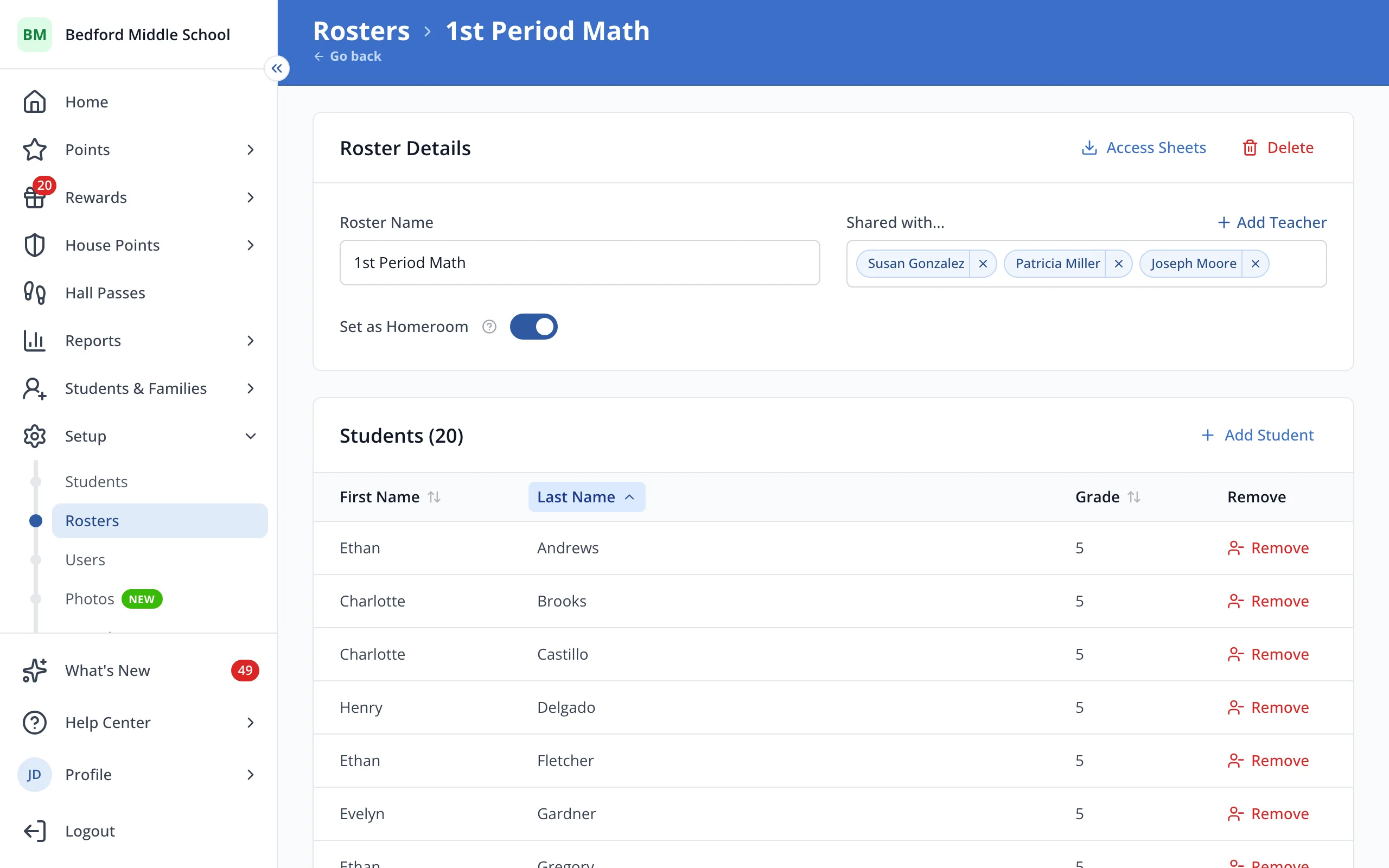
4.Next to Shared with, click the X beside the teacher's name.
Tip: To take a teacher off several rosters, open their page under Setup, then Users.
Was this helpful?