
Save search results or scanned students as a roster
Turn a group you pulled together with search or ID badge scans into a roster you can open again anytime.
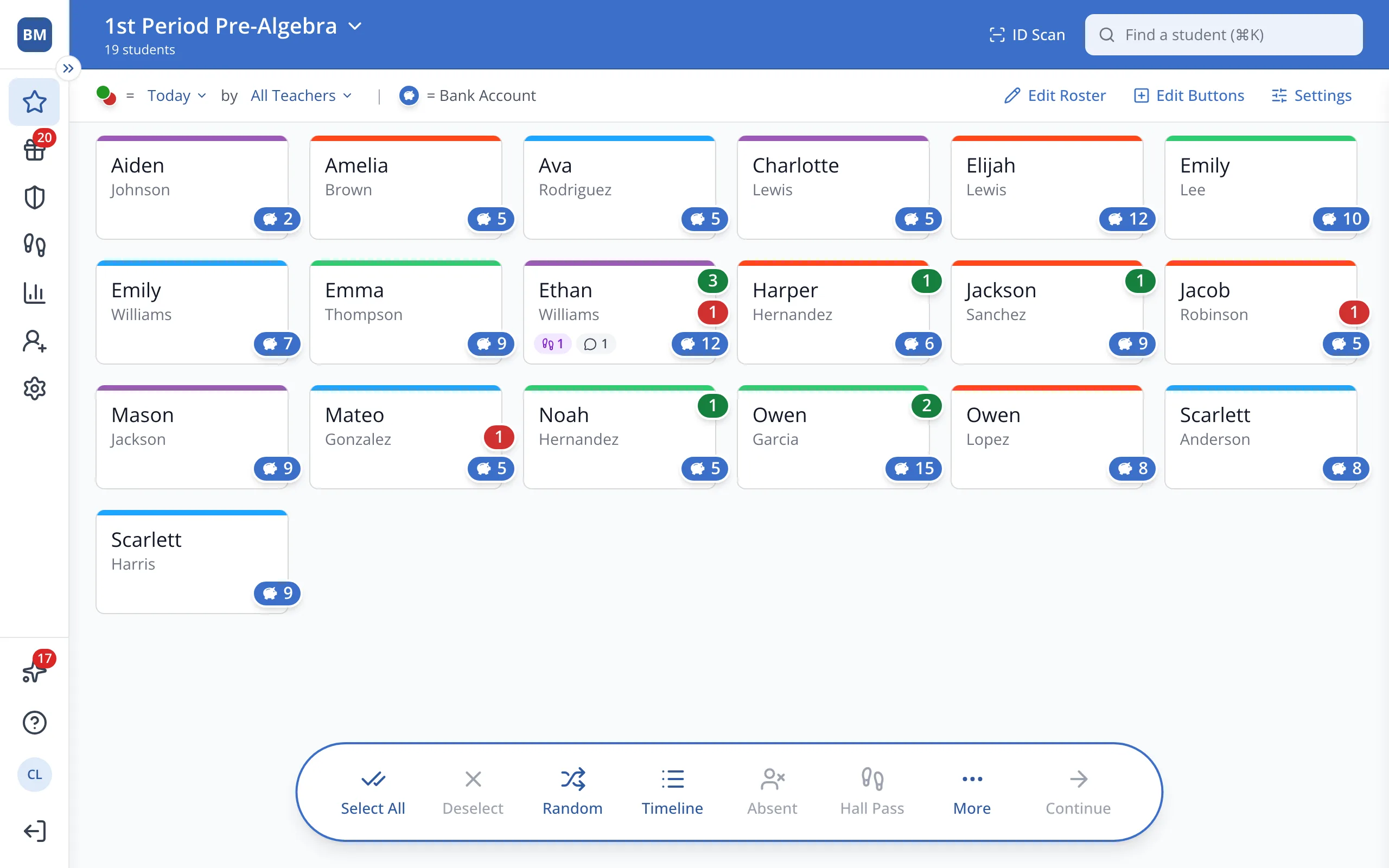
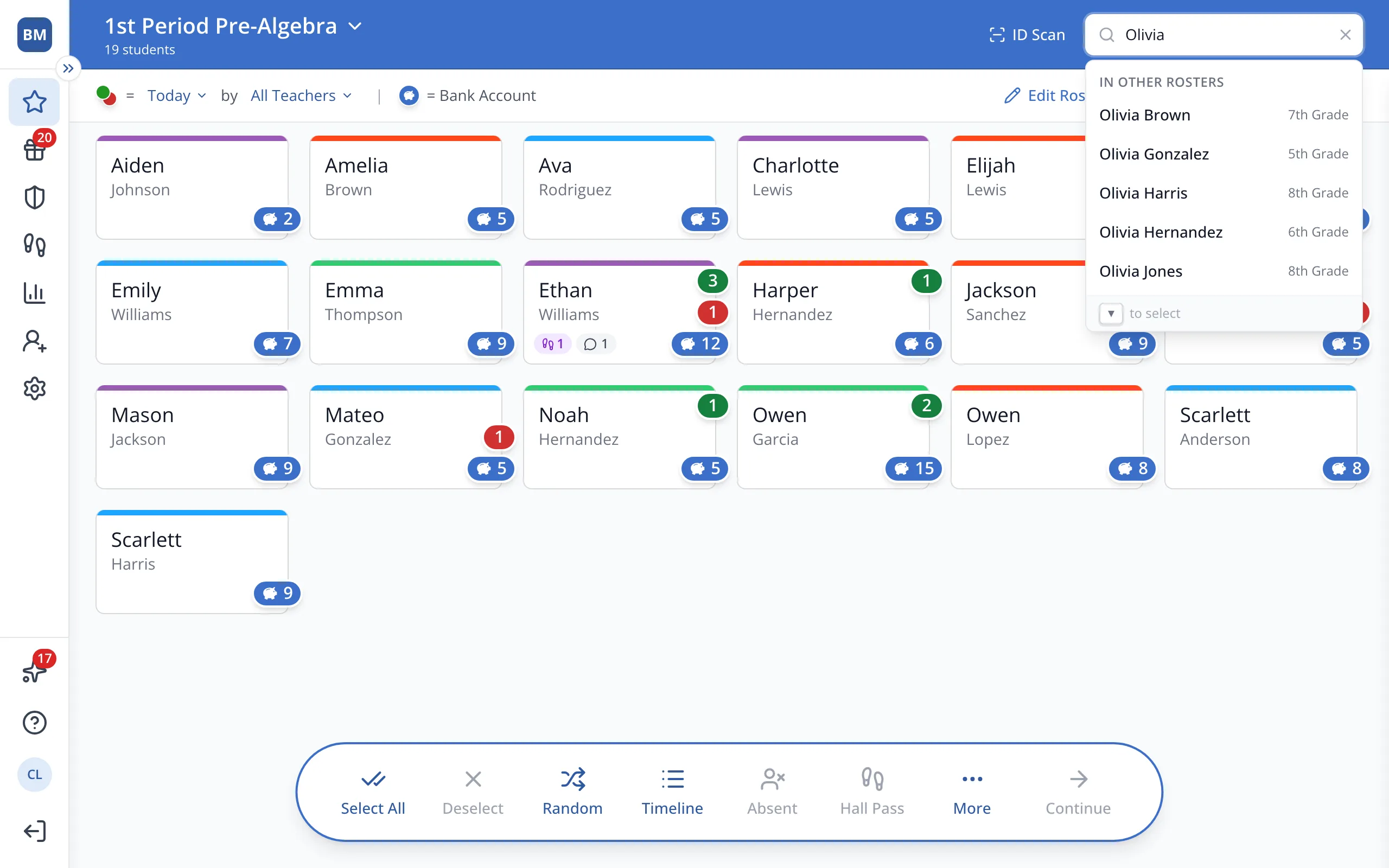
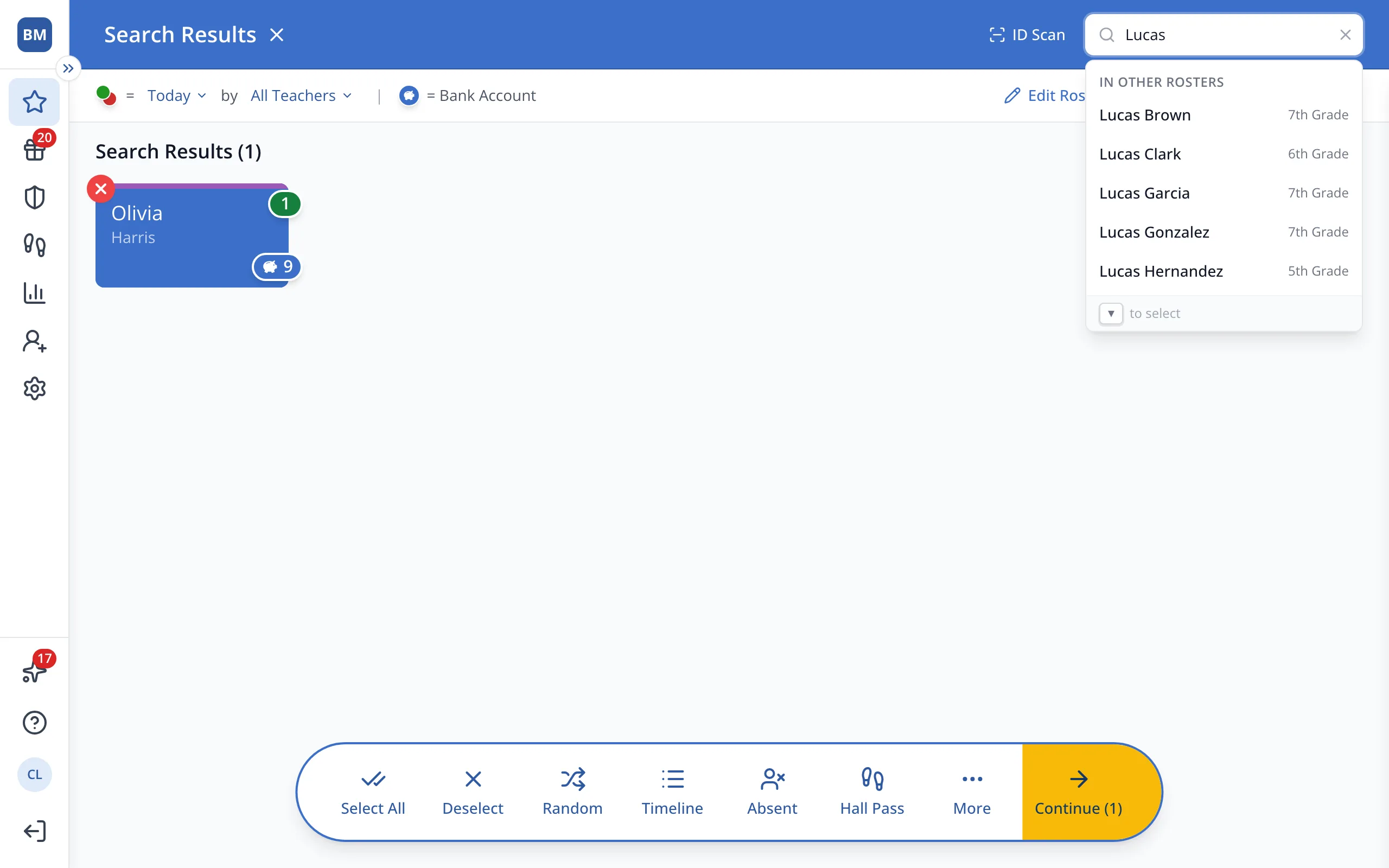
1 / 8At the top of the Points page, type a student's name in Find a student.
1.At the top of the Points page, type a student's name in Find a student.
2.Click the student.
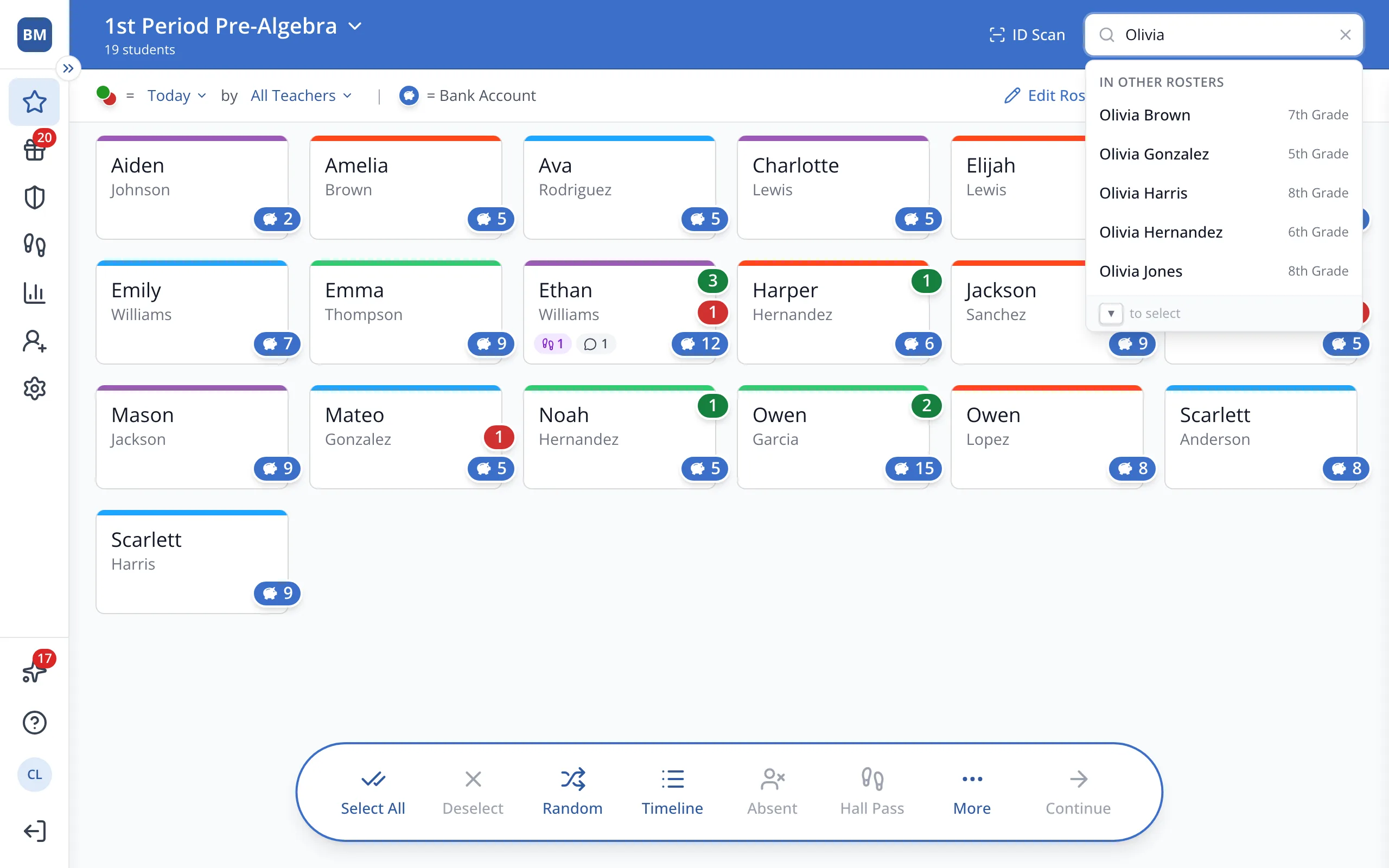
3.Type the next student's name.
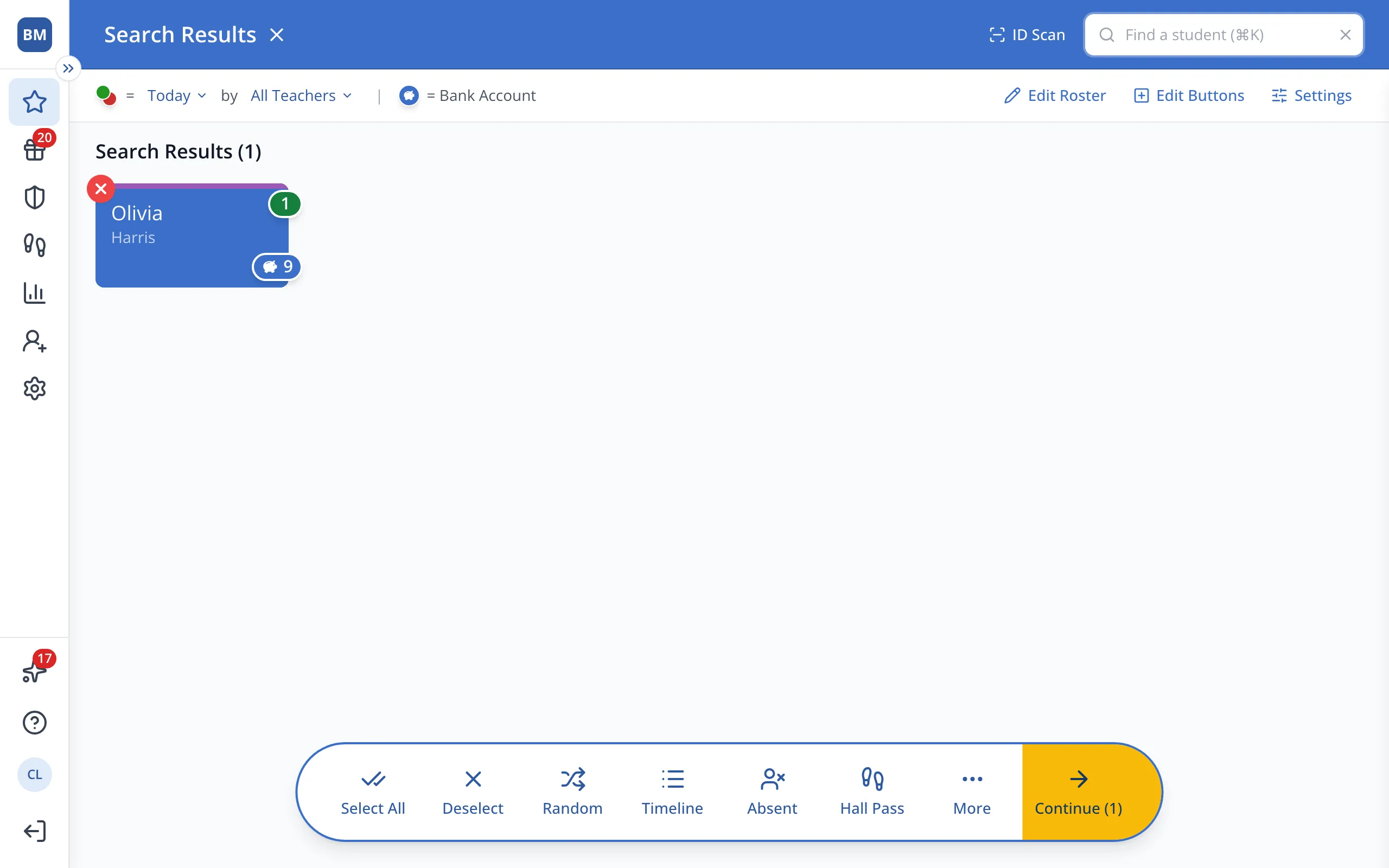
4.Click that student too. Repeat for everyone you'd like in the group.
5.Next to Search Results, click Save as roster.
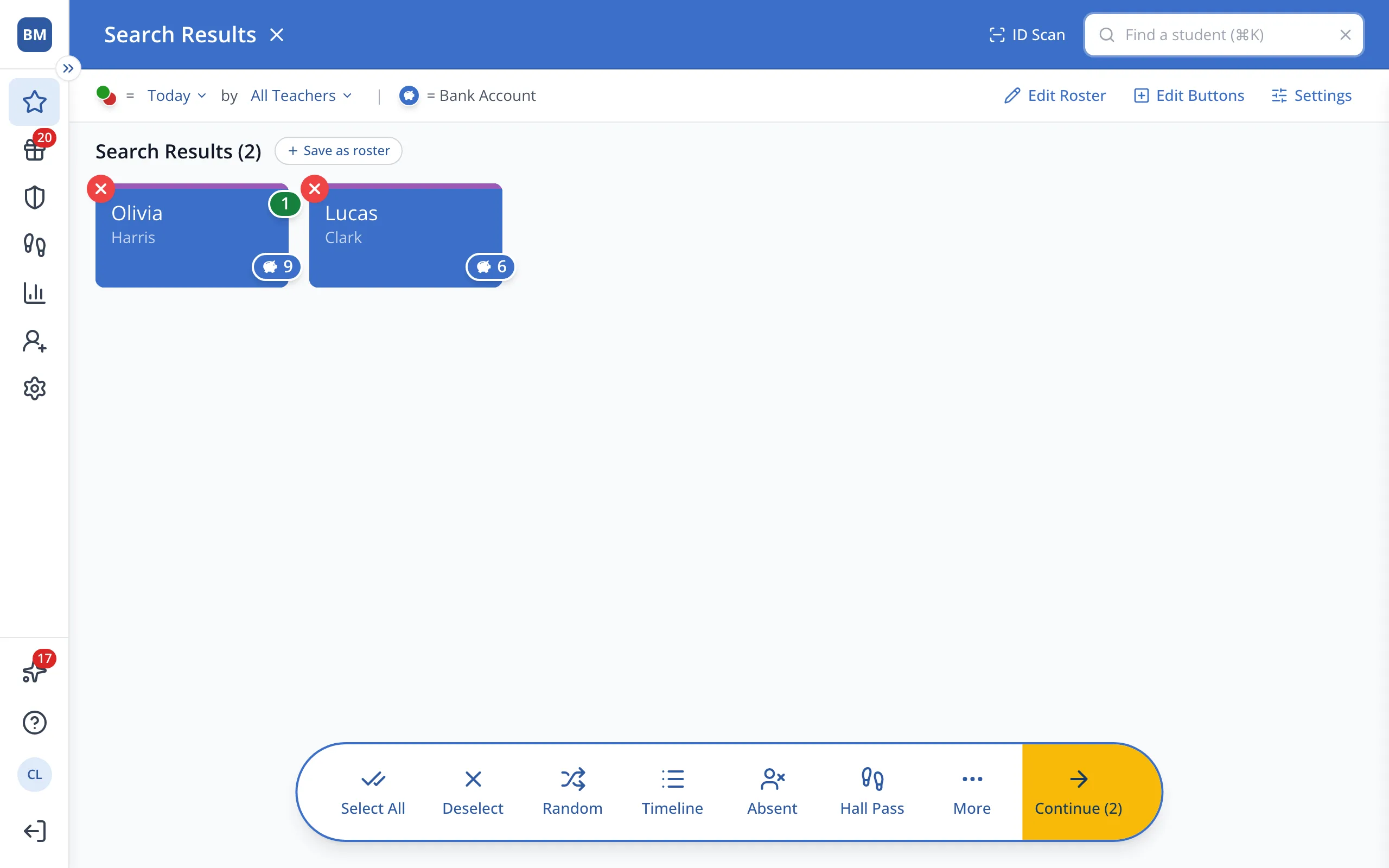
Tip: After you scan ID badges with ID Scan, Save as roster shows up next to the scanned students too.
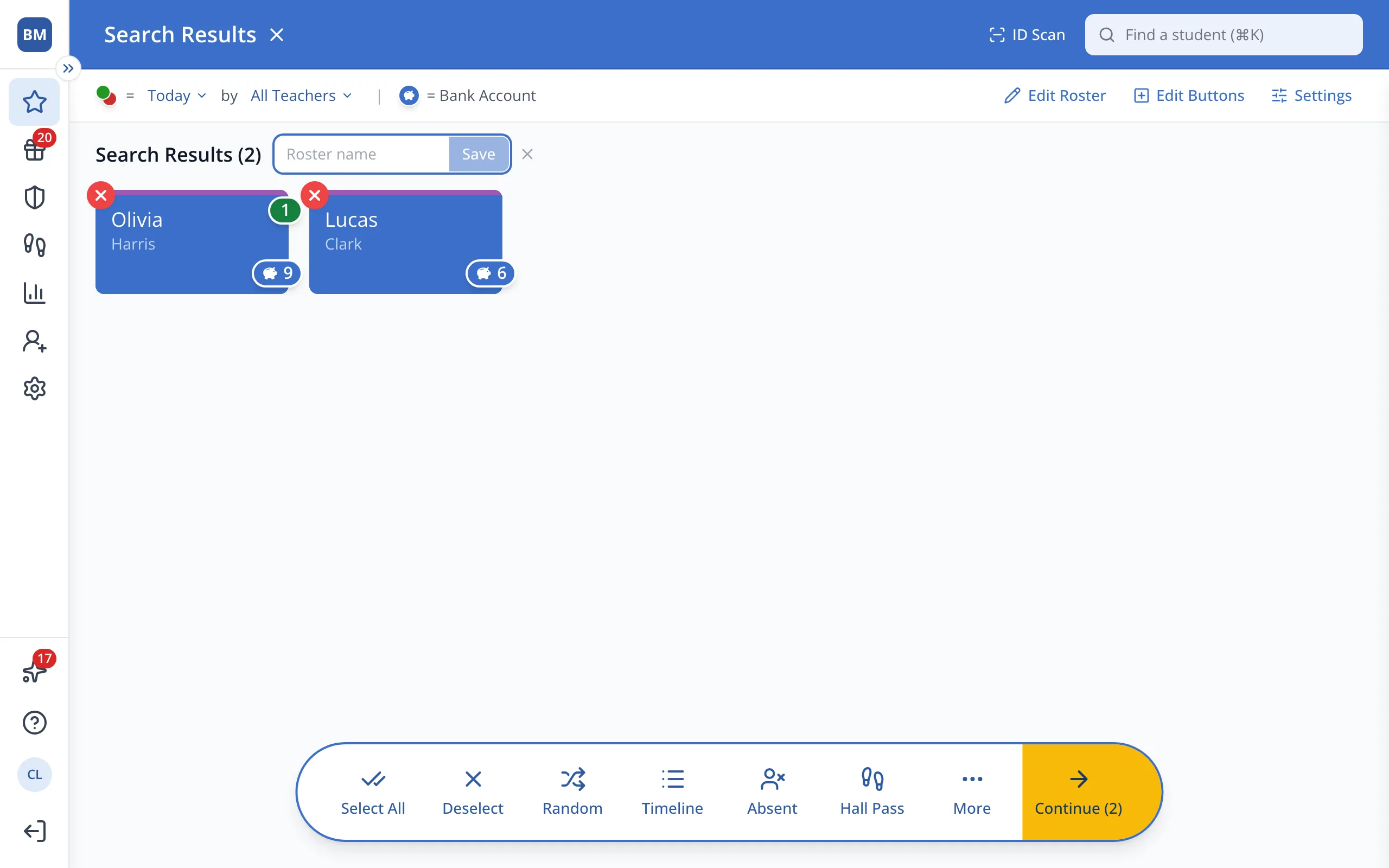
6.Type a name for the roster.
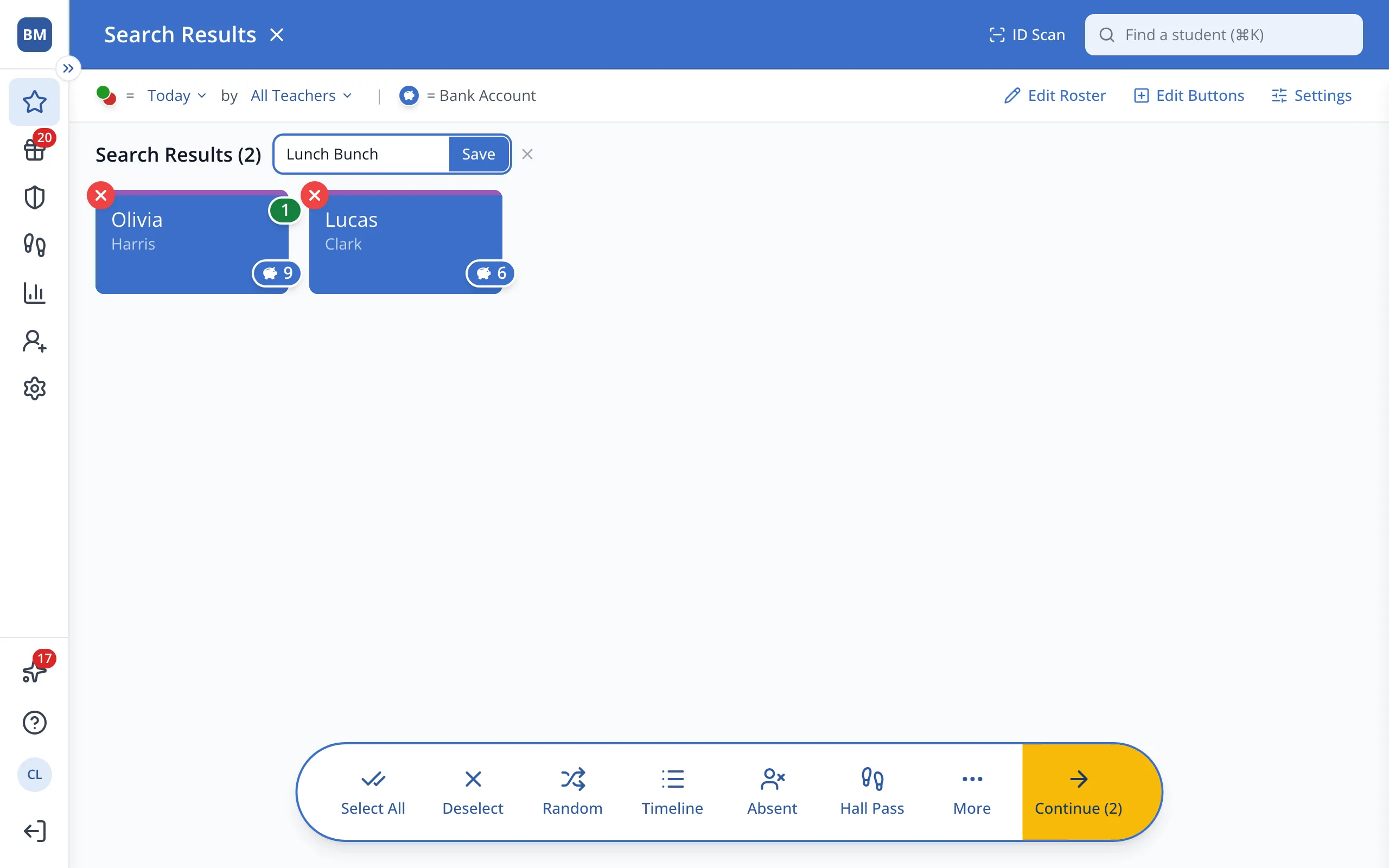
7.Click Save.
Was this helpful?