
Share a roster with every teacher
Useful for school-wide groups like a club or intervention list. Everyone you add sees the roster in My Rosters.
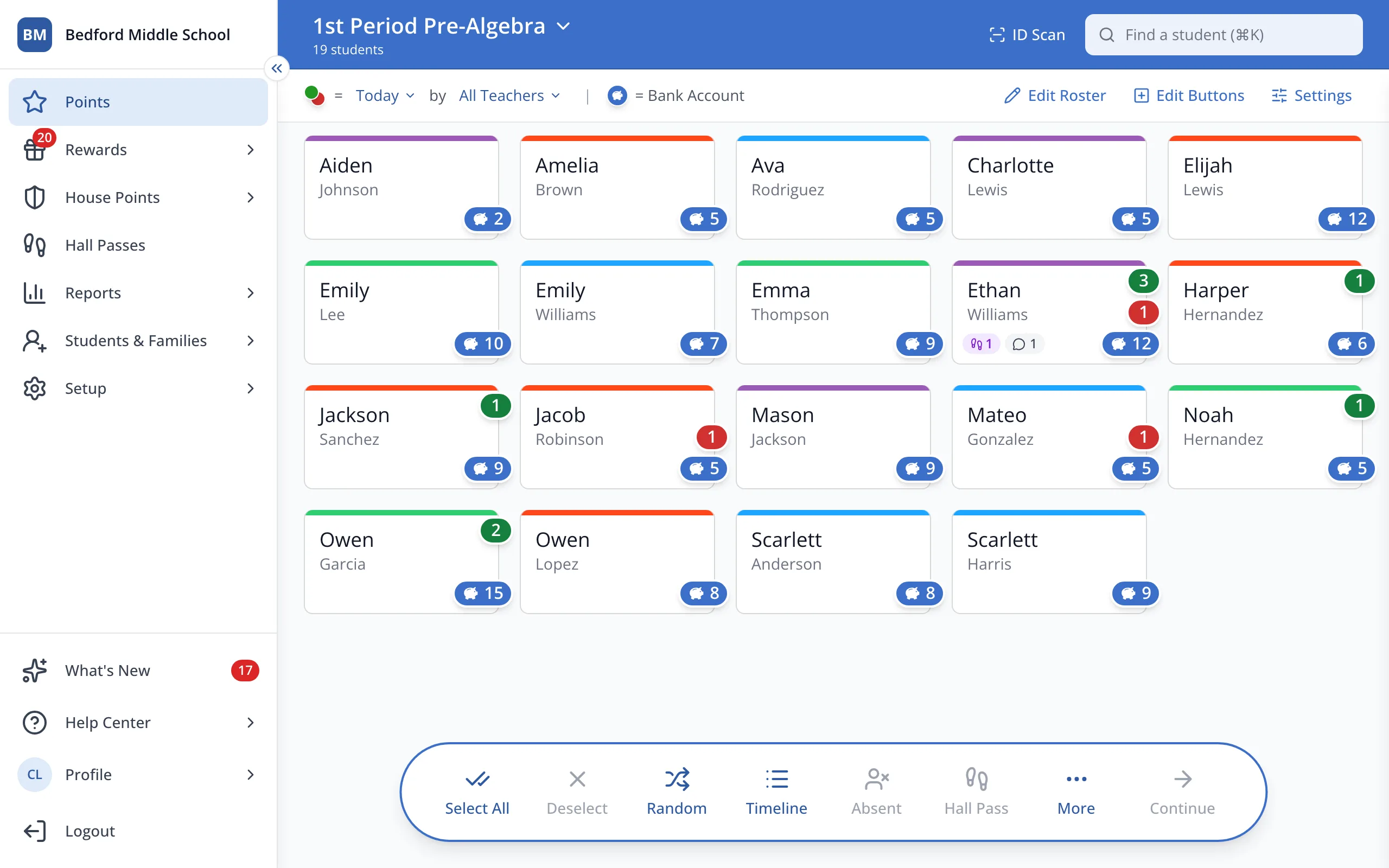
1 / 6In the sidebar, click Setup.
1.In the sidebar, click Setup.
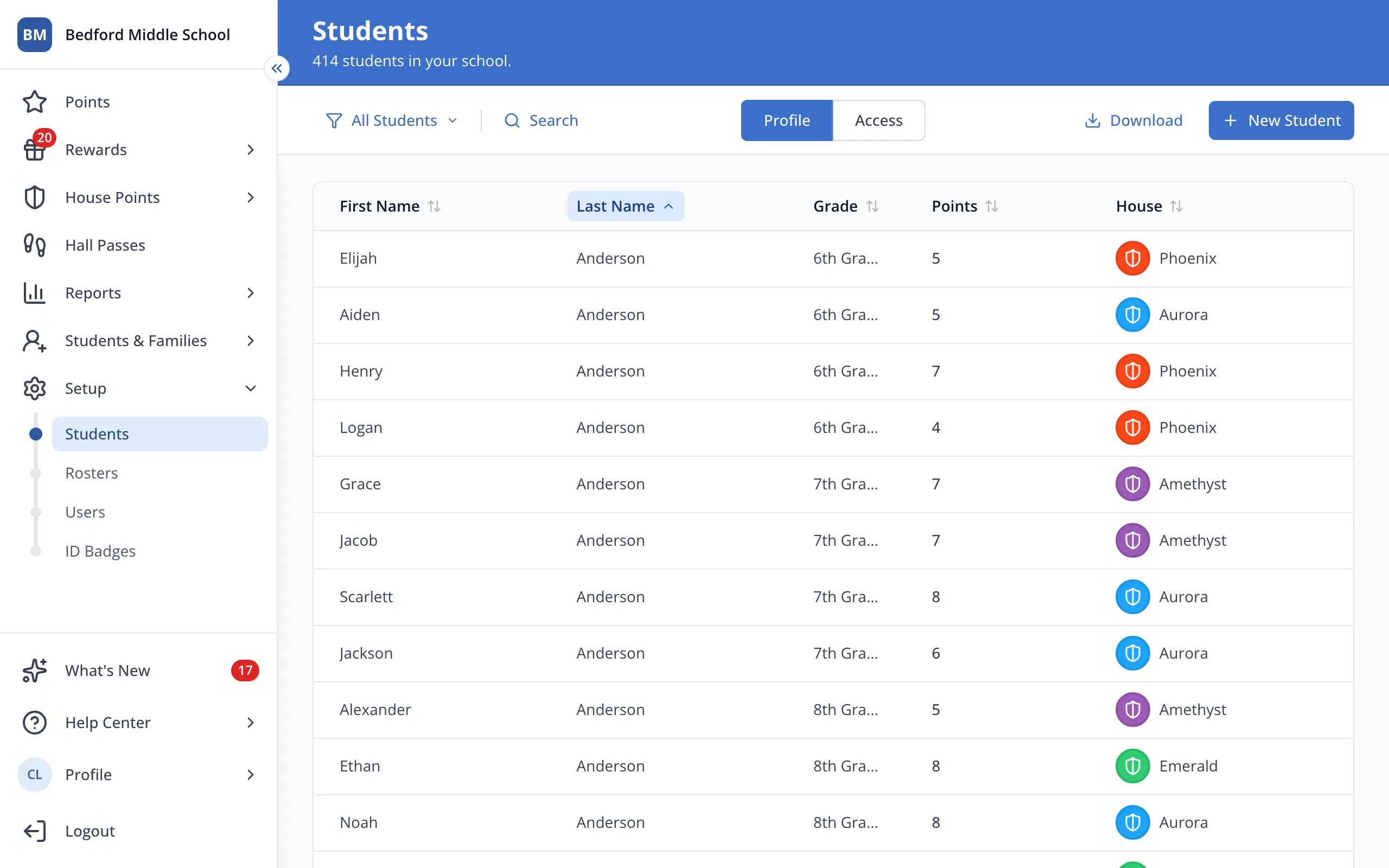
2.Click Rosters.
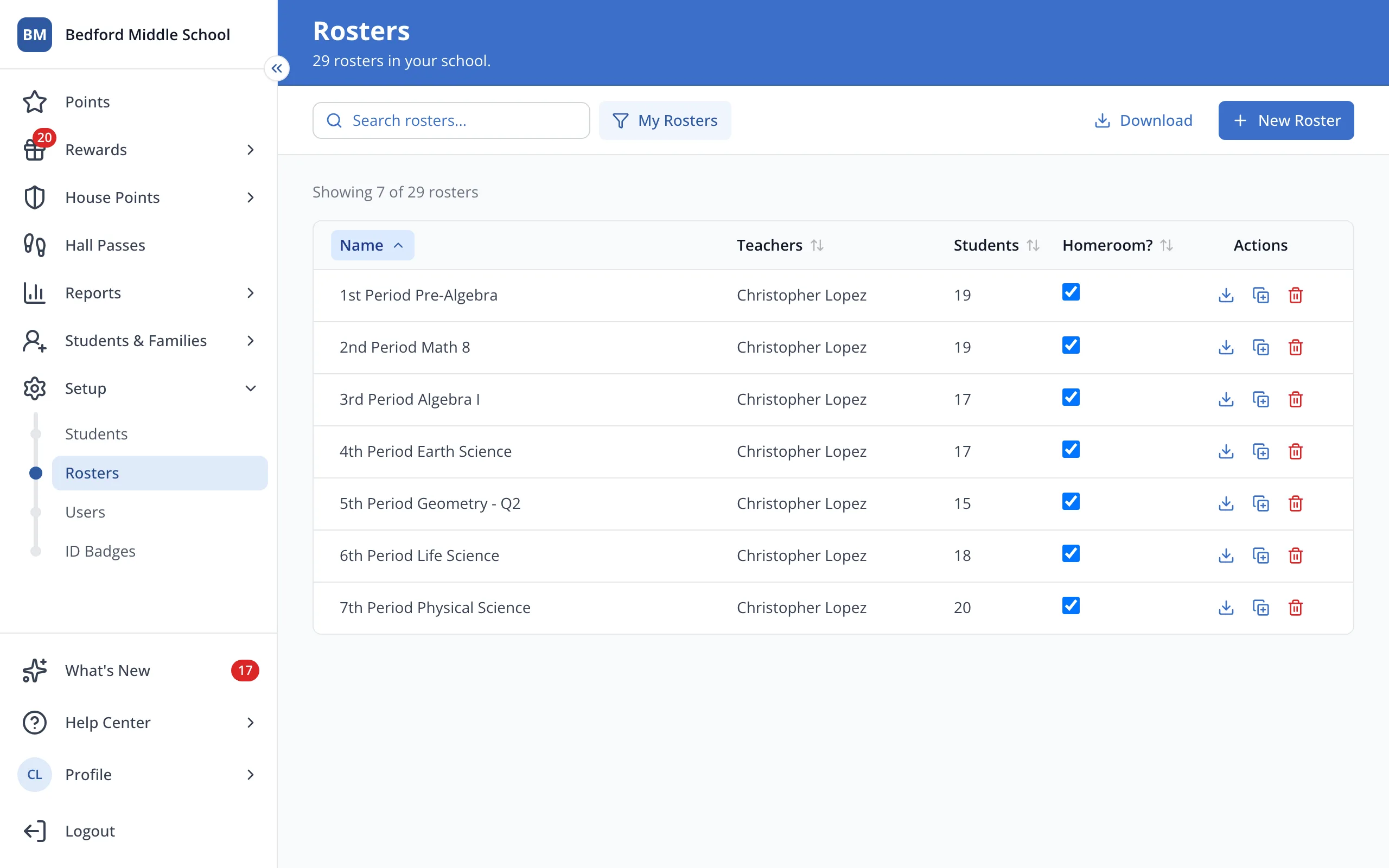
3.Click the roster's name.
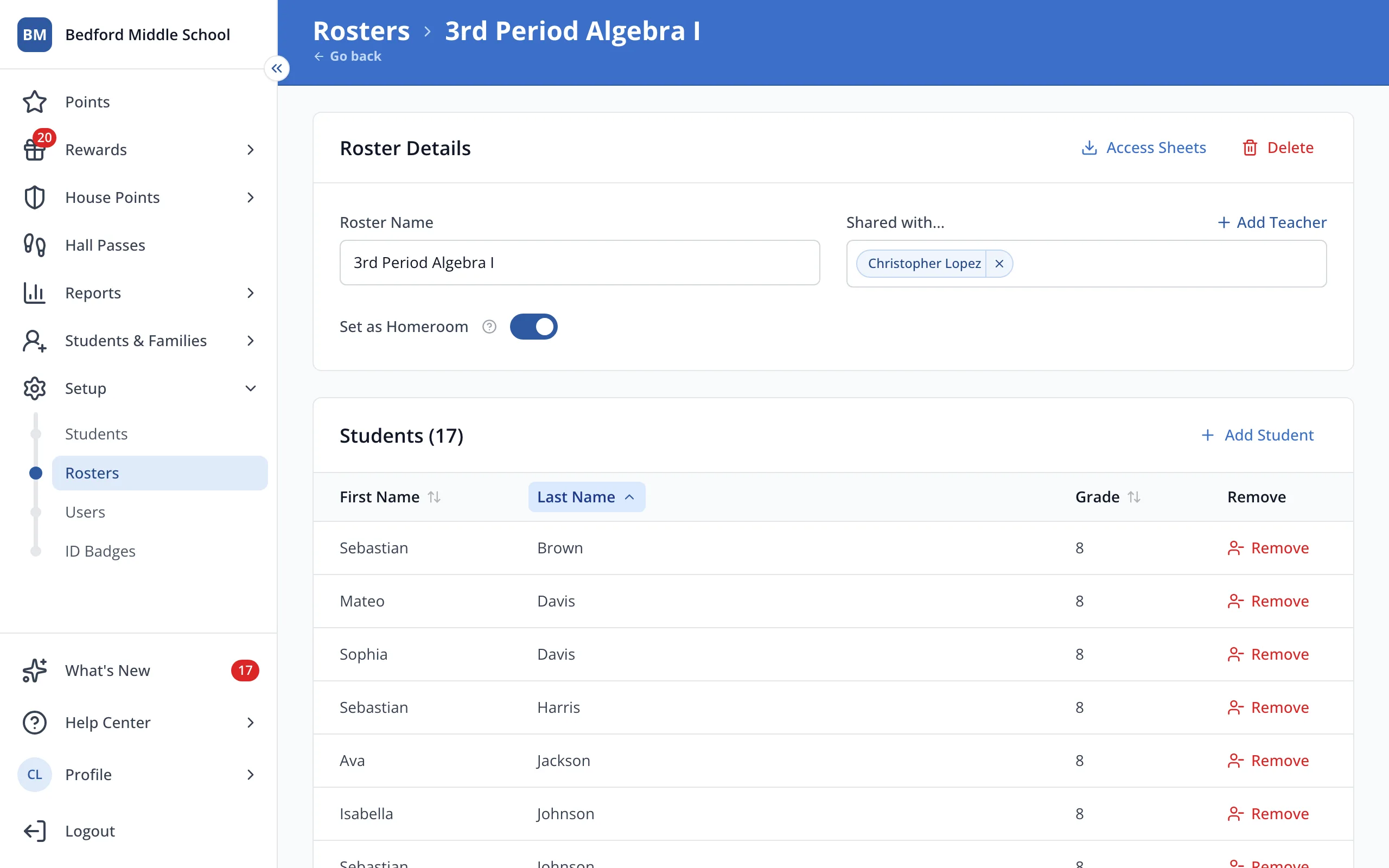
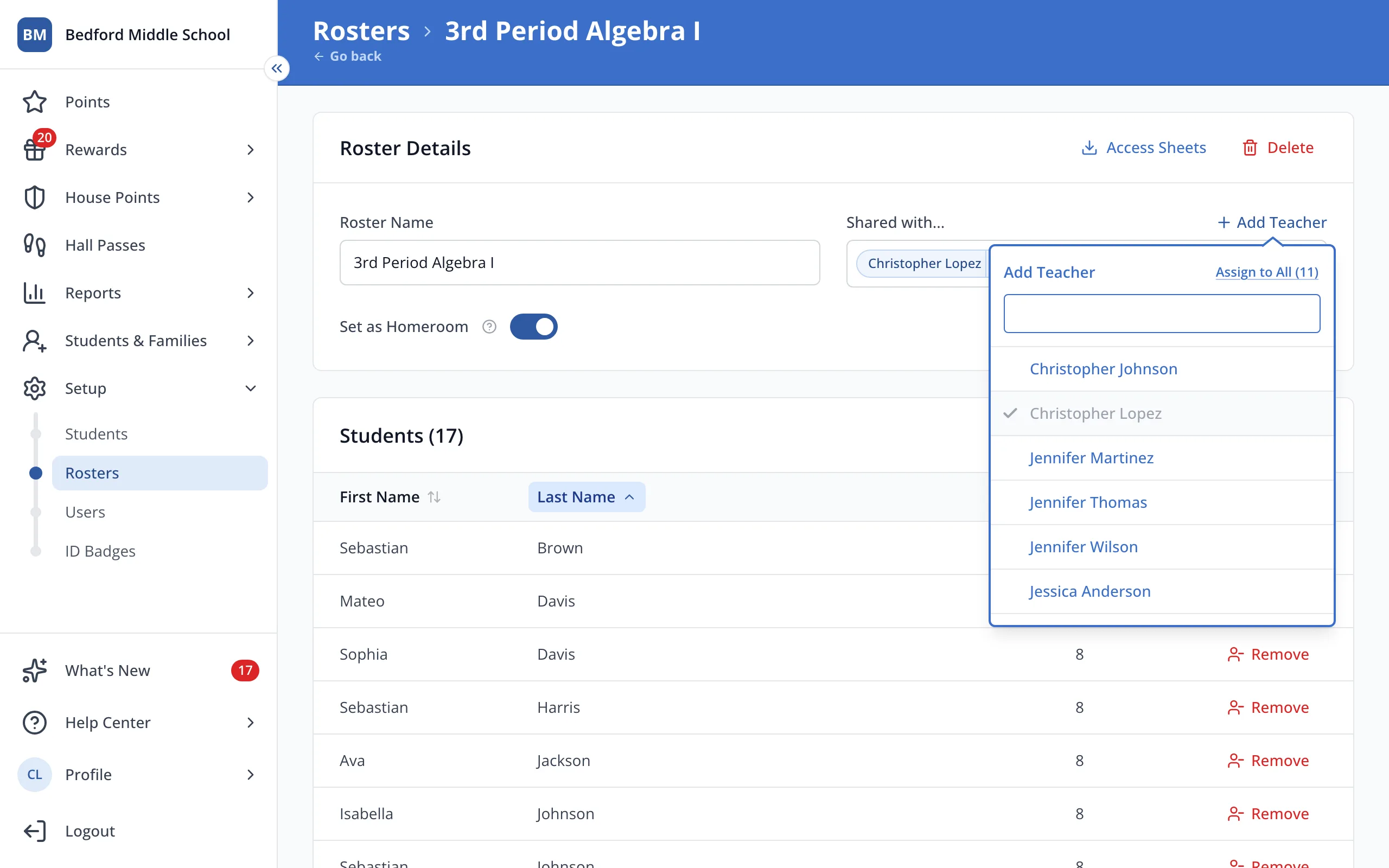
4.Next to Shared with, click Add Teacher.
5.At the top of the list, click Assign to All, then click outside the list to save.
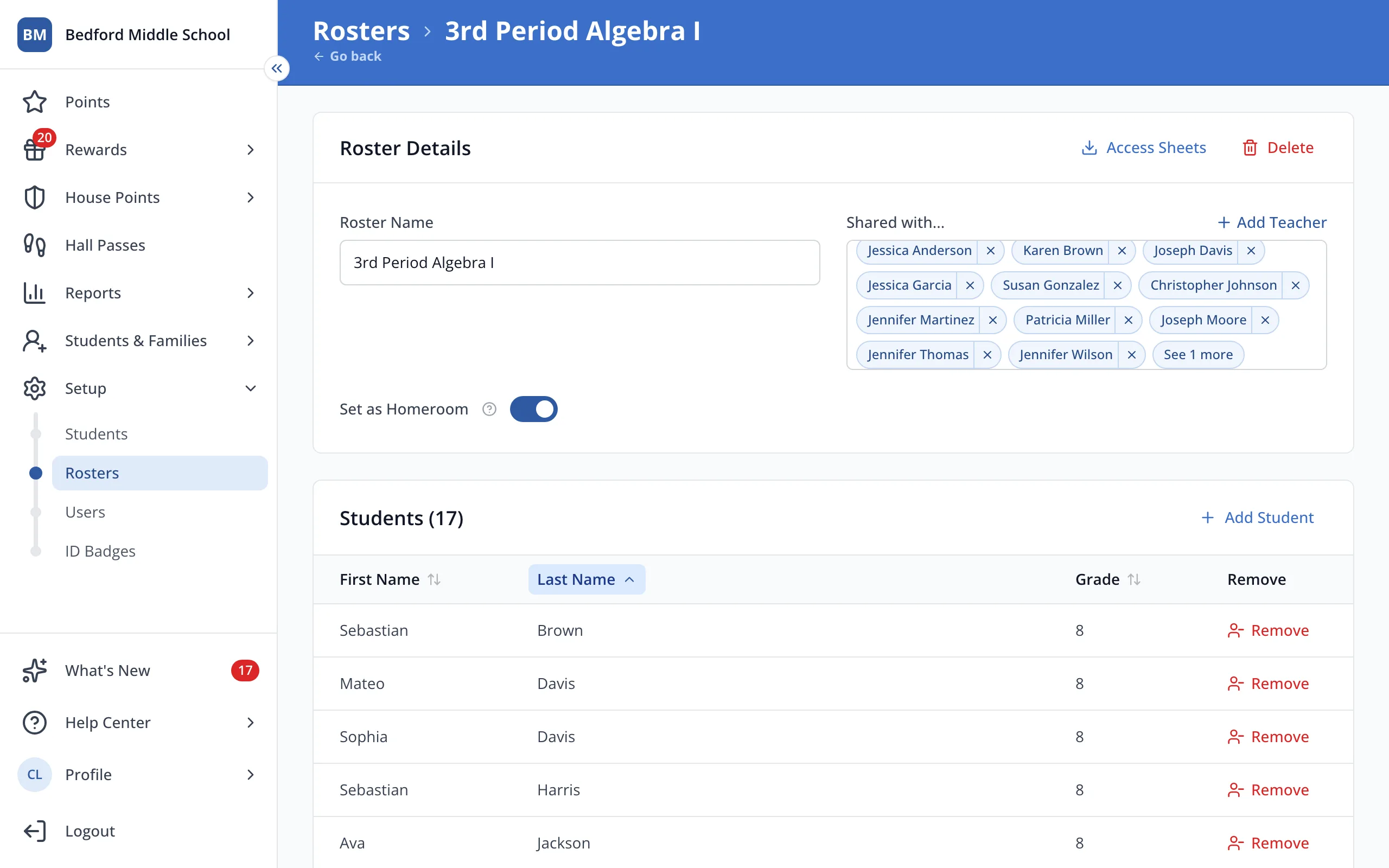
6.Click See more to check the full list of teachers.
Was this helpful?