
Hand a roster over to another teacher
Share the roster with the new teacher, then take yourself off it. Its students and points stay with it.
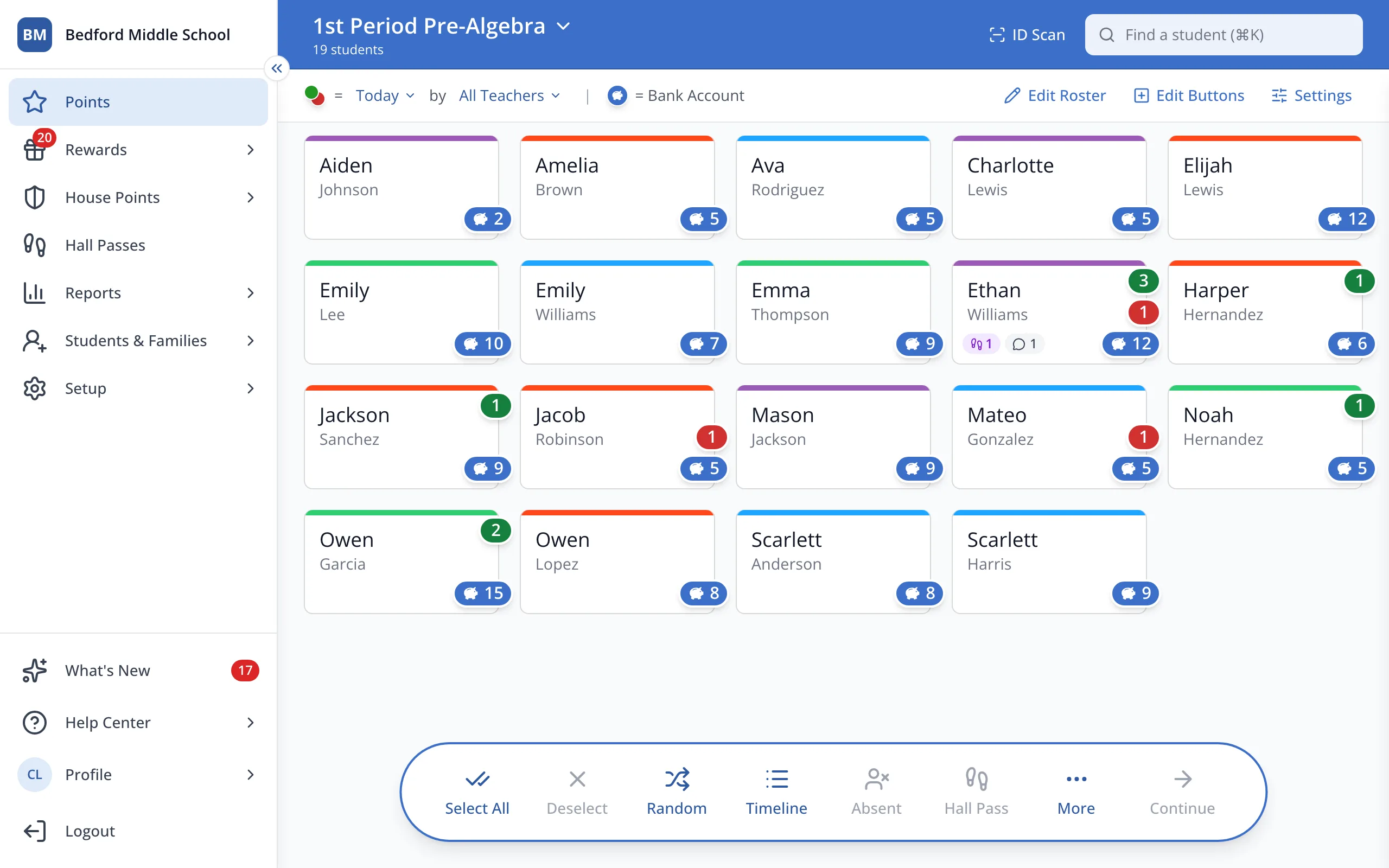
1 / 7In the sidebar, click Setup.
1.In the sidebar, click Setup.
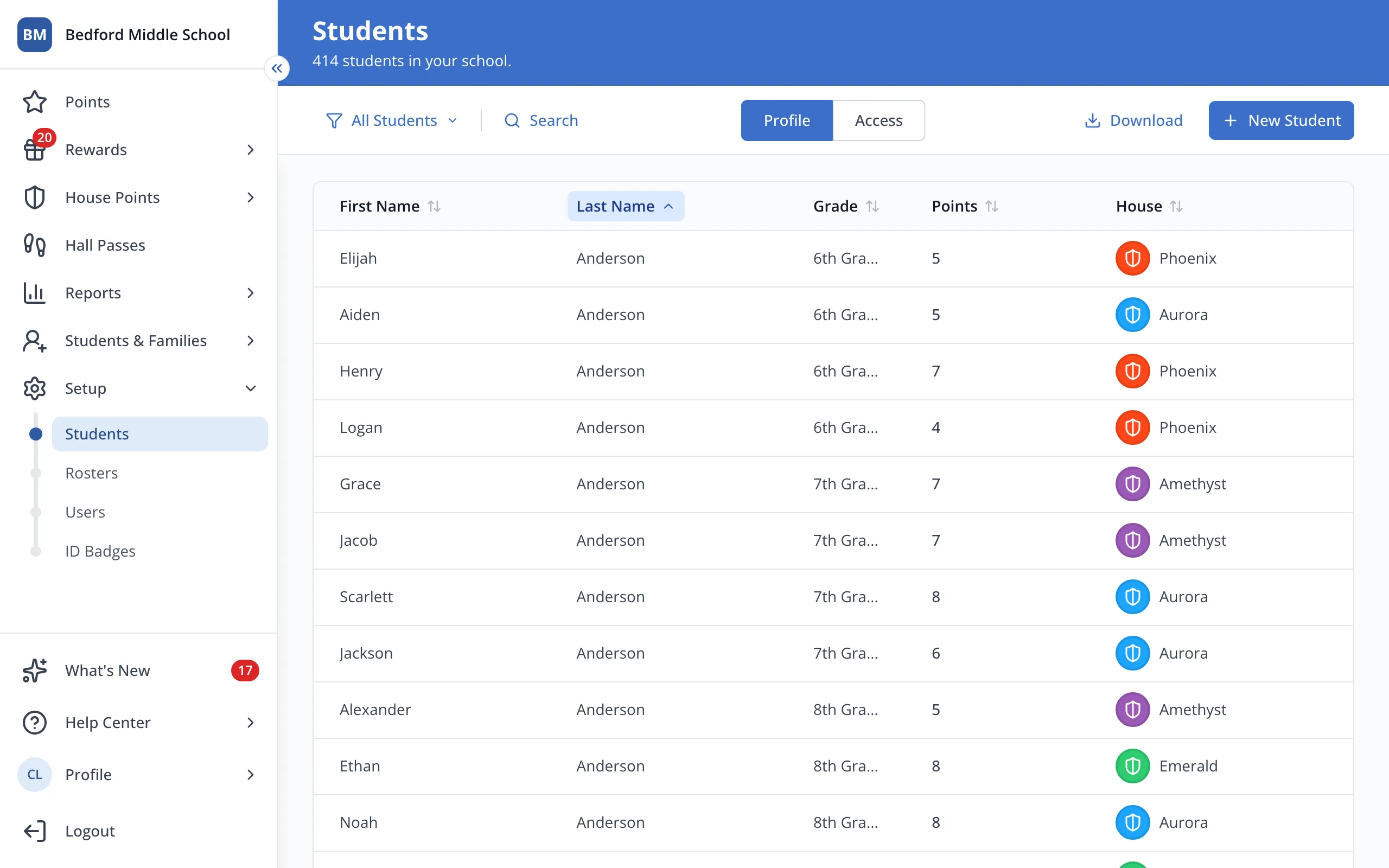
2.Click Rosters.
3.Click the roster's name.
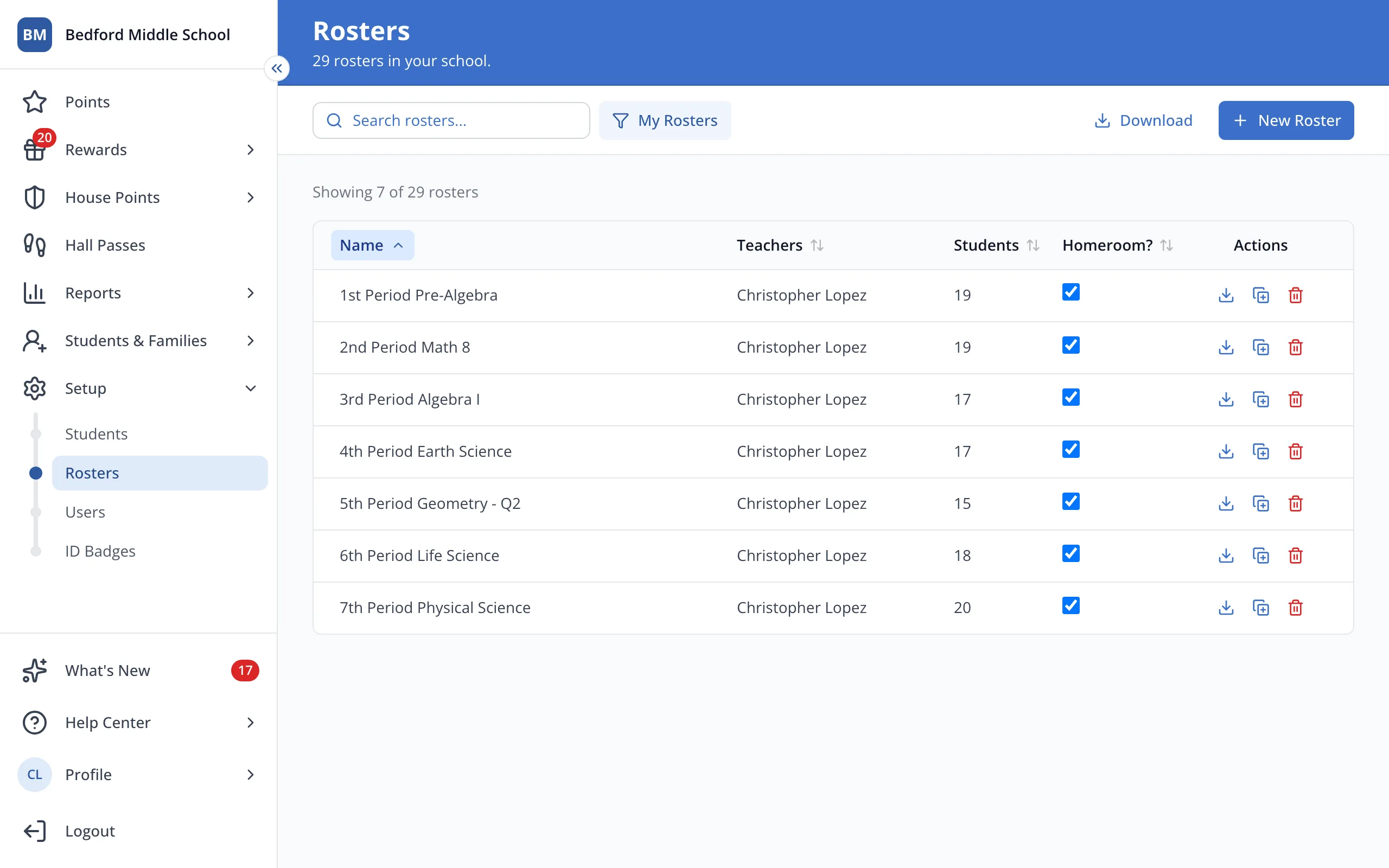
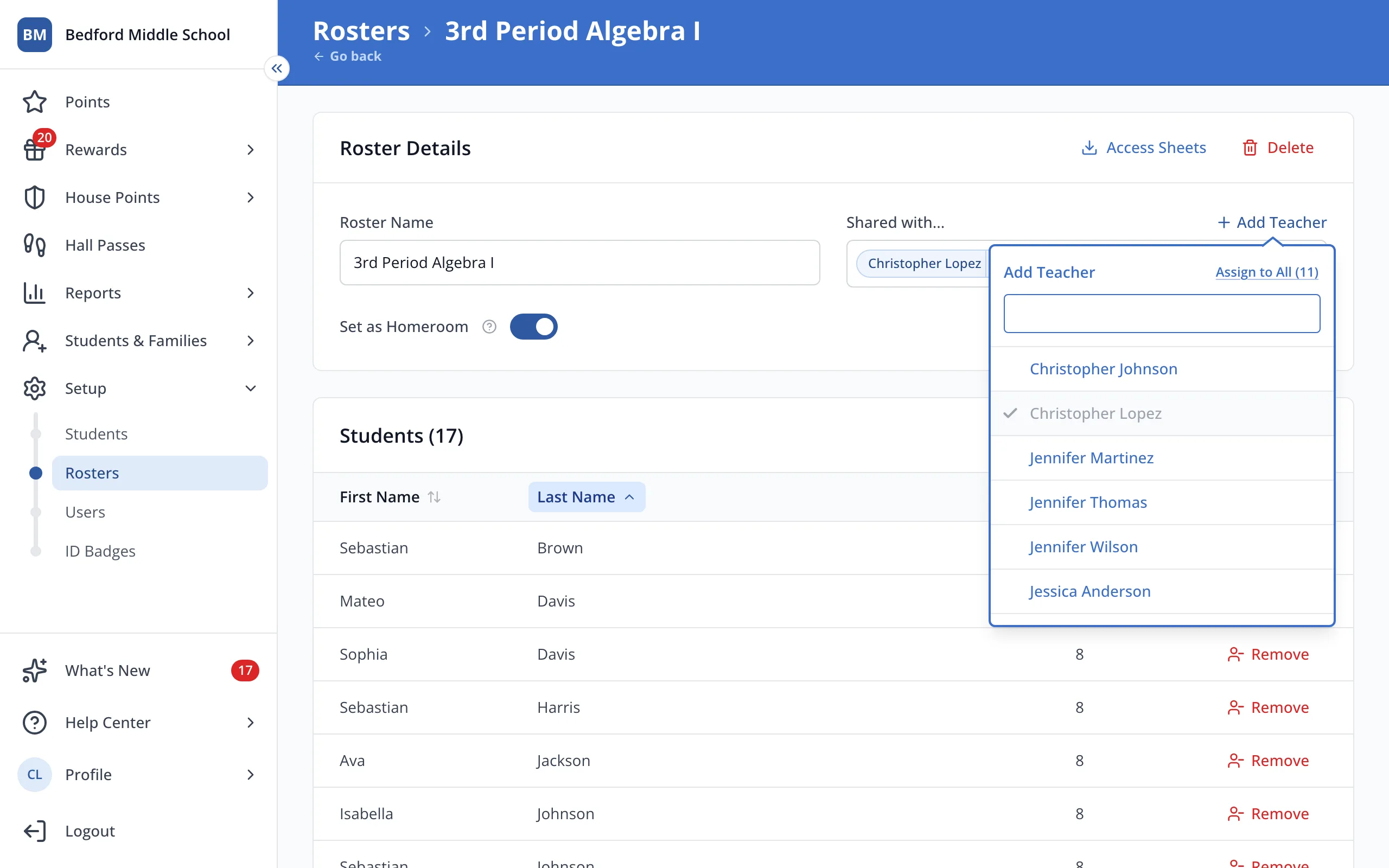
4.Next to Shared with, click Add Teacher.
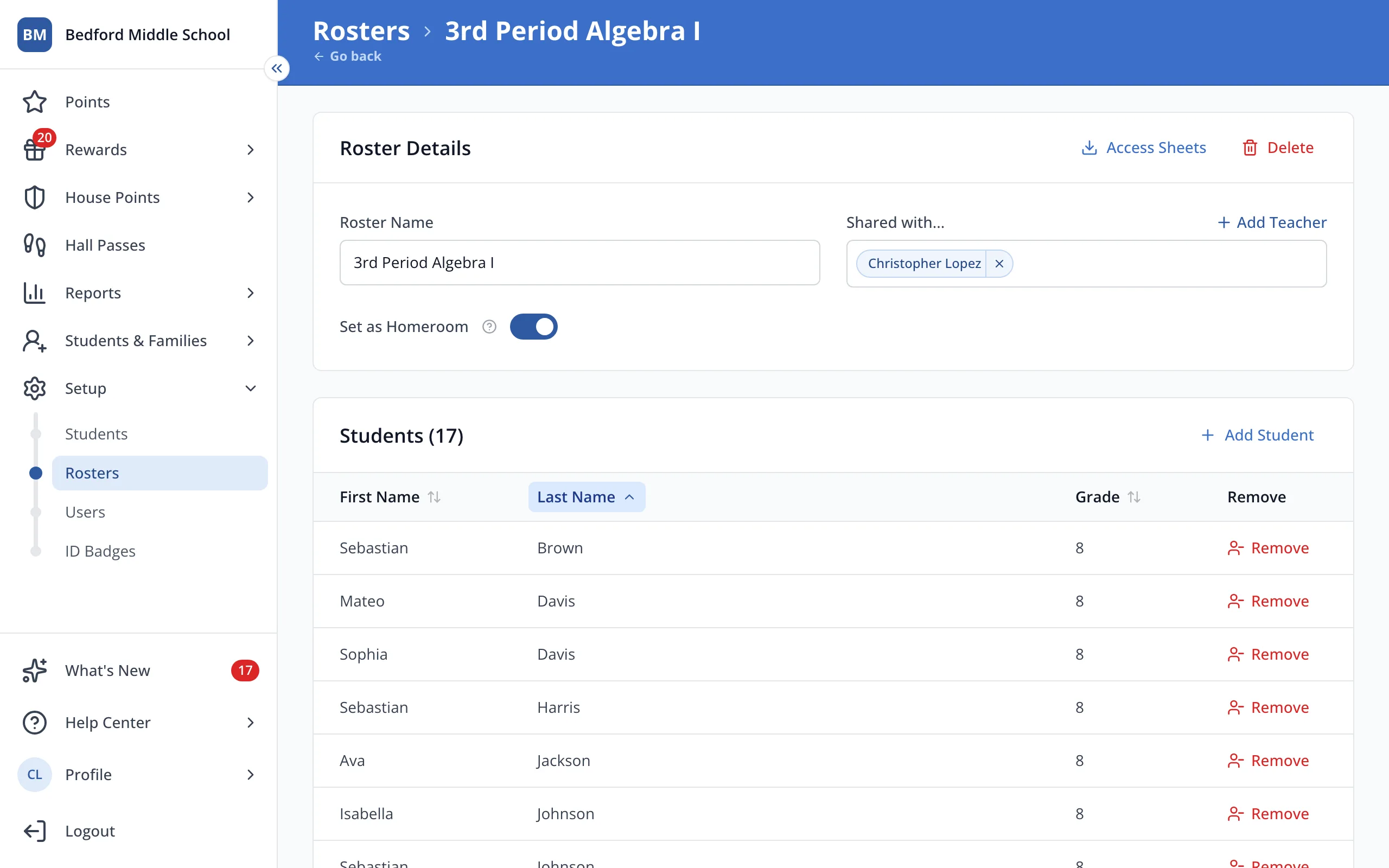
5.Click the new teacher, then click outside the list to save.
6.Click the X next to your own name.
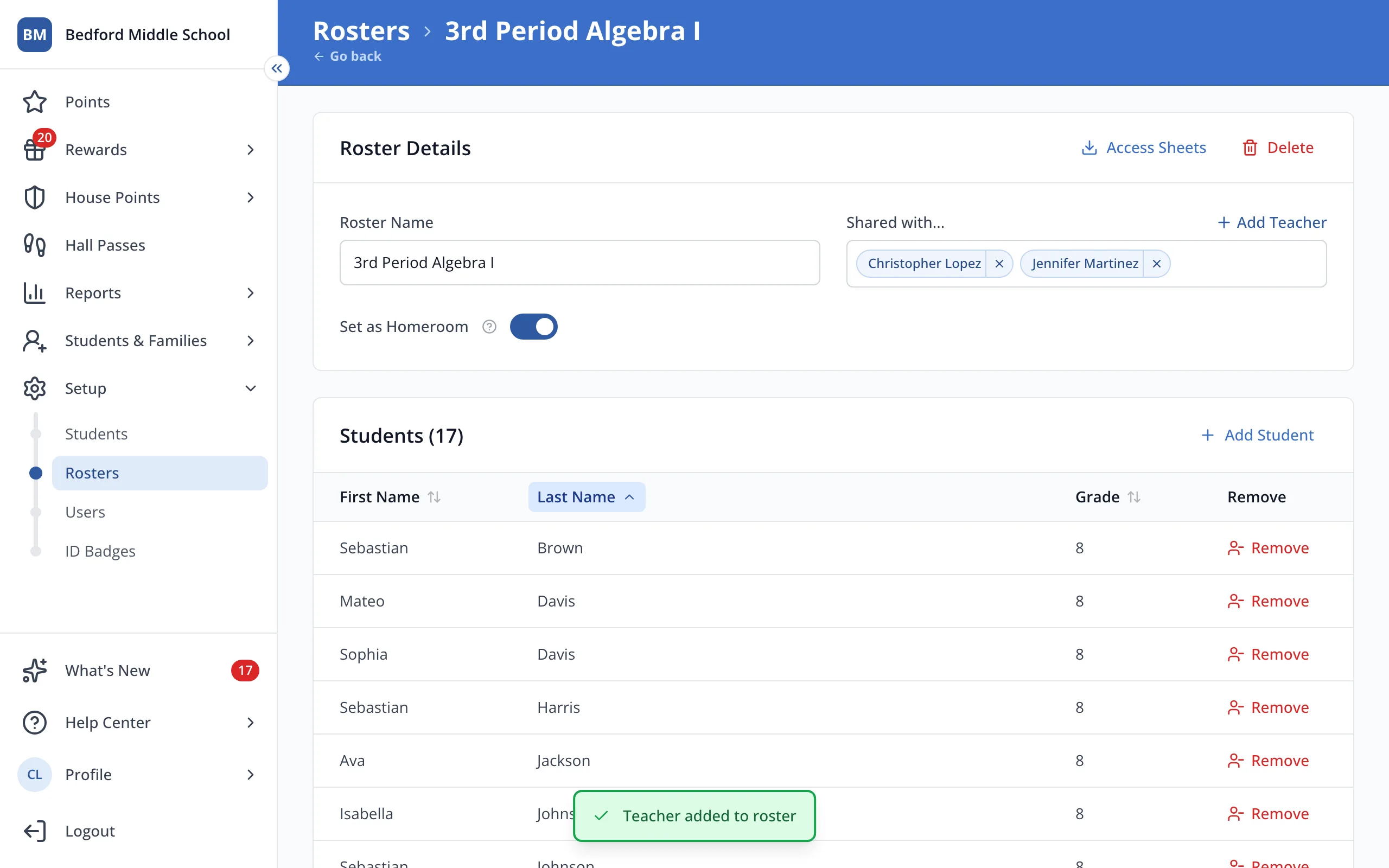
Tip: The roster will leave your My Rosters list.
Was this helpful?