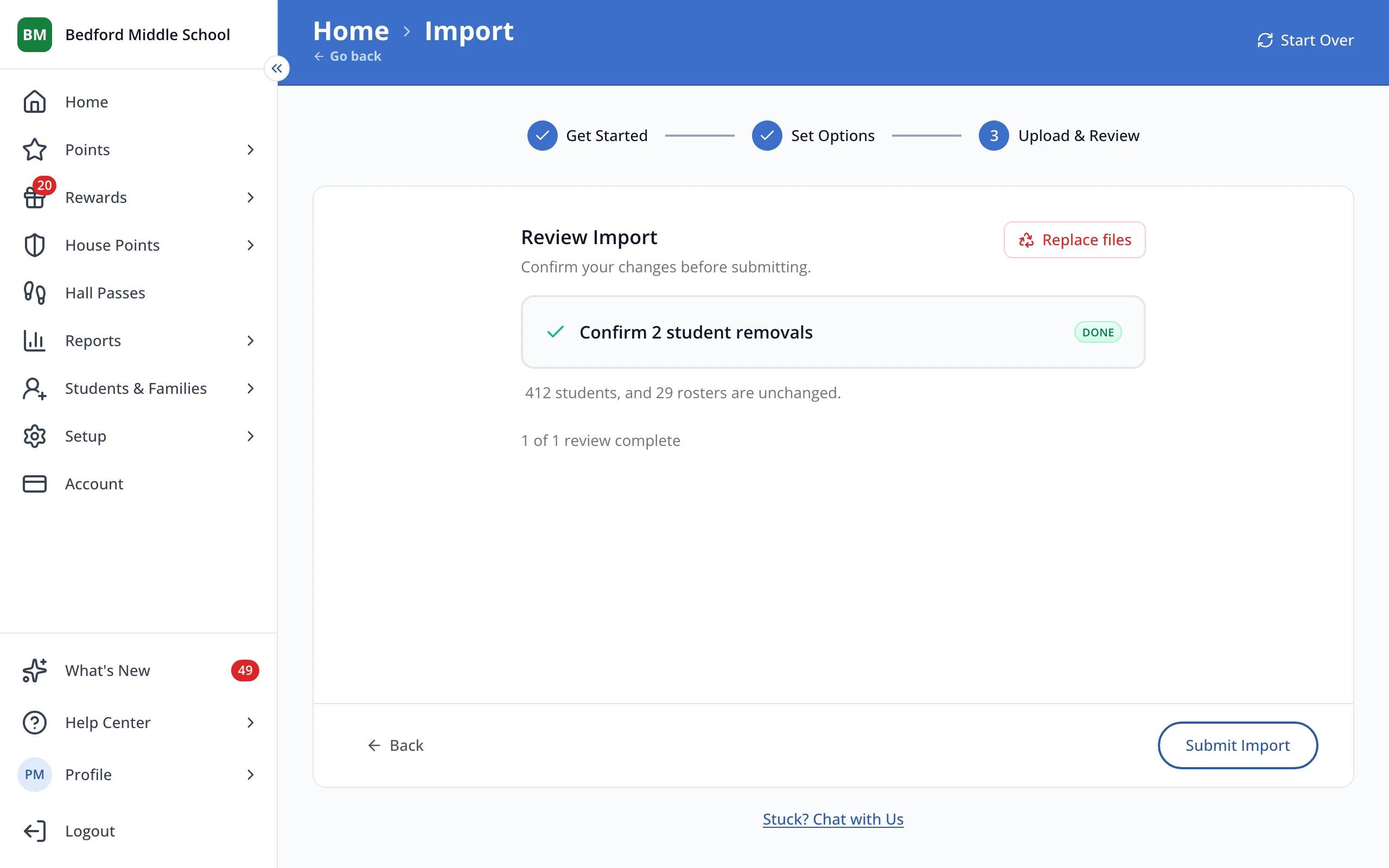
Review who an import will remove before you confirm
Anyone in LiveSchool who is missing from your file will be removed. Keep anyone who should stay before you submit.
Already signed in? Open this guide inside LiveSchool.
Use the Left and Right arrow keys to move between steps, and Space to play or pause.
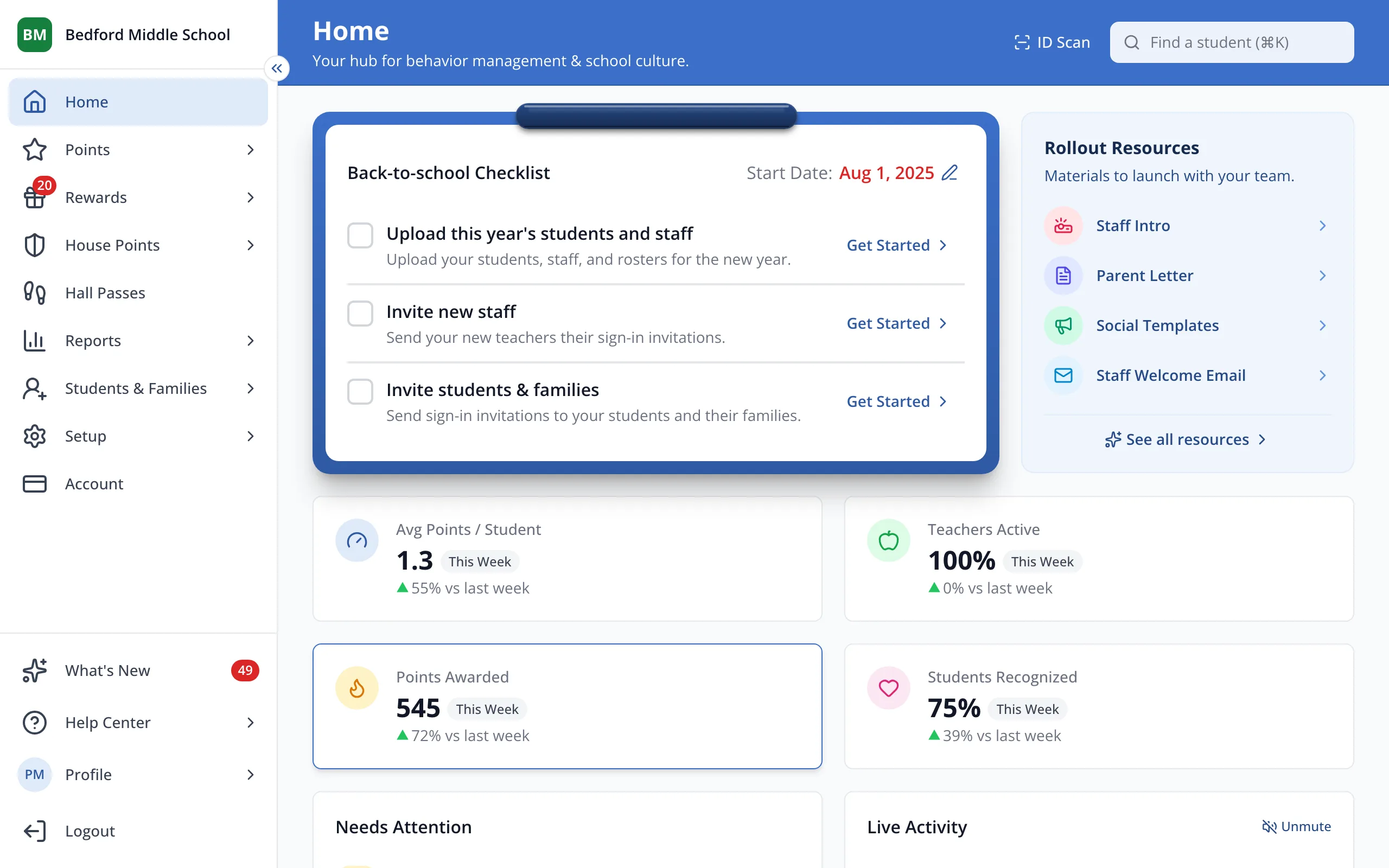
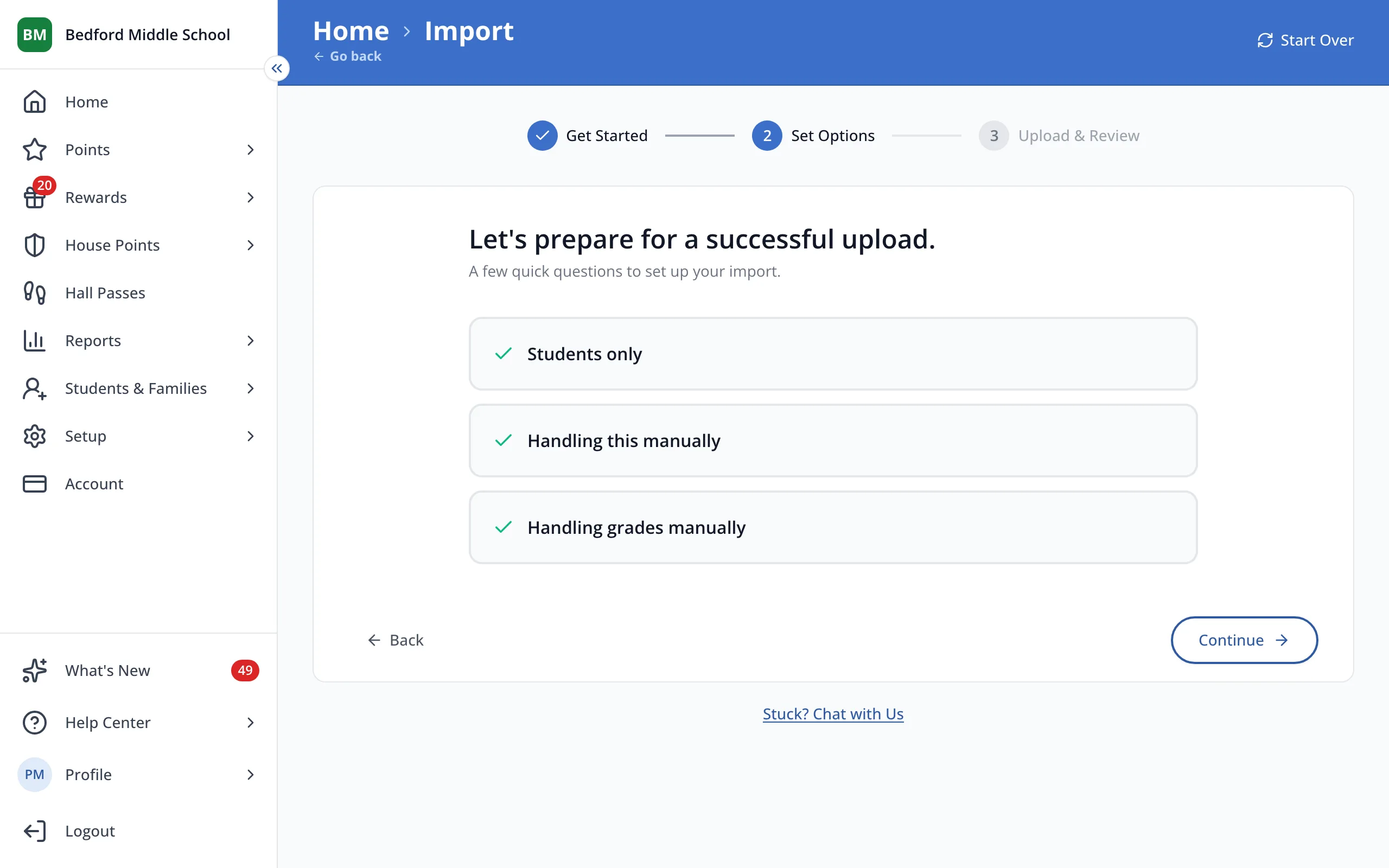
1.On Home, click Get Started next to Upload this year's students and staff.
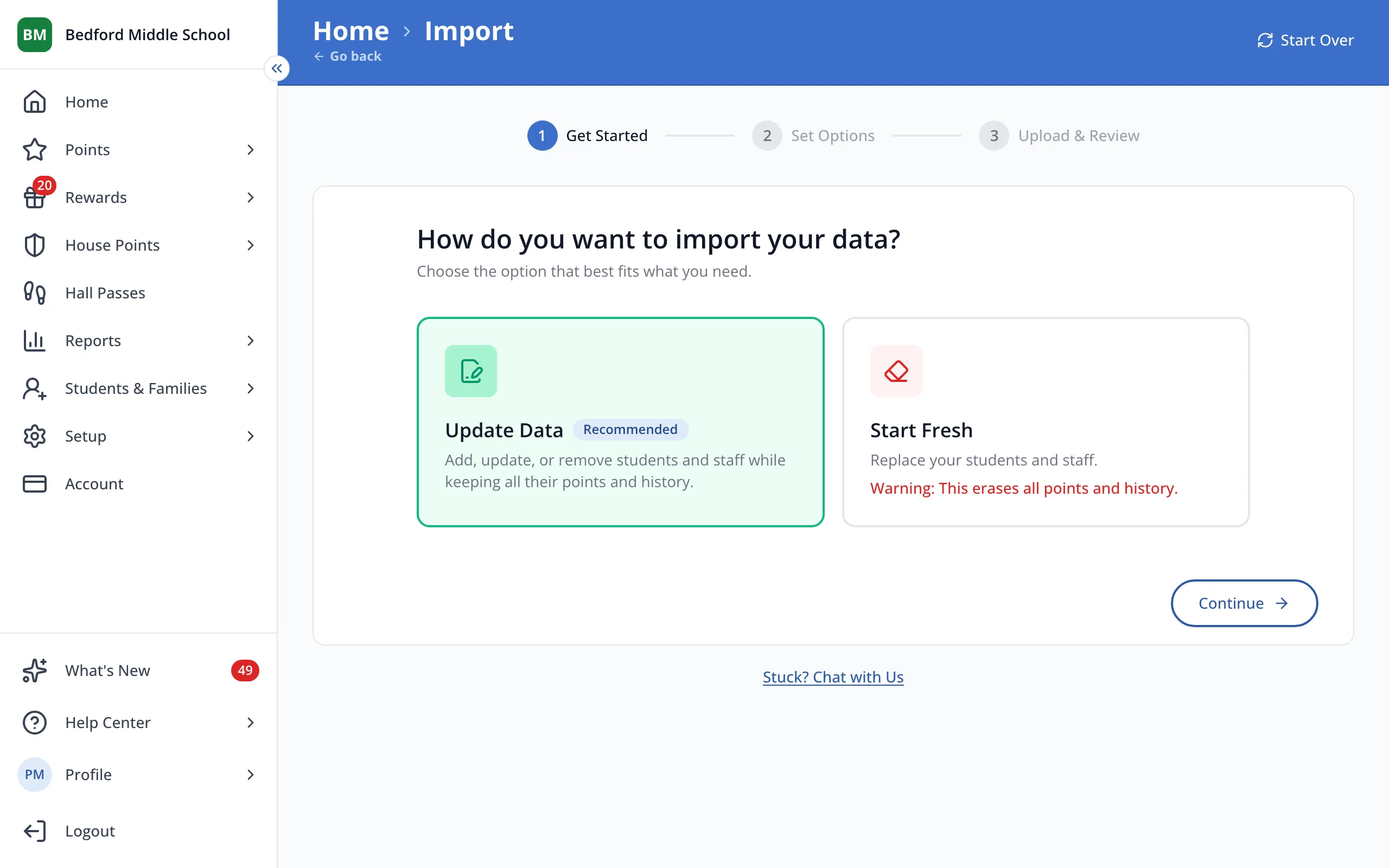
2.Click Update Data.
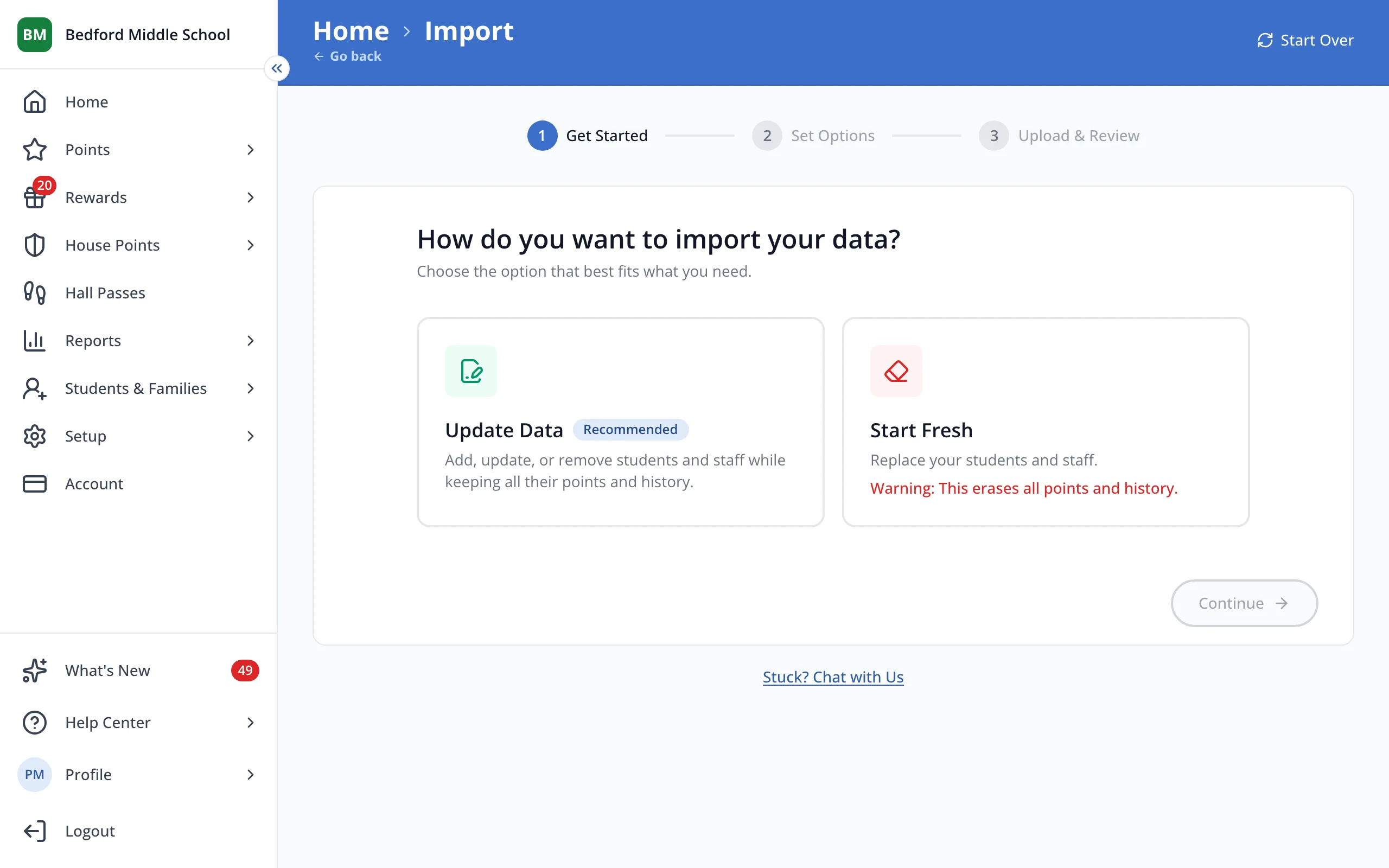
3.Click Continue.
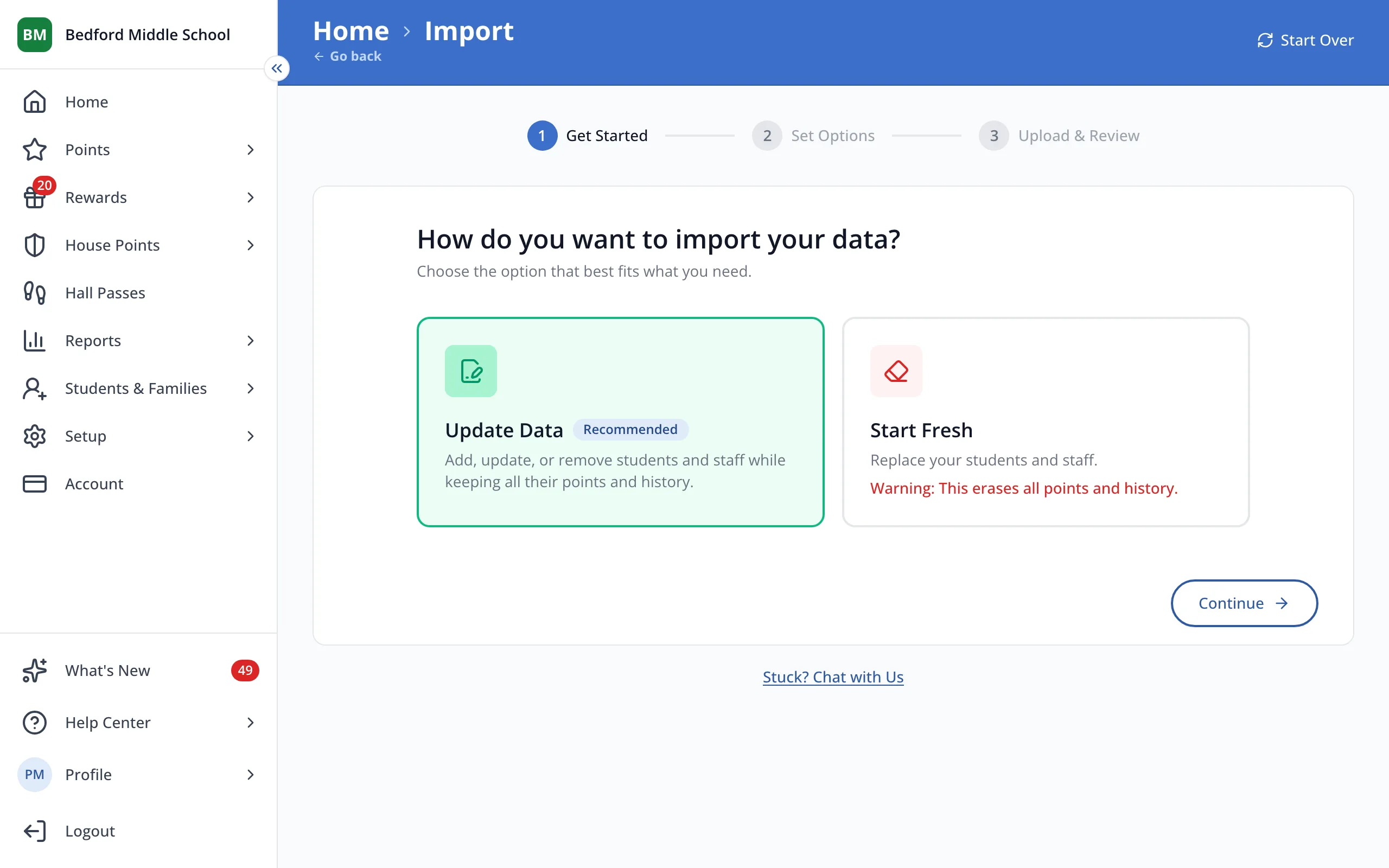
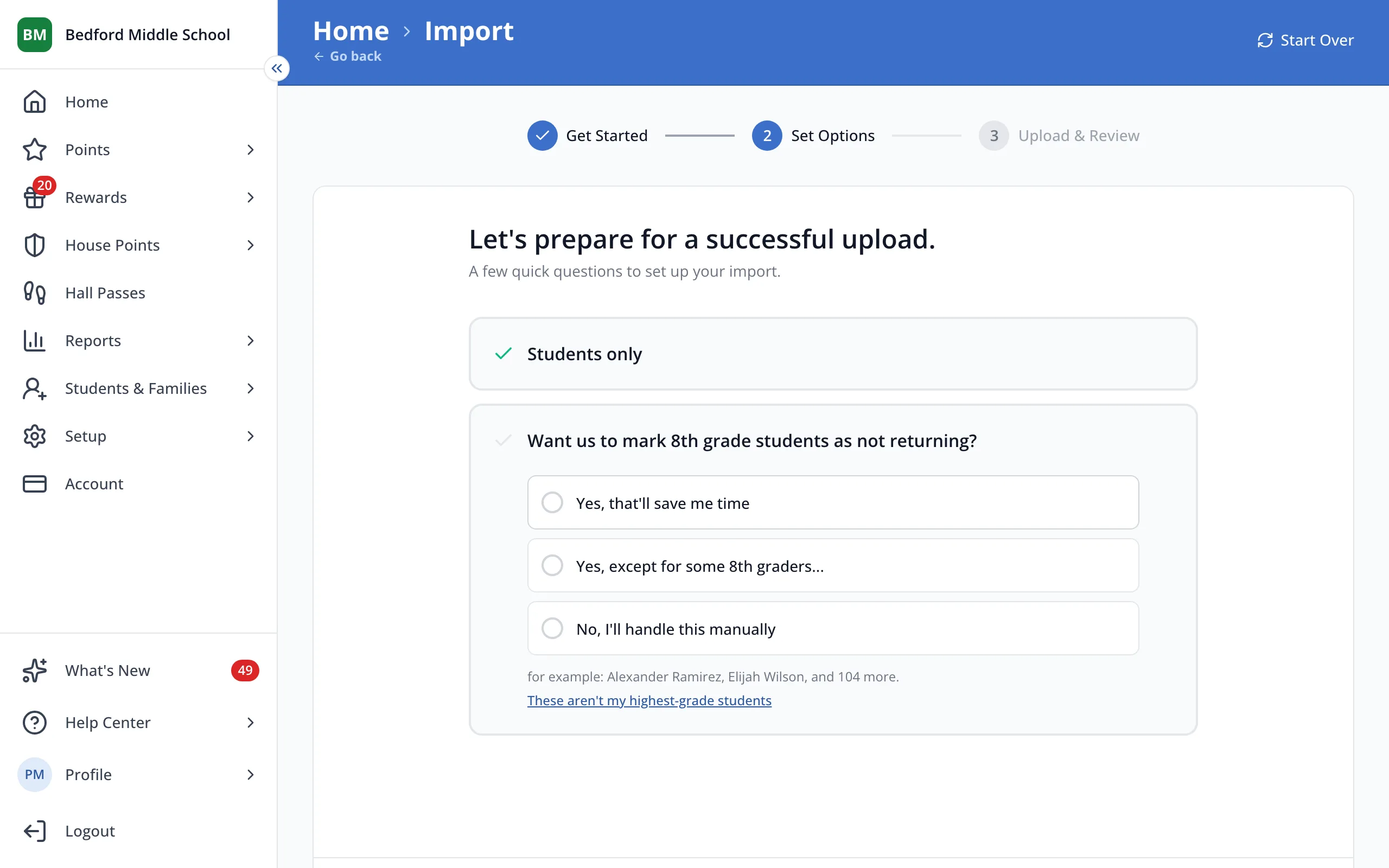
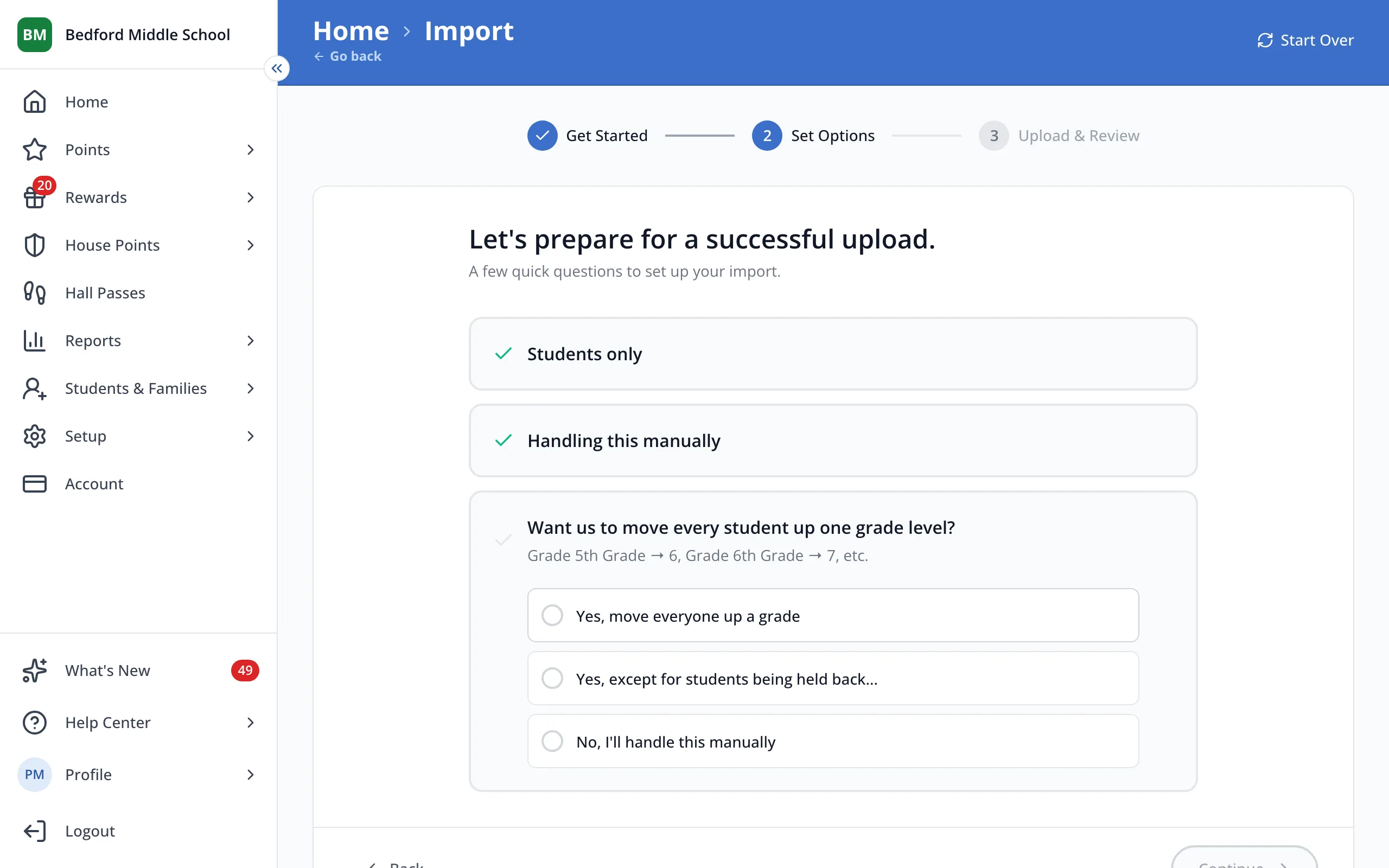
4.Click Students only.
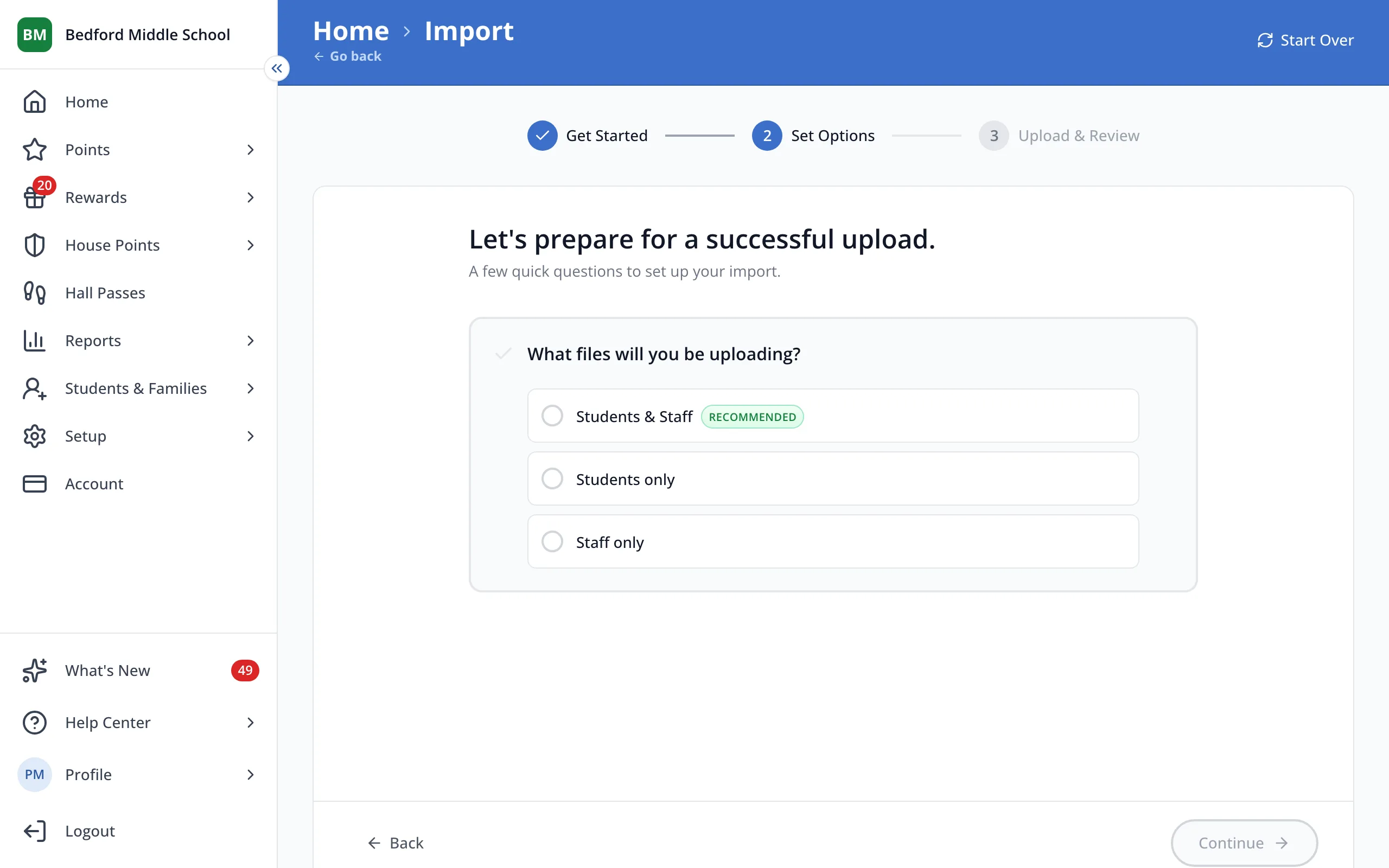
5.Under the not returning question, click No, I'll handle this manually.
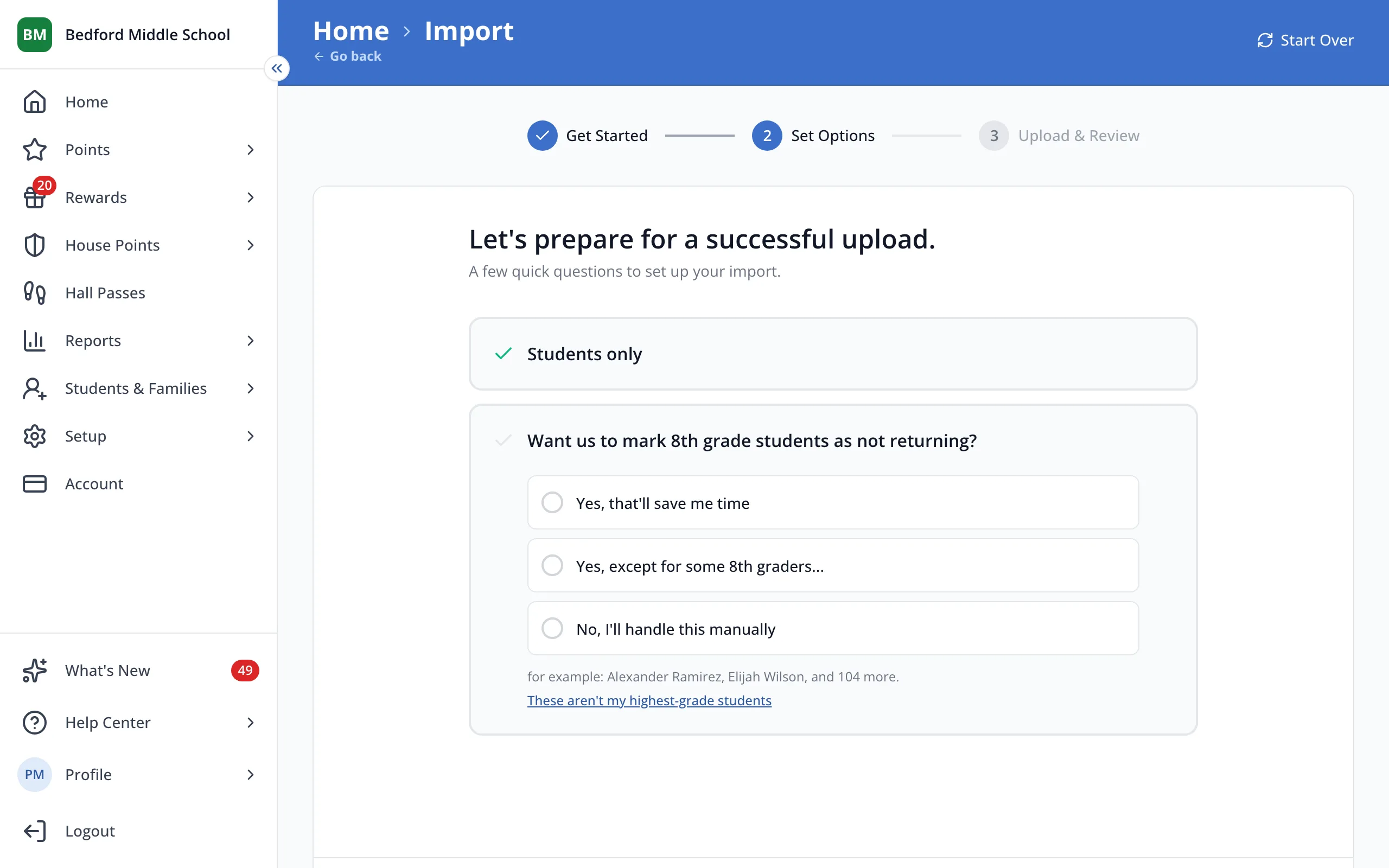
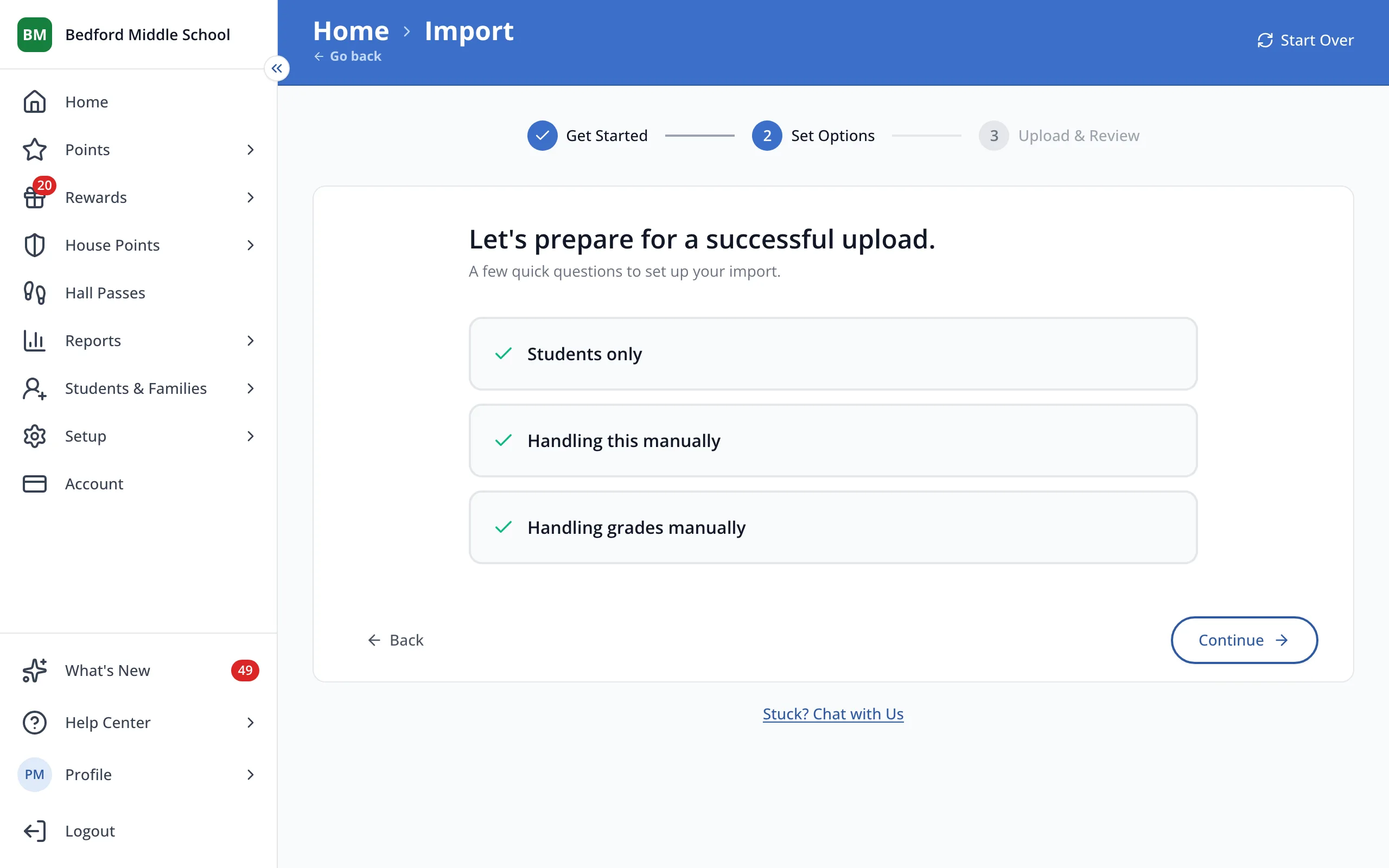
6.Under the grade level question, click No, I'll handle this manually.
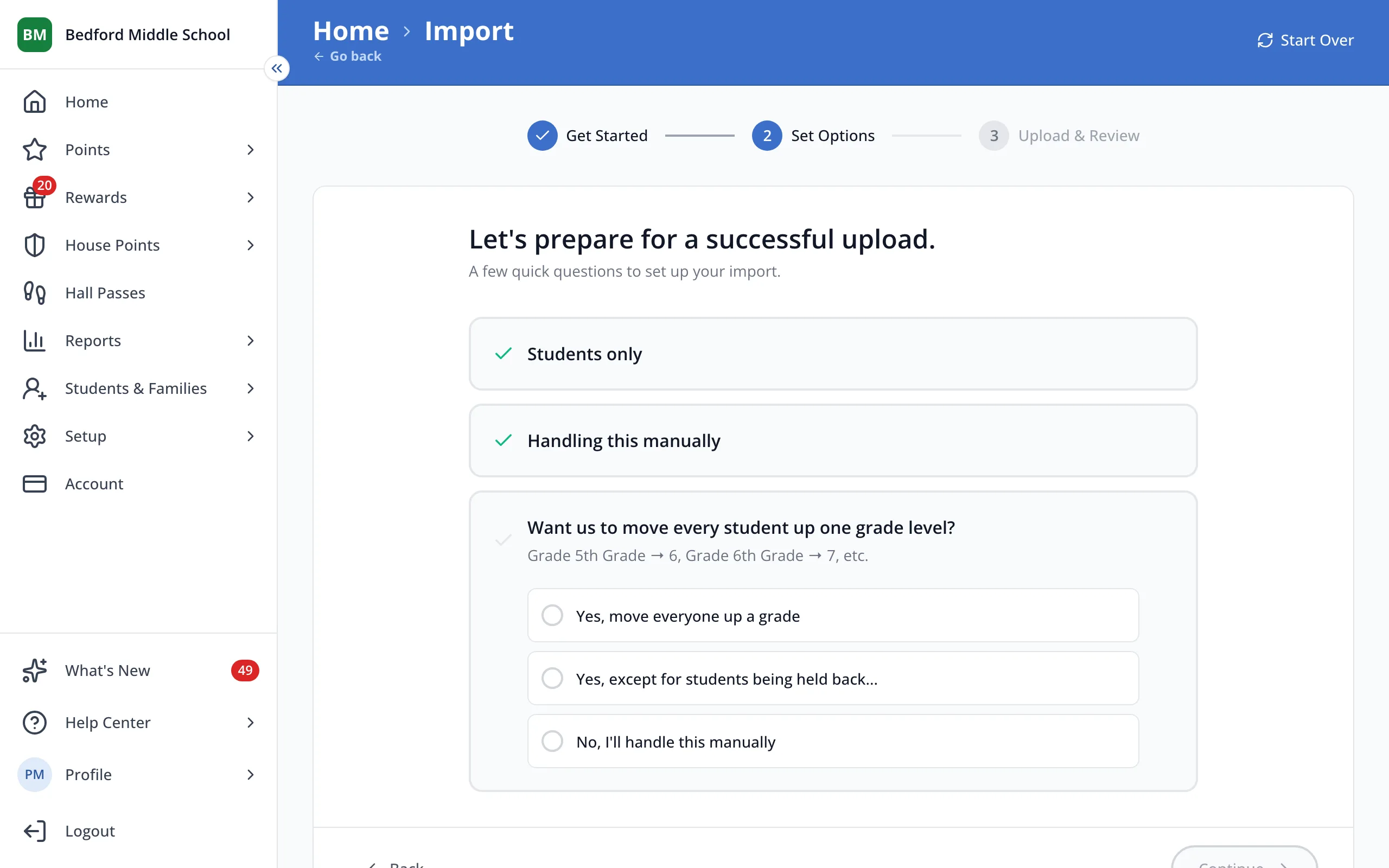
7.Click Continue.
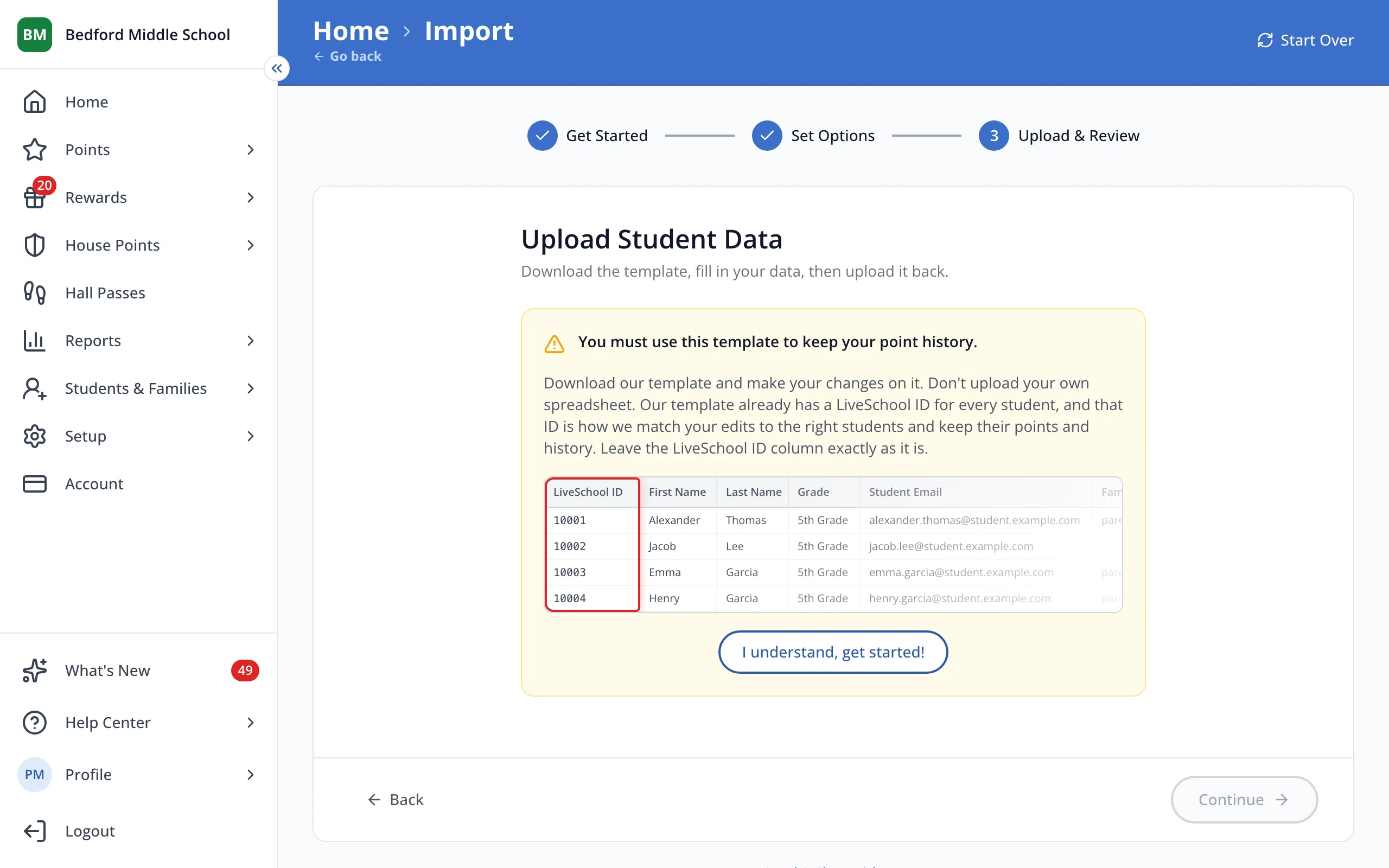
8.Click I understand, get started!
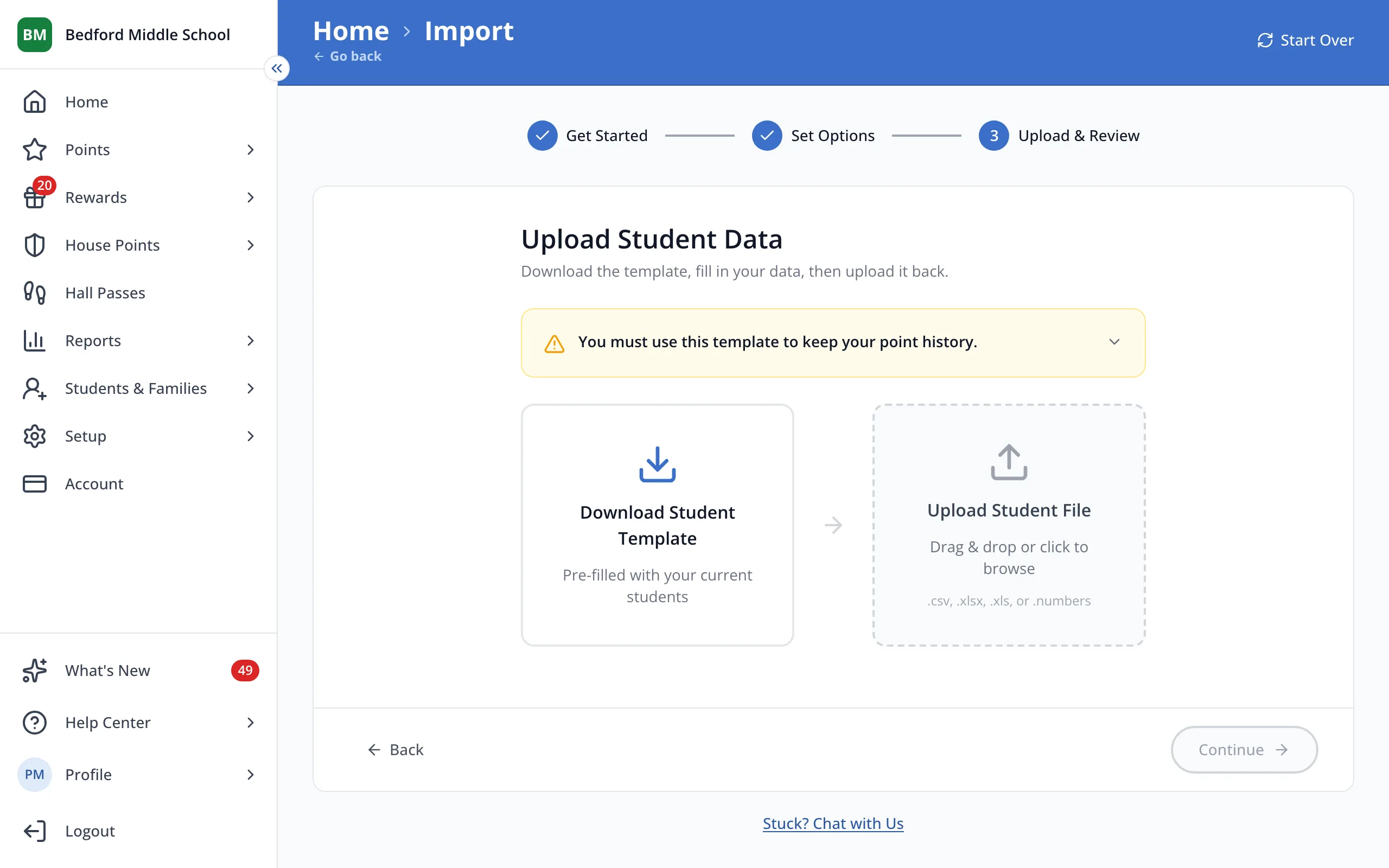
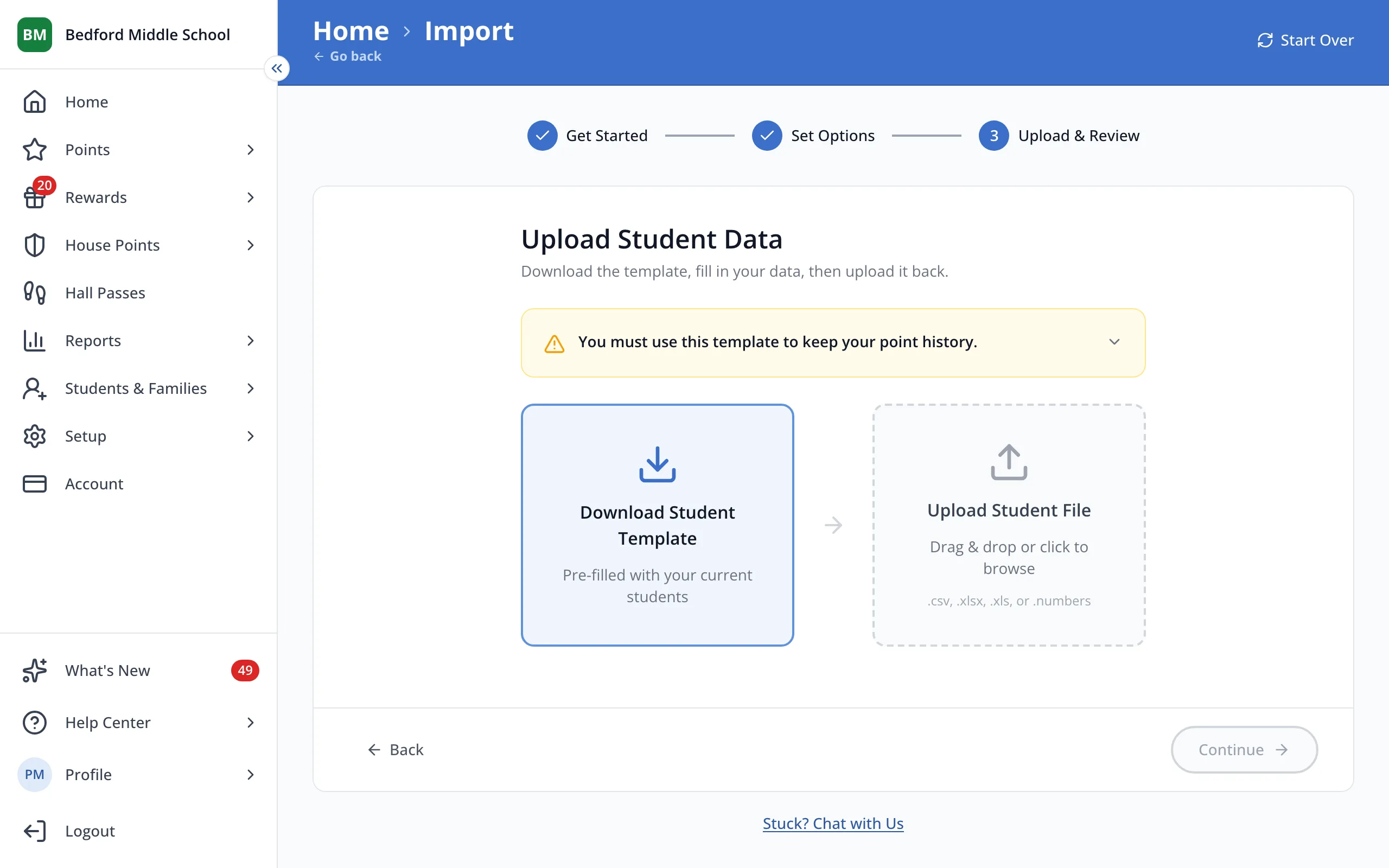
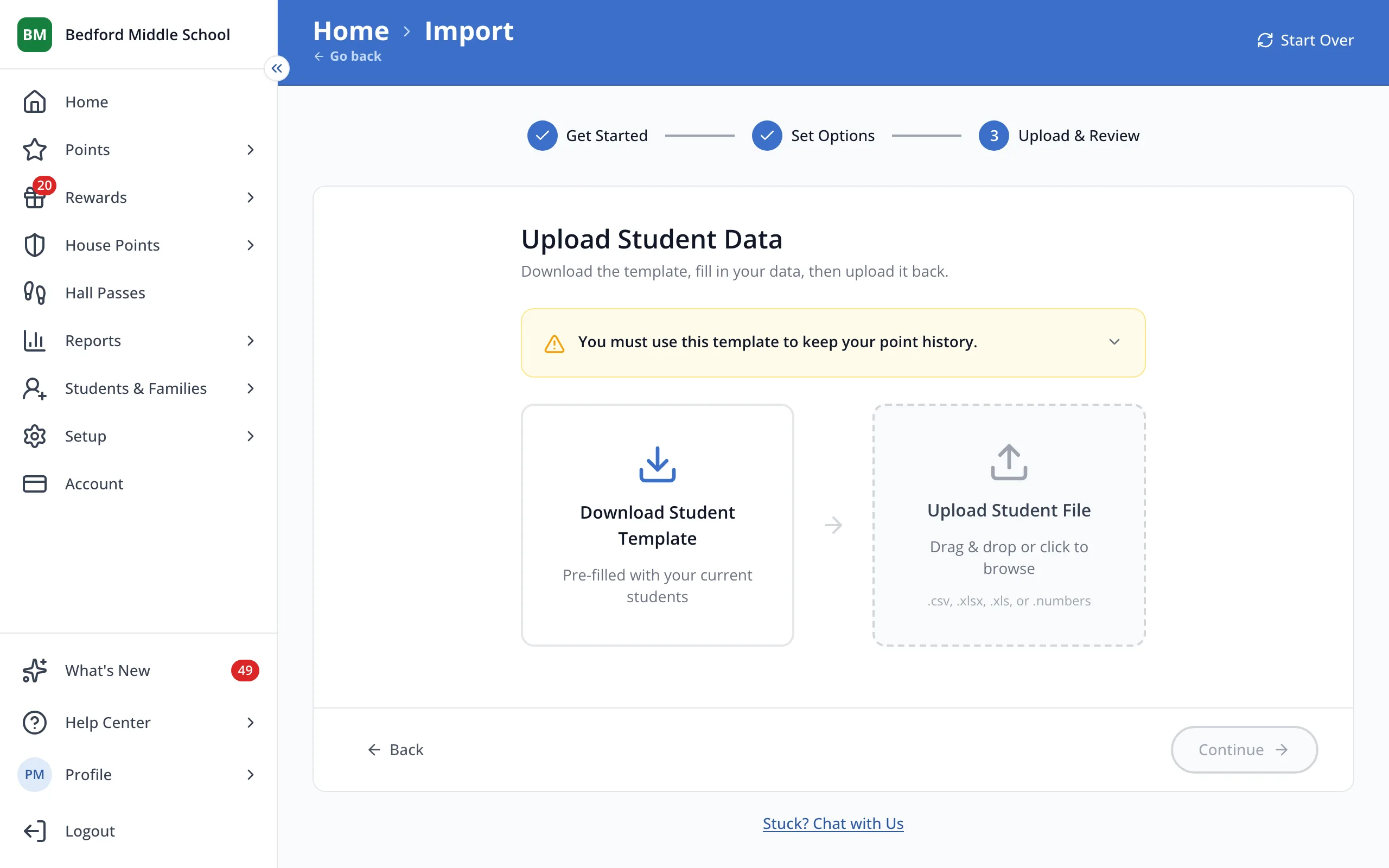
9.Click Download Student Template.
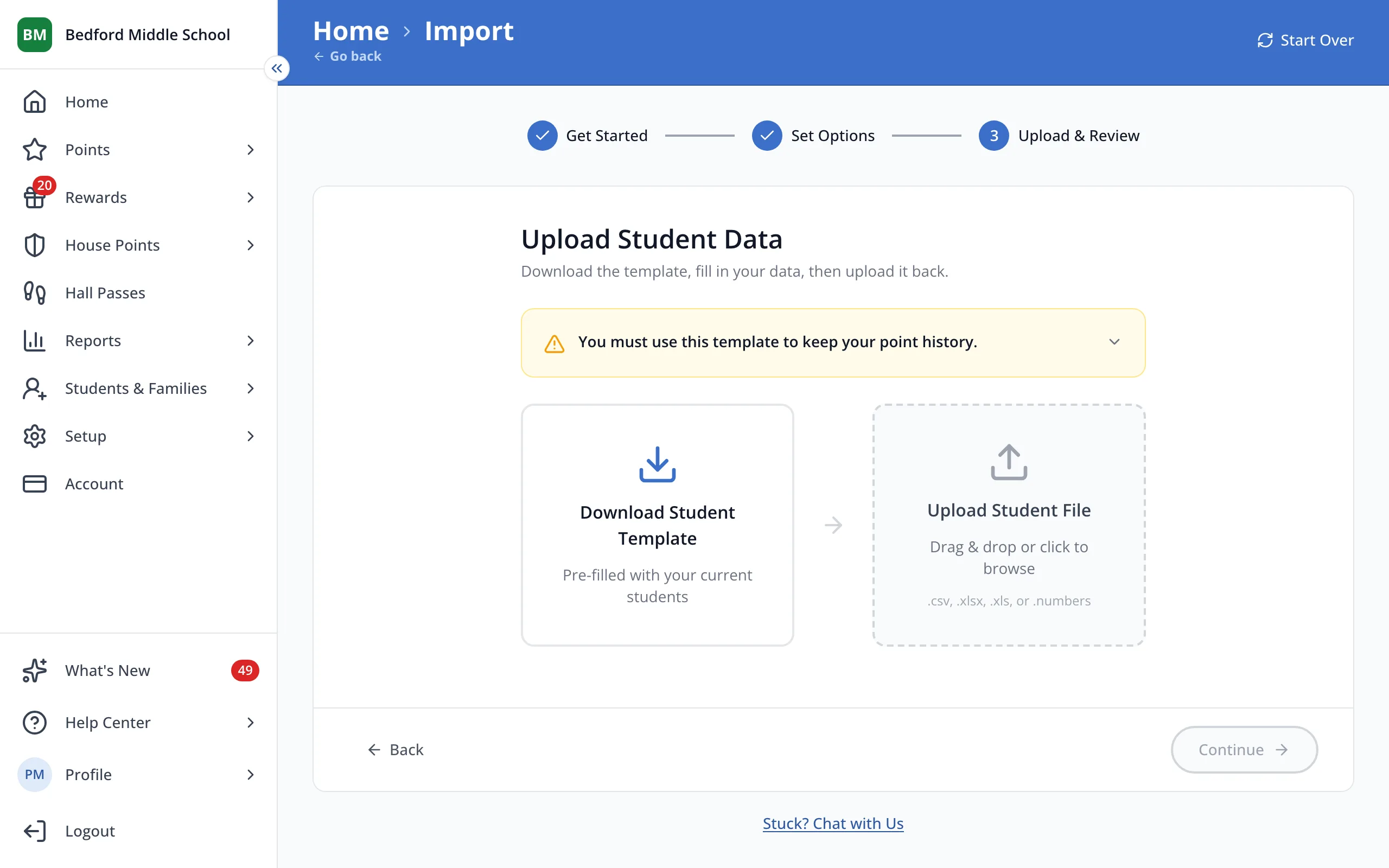
10.Make your changes, delete the rows of students who have left, and drop the file here.
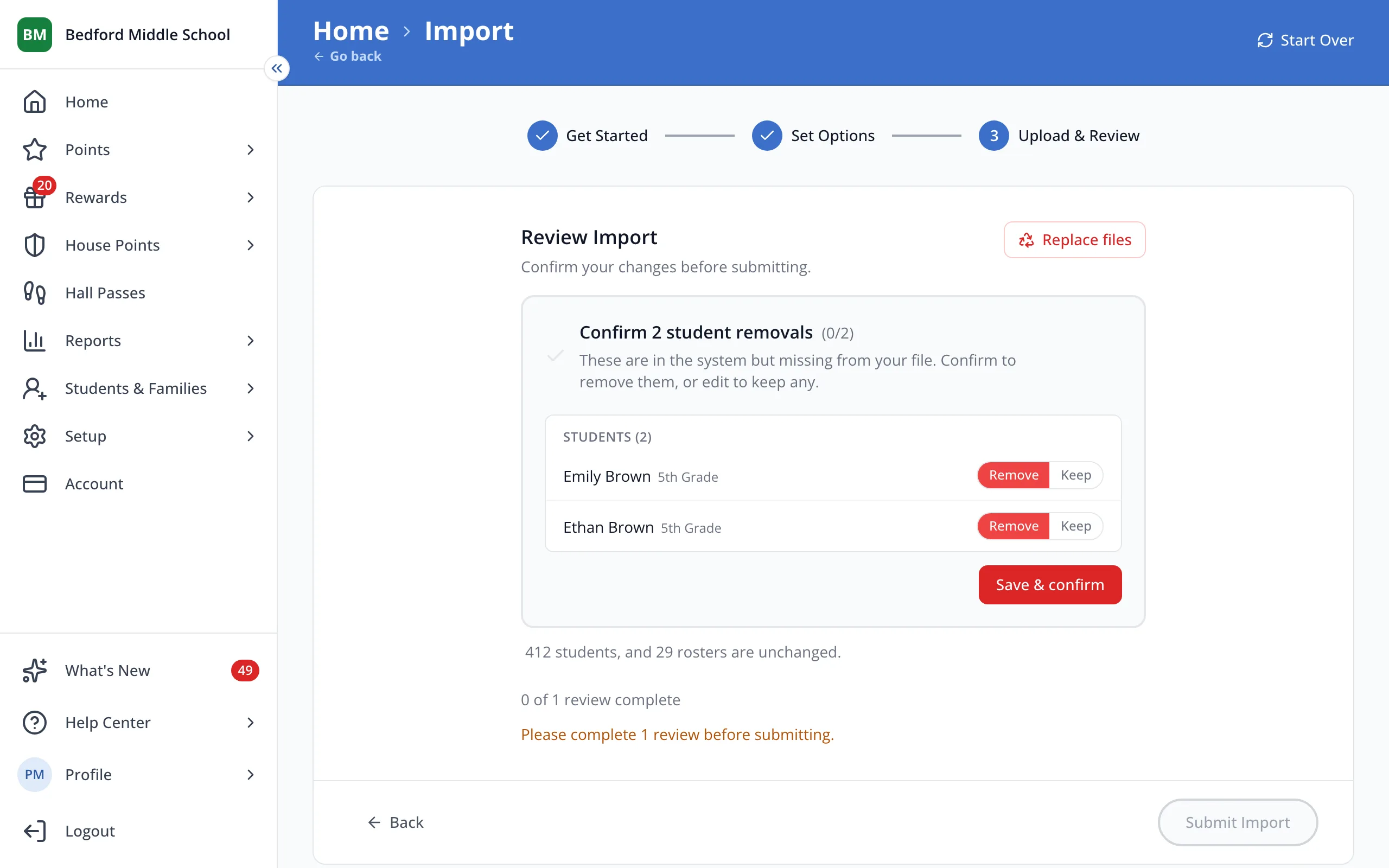
11.Under Confirm student removals, click Edit removals to see who will be removed.
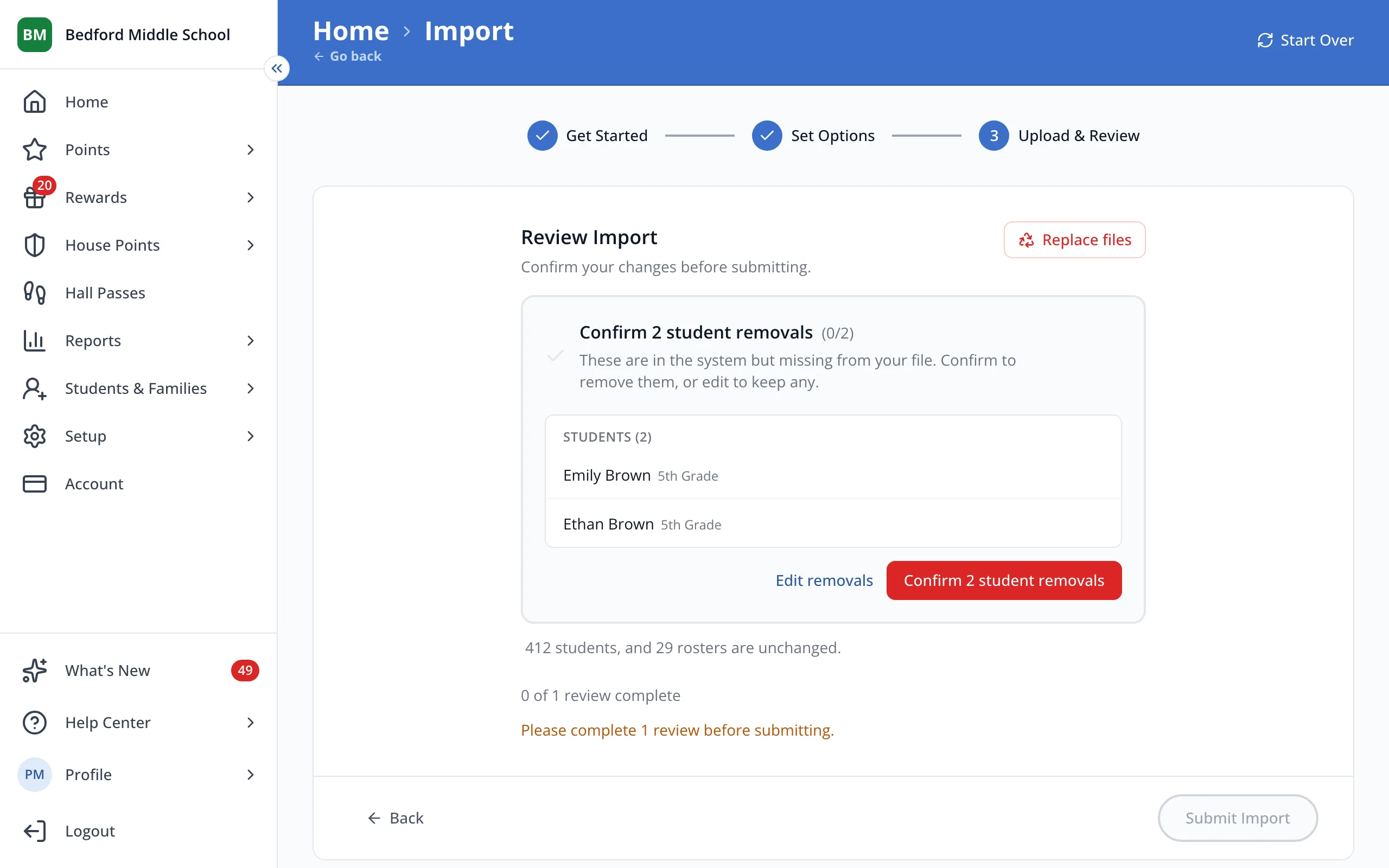
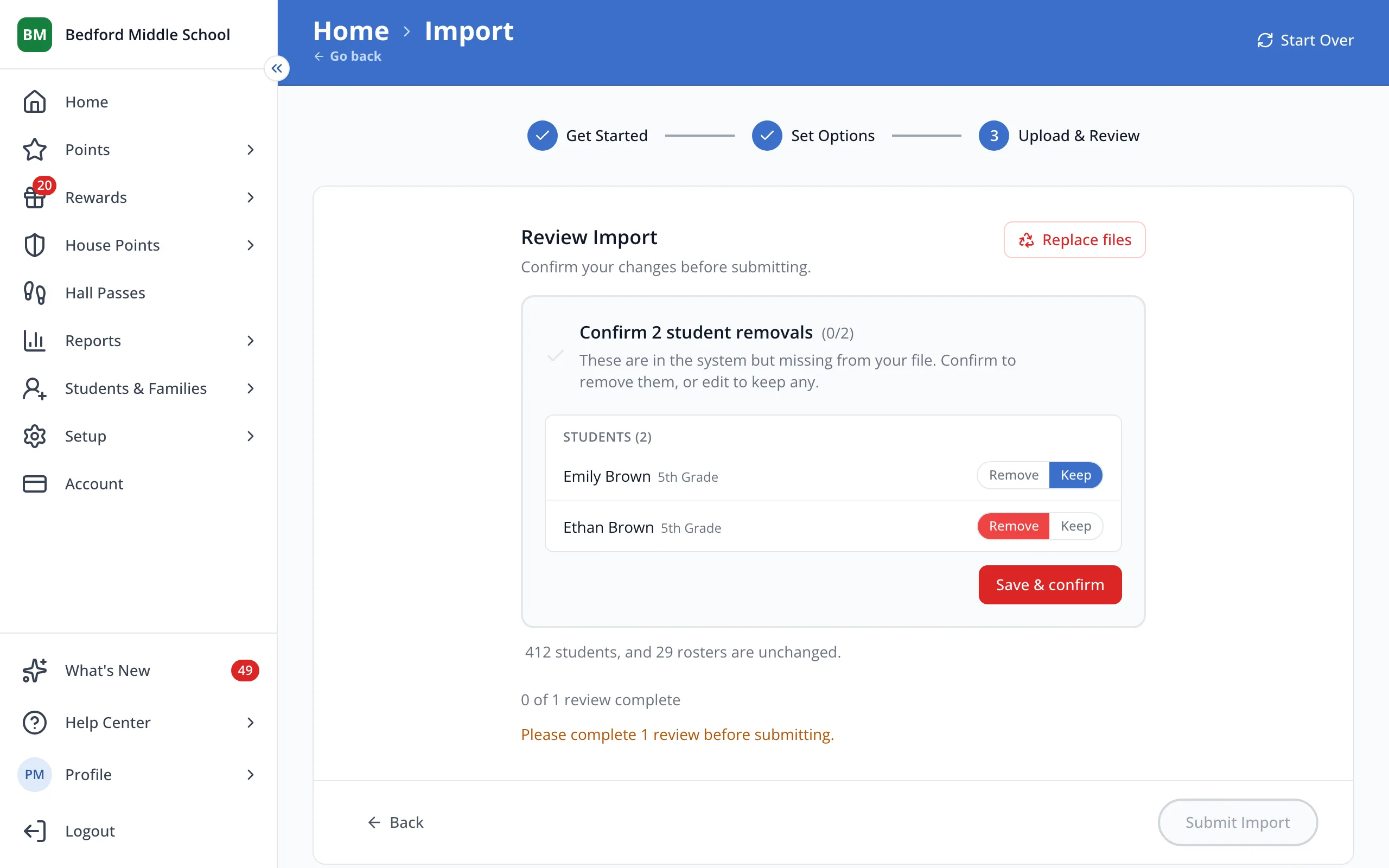
12.Click Keep next to anyone who should stay.
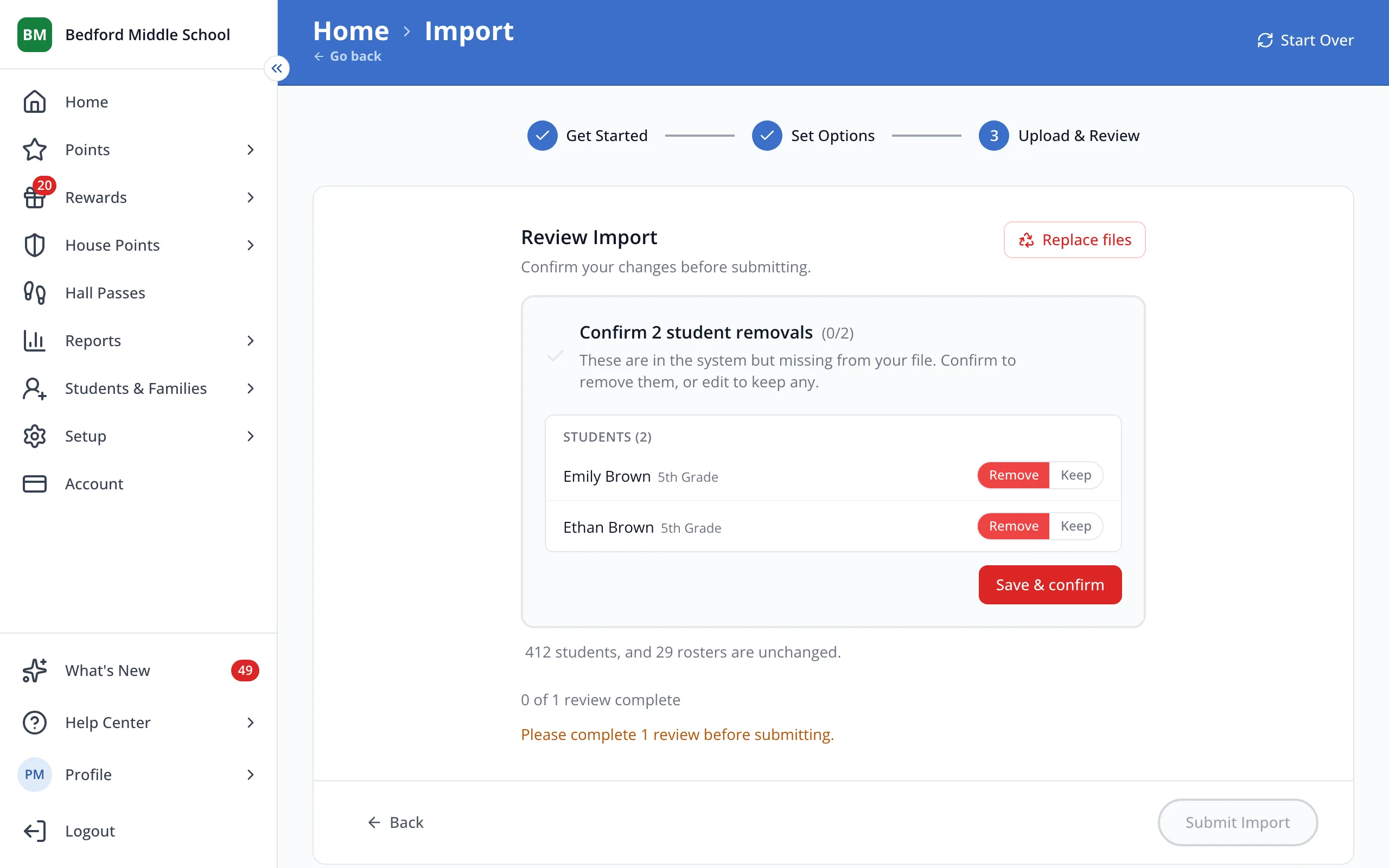
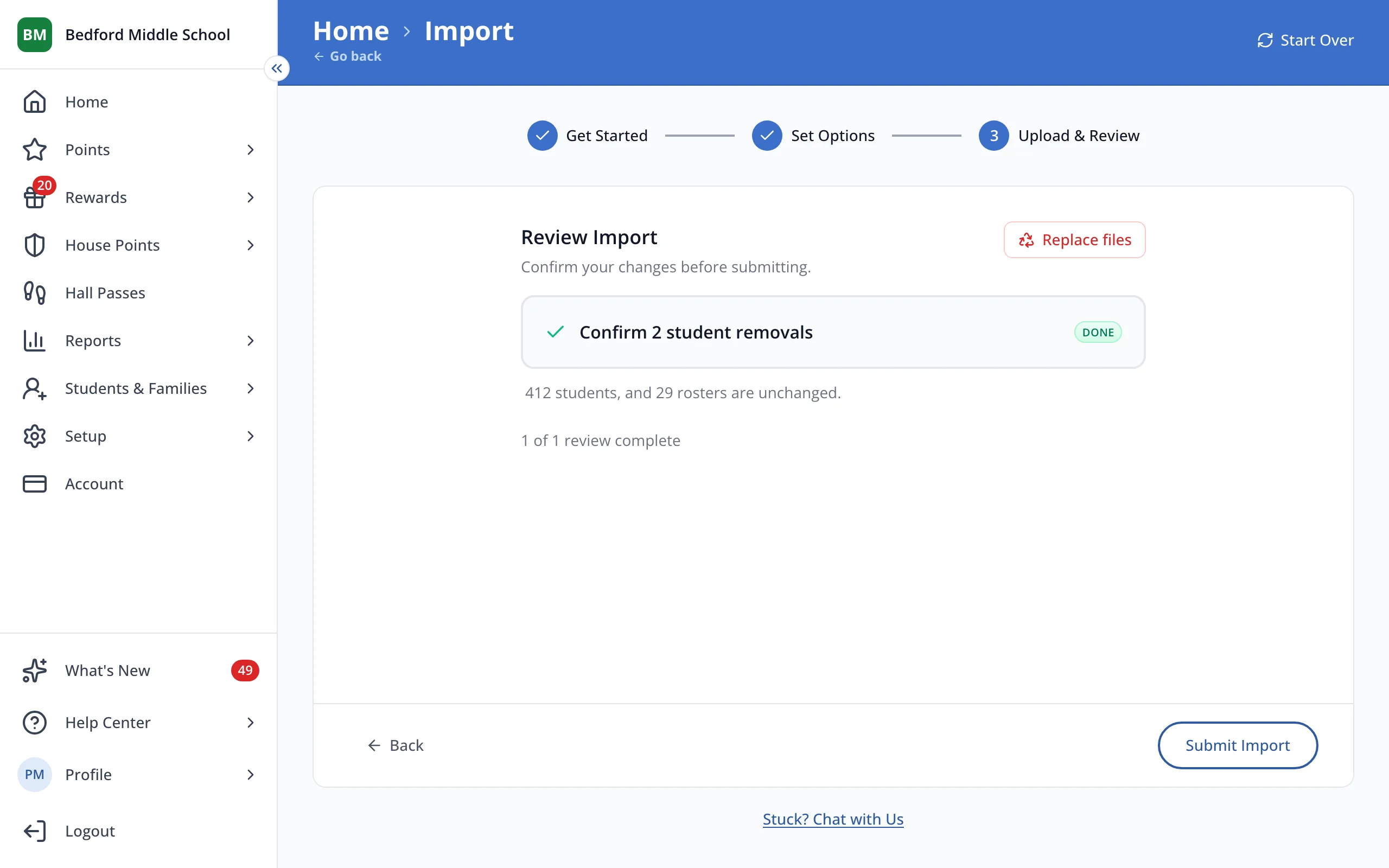
13.Click Save & confirm. Everyone left on Remove will be removed when the import runs.
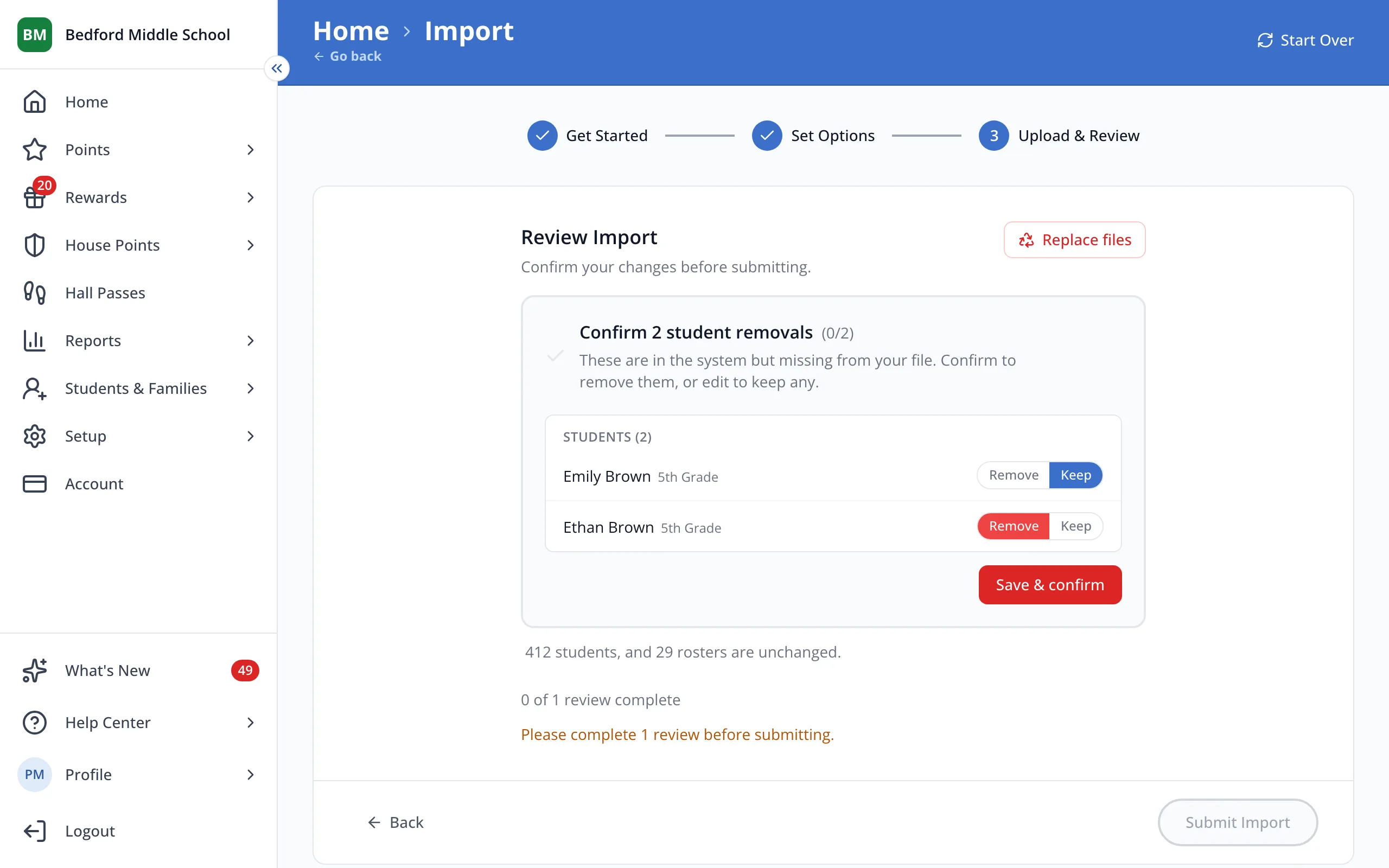
14.Click Submit Import when the rest of your review is done.