Add or update staff with a spreadsheet import
Add new staff on new rows and fix names or emails in place. Staff left off the file are set to be removed.
AdminSite Leader
Open in LiveSchool
Already signed in? Open this guide inside LiveSchool.
Use the Left and Right arrow keys to move between steps, and Space to play or pause.
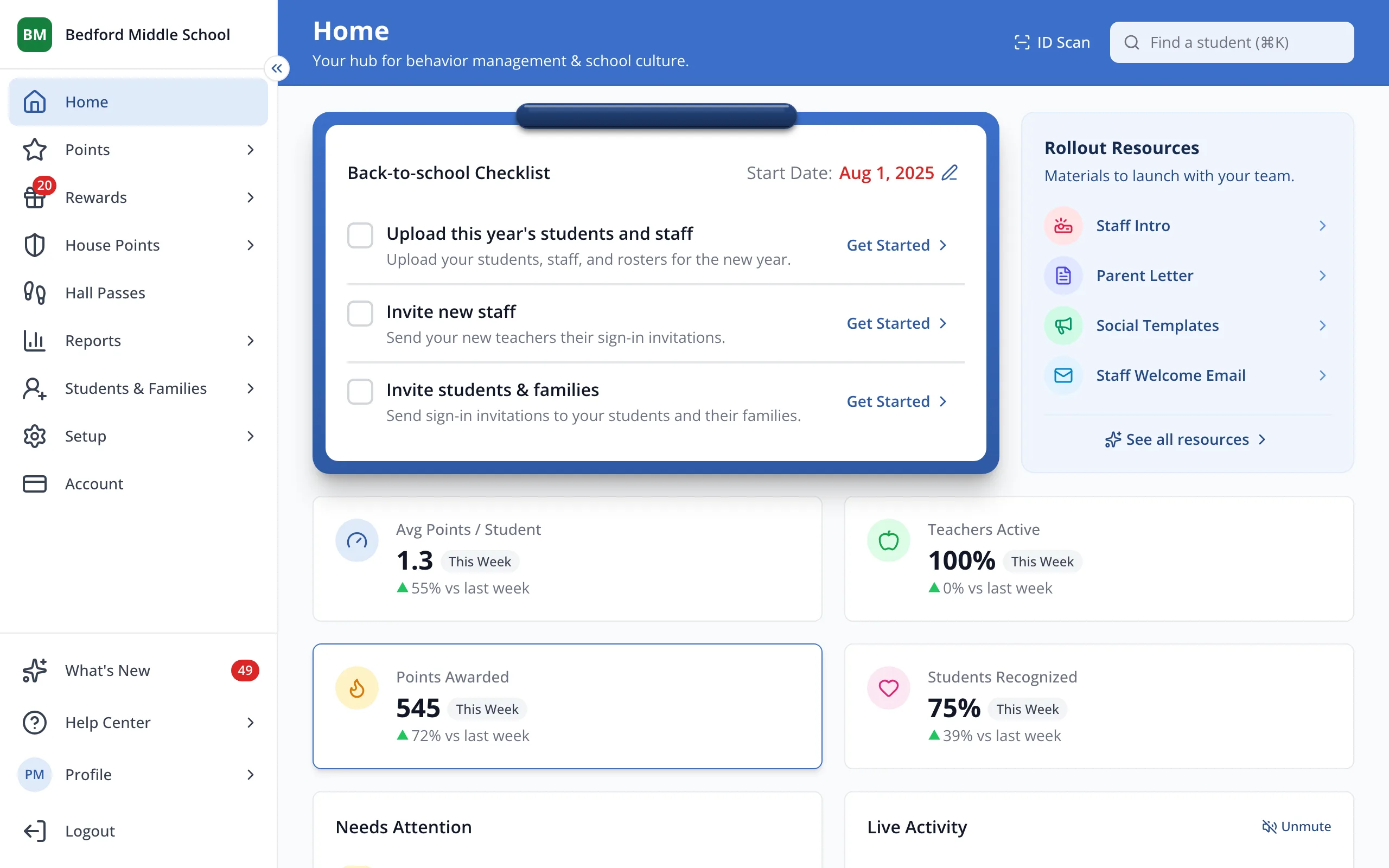
1.On Home, click Get Started next to Upload this year's students and staff.
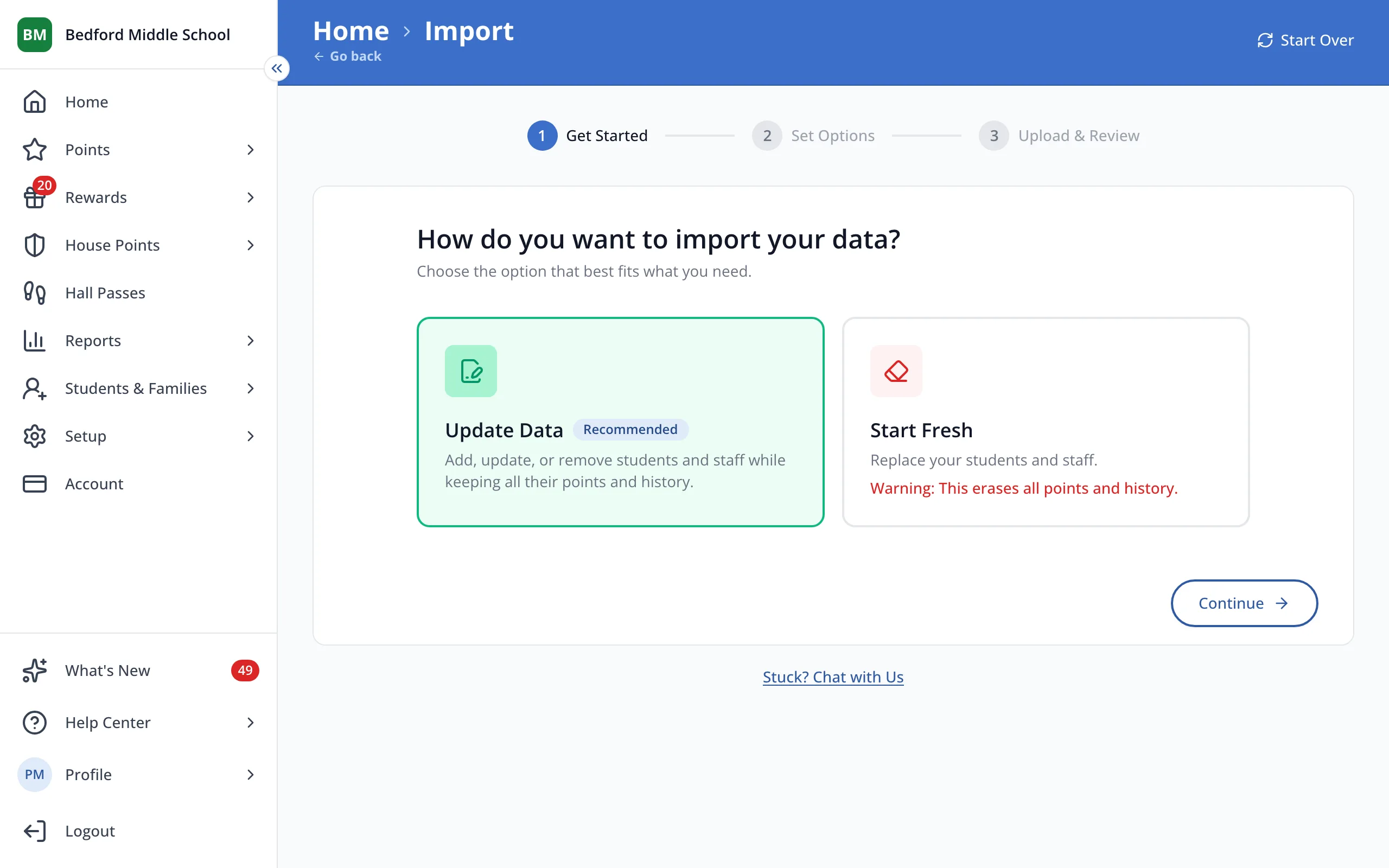
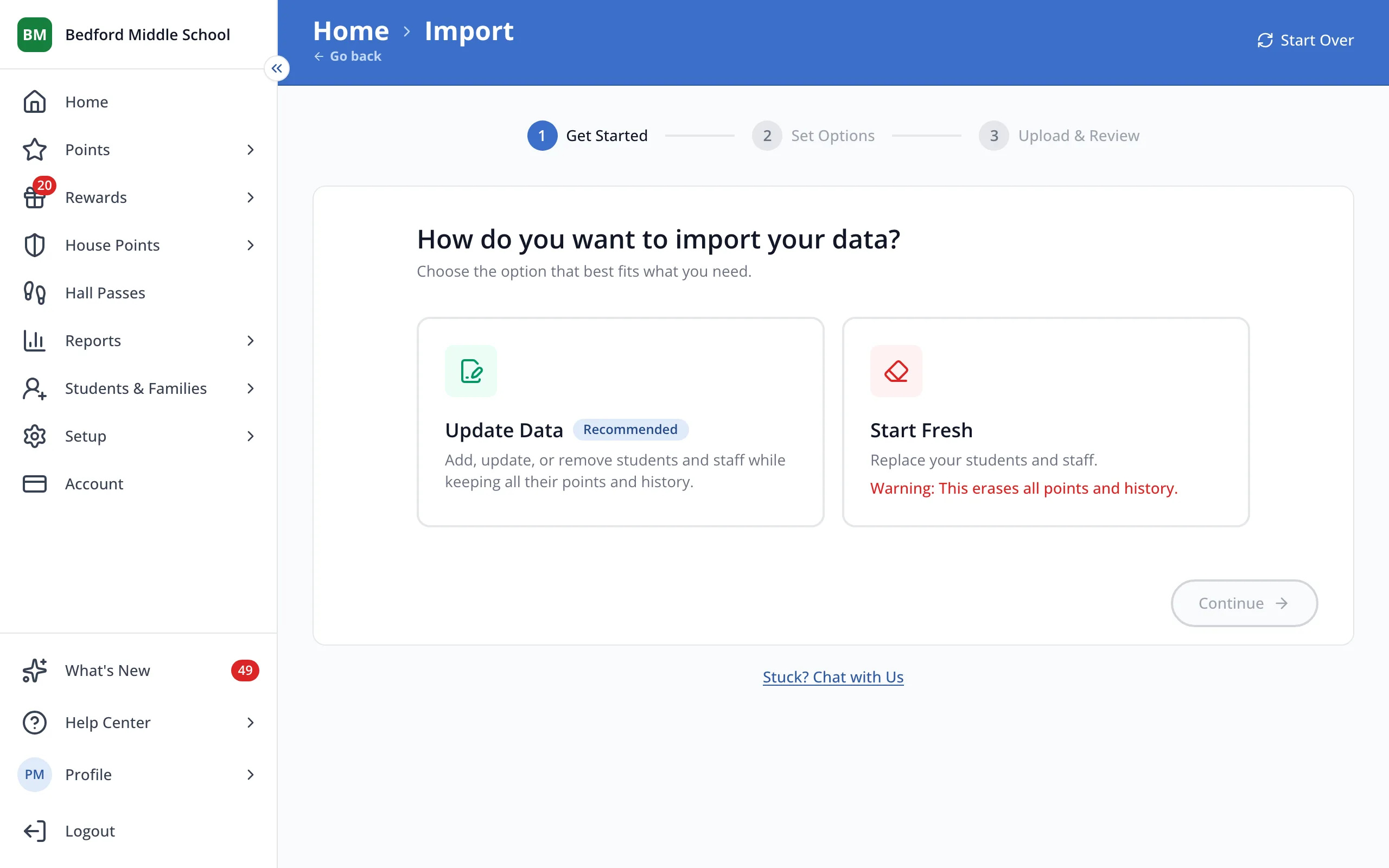
2.Click Update Data.
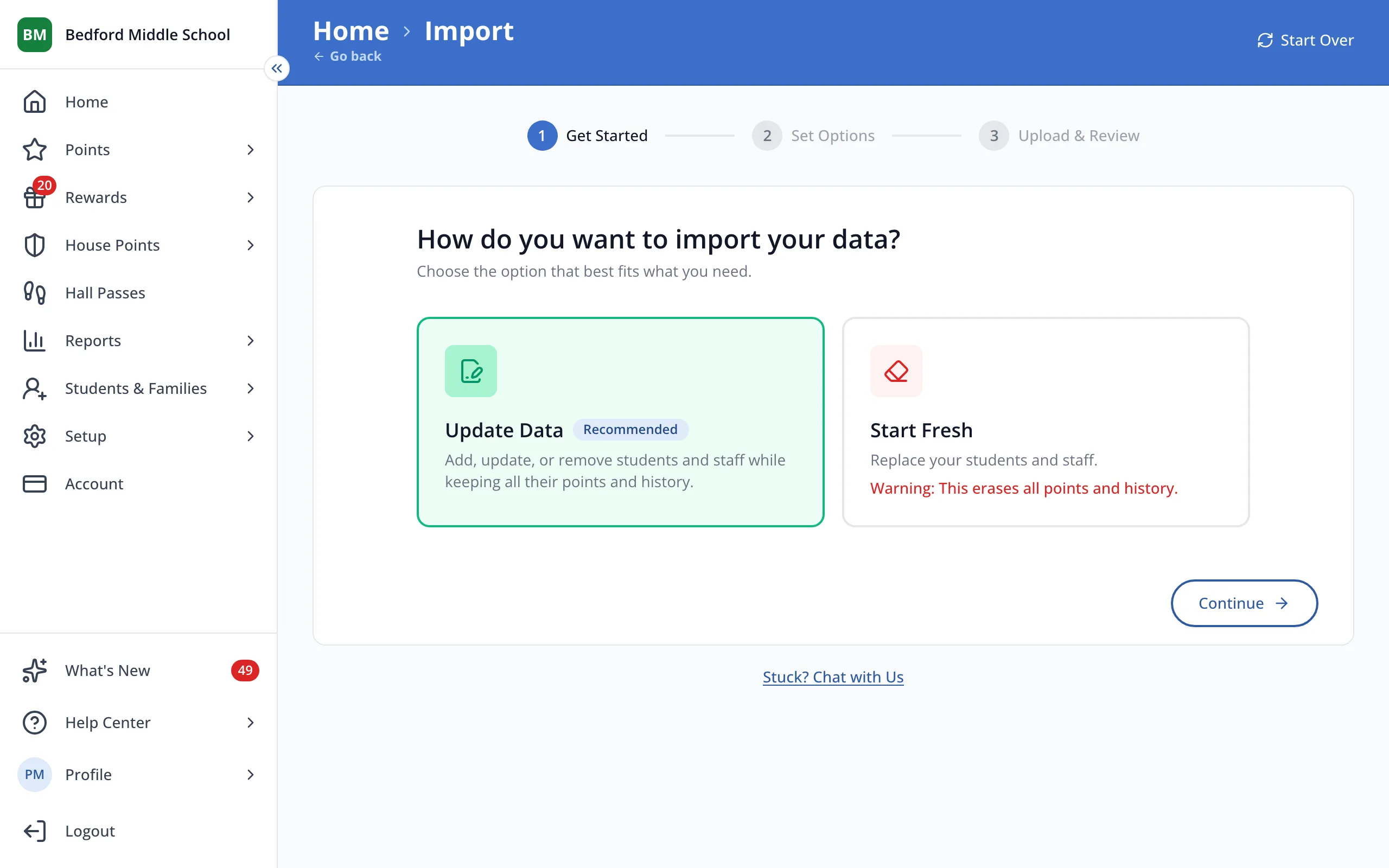
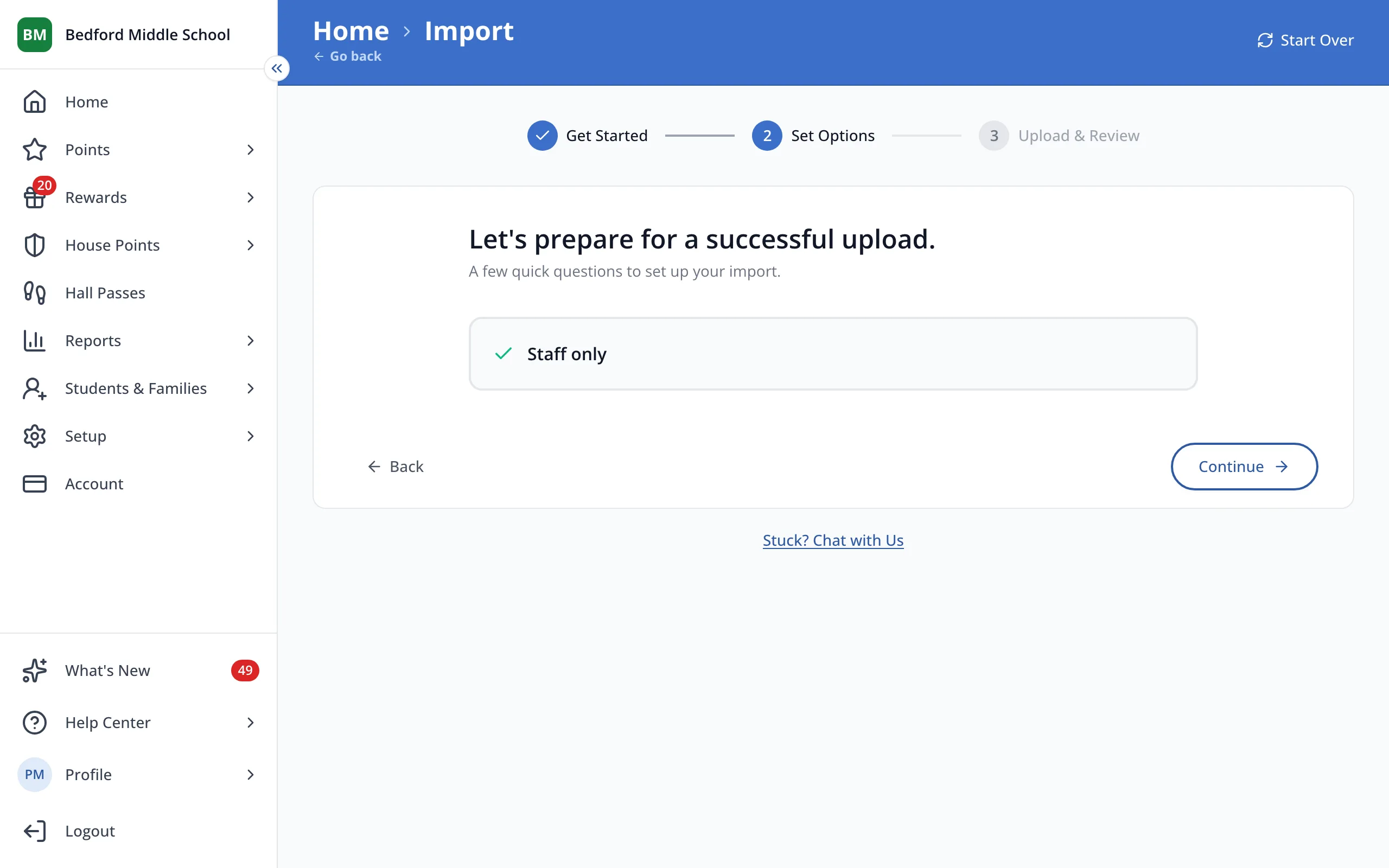
3.Click Continue.
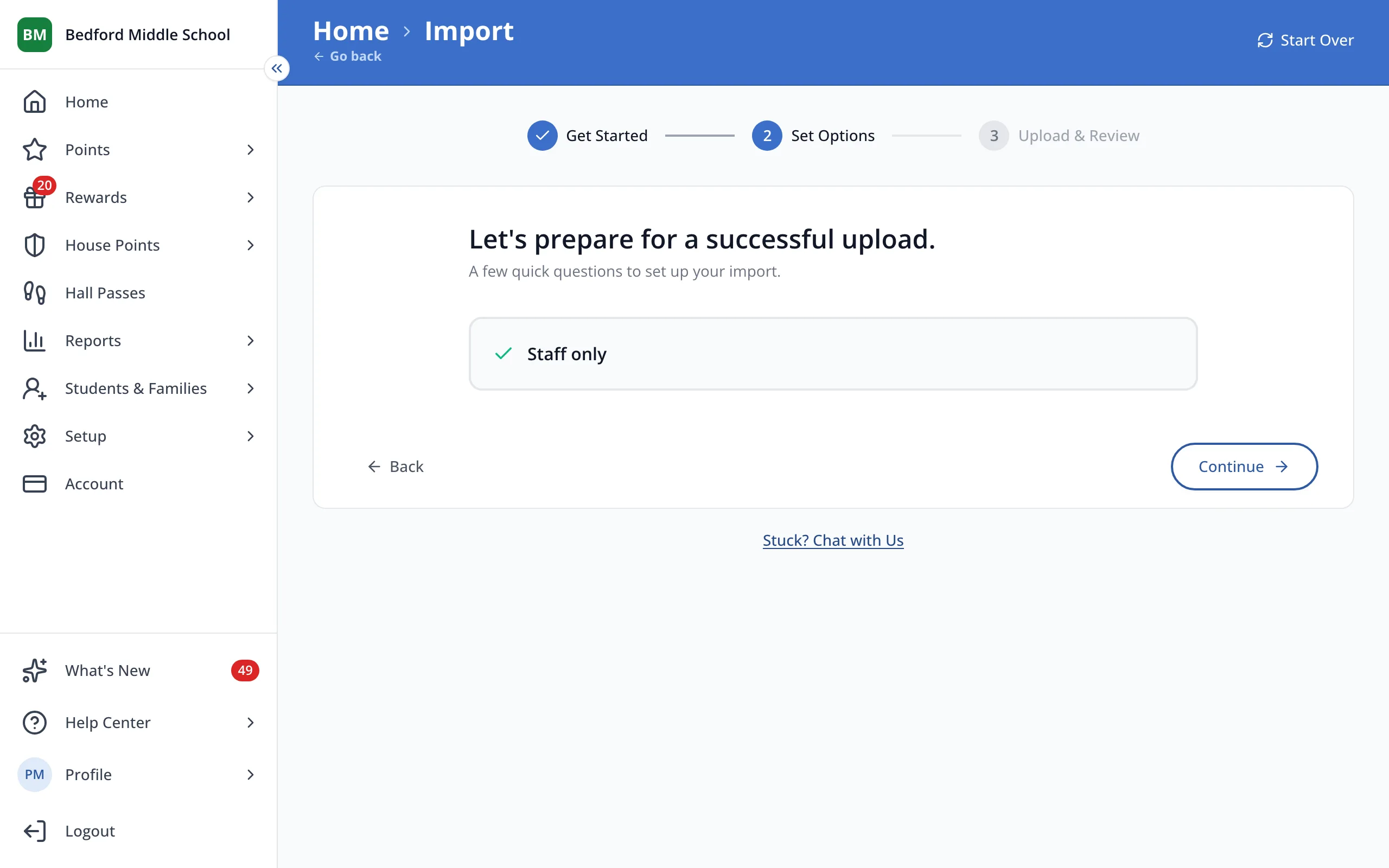
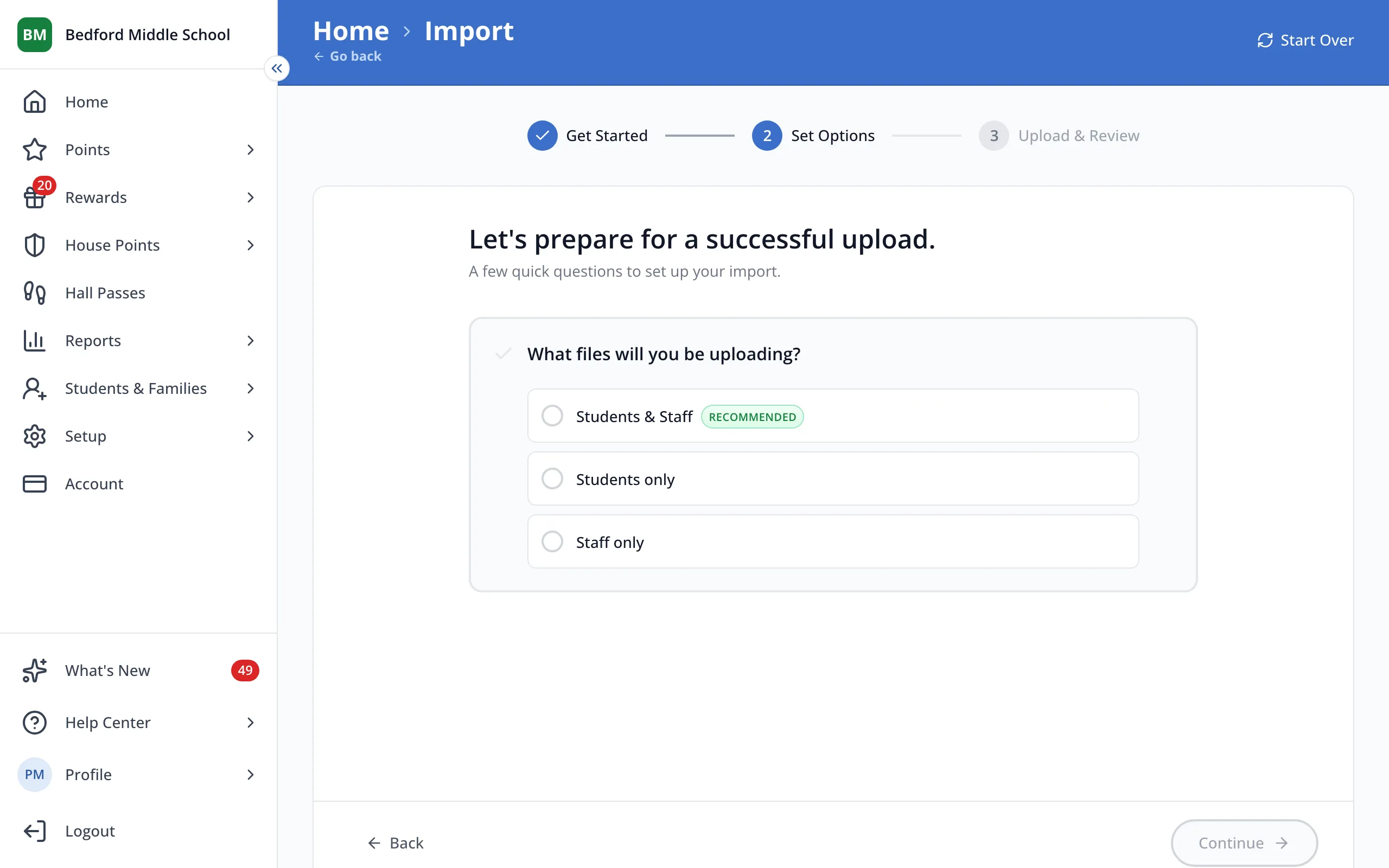
4.Click Staff only.
5.Click Continue.
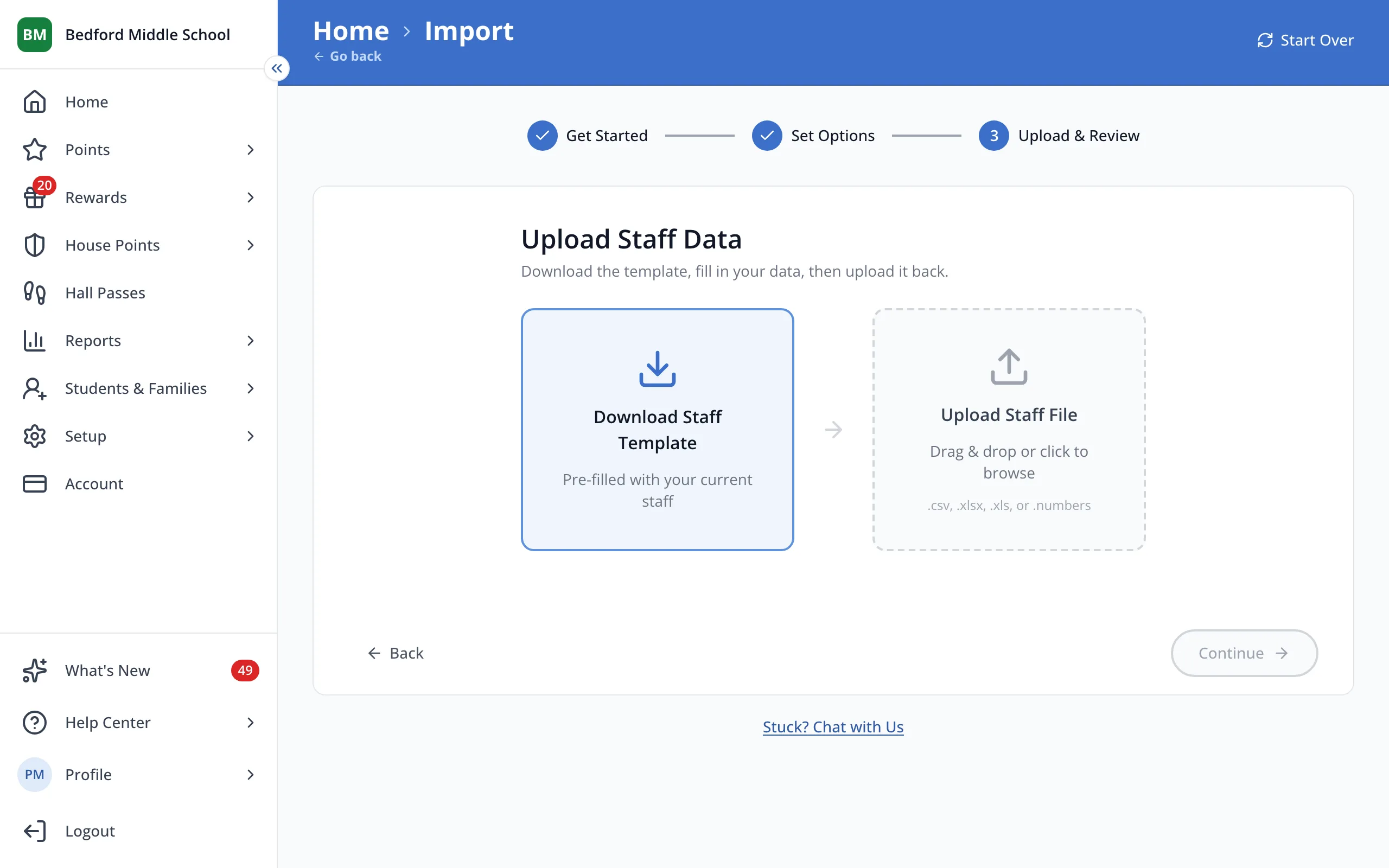
6.Click Download Staff Template. It lists every current staff member.
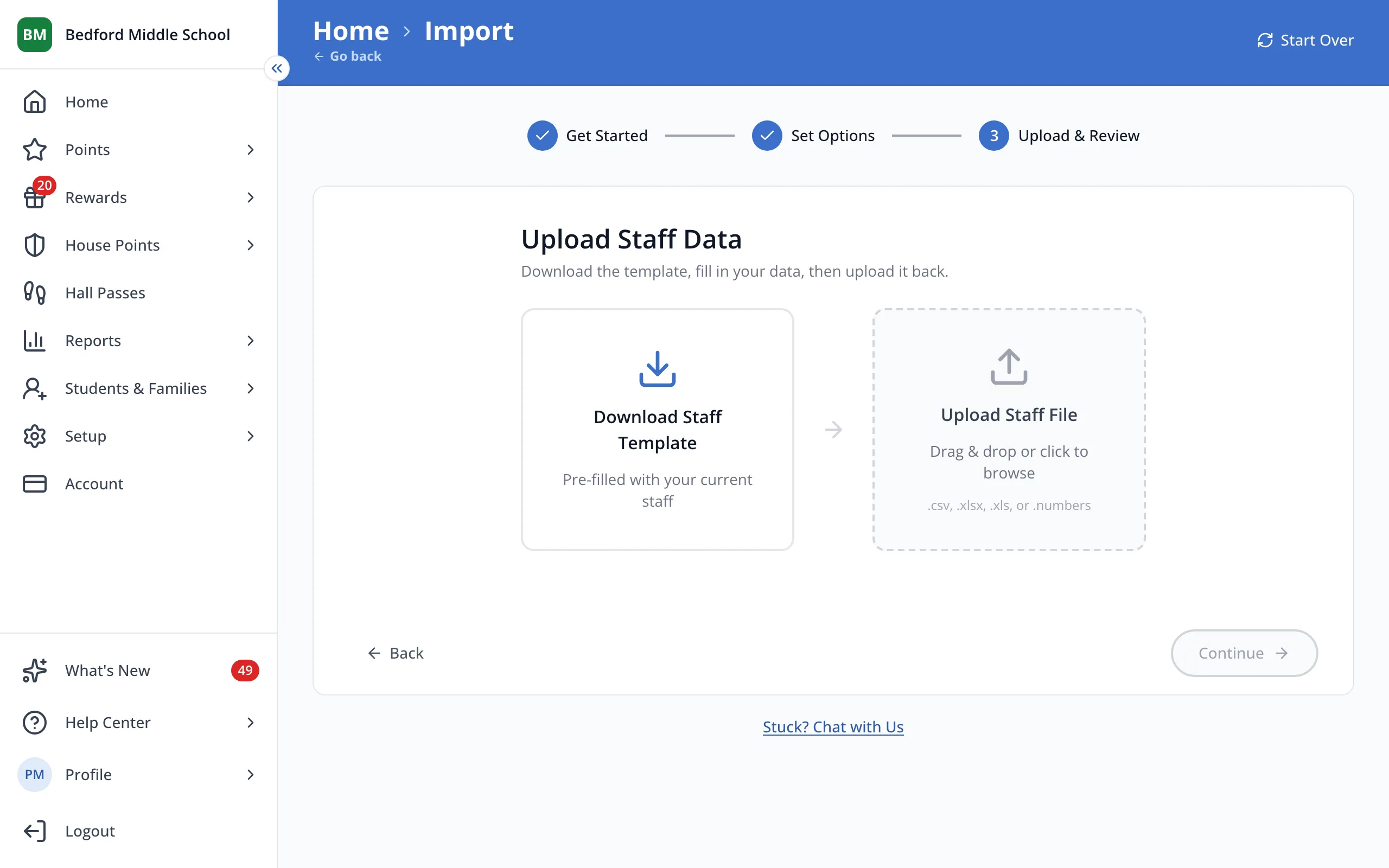
7.Add each new staff member on a new row with their name and email, then drop the file here.
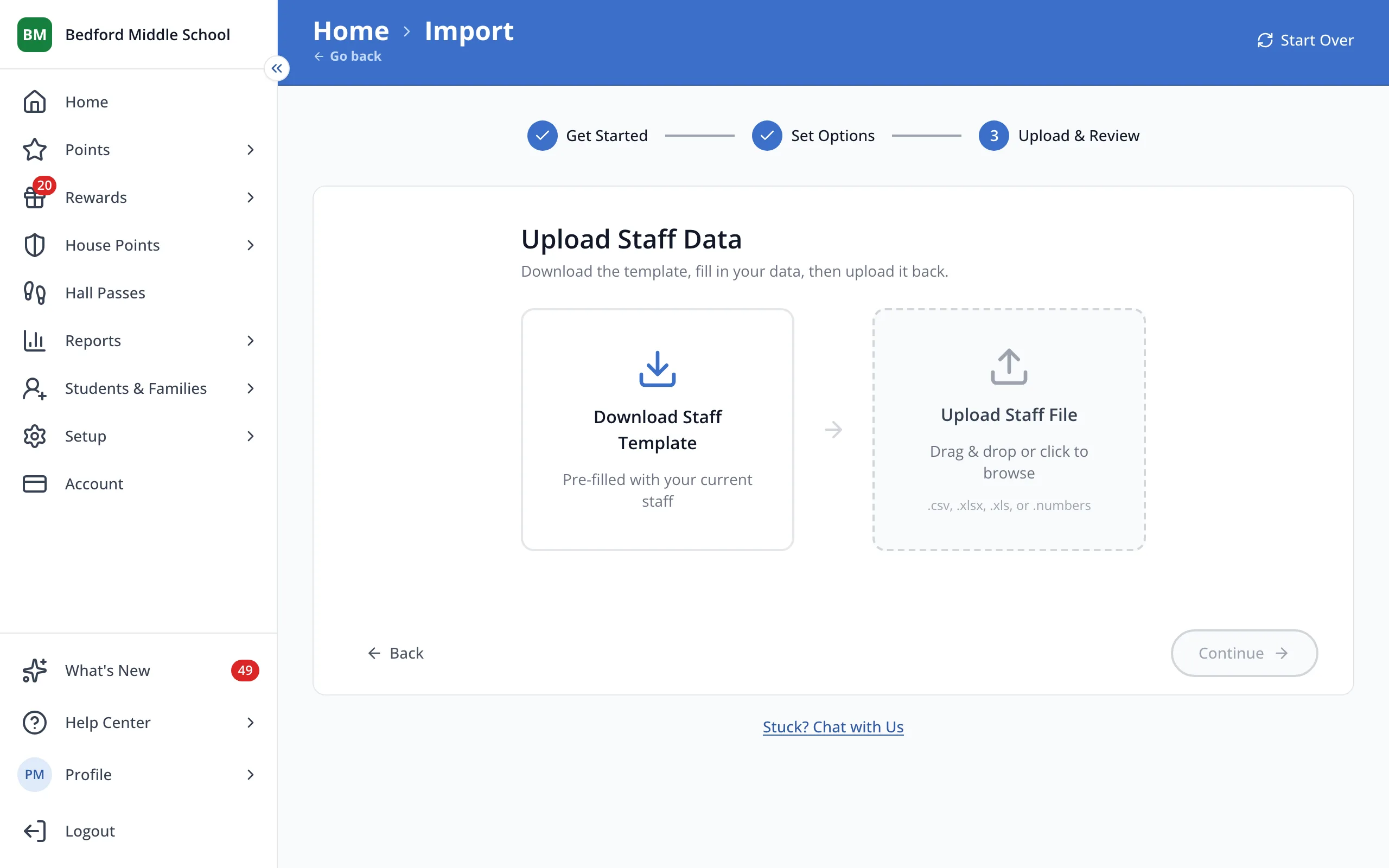
Did you know? Fix a name or email on an existing row and it updates that staff member.
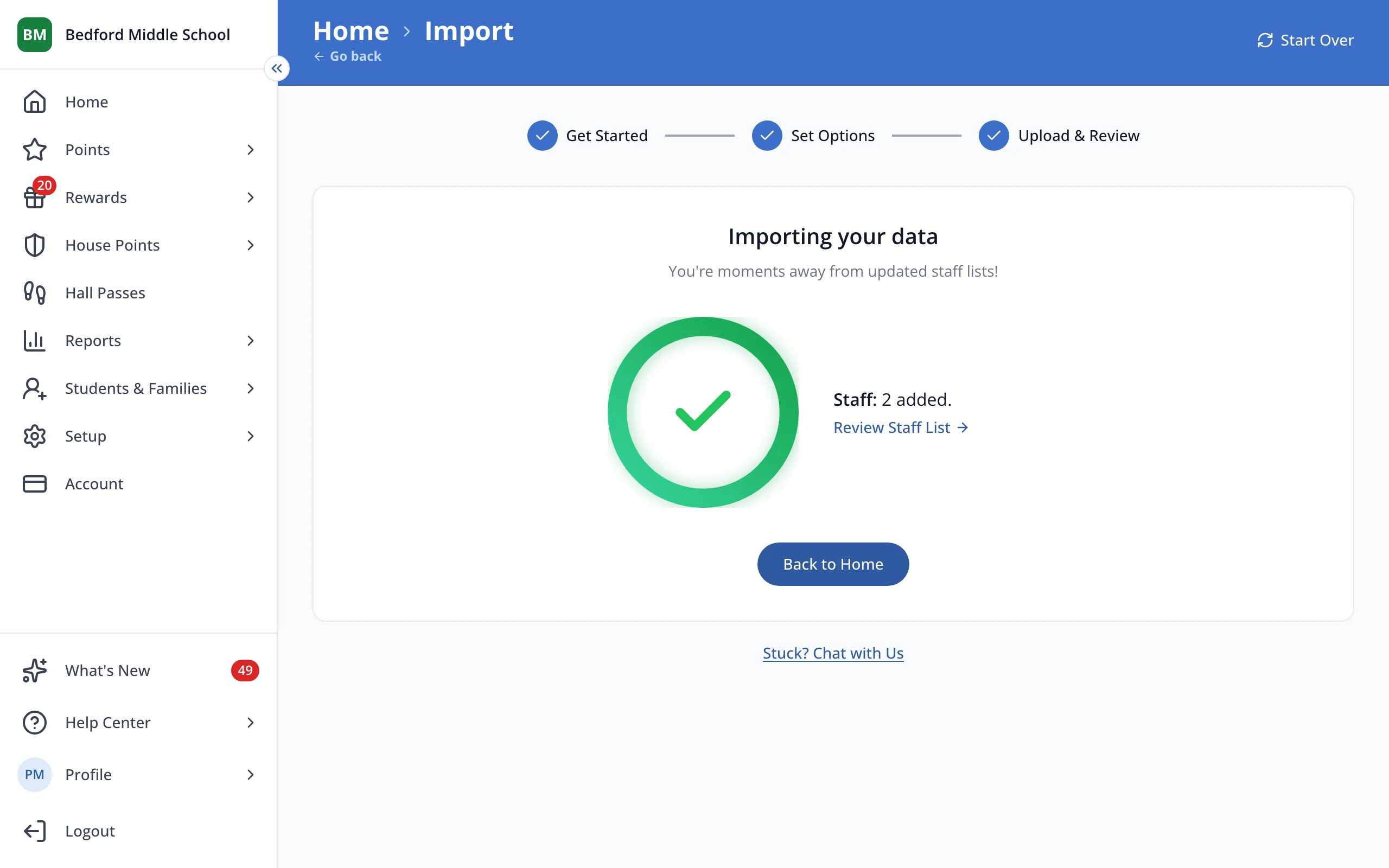
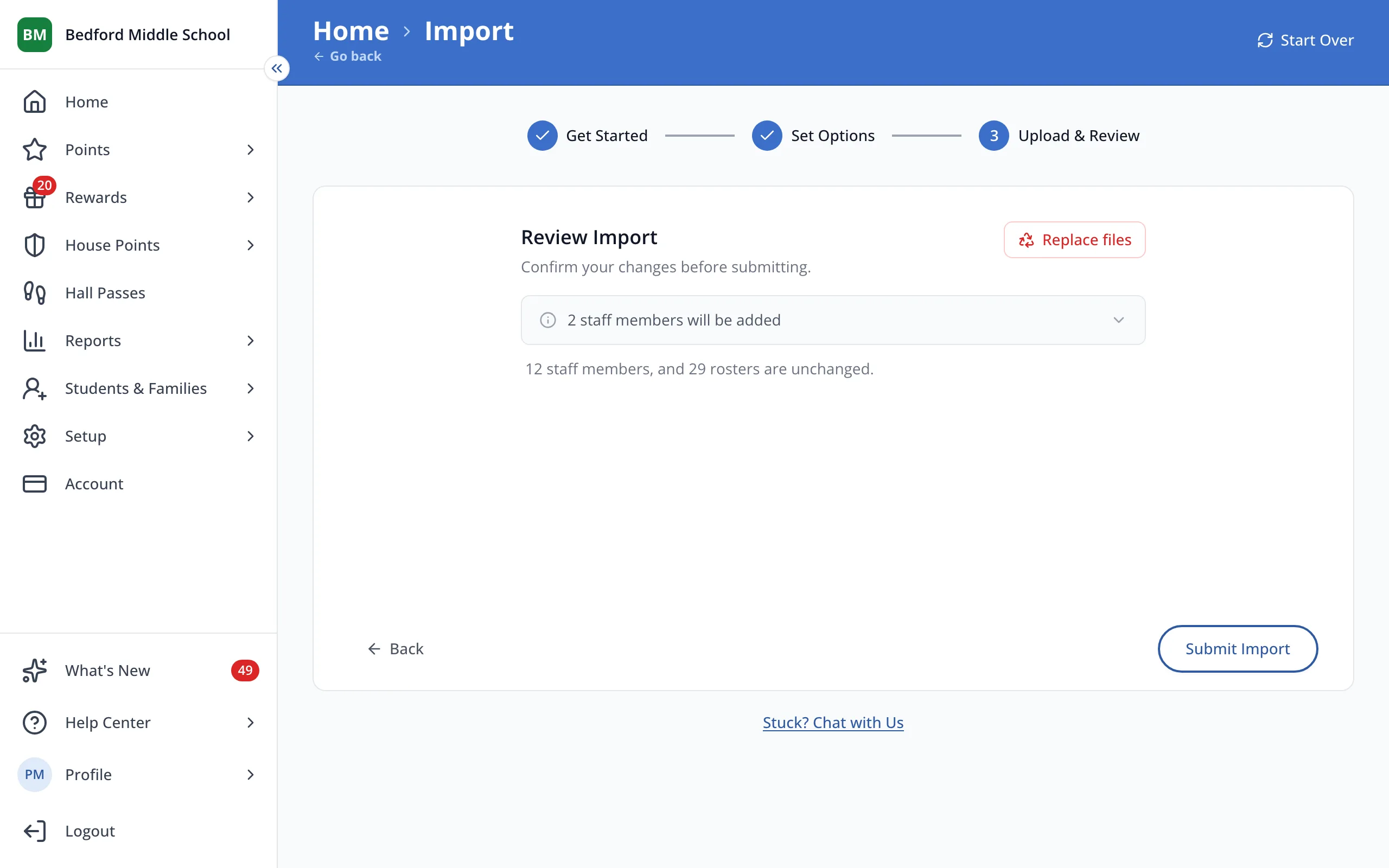
8.Check how many staff will be added, then click Submit Import.
9.Click Review Staff List to see your new staff.