Move a photo to the right student
Linked a photo to the wrong student? Move it over without finding the original file again.
AdminSite Leader
Open in LiveSchool
Already signed in? Open this guide inside LiveSchool.
Use the Left and Right arrow keys to move between steps, and Space to play or pause.
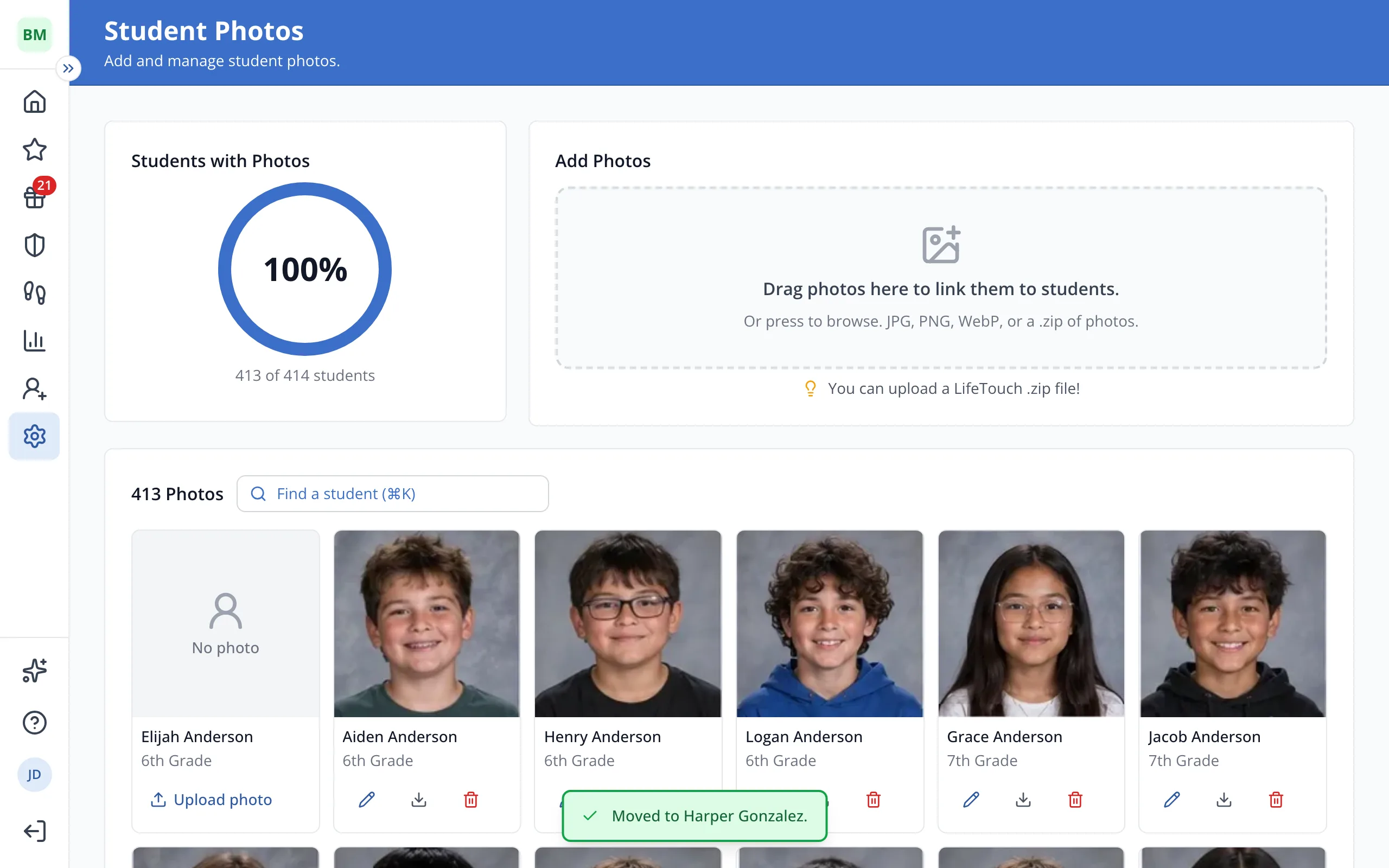
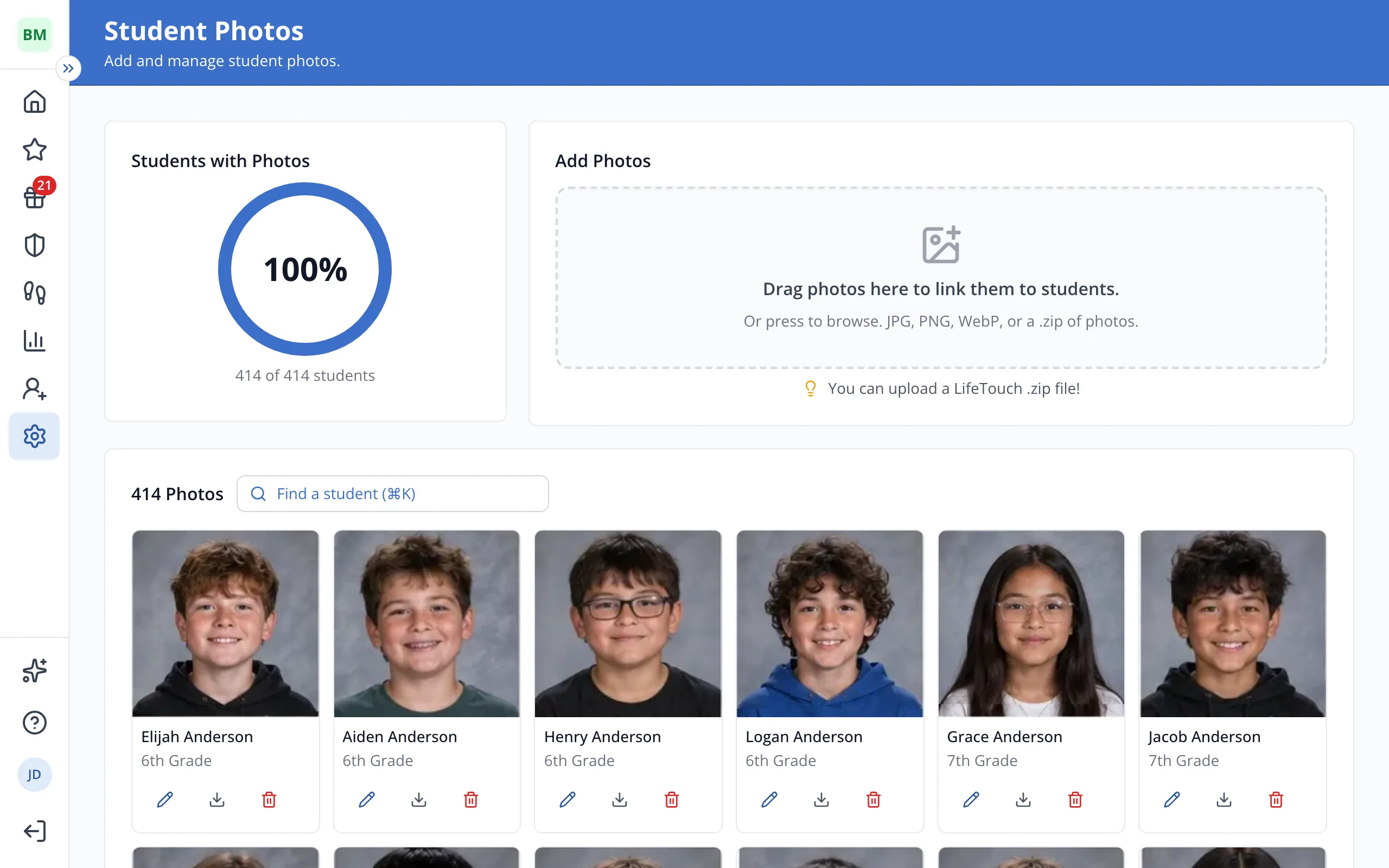
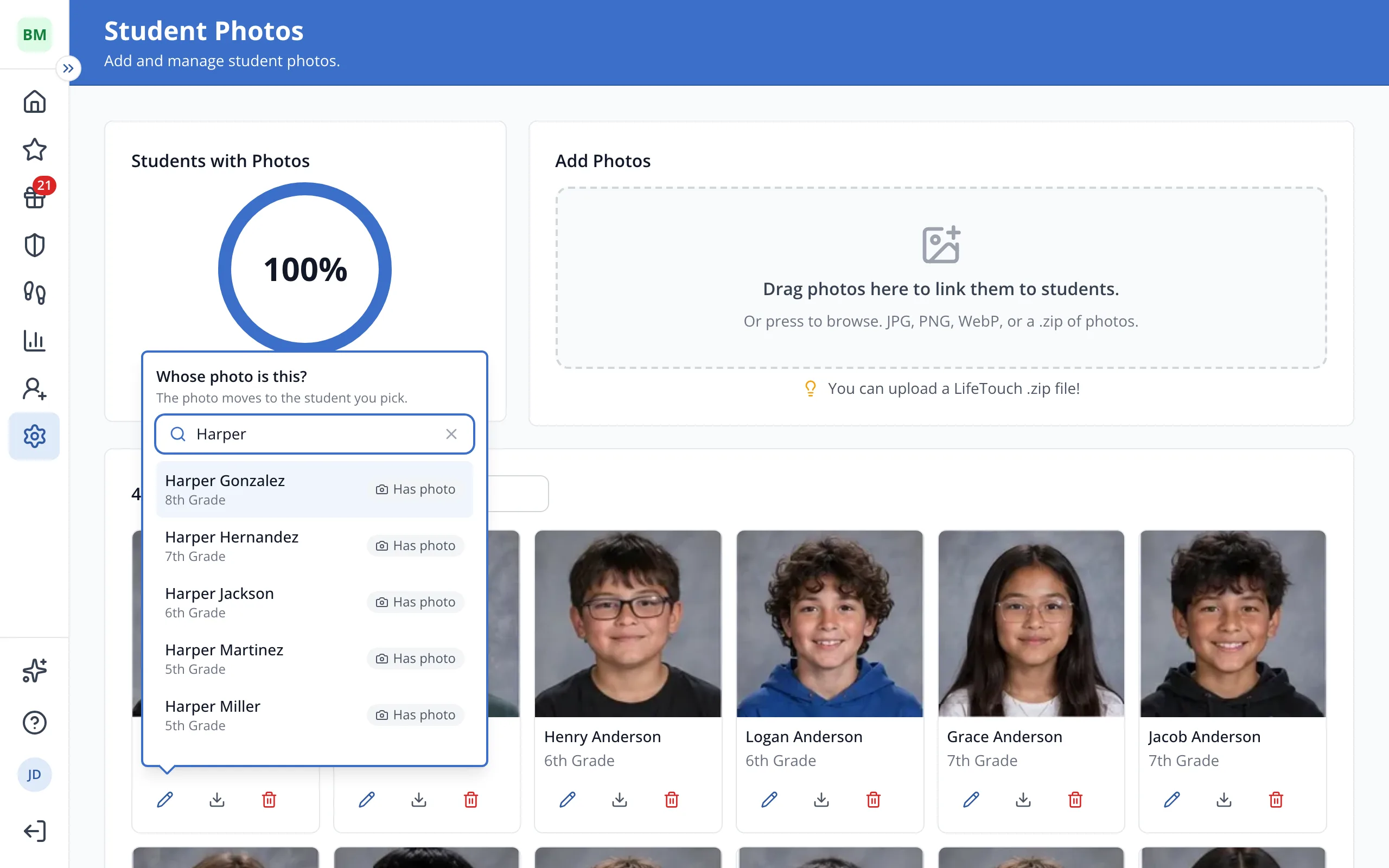
1.Under the photo that's on the wrong student, click the pencil.
Did you know? Click Replace photo… in the same menu to upload a new photo for that student instead.
2.Click Move photo….
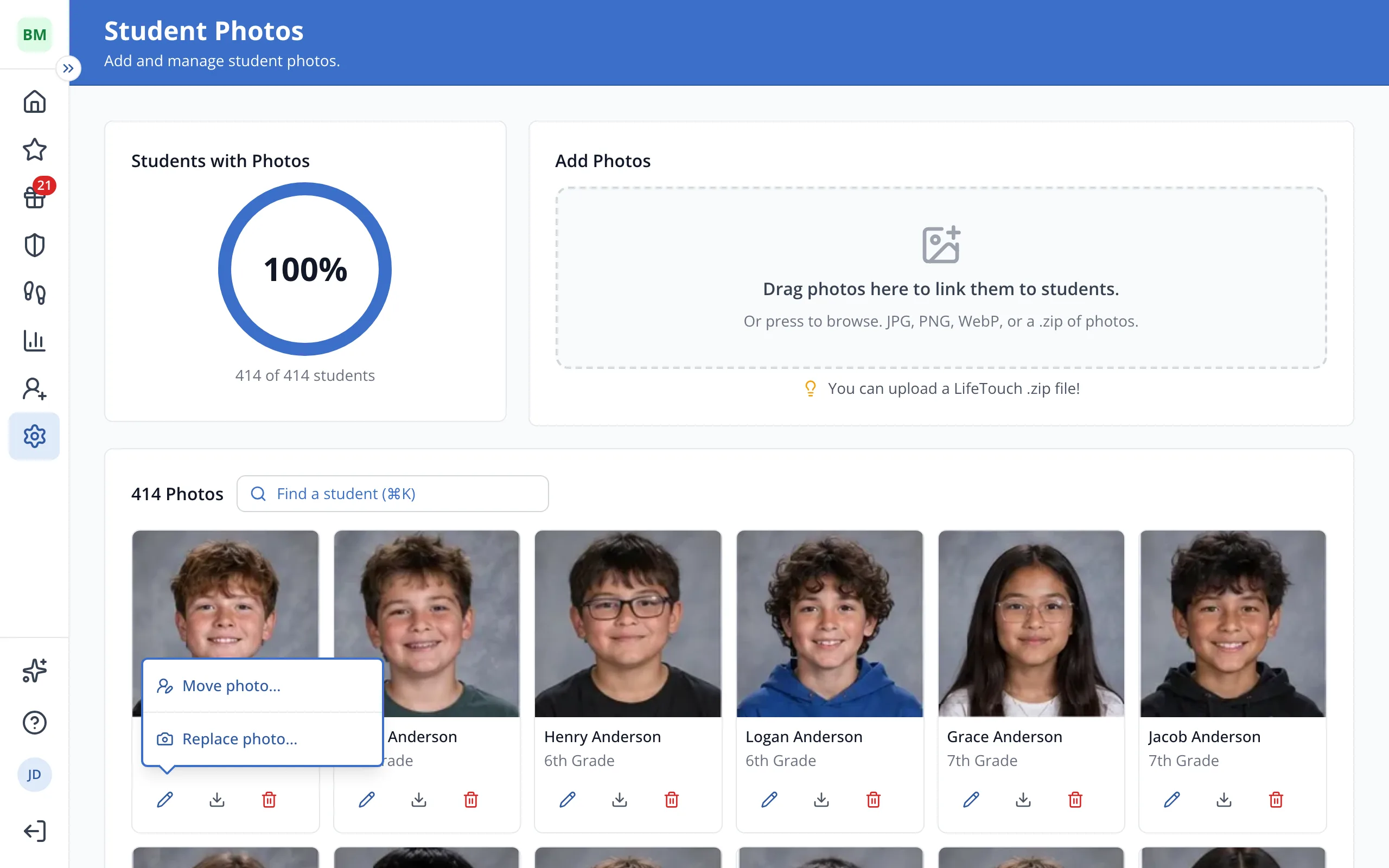
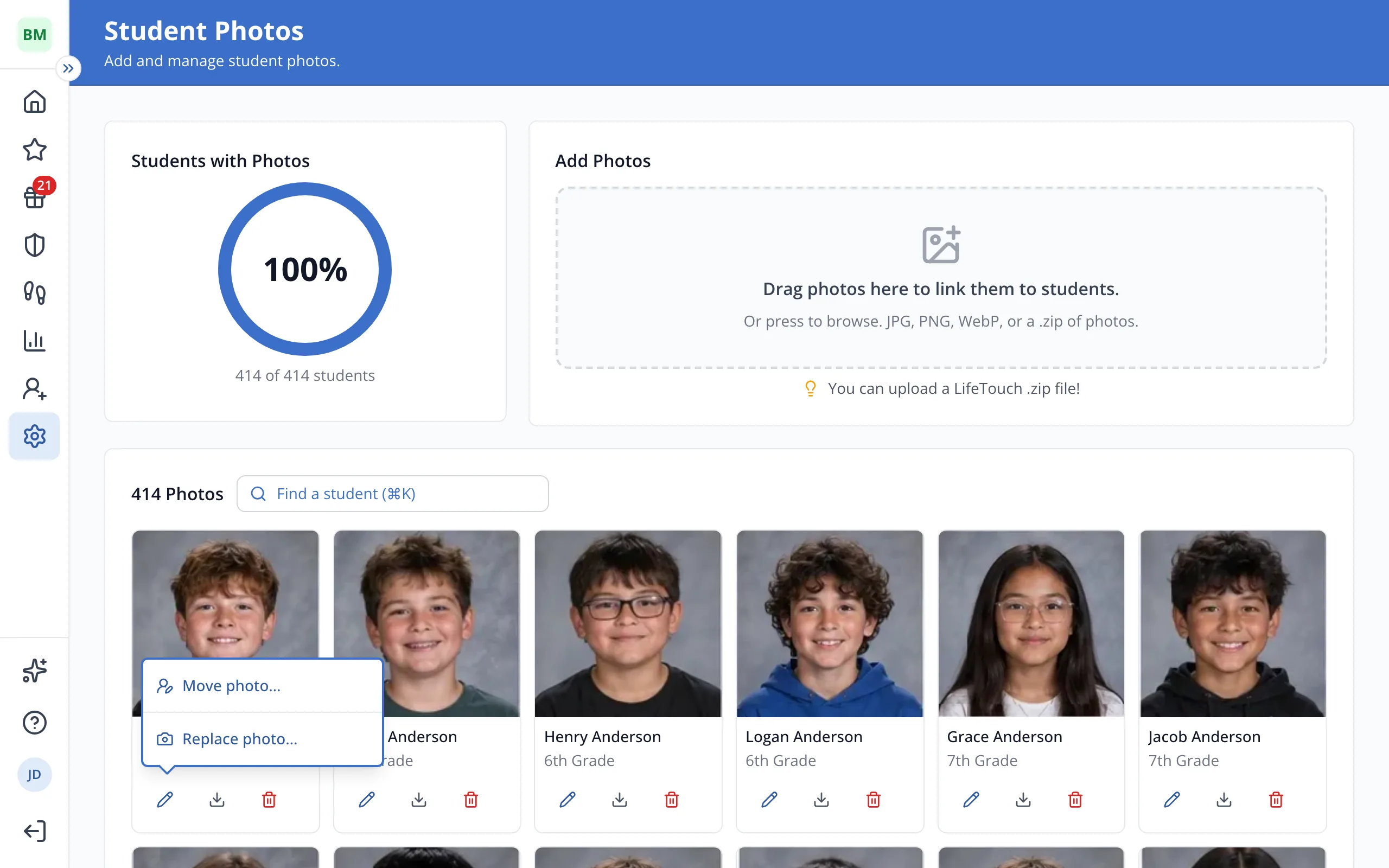
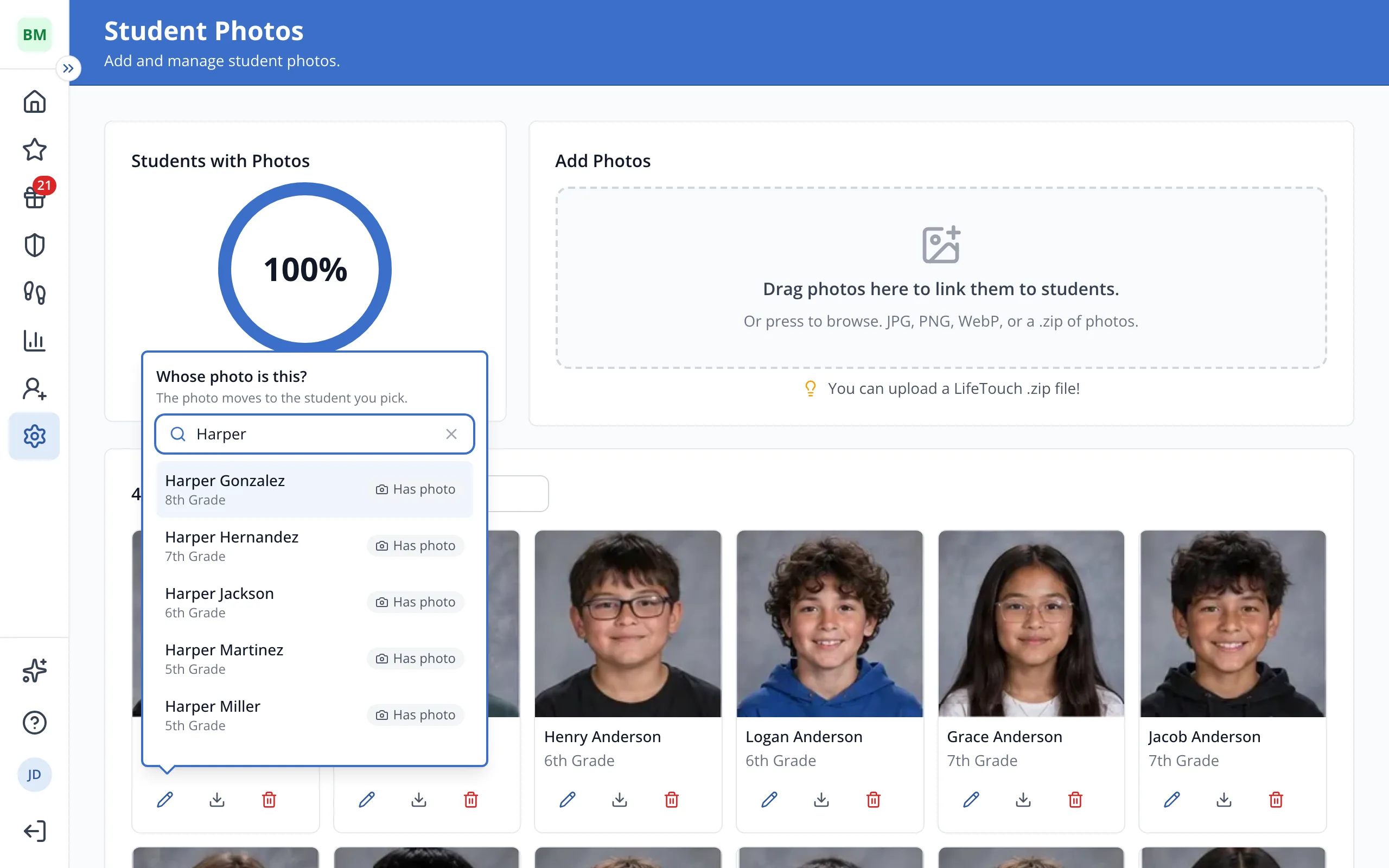
3.Type the name of the student the photo belongs to.
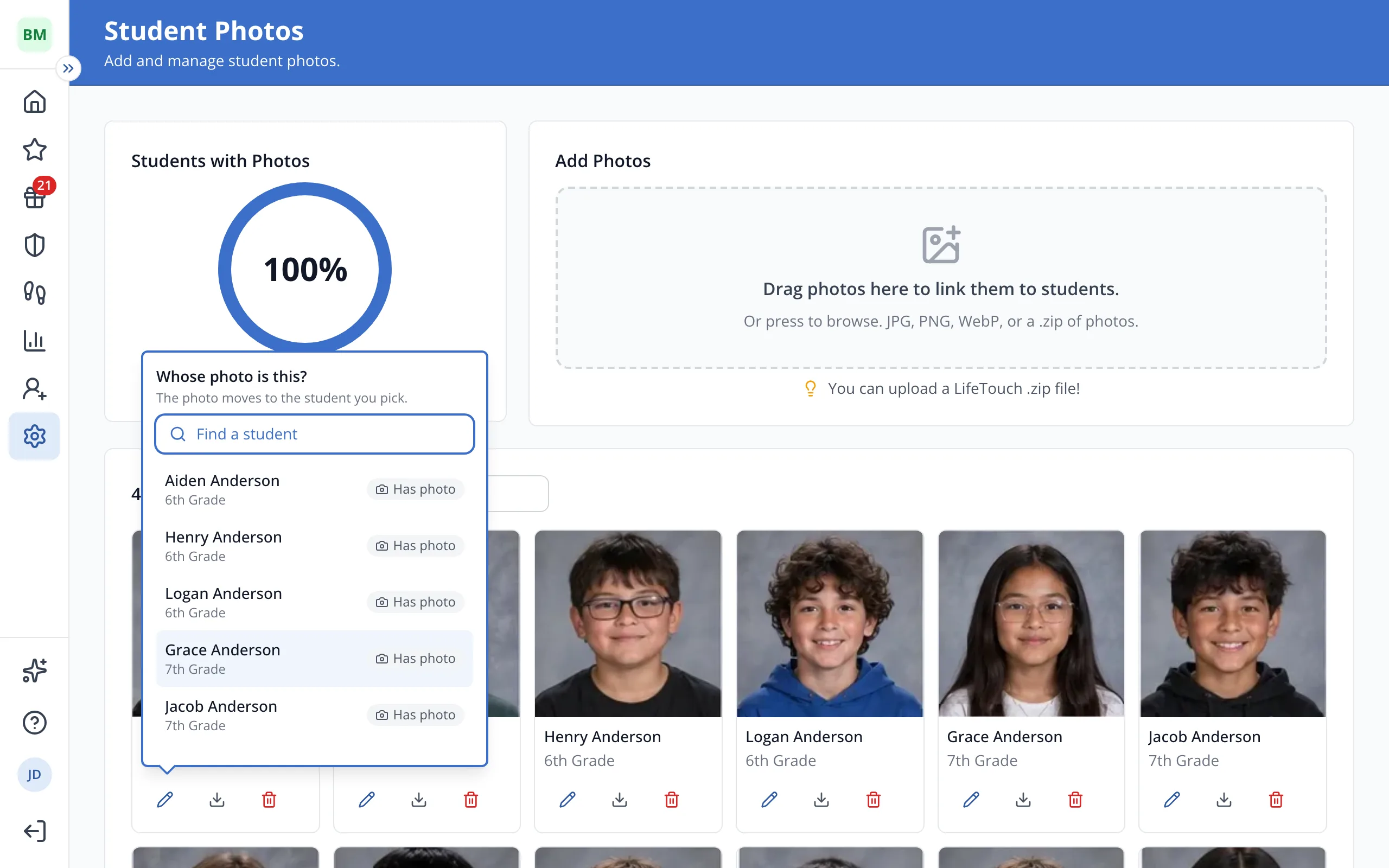
4.Click the right student.
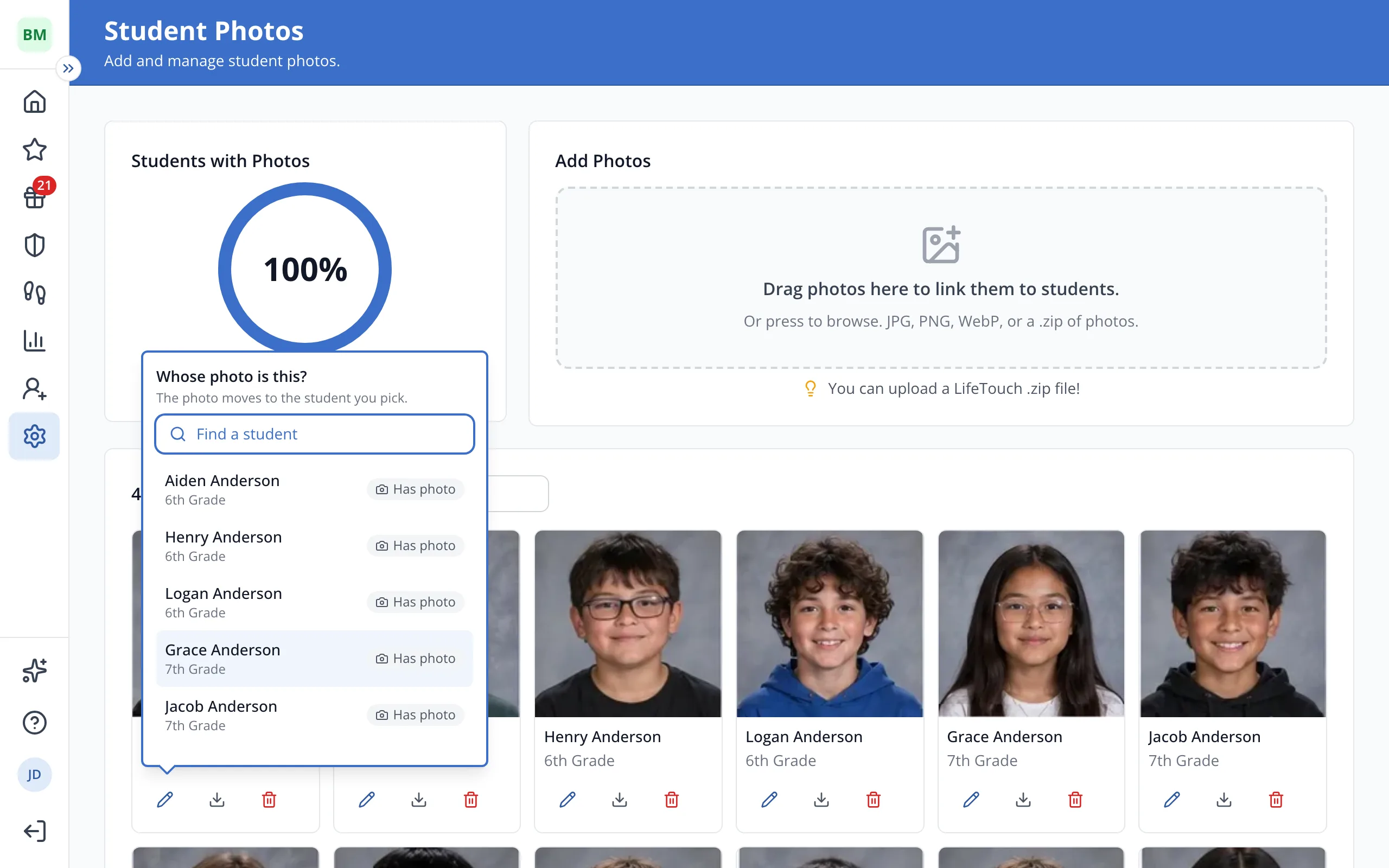
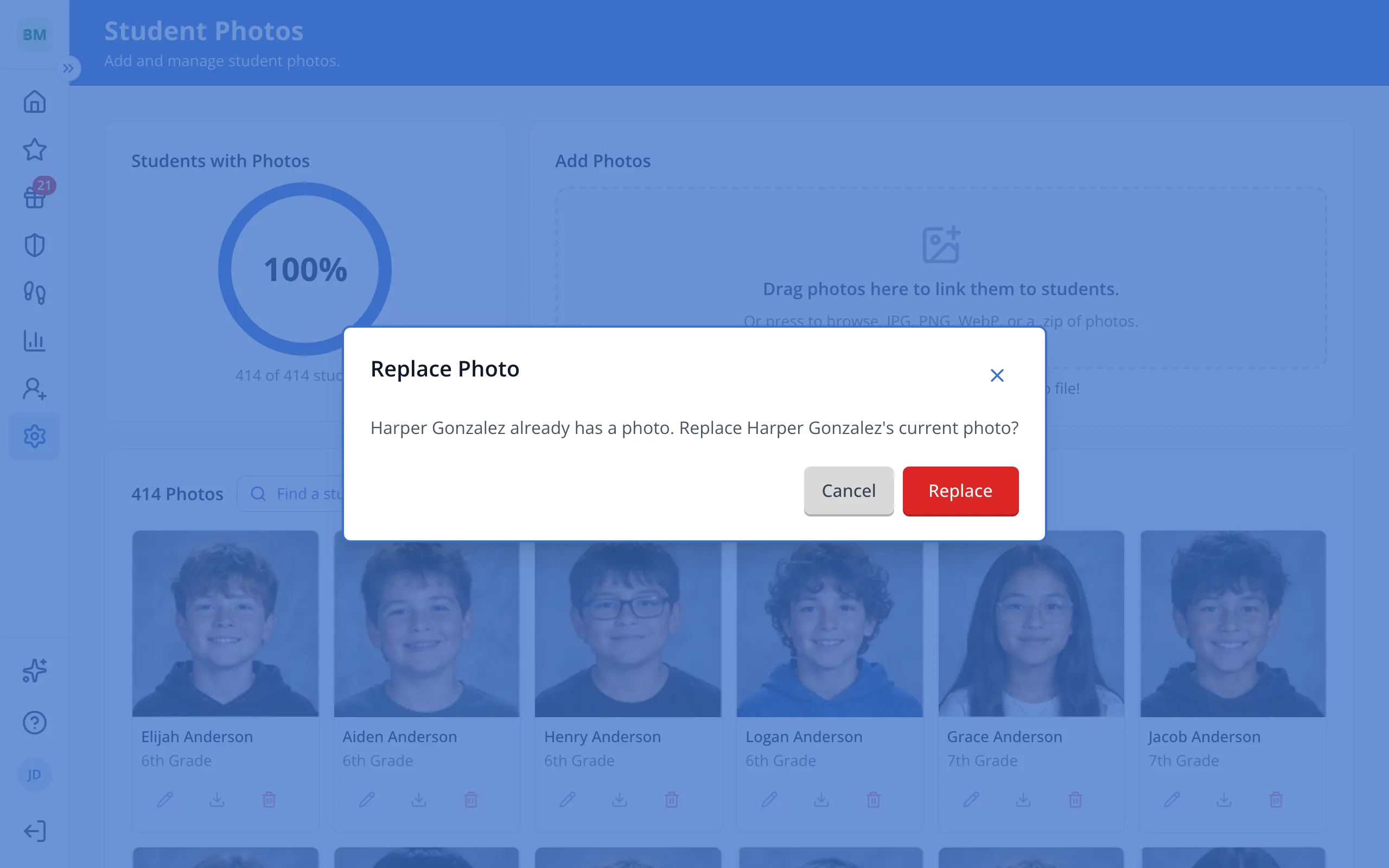
5.If that student already has a photo, click Replace.
6.Click Upload photo to add the first student's own photo.