
Upload photos for many students at once
Drop in a whole batch of photos, then match each one to its student. Each photo uploads as soon as you link it.
AdminSite Leader
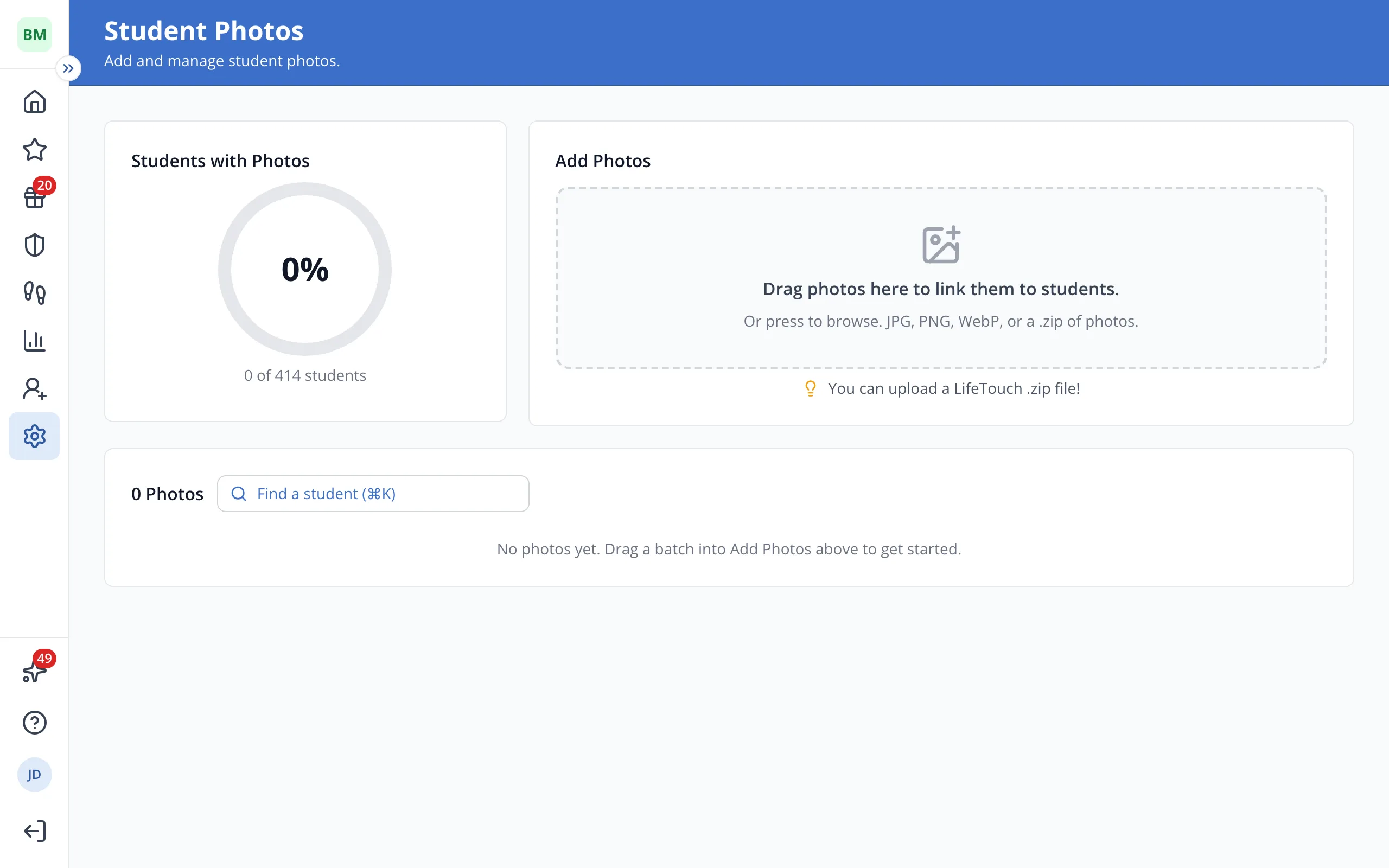
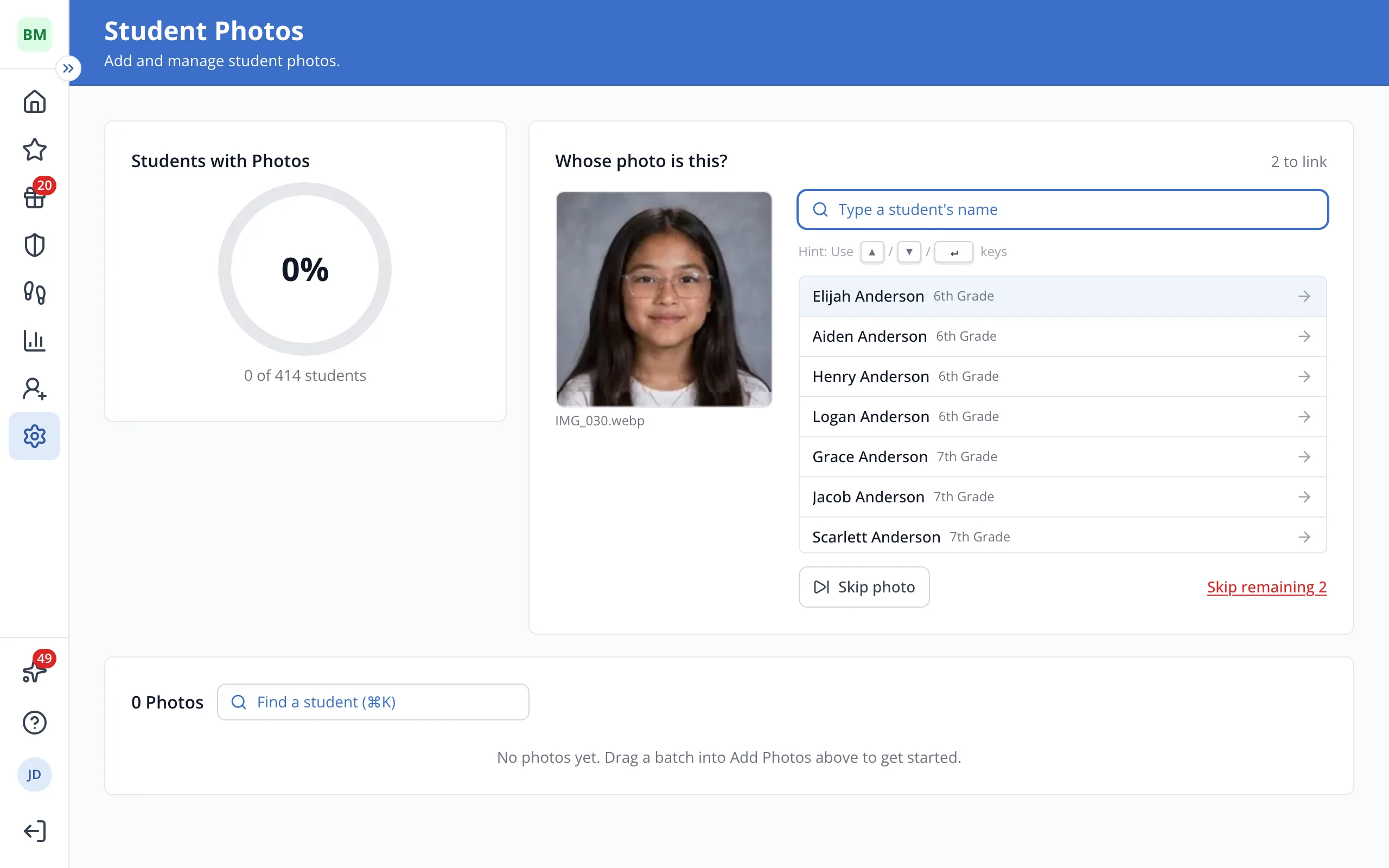
1 / 6Drag your photos into Add Photos, or click it to pick them from your computer.
1.Drag your photos into Add Photos, or click it to pick them from your computer.
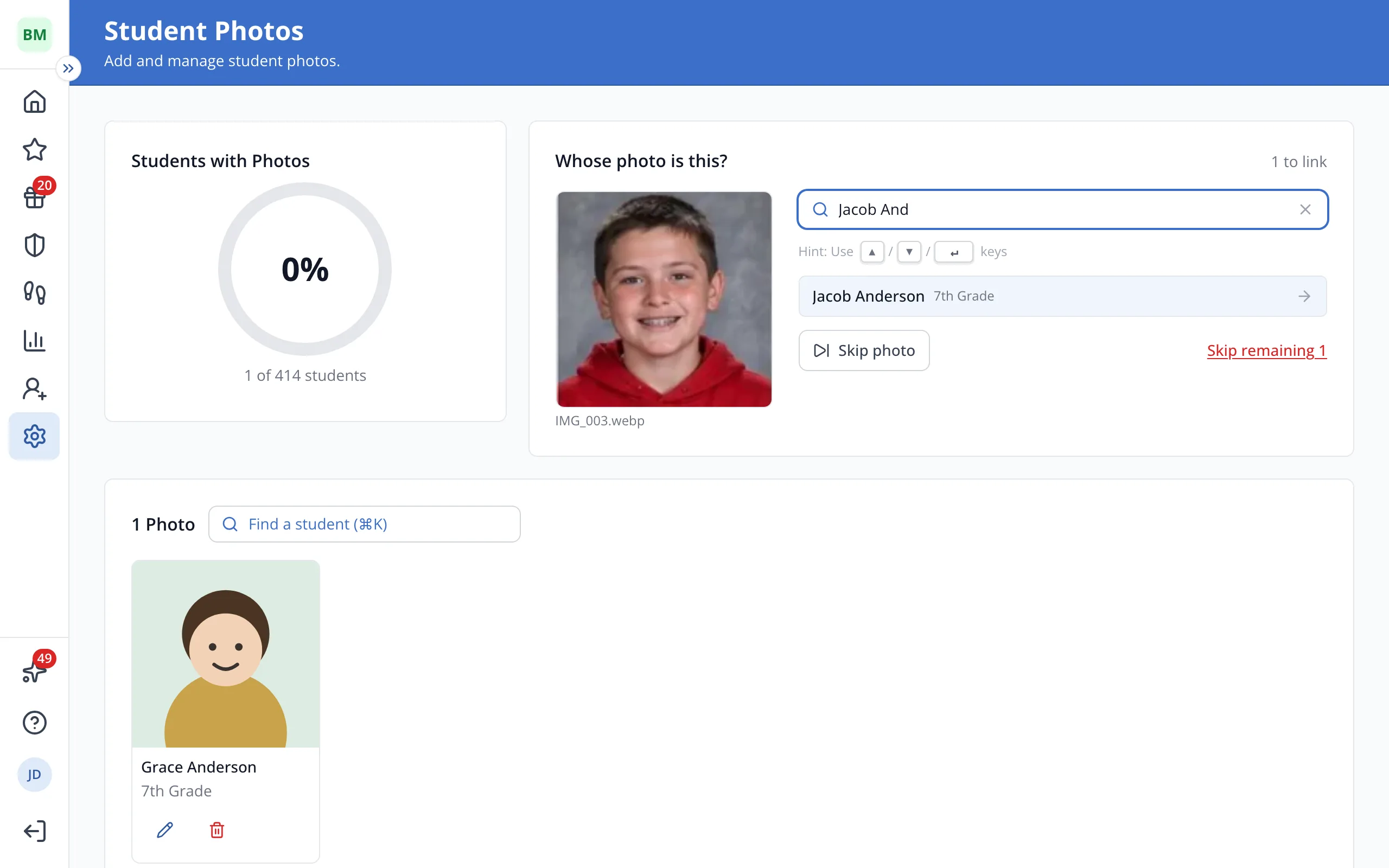
2.Type the name of the student in the photo.
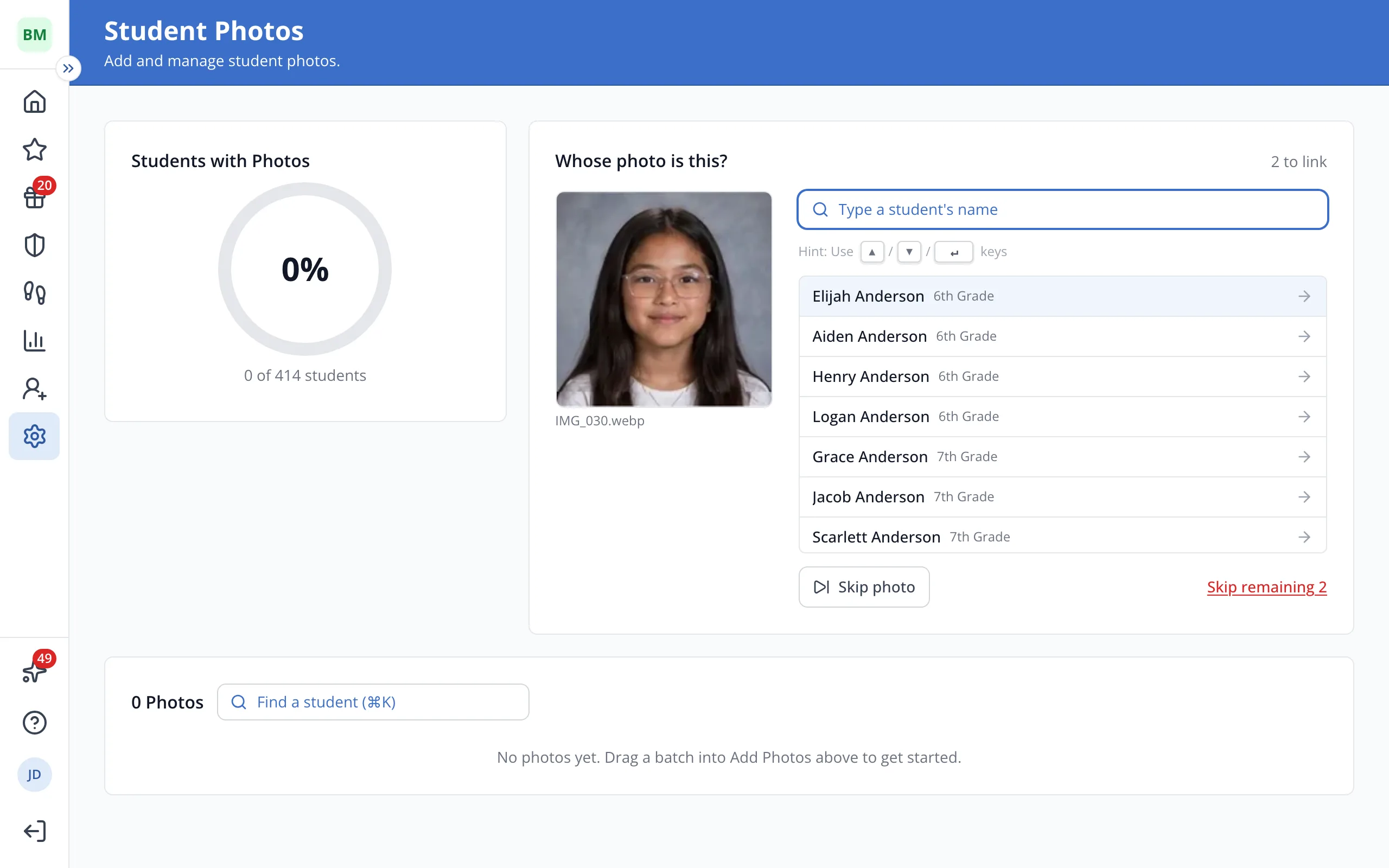
3.Click the student.
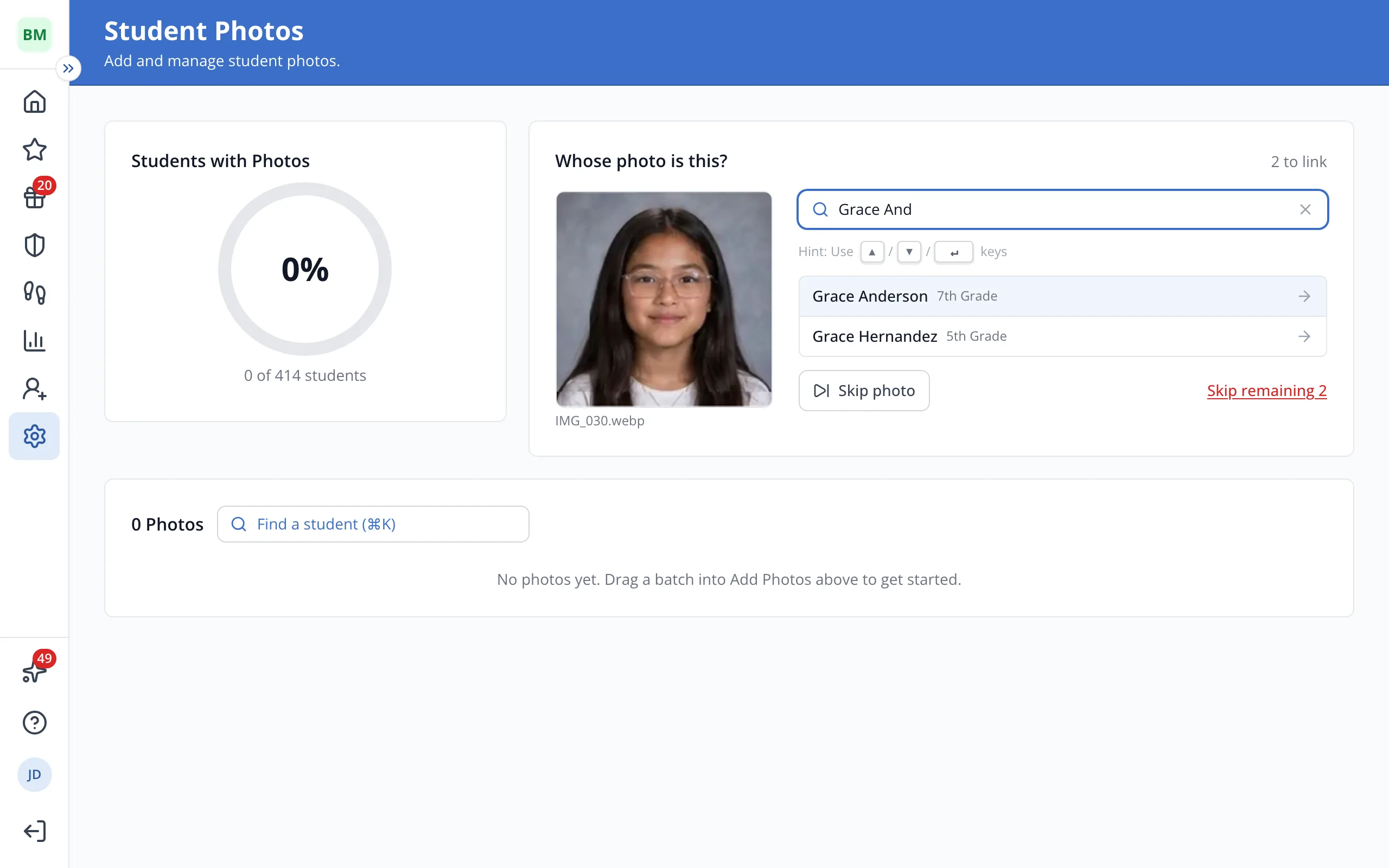
4.The next photo opens. Type that student's name.
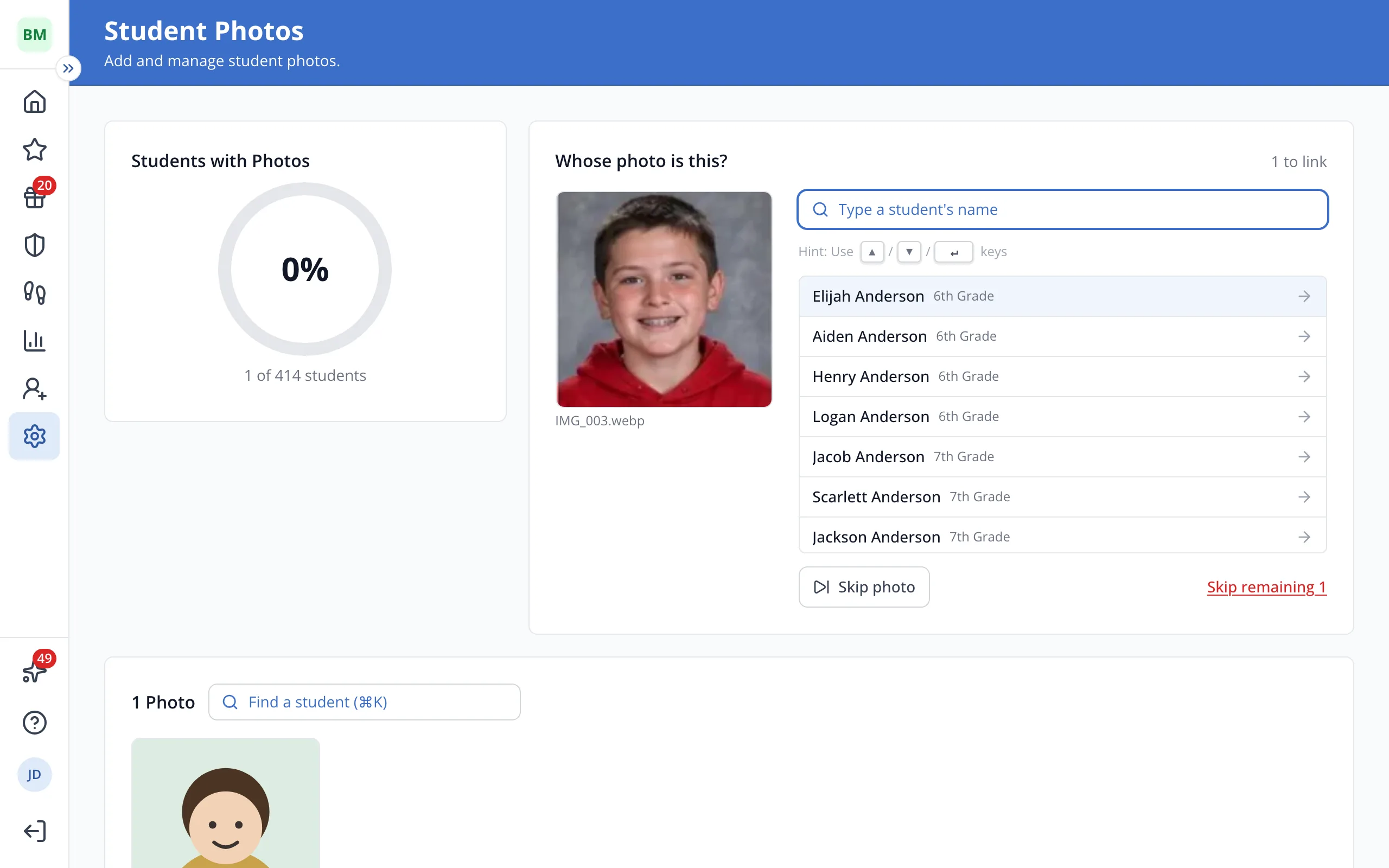
5.Click the student. Keep going until every photo is linked.
Was this helpful?